
1. Introduction
This manual provides essential information for the proper setup, operation, and maintenance of your LG 45GR95QE Ultragear 45-Inch Curved OLED Gaming Monitor. Please read this manual thoroughly before using the product to ensure safe and optimal performance.
The LG 45GR95QE is a 45-inch WQHD (3440 x 1440) 21:9 curved OLED display designed for gaming. It features a 240Hz refresh rate and a 0.03ms response time, along with AMD FreeSync Premium support.

Figure 1.1: Front view of the LG 45GR95QE Ultragear monitor.
2. Safety Information
Observe the following safety precautions to prevent electric shock, fire, or damage to the product.
- Do not place the monitor near heat sources or in direct sunlight.
- Ensure proper ventilation around the monitor.
- Use only the power cord supplied with the monitor.
- Do not insert any metal objects into the monitor's openings.
- If smoke, strange noises, or odors occur, immediately unplug the power cord and contact customer support.
- Do not attempt to repair the monitor yourself. Refer all servicing to qualified service personnel.
3. Package Contents
Verify that all items are present in the box. If any items are missing or damaged, contact your retailer.
- LG 45GR95QE Monitor Display
- Stand Base
- Stand Neck
- Power Cord
- HDMI Cable
- DisplayPort Cable
- USB Upstream Cable
- User Manual (this document)
4. Setup
4.1 Assembling the Stand
- Place the monitor display face down on a soft, clean cloth to prevent scratches.
- Attach the stand neck to the back of the monitor display. Ensure it clicks into place securely.
- Connect the stand base to the stand neck. Tighten the screw at the bottom of the base to secure it.

Figure 4.1: Illustration of monitor stand assembly.
4.2 Connecting Cables
Refer to the image below for port locations on the back of the monitor.

Figure 4.2: Rear view of the monitor showing various input and output ports.
- Power Connection: Connect the power cord to the monitor's power input and then to a wall outlet.
- Video Connection:
- DisplayPort: For optimal performance, connect the DisplayPort cable from your computer's graphics card to the monitor's DisplayPort input.
- HDMI: Alternatively, connect an HDMI cable from your computer to one of the monitor's HDMI inputs.
- USB Upstream: Connect the USB upstream cable from your computer to the monitor's USB upstream port to enable the monitor's USB downstream ports.
- USB Downstream: Use the USB downstream ports on the monitor to connect peripherals like keyboards, mice, or USB drives.
4.3 Initial Power On
After connecting all necessary cables, press the joystick button located on the bottom center of the monitor to turn it on. The monitor should automatically detect the input signal.
5. Operating Instructions
5.1 On-Screen Display (OSD) Menu
The OSD menu allows you to adjust various monitor settings. Access the OSD menu by pressing the joystick button located on the bottom center of the monitor. Use the joystick to navigate through the menu options.
- Picture Mode: Select from various preset picture modes (e.g., Gamer 1, FPS, RTS, Vivid, Reader) or customize your own.
- Game Adjust: Configure settings like Black Stabilizer, FreeSync Premium, and Response Time.
- Input: Manually select the input source (DisplayPort, HDMI 1, HDMI 2).
- General: Access settings for language, OSD lock, power indicator, and OLED care features.
5.2 Key Features
- 240Hz Refresh Rate: Provides smoother motion for fast-paced gaming. Ensure your graphics card and connection cable support this refresh rate.
- 0.03ms Response Time (GtG): Minimizes motion blur and ghosting for clear visuals during rapid movements.
- AMD FreeSync Premium: Synchronizes the monitor's refresh rate with your AMD graphics card's frame rate to eliminate screen tearing and stuttering. Enable this feature in the OSD menu and your graphics card settings.
- Curved (800R) OLED Display: The aggressive 800R curvature enhances immersion, while OLED technology delivers deep blacks and vibrant colors.
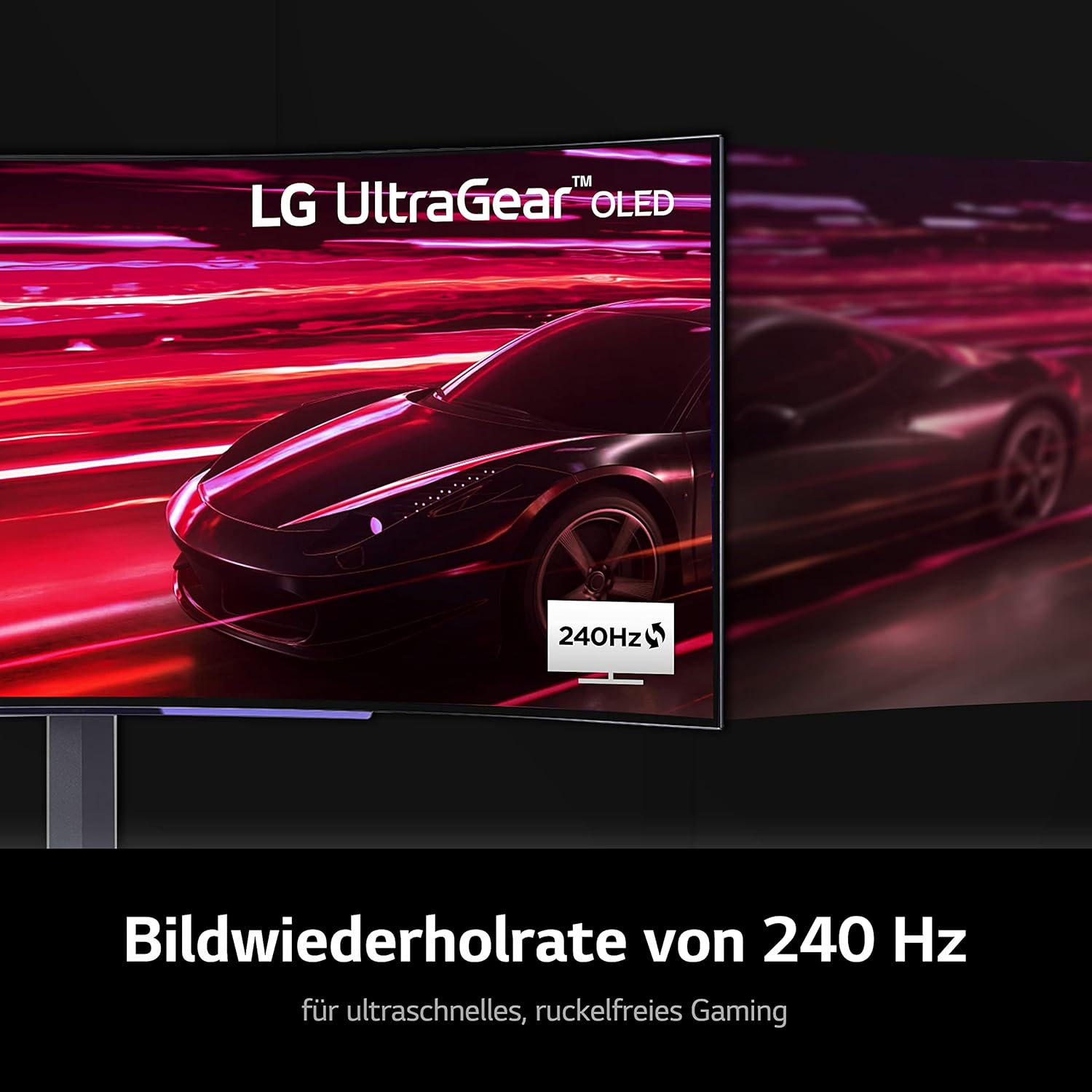
Figure 5.1: Visual representation of the monitor's fast response time in action.
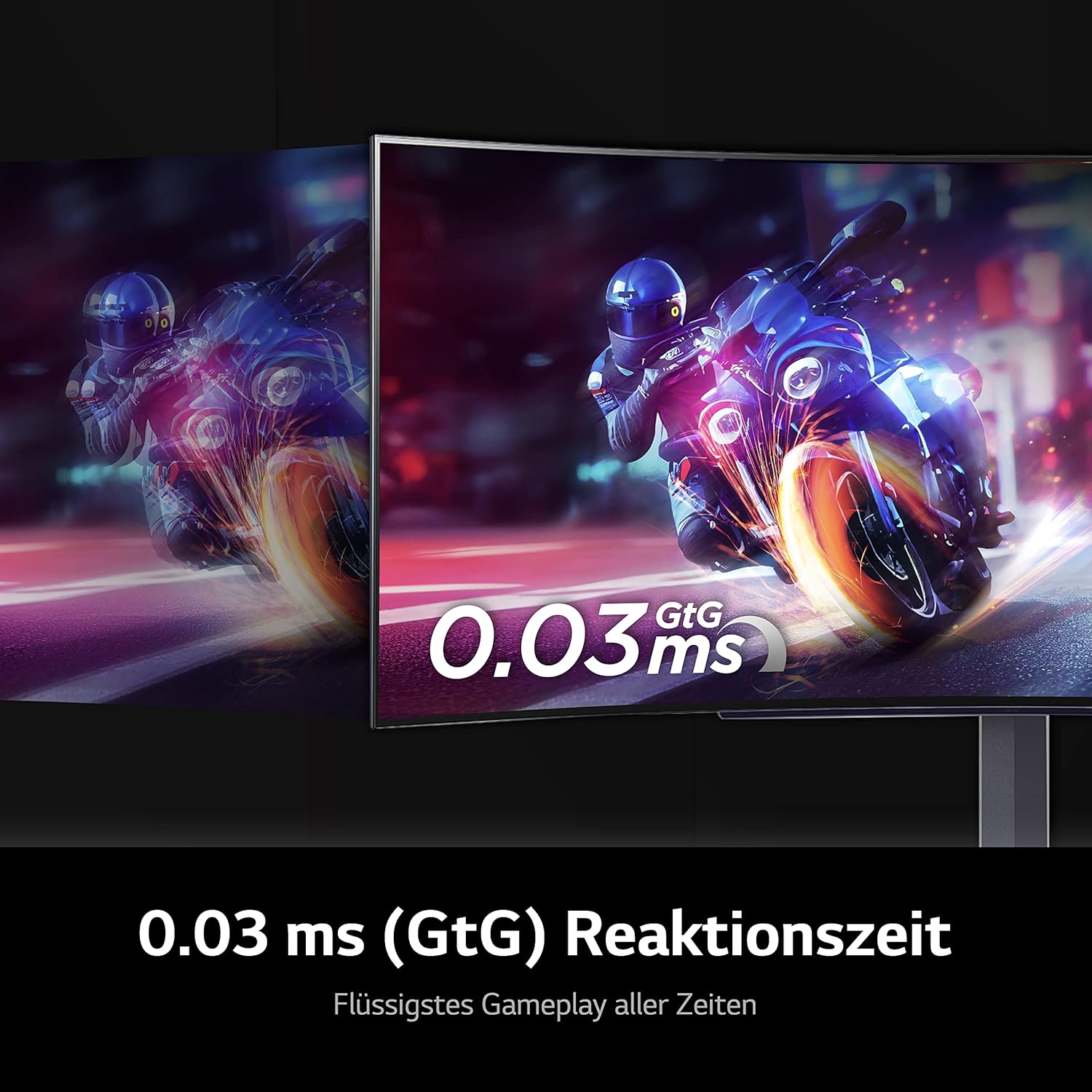
Figure 5.2: Visual representation of the monitor's high refresh rate for smooth gameplay.
5.3 Ergonomic Adjustments
The monitor stand allows for various adjustments to optimize your viewing experience:
- Tilt: Adjust the screen's vertical angle (forward/backward).
- Height: Raise or lower the screen to your preferred eye level.
- Swivel: Rotate the screen horizontally left or right.

Figure 5.3: The monitor's adjustable stand allows for tilt, height, and swivel movements.
5.4 Picture-by-Picture (PbP) and Picture-in-Picture (PiP)
The monitor supports displaying content from two input sources simultaneously. Refer to the OSD menu for PbP/PiP settings to configure the layout and source inputs.
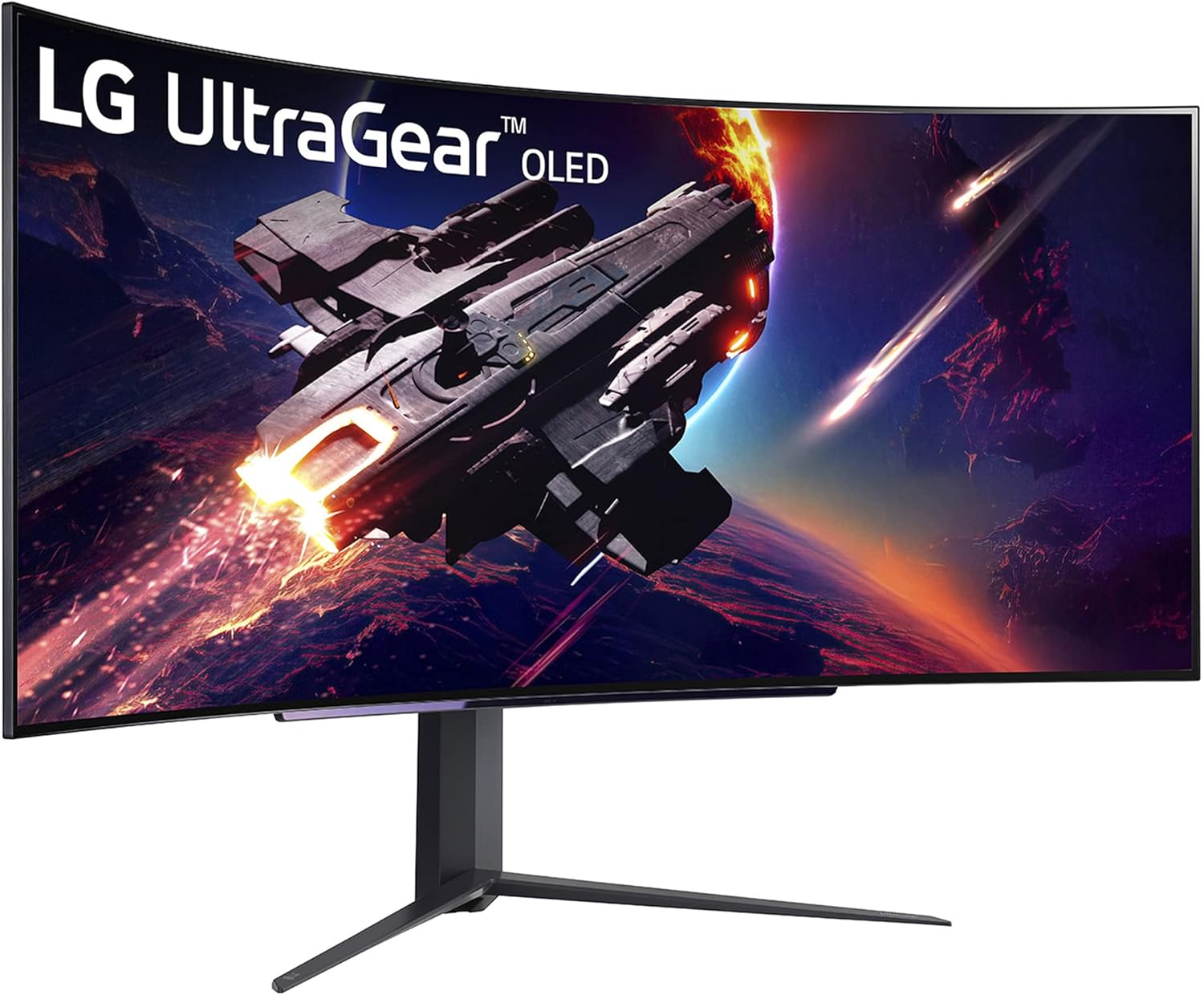
Figure 5.4: The monitor displaying content from two different sources side-by-side (Picture-by-Picture).
6. Maintenance
6.1 Cleaning the Monitor
- Always unplug the monitor before cleaning.
- Use a soft, lint-free cloth lightly dampened with water or a mild, non-abrasive screen cleaner.
- Do not spray cleaner directly onto the screen.
- Avoid using harsh chemicals, alcohol, or ammonia-based cleaners.
6.2 OLED Care Features
OLED displays have specific features to maintain picture quality and prevent image retention. These features are typically found in the OSD menu under "General" or "OLED Care."
- Pixel Cleaning: This function automatically detects and corrects minor pixel issues that may occur over time. It usually runs automatically after a certain number of operating hours when the monitor is turned off.
- Screen Move: Shifts the screen slightly at regular intervals to prevent static images from causing image retention.
- Screen Saver: Activates a screen saver when a static image is displayed for an extended period.
It is recommended to allow these automatic functions to run as scheduled to prolong the life and maintain the quality of your OLED panel.
7. Troubleshooting
| Problem | Possible Cause | Solution |
|---|---|---|
| No power / Power LED off | Power cord not connected or power outlet issue. | Ensure the power cord is securely connected to the monitor and a working power outlet. Check the power switch. |
| No image on screen | Incorrect input source selected or video cable not connected. | Check video cable connections (DisplayPort/HDMI). Select the correct input source via the OSD menu. Ensure the computer is powered on. |
| Image appears blurry or distorted | Incorrect resolution or refresh rate settings. | Set the display resolution to 3440 x 1440 and refresh rate to 240Hz in your computer's display settings. |
| Screen tearing or stuttering | AMD FreeSync Premium not enabled or incompatible graphics card. | Ensure AMD FreeSync Premium is enabled in the monitor's OSD menu and your AMD graphics card control panel. Verify your graphics card supports FreeSync. |
| Image retention / Temporary ghosting | Static images displayed for extended periods. | Utilize the monitor's OLED Care features (Pixel Cleaning, Screen Move, Screen Saver). Avoid displaying static images for very long durations. |
8. Specifications
| Feature | Detail |
|---|---|
| Model Name | LG 45GR95QE |
| Display Type | OLED |
| Screen Size | 45 Inches |
| Resolution | WQHD (3440 x 1440) |
| Aspect Ratio | 21:9 |
| Curvature | 800R |
| Refresh Rate | 240Hz |
| Response Time | 0.03ms (GtG) |
| Adaptive Sync | AMD FreeSync Premium |
| Connectivity | DisplayPort, HDMI, USB Upstream, USB Downstream |
| Ergonomics | Tilt, Height, Swivel Adjustable |
| Dimensions (with stand) | 14.29 x 39.09 x 25.51 inches (approx.) |
| Weight (with stand) | 24 pounds (approx.) |
9. Warranty and Support
For detailed warranty information and technical support, please refer to the warranty card included with your product or visit the official LG website.
LG Customer Support: www.lg.com/us/support
Please have your model number (45GR95QE) and serial number ready when contacting support.