
Microsoft IX8-00003
Microsoft Presenter+ Wireless Presenter User Manual
Model: IX8-00003
Introduction
The Microsoft Presenter+ is a wireless presenter designed to enhance your presentations and virtual meetings. It connects via Bluetooth and features dedicated buttons for microphone control, slide navigation, screen functions, and Microsoft Teams integration. This manual provides instructions for setup, operation, maintenance, and troubleshooting.
Product Overview
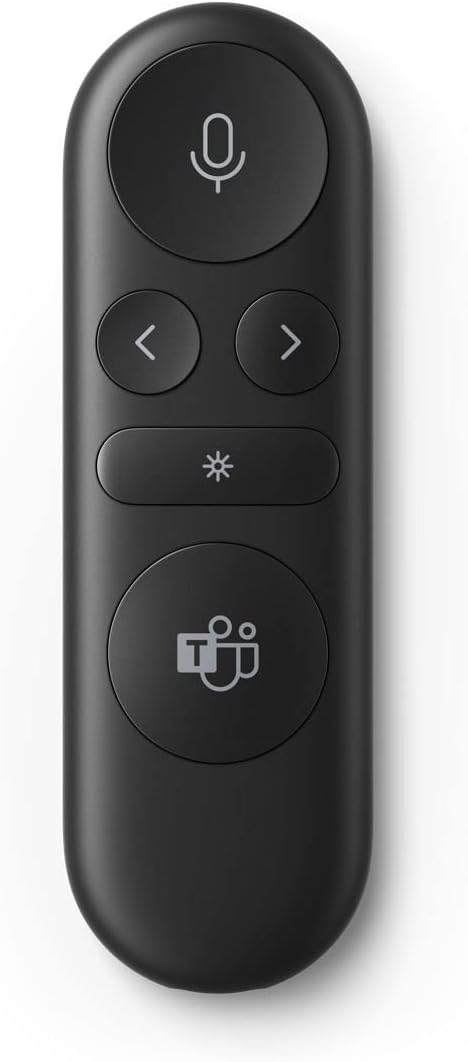
Figure 1: Front view of the Microsoft Presenter+ showing its primary control buttons.
The image above displays the Microsoft Presenter+ in black. From top to bottom, the buttons are:
- Microphone Button: Located at the top, this circular button features a microphone icon and is used for muting/unmuting your microphone during calls.
- Navigation Buttons: Two smaller circular buttons below the microphone button. The left arrow button is for navigating backward, and the right arrow button is for navigating forward in presentations or documents.
- Screen Control Button: A rectangular button with an asterisk or star icon. This button typically controls screen functions like laser pointer activation or screen blanking.
- Microsoft Teams Button: The largest circular button at the bottom, featuring the Microsoft Teams logo. This button is dedicated to quick access and control within Microsoft Teams meetings.
Setup
1. Powering On/Off
The Microsoft Presenter+ typically powers on automatically when active and enters a low-power state when idle. Refer to the device's physical design for a dedicated power switch if available, or check the manufacturer's official documentation for specific power management details.
2. Bluetooth Pairing
- Ensure your computer or device has Bluetooth enabled.
- Put the Microsoft Presenter+ into pairing mode. This usually involves pressing and holding a specific button (often the Teams button or a dedicated pairing button) until an indicator light flashes. Consult the device's packaging or quick start guide for the exact pairing procedure.
- On your computer, navigate to Bluetooth settings and search for new devices.
- Select "Microsoft Presenter+" from the list of available devices to complete the pairing process.
- A confirmation message or solid indicator light on the presenter will confirm successful pairing.
Operating Instructions
Once paired, the Microsoft Presenter+ can be used to control various functions during presentations and meetings.
- Microphone Button: Press this button to toggle your microphone mute status in compatible applications like Microsoft Teams. An on-screen indicator or a light on the presenter may show the current mute status.
- Navigation Buttons (< and >):
- Press the left arrow button to go to the previous slide or item.
- Press the right arrow button to advance to the next slide or item.
- Screen Control Button (*): This button's function may vary depending on the application. Common uses include:
- Activating a digital laser pointer.
- Blanking the screen (blackout).
- Highlighting content on screen.
- Microsoft Teams Button: This button provides quick access to Microsoft Teams functionalities.
- A single press can raise/lower your hand in a Teams meeting.
- A long press might open the Teams application or join a scheduled meeting.
Maintenance
Cleaning
To clean your Microsoft Presenter+, use a soft, lint-free cloth. If necessary, slightly dampen the cloth with water or a mild screen cleaner. Avoid using harsh chemicals, abrasive materials, or excessive moisture, as these can damage the device.
Battery Information
The Microsoft Presenter+ is powered by an internal rechargeable battery. To charge the device, connect it to a USB power source using the provided charging cable. An indicator light will typically show the charging status. Avoid exposing the device to extreme temperatures or direct sunlight, which can affect battery life.
Troubleshooting
- Device Not Connecting:
- Ensure Bluetooth is enabled on your computer.
- Verify the presenter is in pairing mode.
- Move the presenter closer to your computer.
- Remove and re-pair the device in your computer's Bluetooth settings.
- Restart your computer.
- Buttons Not Responding:
- Check the battery level of the presenter.
- Ensure the presenter is properly connected via Bluetooth.
- Verify that the application you are using (e.g., PowerPoint, Teams) is active and in focus.
- Some functions may require specific software or drivers to be installed. Check the Microsoft support website.
- Teams Button Not Working:
- Ensure Microsoft Teams is running and you are signed in.
- Check Teams settings for any specific presenter or device configurations.
- Update your Microsoft Teams application to the latest version.
Specifications
| Feature | Detail |
|---|---|
| Model Number | IX8-00003 |
| ASIN | B0BM4QCJ9P |
| Manufacturer | Microsoft |
| Item Weight | 2.2 pounds |
| Package Dimensions | 6.38 x 2.52 x 1.26 inches |
| Connectivity | Bluetooth |
Warranty and Support
The Microsoft Presenter+ is covered by a manufacturer's warranty. For detailed warranty terms and conditions, please refer to the documentation included with your product or visit the official Microsoft support website. For technical assistance, troubleshooting beyond this manual, or warranty claims, please contact Microsoft customer support directly.
Online Support: support.microsoft.com
Official Product Videos
No official product videos from the seller were found in the provided data for this product.
Ask a question about this manual
Ask about setup, troubleshooting, compatibility, parts, safety, or missing instructions. Manuals+ will review the question and use this page’s manual context to help answer it.