1. Introduction
This manual provides detailed instructions for the Strex SP64 Full HD 1080P Projector. Please read this manual thoroughly before operating the device to ensure proper use, optimal performance, and safety. Keep this manual for future reference.
The Strex SP64 projector offers a Full HD 1920x1080P resolution with 7000 lumens brightness, designed for a clear and immersive viewing experience. It supports various connectivity options, including wireless screen mirroring from mobile devices.

Image 1.1: Visual comparison highlighting the enhanced clarity and brightness of the Strex SP64 projector's display.
2. Safety Instructions
Observe the following safety precautions to prevent damage to the projector and ensure user safety:
- Do not look directly into the projector lens when the lamp is on. The intense light can cause eye damage.
- Ensure proper ventilation. Do not block ventilation openings. Overheating can lead to malfunction or fire.
- Do not expose the projector to rain, moisture, or extreme temperatures.
- Use only the power adapter supplied with the projector.
- Place the projector on a stable, level surface to prevent it from falling.
- Do not attempt to disassemble or repair the projector yourself. Refer all servicing to qualified personnel.
- Keep the projector away from children and pets.
3. Package Contents
Verify that all items are present in the package:
- Strex SP64 Projector
- HDMI Cable
- AV Cable
- Power Adapter
- Remote Control
- User Manual (this document)

Image 3.1: Illustration of all items included in the Strex SP64 projector package.
4. Product Overview
Familiarize yourself with the projector's components and interfaces.

Image 4.1: Front and top view of the Strex SP64 projector, showing the lens, control panel, and a smartphone connected wirelessly.
4.1 Key Features
- Full HD 1080P Resolution: Delivers sharp and detailed images.
- 7000 Lumens Brightness: Provides clear visibility even in moderately lit environments.
- Built-in WiFi: Enables wireless screen mirroring from smartphones and tablets.
- Multiple Connectivity Options: HDMI, USB, VGA, AV, and 3.5mm audio output.
- Integrated Speakers: Two built-in Hi-Fi speakers for audio output.
- Keystone Correction: Manual adjustment for image distortion.
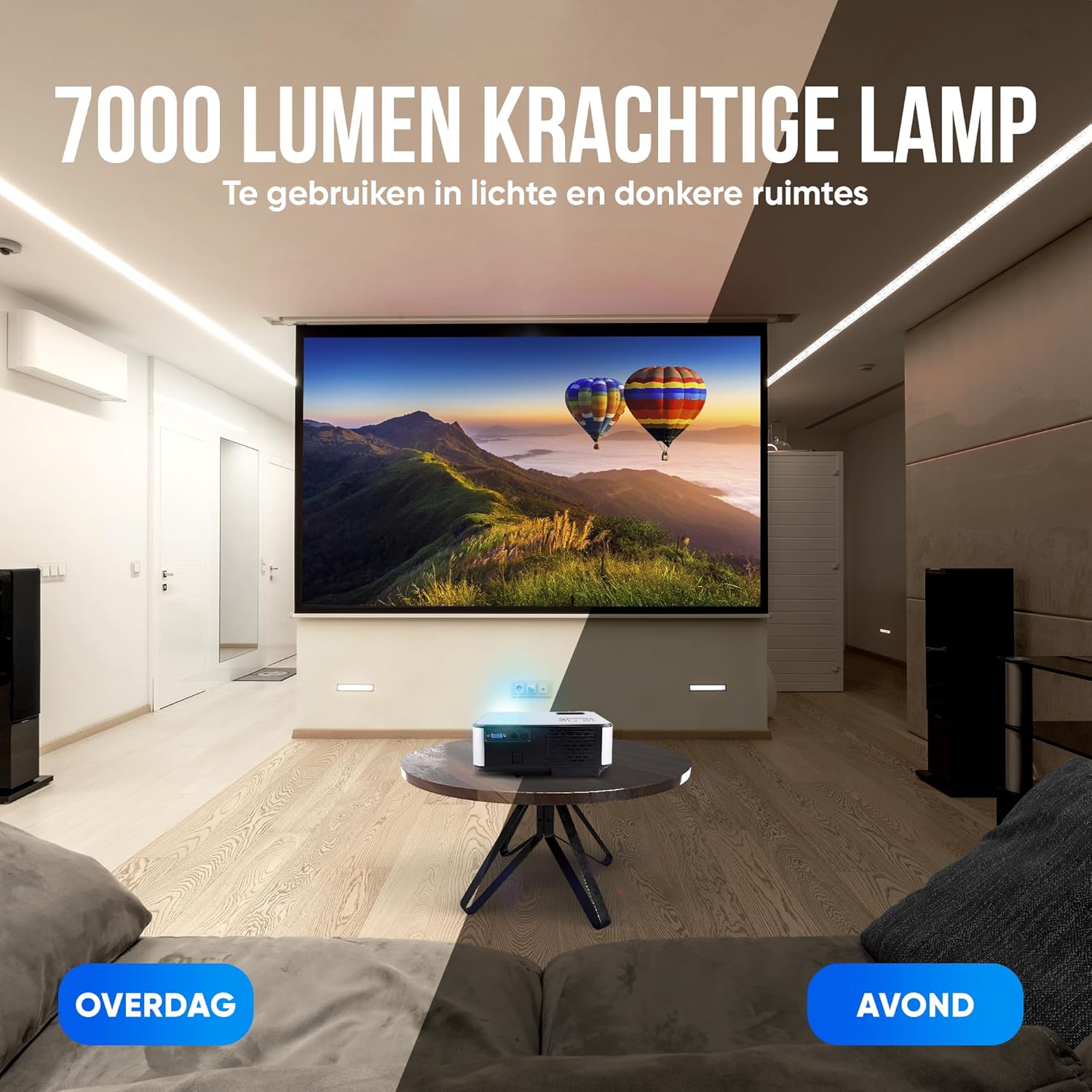
Image 4.2: The projector's 7000 lumen lamp provides clear images in both bright and dark room conditions.
5. Setup
5.1 Placement
Choose a suitable location for your projector. The projection distance typically ranges from 1 meter to 5 meters, allowing for screen sizes between 50 and 200 inches. For optimal image quality, place the projector perpendicular to the projection surface.

Image 5.1: Recommended projection distances and corresponding screen sizes for the Strex SP64 projector.
5.2 Power Connection
- Connect the power adapter to the projector's power input port.
- Plug the power adapter into a wall outlet.
- The power indicator light on the projector will illuminate.
5.3 Focus and Keystone Adjustment
After powering on the projector, adjust the focus ring and keystone correction dial (usually located near the lens) until the image is clear and rectangular.
6. Operating Instructions
6.1 Power On/Off
- Power On: Press the power button on the projector or the remote control.
- Power Off: Press the power button again. The projector will go into standby mode.
6.2 Input Source Selection
Use the 'Source' button on the projector or remote control to cycle through available input sources (HDMI1, HDMI2, USB, AV, VGA, Screen Mirroring).
6.3 Menu Navigation
Use the arrow keys and 'OK' button on the projector or remote control to navigate the on-screen menu for settings such as picture mode, sound, and system preferences.
7. Connectivity
The Strex SP64 projector supports various devices and connection methods.

Image 7.1: Overview of compatible devices and available connection ports on the Strex SP64 projector.
7.1 HDMI Connection
Connect your laptop, gaming console, or other HDMI-enabled devices using an HDMI cable to one of the projector's HDMI ports.
7.2 USB Connection
Insert a USB drive into the USB port to play media files (photos, videos, music, text documents) directly from the drive.
7.3 VGA Connection
Connect older computers or devices using a VGA cable to the VGA port.
7.4 AV Connection
Use the provided AV cable to connect devices with AV output, such as DVD players.
7.5 Wireless Screen Mirroring (WiFi)
The projector features a built-in WiFi chip for wireless screen sharing from your smartphone or tablet (iOS and Android devices are supported). Select 'Screen Mirroring' as the input source and follow the on-screen instructions to connect your device.

Image 7.2: Wireless screen mirroring functionality from various operating systems to the projector.
7.6 Audio Output
The projector has two built-in Hi-Fi speakers. For external audio, connect external speakers or headphones to the 3.5mm audio output port.

Image 7.3: The projector includes integrated speakers and offers connectivity for external audio systems.
8. Specifications
| Feature | Specification |
|---|---|
| Model | SP64 |
| Native Resolution | 1920 x 1080P (Full HD) |
| Brightness | 7000 Lumens |
| Contrast Ratio | 8000:1 |
| LED Lamp Lifetime | 50,000 hours |
| Aspect Ratio | 16:9 / 4:3 |
| Projection Distance | 1M – 5M |
| Projection Size | 50 - 200 inches |
| Keystone Correction | 15 Degrees (Manual) |
| WiFi | Yes (Mobile Screen Sharing) |
| Built-in Speaker | 2x 3W |
| Input Ports | HDMI (x2), USB (x2), VGA, AV, 3.5MM Audio Out |
| Dimensions (L x W x H) | 22.2 x 16.5 x 8.6 cm |
| Weight | 1.88 kg |
9. Troubleshooting
If you encounter issues with your projector, refer to the following common problems and solutions:
- No Image:
- Ensure the projector is powered on.
- Check that the input source selected matches your connected device.
- Verify that the HDMI/VGA/AV cable is securely connected to both the projector and the source device.
- Try a different cable or input port.
- Blurry Image:
- Adjust the focus ring near the lens until the image is sharp.
- Adjust the keystone correction dial to ensure the image is rectangular.
- Ensure the projection surface is flat and smooth.
- No Sound:
- Check the volume settings on both the projector and the source device.
- Ensure that the audio output is not muted.
- If using external speakers, ensure they are properly connected and powered on.
- Wireless Screen Mirroring Issues:
- Ensure both the projector and your mobile device are connected to the same WiFi network.
- Restart both the projector and your mobile device.
- Check for any software updates for your mobile device or projector firmware.
10. Maintenance
10.1 Cleaning the Lens
Use a soft, lint-free cloth specifically designed for optical lenses to gently wipe the projector lens. Do not use abrasive cleaners or excessive force.
10.2 Cleaning the Projector Body
Wipe the exterior of the projector with a soft, dry cloth. For stubborn dirt, a slightly damp cloth can be used, followed by a dry cloth.
10.3 Ventilation
Regularly check that the ventilation openings are clear of dust and debris to ensure proper airflow and prevent overheating.
11. Warranty and Support
For warranty information or technical support, please refer to the purchase documentation or contact Strex customer service. Keep your proof of purchase for warranty claims.


