
Hikity 160C
Hikity 1 Din Carplay Android Auto 5-inch Touchscreen Car Stereo User Manual
Model: 160C
Introduction
Welcome to the user manual for your new Hikity 1 Din Carplay Android Auto Car Stereo. This manual provides detailed instructions for installation, operation, and troubleshooting to ensure you get the most out of your device. Please read this manual thoroughly before using the product.
Product Overview
The Hikity 1 Din Car Stereo features a 5-inch capacitive touchscreen, offering seamless integration with Apple CarPlay and Android Auto. It includes Bluetooth connectivity for hands-free calls and audio streaming, an FM radio tuner, and supports Mirror Link for both Android and iOS devices. The unit also comes with a rear view camera for enhanced safety and supports steering wheel controls.
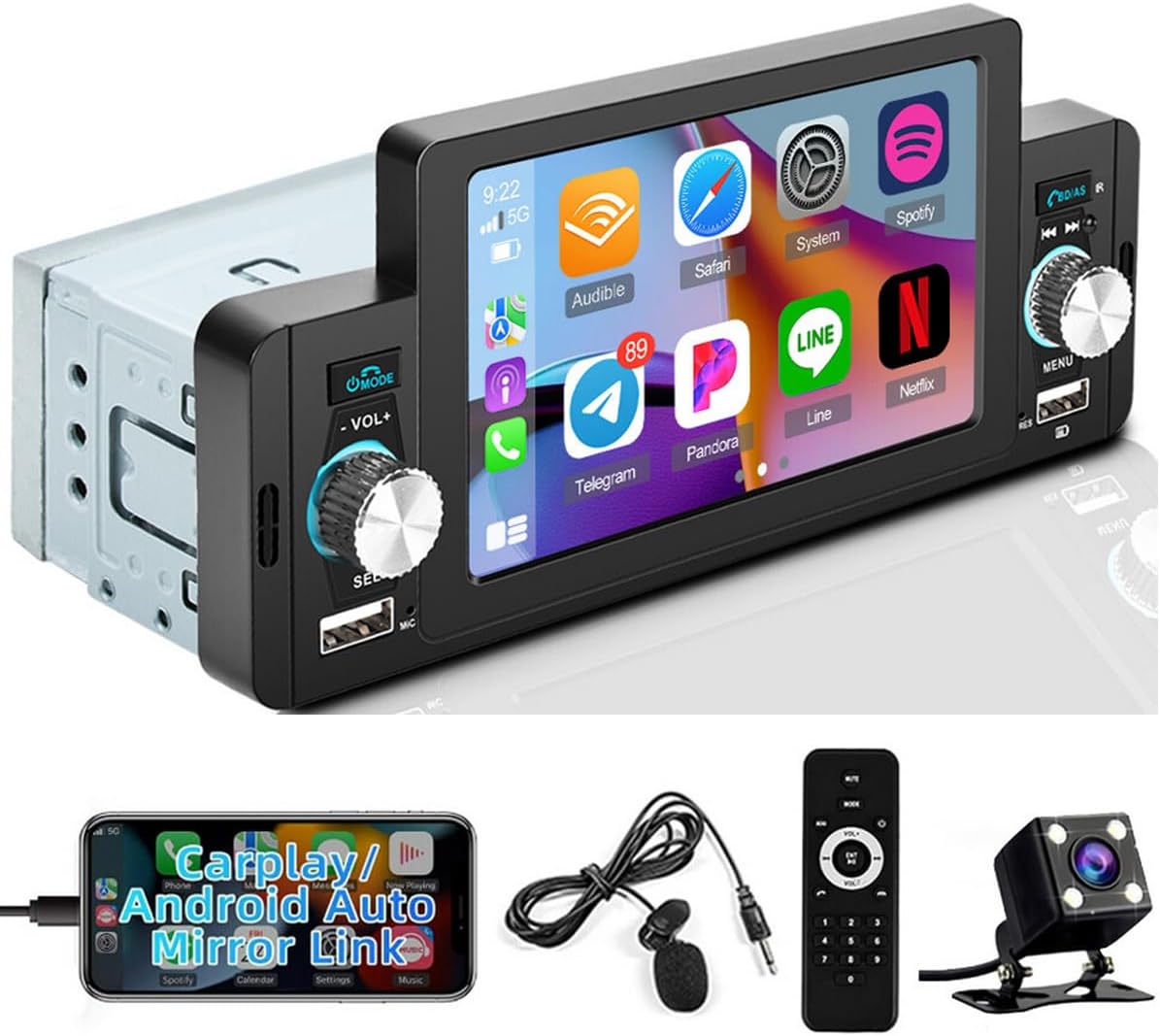
Figure 1: This image displays the main unit of the Hikity 1 Din Car Stereo, a 5-inch touchscreen head unit designed for single DIN slots. Below it are the key accessories: a wired external microphone for clear calls, a remote control for convenient operation, and a compact rear view camera for parking assistance. The main unit features a large display, physical volume/selection knobs, and USB ports.
Specifications
| System | WINCE |
| Model | 160C |
| Screen Size | 5 inches |
| Screen Resolution | 800*480 |
| Voltage | 12V |
| Bluetooth Version | 4.0 |
| Audio Amplifier | 7388 |
| Output Power | 4*45 W |
| USB Interface | USB2.0 (supports fast charging) |
| Reverse Input | CVBS |
| FM Wireless Range | 87.5-108.0 MHz |
| Operating Temperature | -10 ℃ ~ 60 ℃ |
| Audio Formats | MP3/WMA/WAV/APE/FLAC |
| Video Formats | MKV/AVI/TS/TP/MP4/M4V (Max Bitrate 50-80 Mbps) |
| Total USB Ports | 2 (front) |
Package Contents
- 1x Single Din Radio Unit
- 1x Remote Control
- 1x Power Cable
- 1x Audio Cable
- 1x Microphone
- 1x Mounting Bracket
- 1x User Manual

Figure 2: This diagram illustrates the physical dimensions of the Hikity 1 Din car stereo, including its 126mm width, 82mm height (screen), and 177mm chassis width. It also visually lists the package contents: Rear Camera, Microphone, Remote Control, Horn Wire, Power Cable, Mounting Bracket, and details the pinout for the power and audio connections.
Setup and Installation
Proper installation is crucial for optimal performance. It is recommended to have this unit installed by a professional.
Wiring Diagram
Refer to the included wiring diagram for correct connections. Ensure all connections are secure before powering on the unit.
Mounting
The unit is designed for a standard 1 DIN slot. Use the provided mounting bracket to secure the unit in your vehicle's dashboard.

Figure 3: This image shows a 'Before installation' view of a standard car radio in a dashboard, and an 'After installation' view demonstrating how the Hikity 1 Din car stereo with its 5-inch screen fits into the same slot, providing a modern upgrade to the vehicle's infotainment system.
Operating Instructions
Power On/Off
Press the power button (usually marked with a power symbol) to turn the unit on or off.
Volume Control
Use the volume knob or the remote control to adjust the audio level.
Apple CarPlay & Android Auto
Connect your iPhone or Android smartphone via a USB cable to the designated USB port. The system will automatically launch CarPlay or Android Auto, allowing access to navigation, music, calls, and other compatible apps directly from the car stereo's screen.

Figure 4: This image illustrates the Apple CarPlay and Android Auto interfaces displayed on the car stereo's screen. It shows how navigation apps like Apple Maps or Google Maps are integrated, along with music playback controls. A diagram below demonstrates the wired connection method for both iOS and Android devices to enable these features.
Bluetooth Function
Pair your mobile device with the car stereo via Bluetooth to enable hands-free calling and wireless audio streaming.
- Go to the Bluetooth menu on the car stereo.
- Enable Bluetooth on your mobile device and search for available devices.
- Select "Hikity" or the device name displayed on the car stereo to pair.
- Confirm the pairing code if prompted.

Figure 5: This image displays two main functions: the Bluetooth (BT) function, showing a phone call interface and a dial pad on the car stereo screen, indicating successful pairing. The second part illustrates the FM Radio interface, showing frequency tuning and preset options, with a visual representation of radio waves.
FM Radio
Select the FM Radio mode. Use the tuning controls to scan for stations or manually enter frequencies. Save your favorite stations as presets.
Mirror Link
Mirror Link allows you to display your smartphone's screen directly on the car stereo. This feature supports Android 10.1 and earlier, and iOS 13.4 and earlier. Connect your phone via USB and follow the on-screen prompts.

Figure 6: This image visually explains the Mirror Link functionality, where the content from an iOS or Android smartphone is duplicated onto the car stereo's 5-inch screen via a wired USB connection. This allows for viewing phone applications and content directly on the larger car display.
Rear Camera
When the vehicle is shifted into reverse gear, the car stereo will automatically display the view from the connected rear camera, assisting with safe parking.

Figure 7: This image demonstrates two key features: the rear camera display, showing a wide-angle view with parking guidelines on the car stereo screen, and the steering wheel control setup menu, indicating compatibility with vehicle steering wheel buttons for audio and call management.
Steering Wheel Control
The unit supports connection to your vehicle's steering wheel controls. This allows you to manage audio playback, volume, and calls without taking your hands off the steering wheel. Refer to the installation section for wiring details.
Button Backlight Colors
The unit features customizable 7-color button backlights. Navigate to the display settings to choose your preferred color.

Figure 8: This image displays multiple instances of the car stereo unit, each with its physical buttons illuminated in a different color (red, green, blue, yellow, cyan, magenta, white), demonstrating the customizable 7-color button light feature.
Remote Control
The included remote control provides convenient access to various functions from a distance.

Figure 9: This diagram provides a detailed layout of the included remote control for the car stereo. Each button is numbered and labeled with its corresponding function, such as MUTE, MODE, POWER, VOLUME+/-, PREVIOUS/NEXT, HANG UP, ANSWER, and a numeric keypad.
Maintenance
- Keep the screen clean using a soft, dry cloth. Avoid abrasive cleaners.
- Ensure all cables are securely connected.
- Do not expose the unit to extreme temperatures or direct sunlight for prolonged periods.
- If the unit is not in use for an extended period, consider disconnecting it from the power source.
Troubleshooting
No Power
Check the power cable connection. Ensure the vehicle's ignition is on. Verify the fuse.
No Sound
Check speaker wire connections. Ensure volume is not muted or set to minimum. Verify audio source selection.
Bluetooth Pairing Issues
Ensure Bluetooth is enabled on both the car stereo and your mobile device. Delete previous pairings and try again. Move devices closer.
CarPlay/Android Auto Not Connecting
Use a high-quality USB cable. Ensure your phone's operating system is compatible (Android 10.1/iOS 13.4 or earlier). Try restarting both the phone and the car stereo.
Rear Camera Not Displaying
Check the camera's video input connection. Ensure the vehicle is in reverse gear.
Warranty and Support
This product comes with a standard manufacturer's warranty. For warranty claims or technical support, please contact Hikity customer service. Refer to your purchase documentation for specific warranty terms and contact information.
For further assistance, you may visit the Hikity official website or contact their support team.
Related Documents - 160C
 |
CarPlay & Android Auto Player Manual This manual provides instructions for the installation and operation of the CarPlay & Android Auto Player, covering features like radio function, music playback, photo display, Bluetooth connectivity, and system settings. |
 |
Manuale Utente Hikity Autoradio 2 Din Android 7 pollici con GPS e Bluetooth Manuale completo per l'autoradio Hikity 2 Din Android da 7 pollici. Include istruzioni per l'installazione, configurazione di GPS, Bluetooth, ingresso telecamera, gestione file, impostazioni di rete e risoluzione dei problemi. |
 |
Hieha Double Din Car Stereo: Installation and Usage Tips Discover essential tips for your Hieha double din car stereo, covering installation, compatibility with smartphones (Android Auto, CarPlay, Mirror Link), voltage requirements, and troubleshooting. |
 |
CarPlay and Android Auto Car Stereo User Manual Comprehensive user manual for a car stereo system supporting Apple CarPlay, Android Auto, MirrorLink, Bluetooth, and various media playback options. Includes installation, operation, and troubleshooting guides. |
 |
Single Din Android 13 Car Stereo 9.5" Touchscreen Receiver - User Manual Comprehensive user manual for the Single Din Android 13 car stereo receiver (Model 9510A) featuring a 9.5" touchscreen, wireless CarPlay, Android Auto, GPS navigation, Bluetooth, WiFi, and mirror link functionality. Includes installation, operation, and troubleshooting guides. |
 |
Hikity 7-Inch Double Din Car Stereo User Manual | Bluetooth, MirrorLink, DVR Comprehensive user manual for the Hikity 7-Inch Double Din Car Stereo. Learn about installation, features, operation, troubleshooting, and more. Includes Bluetooth, MirrorLink, DVR, and backup camera support. |
Ask a question about this manual
Ask about setup, troubleshooting, compatibility, parts, safety, or missing instructions. Manuals+ will review the question and use this page’s manual context to help answer it.