
1. Introduction
The Autel MaxiSys Ultra EV is an advanced intelligent diagnostic tool designed for comprehensive vehicle analysis. It supports electric (EV), hybrid, gasoline, and diesel vehicles, offering a wide range of diagnostic, programming, and service functions. This manual provides detailed instructions for setting up, operating, and maintaining your MaxiSys Ultra EV scanner.

Figure 1: The Autel MaxiSys Ultra EV scanner and its accompanying diagnostic kit components.
2. Package Contents
Verify that all items are present in your package:
- MaxiSys Ultra EV Tablet
- 5-in-1 MaxiFlash VCMI (Vehicle Communication Measurement Interface)
- EVDiag Box
- Various diagnostic cables and adapters
- Probes and test leads
- Docking charging station
- User Manual and Quick Start Guide

Figure 2: All components of the Autel MaxiSys Ultra EV system, including the tablet, VCMI, EVDiag Box, and various cables and adapters.
3. Setup and Initial Configuration
- Charging the Tablet: Connect the MaxiSys Ultra EV tablet to the docking station or directly to a power source using the provided adapter. Ensure the tablet is fully charged before first use.
- Powering On: Press and hold the power button on the tablet until the Autel logo appears.
- Initial Setup Wizard: Follow the on-screen instructions to select your language, time zone, and connect to a Wi-Fi network.
- Software Updates: After connecting to Wi-Fi, navigate to the "Update" application on the tablet's home screen to download and install the latest software versions for the system and vehicle diagnostics. Regular updates ensure compatibility with the newest vehicle models and features.
- VCMI Connection: The 5-in-1 MaxiFlash VCMI connects wirelessly to the tablet via Bluetooth or directly via USB. Ensure the VCMI is charged or powered during use.
- EVDiag Box Connection: The EVDiag Box connects to the VCMI and is used for specialized EV diagnostics, particularly for battery pack analysis. Refer to specific vehicle procedures for proper connection.
4. Operating Instructions
4.1. Vehicle Diagnostics Overview
The MaxiSys Ultra EV provides comprehensive diagnostic capabilities for over 150 vehicle brands, covering models from 1996 to 2025. It supports OE-level all-system diagnostics, including reading and clearing Diagnostic Trouble Codes (DTCs), viewing live data, and performing active tests.

Figure 3: The main interface of the Autel MaxiSys Ultra EV, displaying options for New Energy diagnostics, Battery Pack Test, general Diagnostics, Remote Expert, Service functions, ADAS, Data Manager, and Updates.
4.2. EV High-Voltage System Diagnostics
This tool offers advanced diagnostics for electric and hybrid vehicle high-voltage systems. It can generate specific high-voltage system block diagrams for various ECU system modules (e.g., SME, TEE1, CCU, IHKA). These diagrams visually represent the relationships between internal components, including high-voltage line loops and power detection loops.

Figure 4: The MaxiSys Ultra EV displaying a detailed block diagram for a high-voltage system, illustrating component connections and functions.
4.3. Battery Pack Test & Offline Battery Pack Diagnostics
The MaxiSys Ultra EV can analyze battery packs both via OBD and using specialty cables and jumpers for offline analysis. It provides an overview of battery information through a customized graphical interface, including State-of-Charge (SoC), State-of-Health (SoH), overall voltage, temperature, and detailed analysis of individual battery modules. Professional battery maintenance suggestions are also provided.

Figure 5: The MaxiSys Ultra EV screen showing a comprehensive battery pack analysis, including total voltage, current, pack voltage data, module location, temperature, SoC, and SoH.
4.4. 5-in-1 MaxiFlash VCMI
The VCMI integrates five key functions:
- VCI (Vehicle Communication Interface): For vehicle communication.
- Multimeter: Measures voltage, current, resistance, frequency, and diode/duty cycle.
- Waveform Generator: Simulates signals of automotive electronic components.
- Oscilloscope: Displays how a signal varies with time graphically.
- OBD2 CAN Bus Check: Verifies proper operation of control units in the vehicle's electronic control systems.
The VCMI supports J2534, RP1210, CAN-FD, DoIP, and D-PDU protocols, making it a versatile tool for various diagnostic and programming tasks.

Figure 6: The 5-in-1 MaxiFlash VCMI, highlighting its integrated functions as an oscilloscope, waveform generator, OBD CAN bus checker, multimeter, and VCMI manager.
4.5. ECU Programming & Coding
The MaxiSys Ultra EV supports advanced ECU programming and coding, primarily for BMW and Mercedes-Benz vehicles. This includes:
- Programming/rewriting/coding/matching blank ECUs.
- Reprogramming adaptive data after component repair or replacement.
- Remapping control units and updating software to the latest versions.
- Refreshing hidden functions and modifying default parameter values to enhance vehicle performance.

Figure 7: The MaxiSys Ultra EV interface demonstrating OE-level programming and coding capabilities, including customizing adaptive data and activating/deactivating comfort functions.
4.6. Topology Mapping 2.0
Autel's Colored Topology 2.0 provides a visual representation of the real correlation among ECUs based on actual circuits. This feature aids in quickly identifying fault codes and understanding the vehicle's electronic system structure at a glance. It supports over 50 main car brands.
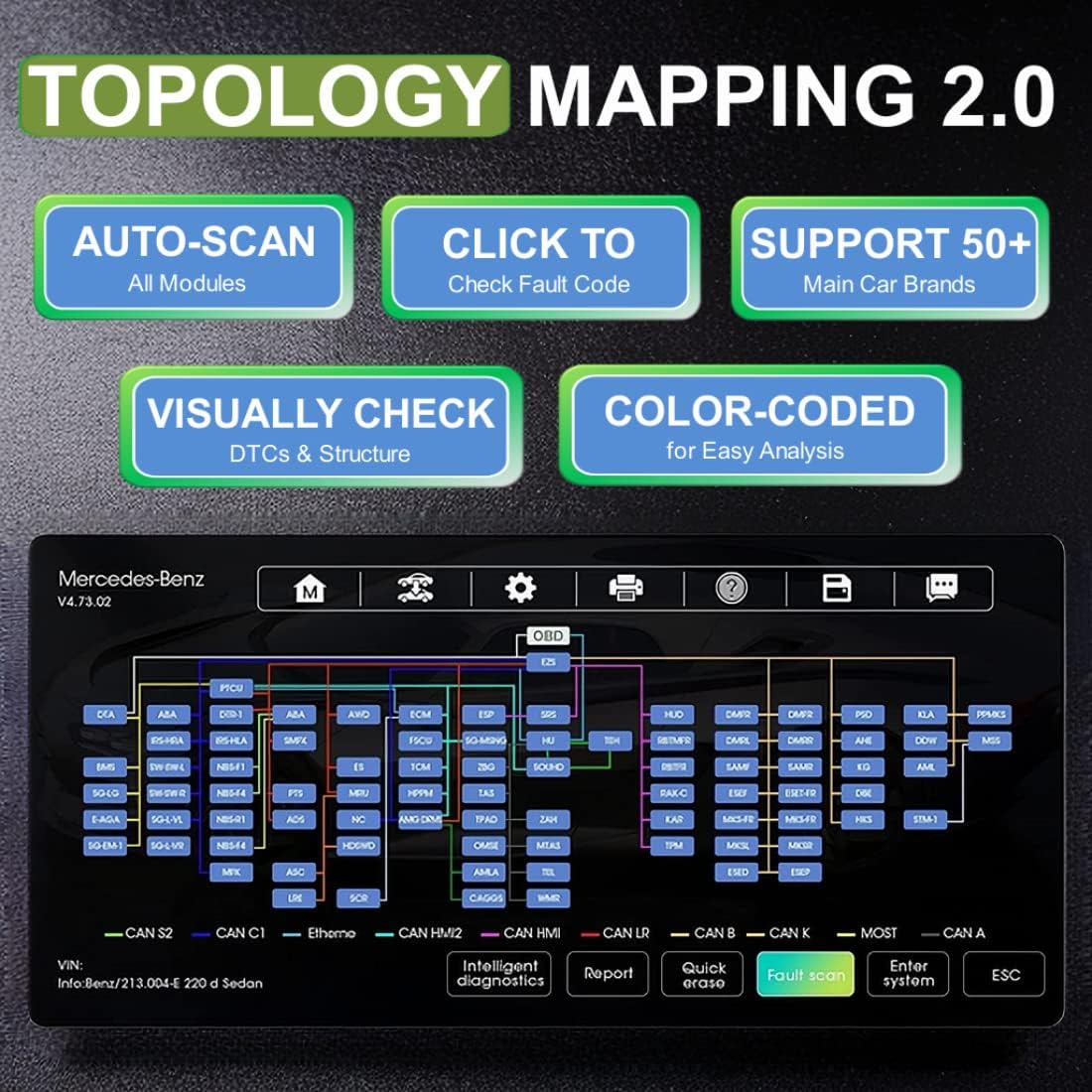
Figure 8: A screenshot of the MaxiSys Ultra EV displaying Topology Mapping 2.0, showing a color-coded network of ECUs for easy fault analysis.
4.7. Active Test & Bi-directional Control
The tool can send commands to vehicle actuators to activate them and monitor their operation, determining their integrity. This includes testing components such as power seats, sunroofs, headlights, and throttle valves.
4.8. Service Functions
The MaxiSys Ultra EV offers over 40 service functions, including but not limited to:
- Oil Reset
- EPB (Electronic Parking Brake) Reset
- SAS (Steering Angle Sensor) Calibration
- BMS (Battery Management System) Reset
- Throttle Reset
- ABS Bleeding
- TPMS (Tire Pressure Monitoring System) Reset
- Airbag Reset

Figure 9: The MaxiSys Ultra EV displaying a selection of its 40+ maintenance functions, such as Oil Reset, Brake Reset, TPMS Reset, EPB Reset, Airbag Reset, and more.
5. Maintenance
- Software Updates: Regularly check for and install software updates to ensure optimal performance and compatibility.
- Battery Care: Charge the tablet and VCMI regularly. Avoid fully discharging the battery frequently to prolong its lifespan.
- Cleaning: Use a soft, damp cloth to clean the tablet screen and device surfaces. Avoid abrasive cleaners or solvents.
- Storage: Store the device and its components in a dry, cool environment, away from direct sunlight and extreme temperatures.
- Cable Inspection: Periodically inspect all cables and connectors for signs of wear or damage. Replace damaged components immediately.
6. Troubleshooting
- Device Not Powering On: Ensure the battery is charged. Connect to the power adapter and try again. If the issue persists, contact customer support.
- No Communication with Vehicle:
- Verify the VCMI is properly connected to the vehicle's OBD-II port and powered on.
- Ensure the VCMI is wirelessly connected to the tablet (Bluetooth) or via USB.
- Check vehicle ignition status.
- Confirm vehicle model and year selection in the software.
- Inspect OBD-II cable for damage.
- Software Freezes/Crashes: Restart the tablet. Ensure the software is up to date. If the problem continues, perform a factory reset (data backup recommended) or contact customer support.
- Inaccurate Readings: Ensure all connections are secure. Calibrate sensors if applicable. Verify vehicle data is correctly entered.
For complex issues or technical assistance, refer to the "Remote Expert" function on the tablet or contact Autel customer support.
7. Specifications
| Feature | Detail |
|---|---|
| Model | MaxiSys Ultra EV |
| Operating System | Android 7.0 |
| Processor | Samsung Exynos8895V octa-core (2.3GHz Quad-core Mongoose + 1.7GHz Quad-core A53) |
| Display | 12.9-inch 2732 x 2048 Touch Screen |
| Battery | 1 Lithium Polymer battery required (approx. 10 hours operation) |
| Item Weight | 60.9 pounds |
| Product Dimensions | 14.43 x 1.34 x 1 inches |
| VCMI Protocols | J2534, RP1210, CAN-FD, DoIP, D-PDU |
| Vehicle Coverage | 150+ brands, 1996-2025 (US, European, Asian Electric, Gas, Diesel, Hybrid) |
8. Warranty and Support
Autel provides customer support for the MaxiSys Ultra EV. For warranty information, please refer to the documentation included with your product or visit the official Autel website. For technical assistance, troubleshooting, or service inquiries, please contact Autel customer support directly.
Online Resources: For additional information, software downloads, and FAQs, visit the official Autel website.


