Introduction
Welcome to the user manual for your AEEZO Kids Tablet. This guide provides essential information on setting up, operating, maintaining, and troubleshooting your device. The AEEZO Kids Tablet is designed with a 7-inch FHD IPS screen, running on Android 10, and features robust parental controls through the pre-installed Kidoz app, offering a safe and engaging digital environment for children.

Figure 1: AEEZO Kids Tablet (Front and Back View)
This image displays the AEEZO Kids Tablet in its protective blue case, highlighting both the front screen and the back with its yellow adjustable ring stand. The tablet is designed for durability and ease of use for children.
What's in the Box
Upon unboxing your AEEZO Kids Tablet, please ensure all the following items are present:
- AEEZO Kids Tablet (Model: AZO7011)
- Protective Case (Pre-installed)
- USB Type-C Charging Cable
- User Manual (This document)
Note: A power adapter (charger) is not included. Please use a 5V 2A charger for optimal charging.
Product Features
The AEEZO Kids Tablet is equipped with features designed for a child-friendly and secure experience:
- 1920x1200 FHD IPS Touch Screen: A 7-inch display with high resolution for clear visuals.
- Pre-installed Kidoz & Parental Control: COPPA-certified app for curated content and robust parental management.
- Android 10 Operating System: GMS-certified for full access to Google services.
- High-Performance Processor: 1.6 GHz quad-core processor for responsive operation.
- Eye Protection: Screen protection film designed to block harmful blue light.
- Adjustable Ring Stand: 360-degree rotating stand integrated into the protective case for versatile viewing angles.
- Dual Cameras: Includes a 2MP front camera and a 5MP rear camera.
- Expandable Storage: Supports up to 128 GB micro SD storage (card not included).
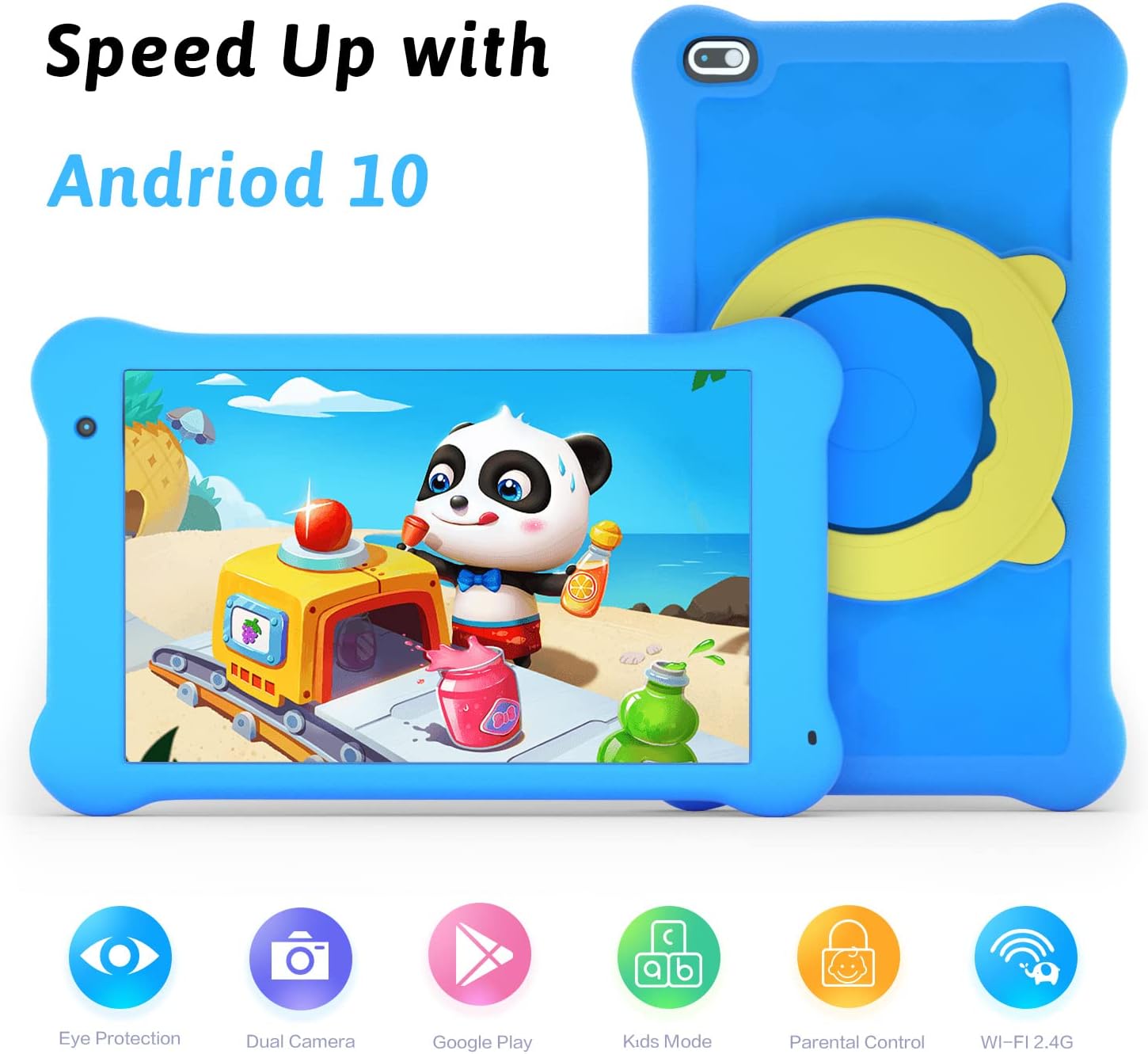
Figure 2: Android 10 Performance
This image illustrates the tablet's performance with Android 10, featuring a vibrant display with a cartoon character, emphasizing its speed and suitability for children's content.

Figure 3: Eye Protection Features
This image highlights the tablet's eye protection features, including its 7-inch FHD IPS display, anti-blue ray touchscreen, and 1920*1200 wide view resolution, designed to reduce eye strain for young users.
Setup Guide
1. Initial Charging
Before first use, fully charge the tablet.
- Connect the provided USB Type-C charging cable to the tablet's charging port.
- Connect the other end of the cable to a 5V 2A power adapter (not included) and plug it into a wall outlet.
- The battery indicator on the screen will show charging status. Allow several hours for a full charge.
2. Power On/Off
- To Power On: Press and hold the Power button located on the side of the tablet until the AEEZO logo appears.
- To Power Off: Press and hold the Power button until a menu appears. Select "Power off" and confirm.
- To Restart: Press and hold the Power button until a menu appears. Select "Restart" and confirm.
3. Wi-Fi Connection
To access online content and download apps, connect the tablet to a Wi-Fi network.
- From the home screen, swipe down from the top to open the Quick Settings panel.
- Tap and hold the Wi-Fi icon to go to Wi-Fi settings.
- Toggle Wi-Fi ON if it's off.
- Select your desired Wi-Fi network from the list.
- Enter the network password if prompted, then tap "Connect".
4. Kidoz Setup and Parental Controls
The AEEZO Kids Tablet comes with Kidoz pre-installed, providing a safe environment for children.
- Launch the Kidoz app from the home screen.
- Follow the on-screen instructions to create a parent account and set up child profiles.
- Within Kidoz parental settings, you can:
- Set daily time limits for tablet usage.
- Filter web content and manage accessible websites.
- Approve or block specific applications.
- Monitor usage statistics.

Figure 4: Parental Control Interface
This image demonstrates the parental control features, showing a family interacting with the tablet while an overlay illustrates options for setting daily time frames and usage limits, ensuring controlled access for children.
Operating Instructions
1. Basic Navigation
- Touch: Tap an icon or option to select it.
- Swipe: Drag your finger across the screen to scroll through pages or lists.
- Pinch-to-Zoom: Place two fingers on the screen and pinch them together or spread them apart to zoom in or out.
- Home Button: Tap the circle icon at the bottom of the screen to return to the home screen.
- Back Button: Tap the triangle icon to go back to the previous screen.
- Recent Apps Button: Tap the square icon to view and switch between recently opened applications.
2. App Management
- Opening Apps: Tap the app icon on the home screen or in the app drawer.
- Closing Apps: Use the Recent Apps button, then swipe the app card away to close it.
- Uninstalling Apps: Press and hold an app icon, then drag it to the "Uninstall" option that appears. Confirm the uninstallation.
3. Google Play Store
The tablet has full access to Google Play Store for downloading additional apps.
- Open the "Play Store" app.
- Sign in with your Google account or create a new one.
- Search for and download desired apps. Remember to manage app permissions and content through Kidoz parental controls.
4. Camera Usage
The tablet features a front (2MP) and rear (5MP) camera.
- Open the "Camera" app.
- Tap the camera switch icon to toggle between front and rear cameras.
- Tap the shutter button to take a photo or start/stop video recording.
- Access photos and videos in the "Gallery" or "Photos" app.

Figure 5: Tablet in Use
This collage shows the AEEZO Kids Tablet being used by children and families in different environments, illustrating its versatility for entertainment and learning at home, outdoors, and in educational settings.
Maintenance
1. Cleaning
- Use a soft, lint-free cloth to clean the screen and tablet body.
- For stubborn smudges, slightly dampen the cloth with water or a screen cleaner. Avoid harsh chemicals.
- Ensure the tablet is powered off and unplugged before cleaning.
2. Storage
- Store the tablet in a cool, dry place away from direct sunlight and extreme temperatures.
- If storing for an extended period, charge the battery to about 50% to prolong its lifespan.
3. Battery Care
- Avoid completely draining the battery frequently.
- Do not leave the tablet plugged in for excessively long periods after it's fully charged.
- Use only the provided charging cable and a compatible 5V 2A charger.

Figure 6: Durable Protective Case
This image emphasizes the durability of the tablet's upgraded thickened case, designed to withstand accidental drops and impacts, making it suitable for active children.
Troubleshooting
| Problem | Possible Cause | Solution |
|---|---|---|
| Tablet won't turn on. | Low battery; System crash. | Charge the tablet for at least 30 minutes. Perform a forced restart by holding the Power button for 10-15 seconds. |
| Wi-Fi connection issues. | Incorrect password; Router issue; Tablet Wi-Fi disabled. | Verify Wi-Fi password. Restart your Wi-Fi router. Ensure Wi-Fi is enabled in tablet settings. Forget and reconnect to the network. |
| Apps are slow or crashing. | Too many apps open; Low storage; App bug. | Close background apps. Clear app cache (Settings > Apps > [App Name] > Storage > Clear Cache). Free up storage space. Update the app or tablet's operating system. |
| Screen is unresponsive. | Temporary software glitch; Physical damage. | Restart the tablet. If the issue persists after restarting, contact customer support. |
| Battery drains quickly. | High screen brightness; Background apps; Heavy usage. | Reduce screen brightness. Close unused apps. Limit continuous video streaming or gaming. Check battery usage in Settings to identify power-hungry apps. |
Specifications
| Feature | Detail |
|---|---|
| Model Name | AZO7011 |
| Screen Size | 7 Inches |
| Screen Resolution | 1920 x 1200 (FHD IPS) |
| Operating System | Android 10 |
| Processor | 1.6 GHz Quad-Core (ARM Chipset) |
| Flash Memory Size | 32 GB |
| Expandable Storage | Up to 128 GB (Micro SD card not included) |
| Rear Camera Resolution | 5 MP |
| Front Camera Resolution | 2 MP |
| Wireless Type | 802.11g (Wi-Fi 2.4G) |
| Battery | 1 Lithium Polymer battery (included) - 2,600mAh |
| Item Weight | 1.36 pounds |
| Product Dimensions (LxWxH) | 7.5 x 4.2 x 0.41 inches |
| Color | New Blue |
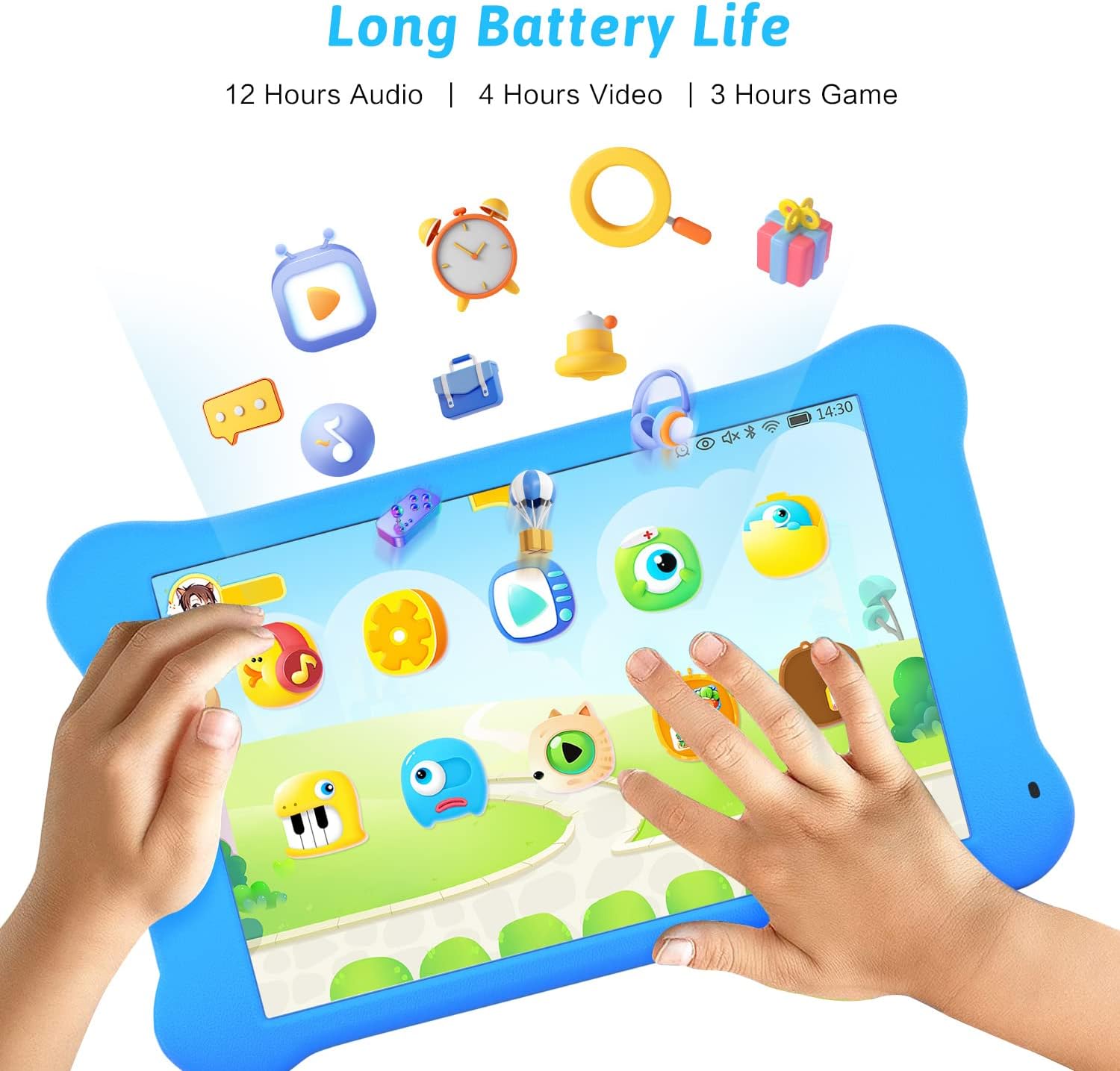
Figure 7: Battery Life Overview
This image provides an overview of the tablet's battery life, indicating approximate usage times for audio (12 hours), video (4 hours), and gaming (3 hours), helping users understand expected performance.
Warranty and Support
AEEZO is committed to providing quality products and customer satisfaction.
- Warranty Information: For details regarding the product warranty, please refer to the warranty card included with your purchase or visit the official AEEZO website.
- Customer Support: If you encounter any issues or have questions not covered in this manual, please contact AEEZO customer support.
- Visit the AEEZO Store on Amazon for product information and support resources.
- Refer to the contact information provided in your product packaging for direct support channels.


