
1. Introduction
This manual provides essential information for setting up, operating, maintaining, and troubleshooting your HP 17 Laptop, Model 17t. Please read these instructions carefully to ensure proper use and longevity of your device.
2. What's in the Box
- HP 17 Laptop (Model 17t)
- 45 W Smart AC power adapter
- Built-in HD Webcam with integrated dual-array digital microphones (integrated into laptop)
3. Product Overview
The HP 17 Laptop features a 17.3-inch HD+ touchscreen display, powered by a 12th Gen Intel Core i7-1255U processor. It includes 64GB DDR4 RAM and a 2TB PCIe NVMe M.2 Solid State Drive for high performance and ample storage. Key features include Wi-Fi 6 connectivity, a backlit keyboard, and a fingerprint reader for enhanced security.
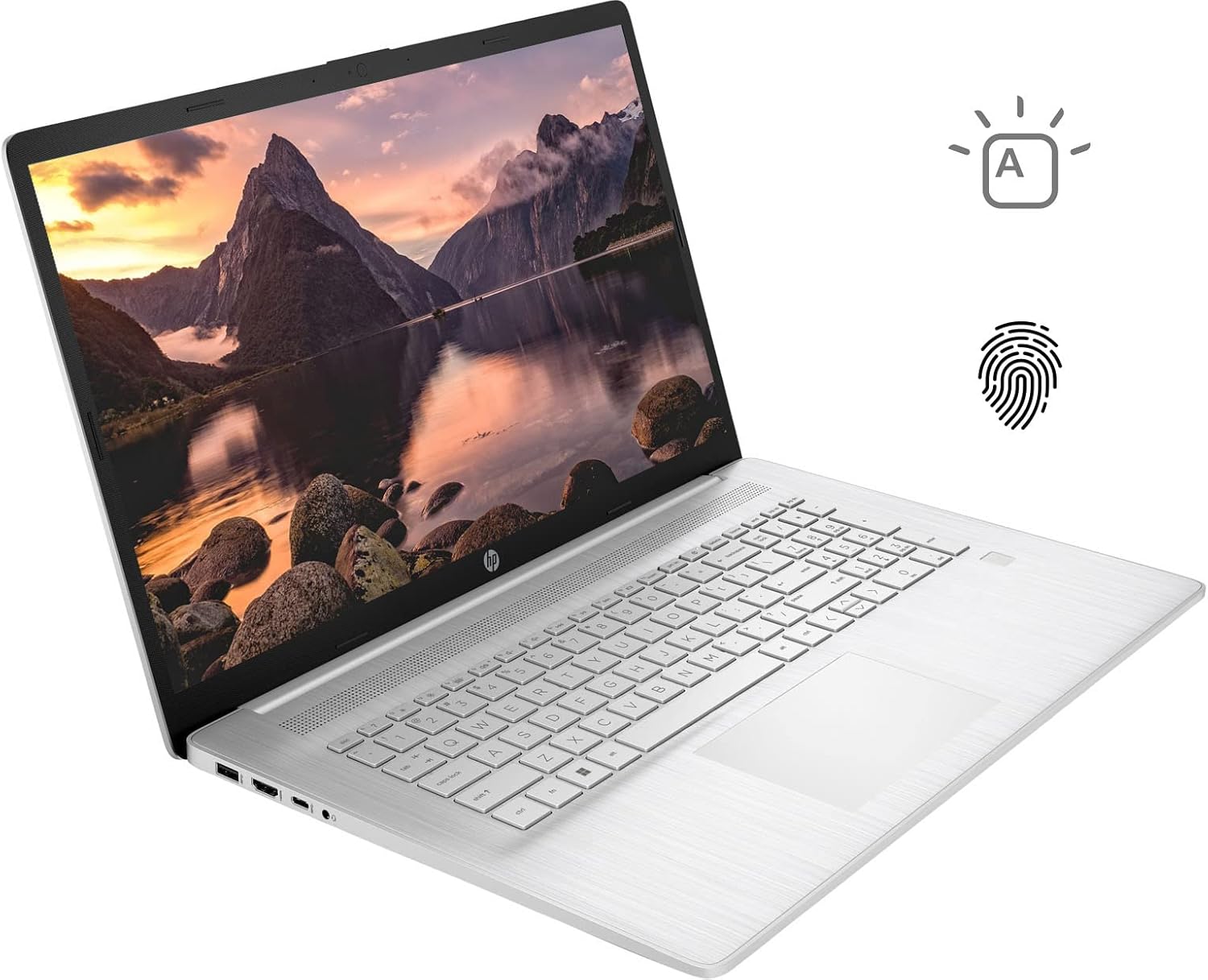
Figure 3.1: HP 17 Laptop with screen displaying a landscape image and keyboard visible.
3.1. Left Side Ports
The left side of the laptop provides essential connectivity options.
- USB Type-A Port: For connecting USB devices.
- HDMI Port: For connecting to external displays.
- USB Type-C Port: For data transfer and connecting compatible devices.
- Headphone/Microphone Combo Jack: For audio input and output.

Figure 3.2: Left side of the HP 17 Laptop, detailing the USB Type-A, HDMI, USB Type-C, and headphone/microphone combo ports.
3.2. Right Side Ports
The right side of the laptop includes additional ports and indicators.
- Power Connector: For connecting the AC power adapter.
- Charging Indicator Light: Shows charging status.
- USB Type-A Port: For connecting USB devices.

Figure 3.3: Right side of the HP 17 Laptop, showing the power connector, charging indicator, and USB Type-A port.
4. Setup
4.1. Initial Power On
- Connect the 45 W Smart AC power adapter to the power connector on the right side of the laptop and then to a power outlet.
- Open the laptop lid.
- Press the power button, typically located on the top right of the keyboard deck.
- Follow the on-screen instructions to complete the Windows 11 Home setup, including language, region, network connection, and user account creation.
4.2. Connecting Peripherals
Use the available USB ports (Type-A and Type-C) to connect external devices such as a mouse, external keyboard, or USB storage devices. The HDMI port allows connection to an external monitor or TV.
5. Operating Your HP 17 Laptop
5.1. Touchscreen Functionality
The 17.3-inch HD+ display supports touch input. You can interact with Windows 11 and applications directly using your fingers for navigation, scrolling, and selection.
5.2. Backlit Keyboard
The keyboard features backlighting for use in low-light conditions. To toggle the backlight, press the F4 key. Repeated presses may cycle through different brightness levels or turn the backlight off.
5.3. Fingerprint Reader
For enhanced security and quick login, configure the integrated fingerprint reader through Windows Hello settings. Access these settings via Settings > Accounts > Sign-in options.
5.4. Wireless Connectivity
The laptop supports Wi-Fi 6 and Bluetooth 5.2. To connect to a Wi-Fi network, click the network icon in the taskbar, select your desired network, and enter the password if required. Bluetooth devices can be paired via Settings > Bluetooth & devices.
5.5. Webcam and Microphones
The integrated HD webcam and dual-array digital microphones are suitable for video conferencing and online communication. Ensure privacy settings are configured correctly in Windows to control application access to the camera and microphone.
6. Maintenance
6.1. Cleaning
- Screen: Use a soft, lint-free cloth lightly dampened with water or a screen cleaner. Avoid harsh chemicals.
- Keyboard and Chassis: Use a soft, dry cloth. A can of compressed air can help remove dust from between keys.
- Ensure the laptop is powered off and unplugged before cleaning.
6.2. Battery Care
- Avoid extreme temperatures.
- For optimal battery life, avoid constantly keeping the laptop at 100% charge or letting it fully discharge frequently.
- Store the laptop with a partial charge (around 50%) if not used for extended periods.
6.3. Software Updates
Regularly check for and install Windows updates via Settings > Windows Update. Also, ensure HP drivers and firmware are up to date using the HP Support Assistant application or HP's official website.
7. Troubleshooting
7.1. Laptop Does Not Power On
- Ensure the AC adapter is securely connected to both the laptop and a working power outlet.
- Check the charging indicator light on the right side of the laptop. If it's not lit, try a different outlet or adapter if available.
- Perform a hard reset: Disconnect the AC adapter, press and hold the power button for 15 seconds, then reconnect the adapter and try to power on.
7.2. Display Issues
- No Display: If the laptop powers on but the screen remains black, try connecting an external monitor via HDMI to check if the issue is with the laptop's internal display.
- Touchscreen Unresponsive: Restart the laptop. If the issue persists, check for updated display drivers or run Windows Troubleshooter for hardware and devices.
7.3. Wi-Fi Connectivity Problems
- Ensure Wi-Fi is enabled in Windows settings.
- Restart your router and modem.
- Run the Windows Network Troubleshooter.
- Update your wireless adapter drivers.
8. Specifications
| Model Name | HP 17t Notebook |
| Display | 17.3" HD+ (1600 x 900) BrightView Touch Screen |
| Processor | 12th Gen Intel Core i7-1255U (10 Cores, up to 4.70 GHz) |
| Graphics | Intel Iris Xe Graphics (Integrated) |
| RAM | 64GB DDR4 |
| Storage | 2TB PCIe NVMe M.2 SSD |
| Operating System | Windows 11 Home |
| Wireless Connectivity | Wi-Fi 6 (2x2), Bluetooth 5.2 |
| Ports | 1x USB Type-C (5Gbps), 2x USB Type-A (5Gbps), 1x HDMI 1.4b, 1x Headphone/Microphone Combo |
| Keyboard | Backlit Keyboard, Numeric Keyboard |
| Security | Fingerprint Reader |
| Camera | Built-in HD Webcam with dual-array digital microphones |
| Battery | 3-cell, 41Wh Lithium-ion prismatic |
| Power Adapter | 45 W Smart AC power adapter |
| Weight | 5.25 pounds (approx. 2.38 kg) |
| Dimensions (LxWxH) | 15.78 x 10.15 x 0.78 inches (approx. 40.08 x 25.78 x 1.98 cm) |
| Color | Silver |
9. Warranty and Support
For warranty information, please refer to the documentation included with your product or visit the official HP support website. If you encounter issues not covered in this manual or require further assistance, please contact HP customer support.
You can find support resources, drivers, and contact information on the official HP website: www.hp.com/support


