
Introduction
This manual provides essential information for setting up, operating, and maintaining your ONN 32-Inch LED 720p HD TV, Model 100012589. This smart television offers 720p resolution, built-in WiFi, and compatibility with voice assistants like Alexa and Google Assistant, providing access to various streaming services.

Figure 1: Front view of the ONN 32-inch LED 720p HD TV. The screen displays a vibrant, colorful abstract pattern, and logos of popular streaming services are visible at the bottom, indicating its smart TV capabilities.
Figure 2: Promotional image highlighting the ONN brand and the TV's 720p HD resolution, emphasizing its suitability for various entertainment needs.
What's in the Box
Please ensure all items are present and undamaged upon unpacking:
- ONN 32-Inch LED 720p HD TV
- TV Stand (2 pieces)
- Remote Control (batteries not included)
- Power Cord
- Quick Start Guide (this manual)
Setup
1. Unpacking
Carefully remove the TV and all accessories from the packaging. Retain the packaging for future transport or storage.
2. Attaching the Stand
Place the TV screen-down on a soft, clean surface to prevent scratches. Align the stand pieces with the mounting holes on the bottom of the TV. Secure them using the provided screws. Ensure the stand is firmly attached before placing the TV upright.

Figure 3: Angled view of the ONN TV, illustrating the TV with its attached stand, ready for placement.
3. Connecting Power
Plug the power cord into the TV's power input, then plug the other end into a wall outlet. Ensure the power outlet is easily accessible.
4. Connecting External Devices
Your ONN TV offers multiple connectivity options for various devices:
- HDMI (3 ports): For connecting Blu-ray players, game consoles, cable/satellite boxes, and other HDMI-enabled devices.
- Composite (1 port): For older devices using RCA cables (red, white, yellow).
- USB (1 port): For connecting USB drives to view photos, videos, or listen to music.
- Optical (1 port): For connecting to soundbars or home theater systems for digital audio output.
- Coaxial/Cable (1 port): For connecting an antenna or cable TV feed.
- Headphone (1 port): For connecting headphones for private listening.

Figure 4: Rear view of the ONN TV, displaying the arrangement of its input and output ports, including HDMI, USB, and audio connections.

Figure 5: Side profile view of the ONN TV, highlighting its slim design and the depth of the stand.
5. Initial Setup and Network Connection
Upon first power-on, the TV will guide you through the initial setup process. This includes selecting your language, country, and connecting to your home Wi-Fi network. A stable internet connection is required to access smart TV features and streaming services.
Operating Instructions
Power On/Off
Press the Power button on the remote control or on the TV itself to turn the TV on or off.
Remote Control Usage
Use the remote control to navigate menus, adjust volume, change channels, select inputs, and access smart TV applications. Familiarize yourself with the button layout for optimal use.
Smart TV Features
Your ONN TV provides instant access to a wide selection of streaming services, including Netflix and YouTube. Navigate through the smart TV interface to find and launch your favorite applications. Ensure your TV is connected to the internet for these features to function.
Voice Assistant Compatibility
This TV is compatible with Alexa and Google Assistant. You can use voice commands to perform actions such as turning the TV on, changing channels, or controlling the volume. Refer to the specific voice assistant's setup guide for integration details.
Input Selection
To switch between connected devices (e.g., cable box, game console, USB drive), press the "Input" or "Source" button on your remote control and select the desired input from the on-screen menu.
Picture and Sound Settings
Access the TV's settings menu to customize picture modes (e.g., Standard, Movie, Sport), adjust brightness, contrast, color, and sharpness. Sound settings allow you to modify audio modes (e.g., Standard, Music, Clear Voice) and adjust bass/treble levels.
Maintenance
Cleaning the Screen
Gently wipe the screen with a soft, lint-free cloth. For stubborn marks, slightly dampen the cloth with water or a specialized screen cleaner. Avoid using harsh chemicals or abrasive materials.
Cleaning the TV Body
Use a soft, dry cloth to wipe the TV's frame and back panel. Do not spray liquids directly onto the TV.
General Care
- Avoid placing the TV in direct sunlight or near heat sources.
- Ensure adequate ventilation around the TV.
- Protect the power cord from being walked on or pinched.
- Unplug the TV during lightning storms or when unused for extended periods.
Troubleshooting
If you encounter issues with your TV, refer to the following common problems and solutions:
| Problem | Possible Solution |
|---|---|
| No Power | Check if the power cord is securely plugged into both the TV and the wall outlet. Try a different outlet. Ensure the power button on the remote or TV is pressed. |
| No Picture, But Sound is Present | Check the input source. Ensure the connected device is powered on and functioning correctly. Try a different HDMI cable or port. |
| No Sound, But Picture is Present | Check the volume level and ensure the TV is not muted. Verify audio cables are correctly connected. If using external audio, check its power and settings. |
| Remote Control Not Working | Replace the batteries in the remote control. Ensure there are no obstructions between the remote and the TV's IR sensor. |
| Cannot Connect to Wi-Fi | Ensure your Wi-Fi router is on and functioning. Re-enter the Wi-Fi password carefully. Try restarting both the TV and your router. |
Specifications
| Feature | Detail |
|---|---|
| Brand Name | ONN |
| Model Number | 100012589 |
| Screen Size | 32 Inches (82 cm diagonal) |
| Display Technology | LED |
| Resolution | 720p |
| Refresh Rate | 60 Hz |
| Aspect Ratio | 1.78:1 |
| Product Dimensions (L x W x H) | 7.1 x 29 x 18.7 inches |
| Item Weight | 7.7 pounds |
| Connectivity Technology | USB, HDMI |
| Number of HDMI Ports | 3 |
| Supported Internet Services | Netflix, YouTube |
| Special Features | Flat Screen, Smart TV, Voice Assistant Compatible (Alexa & Google Assistant) |
| Included Components | TV, Stand |
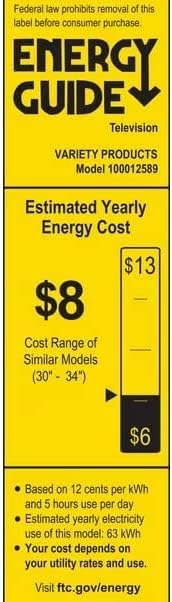
Figure 6: Energy Guide label for the ONN TV, indicating an estimated yearly energy cost of $8 based on typical usage.
Support and Warranty
As this product is an Amazon Renewed item, it is backed by the Amazon Renewed Guarantee. Please refer to the Amazon Renewed product page or your purchase documentation for specific warranty details and return policies.
For technical assistance or further inquiries, please contact Amazon Renewed customer support or the original manufacturer's support channels if applicable. Keep your purchase receipt and model number handy when seeking support.
For general information and troubleshooting, you may also visit the Amazon Renewed Help Page.