
1. Introduction
This manual provides essential information for the installation, operation, and maintenance of your Extreme Networks AP4000-WW Tri-Radio Indoor Wi-Fi 6E Access Point. The AP4000-WW is designed to deliver high-performance wireless connectivity in high-density environments, leveraging advanced Tri-Radio technology and robust security features.
The AP4000-WW supports Wi-Fi 6E, operating across 2.4 GHz, 5 GHz, and 6 GHz bands, offering flexible operational modes for optimal network performance and security. It can be managed via ExtremeCloud IQ for cloud-based control or through a local controller for on-premise deployments.

Figure 1: Extreme Networks AP4000-WW Tri-Radio Indoor Wi-Fi 6E Access Point.
2. Safety Information
Please read all safety warnings and instructions before installing or operating this device. Failure to follow these instructions may result in injury or damage to the product.
- Power Source: Use only the specified power over Ethernet (PoE+) source (802.3at) for this device.
- Installation: Install the device in a dry, indoor environment. Avoid exposure to moisture, extreme temperatures, or direct sunlight.
- Ventilation: Ensure proper ventilation around the device to prevent overheating. Do not block any ventilation openings.
- Servicing: Do not attempt to service this product yourself. Refer all servicing to qualified service personnel.
- Mounting: Ensure the device is securely mounted to a stable surface to prevent it from falling.
3. Setup
3.1 Package Contents
Verify that your package contains the following items:
- Extreme Networks AP4000-WW Access Point
- Mounting Bracket (if included)
- Quick Start Guide
3.2 Physical Installation
The AP4000-WW is designed for indoor deployment and can be mounted on ceilings or walls. Its compact form factor allows for discreet installation.
- Select a Location: Choose a central location for optimal Wi-Fi coverage, free from obstructions.
- Mounting: Secure the mounting bracket (if applicable) to the chosen surface using appropriate hardware. Attach the AP4000-WW to the mounting bracket.
- Power Connection: The AP4000-WW is powered via Power over Ethernet Plus (PoE+), compliant with 802.3at. Connect an Ethernet cable from a PoE+ enabled switch or injector to the Ethernet port on the access point.
- Network Connection: Connect the Ethernet cable from your network infrastructure to the Ethernet port on the AP4000-WW.
Figure 2: The AP4000-WW features a compact design and supports PoE+ for simplified deployment.
3.3 Initial Power On
Once connected to a PoE+ source, the access point will power on automatically. Observe the LED indicators for status. Refer to the Quick Start Guide for specific LED behavior during startup.
4. Operating the Access Point
4.1 Tri-Radio Technology and Operational Modes
The AP4000-WW features advanced Tri-Radio technology, supporting Wi-Fi 6E across three frequency bands: 2.4 GHz, 5 GHz, and 6 GHz. It offers flexible operational modes:
- Mode 1: Configured as three data radios (2.4 GHz, 5 GHz, 6 GHz) for maximum throughput.
- Mode 2: Configured as two data radios (2.4 GHz, 5 GHz) plus a dedicated tri-band sensor (2.4 GHz, 5 GHz, 6 GHz) for continuous threat detection and network optimization.

Figure 3: The AP4000-WW supports Tri-Radio Wi-Fi 6E with flexible operational modes for data and sensing.
4.2 Management Options
The AP4000-WW offers versatile management capabilities:
- Cloud Management with ExtremeCloud IQ: Access and manage your access point from anywhere through the ExtremeCloud IQ platform. This provides centralized control, analytics, and simplified deployment.
- On-Premises Control: For local management, the AP4000-WW supports integration with a local controller.

Figure 4: The AP4000-WW supports both cloud management via ExtremeCloud IQ and on-premises control.
4.3 Advanced Security Features
The AP4000-WW incorporates multiple security protocols to protect your network:
- WPA3: Provides stronger encryption for enhanced wireless access security.
- Private Pre-Shared Key (PPSK): Allows for unique passwords for each user or device, improving network segmentation and security.
- L2-L7 Firewall: Offers deep traffic inspection for comprehensive network protection.
- Tri-frequency Sensor: Provides 24/7 threat detection and mitigation capabilities.
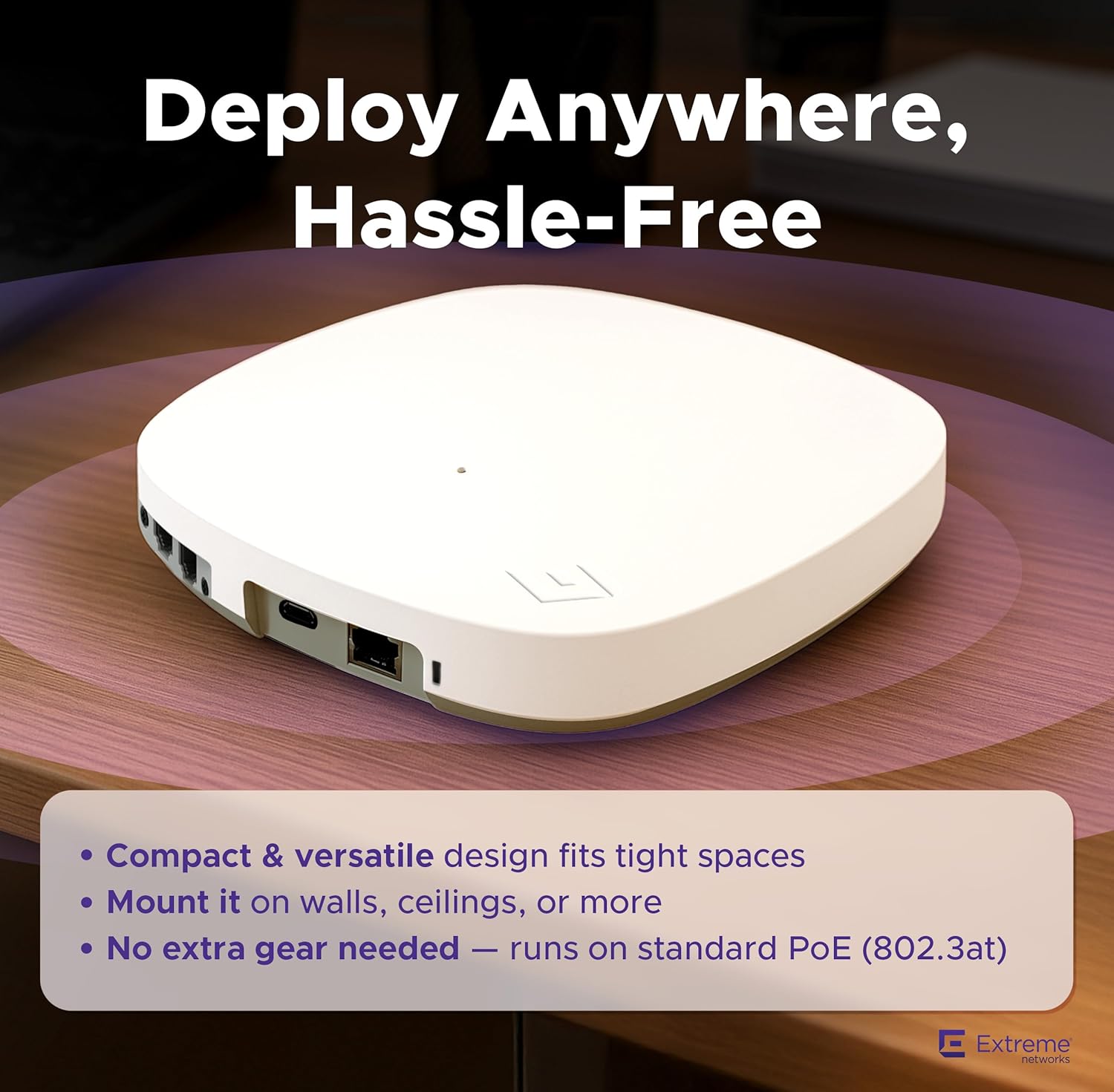
Figure 5: Key security features of the AP4000-WW, including WPA3, L2-L7 Firewall, and PPSK.
4.4 Smart Connectivity and Engagement
The AP4000-WW includes built-in Bluetooth Low Energy (BLE) and a USB port, enabling enhanced IoT connectivity and guest engagement features.

Figure 6: The AP4000-WW integrates BLE and a USB port for smart connectivity and IoT applications.
4.5 Product Overview Video
For a visual overview of the AP4000-WW Tri-Radio Indoor Wi-Fi 6E Access Point, please watch the following video:
Video 1: An overview of the AP4000-WW Tri-Radio Indoor Wi-Fi 6E Access Point, highlighting its features and capabilities.
5. Maintenance
5.1 Firmware Updates
Regularly check for and apply firmware updates to ensure optimal performance, security, and access to the latest features. Firmware updates are typically managed through ExtremeCloud IQ or your local controller interface.
5.2 Cleaning Instructions
To clean the device, use a soft, dry cloth. Do not use liquid or aerosol cleaners, as they may damage the device. Ensure the device is powered off before cleaning.
5.3 Environmental Considerations
Maintain the operating environment within the specified temperature and humidity ranges to ensure the longevity and reliable operation of the access point.
6. Troubleshooting
This section addresses common issues you might encounter with your AP4000-WW access point.
- No Power: Ensure the Ethernet cable is securely connected to a PoE+ (802.3at) compliant power source. Check the power source for functionality.
- No Network Connection: Verify the Ethernet cable connection to your network. Check network switch status and configuration.
- Slow Wi-Fi Performance: Check for potential interference from other devices. Ensure the access point is optimally placed. Verify channel selection and power settings in your management interface.
- Cannot Access Management Interface: Confirm network connectivity to the access point. Verify IP address settings and firewall rules.
For more detailed troubleshooting or issues not covered here, please refer to the Extreme Networks support documentation or contact technical support.
7. Specifications
The following table details the technical specifications of the Extreme Networks AP4000-WW Access Point.
| Feature | Specification |
|---|---|
| Product Dimensions | 19.69 x 19.69 x 11.02 inches |
| Item Weight | 13.7 ounces |
| Item Model Number | AP4000-WW |
| Wireless Communication Standard | 802.11ax (Wi-Fi 6E) |
| Frequency Band Class | Tri-Band (2.4 GHz, 5 GHz, 6 GHz) |
| Data Transfer Rate (2.4 GHz) | Up to 287 Mbps |
| Data Transfer Rate (5 GHz) | Up to 1.2 Gbps |
| Data Transfer Rate (6 GHz) | Up to 2.4 Gbps |
| Total Max Throughput | Up to 3.9 Gbps |
| Color | White |
| Manufacturer | Extreme Networks |

Figure 7: Detailed Wi-Fi 6E capacity and channel information for the AP4000-WW.
8. Warranty and Support
8.1 Product Warranty
The Extreme Networks AP4000-WW Access Point comes with a standard manufacturer's warranty. Please refer to the warranty card included with your product or visit the official Extreme Networks website for detailed warranty terms and conditions.
8.2 Technical Support
For technical assistance, product inquiries, or to report issues, please contact Extreme Networks customer support. Support resources, including documentation, FAQs, and contact information, are available on the Extreme Networks Support website.

