
Introduction
This manual provides detailed instructions for the installation, operation, and maintenance of your EZoneTronics PCD001 Portable Wireless Car Stereo. Please read this manual thoroughly before using the device to ensure proper functionality and to prevent damage.
Product Overview
Key Features
- 7-Inch Touchscreen Display: Provides a clear and responsive interface for navigation and media control.
- Wireless Apple CarPlay & Android Auto: Seamlessly integrates with Apple and Android smartphones for navigation, music, and communication.
- FM Transmitter: Connects to your vehicle's original radio system via AUX Out or FM Out for audio output.
- Plug and Play Installation: Designed for easy setup without modifying existing car equipment.
- Versatile Mounting Options: Can be mounted on the dashboard or windshield using a suction cup holder.
- Additional Functions: Supports Bluetooth connectivity, hands-free calling, voice control (Siri/Google Assistant), video playback, and music streaming.
- Media Compatibility: Supports SD card and USB devices for media playback.
What's in the Box
Verify that all components are present upon unpacking:
- 1 x EZoneTronics PCD001 Portable Wireless Car Stereo Unit
- 1 x Mounting Bracket (for dash or windshield)
- 1 x Car Charger (power adapter)
- 1 x Driving Recorder (if included in your package)
- 1 x SD Card (if included in your package)
- 1 x Webcam (if included in your package)
Note: The inclusion of the Driving Recorder, SD Card, and Webcam may vary by package.
Setup and Installation
Mounting the Device
The device can be mounted on your car's dashboard or windshield. Choose a location that does not obstruct your view or interfere with vehicle controls.
- Clean the Surface: Ensure the chosen mounting surface (dashboard or windshield) is clean and dry.
- Attach the Suction Cup: Press the suction cup firmly onto the surface and engage the locking mechanism to secure it.
- Adjust the Angle: Use the adjustable arm and swivel joint to position the screen for optimal viewing. The mount allows for 360-degree rotation and 180-degree angle adjustment.
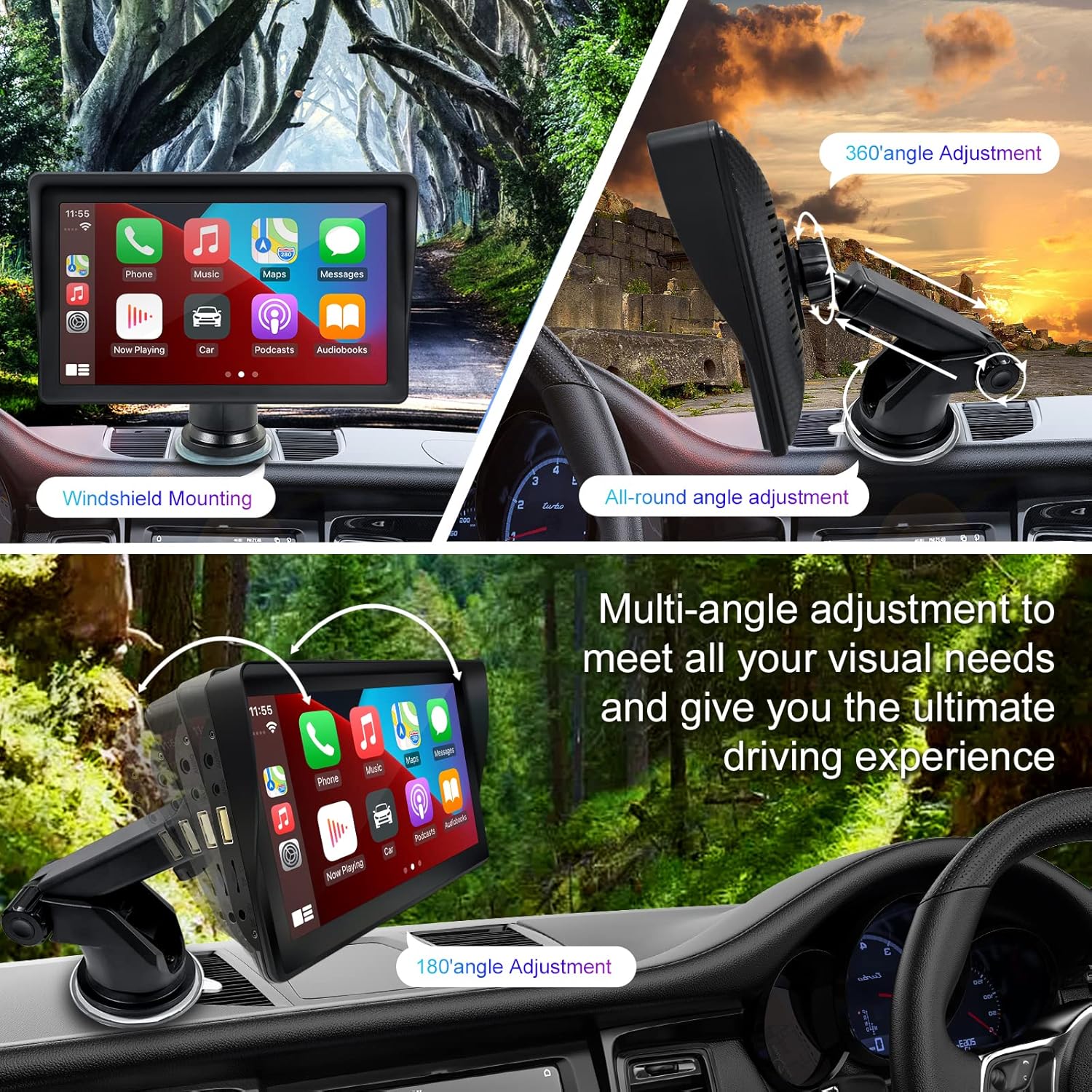
Figure 1: Mounting options and angle adjustments for the portable car stereo.
Power Connection
Connect the provided car charger to the device's power input port and then into your vehicle's 12V power outlet (cigarette lighter socket). The device supports 12-24V power input.
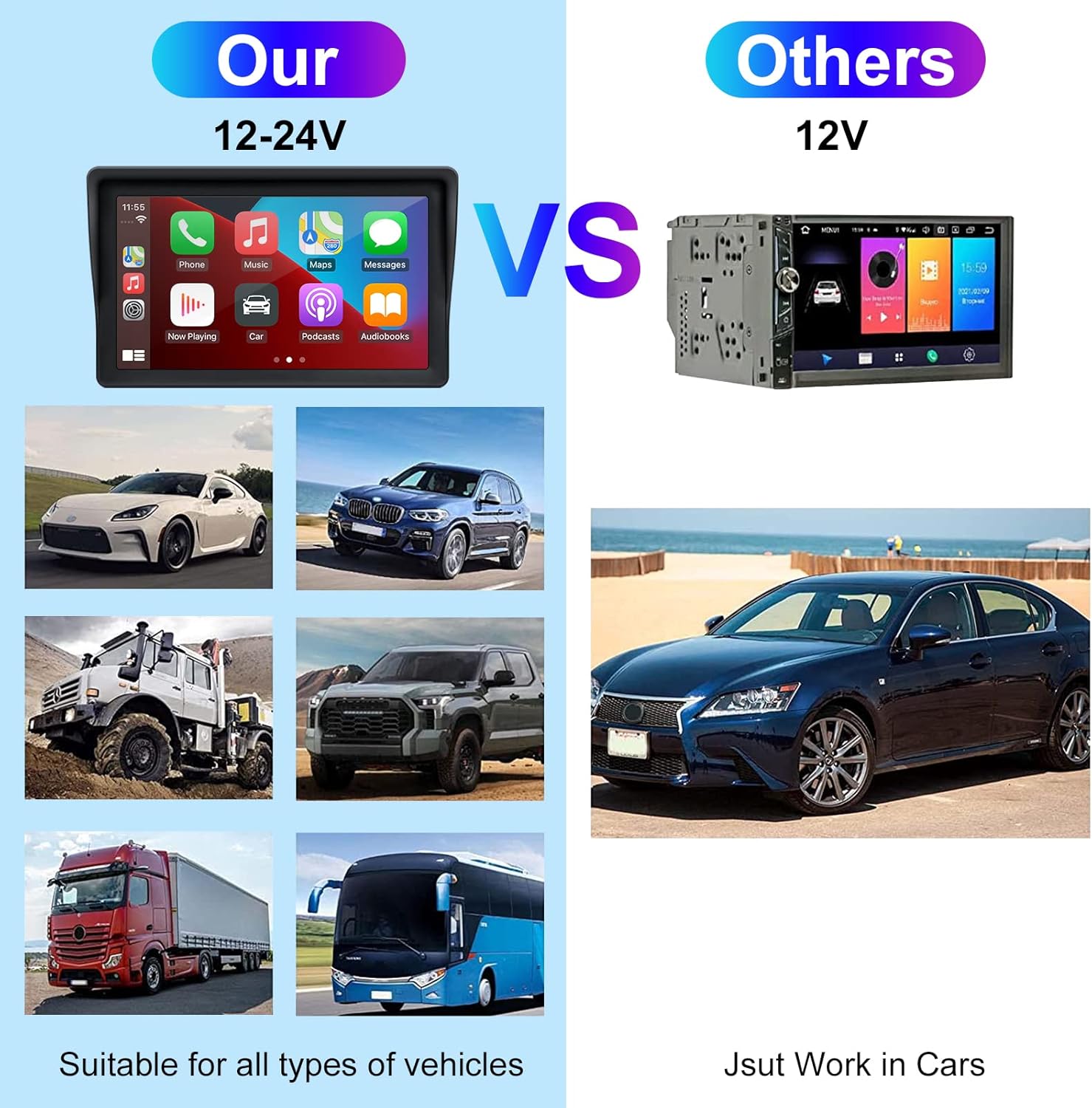
Figure 2: The EZoneTronics unit is compatible with 12-24V vehicle power systems.
Operating Instructions
Initial Power On and Interface
Once powered, the device will boot up and display the main interface. This interface provides access to Apple CarPlay, Android Auto, and other functions.

Figure 3: Main interface displaying Apple CarPlay.
Connecting to Apple CarPlay or Android Auto
The device supports wireless connection for both Apple CarPlay and Android Auto.
- Enable Bluetooth and Wi-Fi: On your smartphone, ensure both Bluetooth and Wi-Fi are enabled.
- Pair Device: On the car stereo, navigate to the Bluetooth settings and pair with your smartphone.
- Automatic Connection: Once paired, the device should automatically prompt you to connect to Apple CarPlay or Android Auto. Follow the on-screen instructions on both the car stereo and your phone to complete the setup.
- Mirror Link: For devices not supporting CarPlay or Android Auto, or if you prefer, you can use the Mirror Link function to display your phone's screen on the unit.

Figure 4: Wireless connection for Apple CarPlay and Android Auto.
Audio Output (FM Transmitter / AUX Out)
To output audio from the car stereo to your vehicle's sound system, you have two primary options:
- FM Transmitter:
- On the EZoneTronics unit, select the FM Transmitter function.
- Choose an unused FM frequency.
- Tune your vehicle's FM radio to the same frequency. Audio from the portable stereo will now play through your car's speakers.
- AUX Out:
- Connect an AUX cable from the AUX Out port on the EZoneTronics unit to your vehicle's AUX In port.
- Select AUX input on your vehicle's audio system.


Figure 5: FM Transmitter and other core functions.
Voice Control (Siri / Google Assistant)
Once connected to Apple CarPlay or Android Auto, you can activate your smartphone's voice assistant (Siri or Google Assistant) for hands-free control. This allows you to make calls, send messages, get directions, and play music using voice commands.
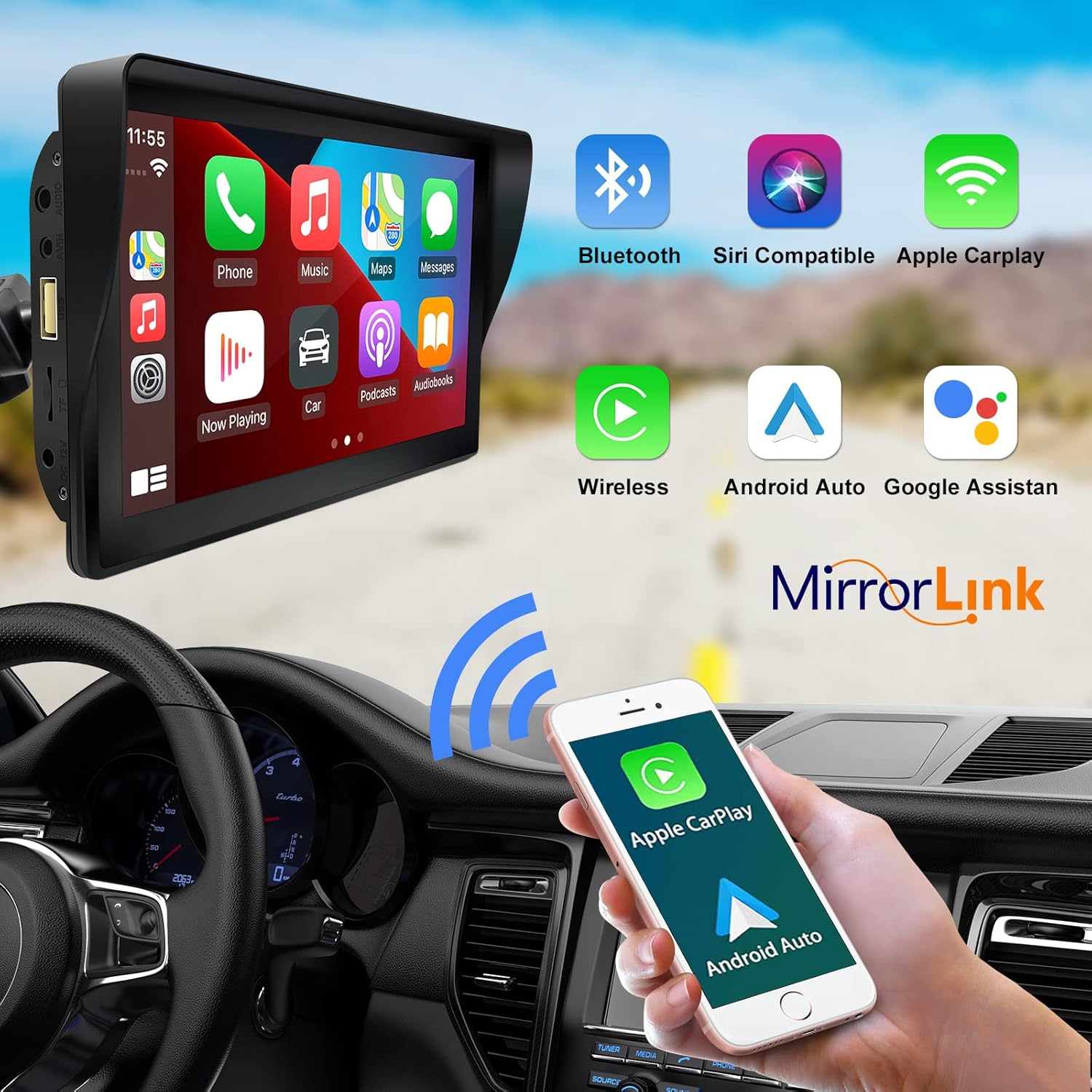
Figure 6: Voice control and connectivity features.
Media Playback (SD Card / USB)
The unit supports media playback from SD cards and USB devices.
- Insert an SD card into the designated slot or a USB drive into the USB port.
- Navigate to the media player application on the car stereo.
- Select the desired audio or video files for playback.


Figure 7: USB and SD card media playback options.
Troubleshooting
If you encounter issues with your EZoneTronics PCD001, refer to the following common problems and solutions:
| Problem | Possible Cause / Solution |
|---|---|
| Device does not power on. |
|
| Cannot connect to Apple CarPlay / Android Auto wirelessly. |
|
| No audio output from car speakers. |
|
| Touchscreen is unresponsive. |
|
| GPS navigation is inaccurate or not working. |
|
Specifications
| Feature | Detail |
|---|---|
| Model Name | PCD001 |
| Brand | EZoneTronics |
| Screen Size | 7 Inches |
| Display Type | IPS |
| Touch Screen Type | Capacitive |
| Operating System | Android (Internal OS for unit functions, supports CarPlay/Android Auto) |
| Connectivity Technology | Wireless CarPlay, Wireless Android Auto, Bluetooth, FM Transmitter, AUX Out |
| Audio Output Mode | AUX, Stereo |
| Supported Satellite Navigation System | GPS (via connected smartphone) |
| Mounting Type | Dashboard Mount, Windshield Mount |
| Compatible Devices | Smartphones (Apple iOS and Android) |
| Vehicle Service Type | Car (Universal 12-24V compatibility) |
Maintenance
Proper maintenance ensures the longevity and optimal performance of your EZoneTronics PCD001.
- Cleaning the Screen: Use a soft, lint-free cloth to gently wipe the screen. For stubborn smudges, slightly dampen the cloth with water or a screen-safe cleaner. Avoid harsh chemicals or abrasive materials.
- Cable Management: Ensure all cables are neatly routed and secured to prevent entanglement or damage.
- Temperature: Avoid exposing the device to extreme temperatures, both hot and cold, for extended periods.
- Software Updates: Periodically check the manufacturer's website or device settings for any available software updates to improve performance and add features.
Warranty and Support
Warranty Information
The EZoneTronics PCD001 Portable Wireless Car Stereo comes with a one-year warranty from the date of purchase. This warranty covers manufacturing defects and malfunctions under normal use. It does not cover damage caused by misuse, accidents, unauthorized modifications, or improper installation.
Please retain your proof of purchase for warranty claims.
Customer Support
For technical assistance, warranty claims, or further inquiries, please contact EZoneTronics customer support:
- Website: www.ezonetronics.com
- Email: support@ezonetronics.com
When contacting support, please provide your product model (PCD001) and a detailed description of the issue.

