
Introduction
The Lapcare Safari 006 is a versatile wireless mouse designed for comfort and precision. It offers dual wireless connectivity options: 2.4 GHz via a USB dongle and Bluetooth 5.0, making it compatible with a wide range of devices including laptops, MacBooks, and PCs. This manual provides instructions for setup, operation, maintenance, and troubleshooting to ensure optimal performance of your mouse.
Package Contents
- Lapcare Safari 006 Wireless Mouse
- 1 x AA Battery
- USB Dongle (stored inside the mouse)
Product Features
- Ergonomic Design: Crafted for comfortable use over extended periods.
- Dual Wireless Connectivity: Supports both 2.4 GHz wireless (via USB dongle) and Bluetooth 5.0.
- Adjustable DPI: Cycle through 800, 1200, and 1600 DPI settings for varied precision needs.
- Silent Operation: Designed for quiet clicks, minimizing disturbance.
- Plug and Play: Easy setup for immediate use.
- Long Battery Life: Up to 12 months of battery life with the included AA battery.
Setup Instructions
1. Battery Installation
- Locate the battery compartment cover on the underside of the mouse.
- Gently slide or lift the cover to open the compartment.
- Insert the provided AA battery, ensuring the positive (+) and negative (-) terminals align correctly with the markings inside the compartment.
- Replace the battery compartment cover until it clicks securely into place.

Image: Underside of the mouse with battery compartment and other components labeled.
2. Connecting via 2.4 GHz Wireless (USB Dongle)
- Remove the USB dongle from its storage slot on the underside of the mouse.
- Plug the USB dongle into an available USB port on your computer.
- Turn on the mouse using the On/Off switch located on the underside.
- Your computer should automatically detect and install the necessary drivers. The mouse will be ready for use.

Image: Lapcare Safari 006 mouse with its accompanying USB dongle.
3. Connecting via Bluetooth 5.0
- Ensure the mouse is turned on using the On/Off switch.
- On your computer or device, navigate to the Bluetooth settings.
- Enable Bluetooth and search for new devices.
- The mouse should appear as 'Lapcare Safari 006' or a similar name in the list of available devices. Select it to pair.
- Once paired, the mouse is ready for use.
Operating Instructions
1. Basic Mouse Functions
- Left Click: Primary button for selecting items, opening links, etc.
- Right Click: Secondary button for context menus and additional options.
- Scroll Wheel: Roll up or down to navigate through documents and web pages. Press the scroll wheel for middle-click functionality (if supported by your software).

Image: Top view of the mouse indicating the main buttons and scroll wheel.
2. DPI Adjustment
The Lapcare Safari 006 mouse features a dedicated DPI button to adjust cursor sensitivity. Press the DPI button, located below the scroll wheel, to cycle through the following sensitivity settings:
- 800 DPI: Suitable for general browsing and studying.
- 1200 DPI: Ideal for active working and everyday tasks.
- 1600 DPI: Provides higher precision for design, editing, or gaming.
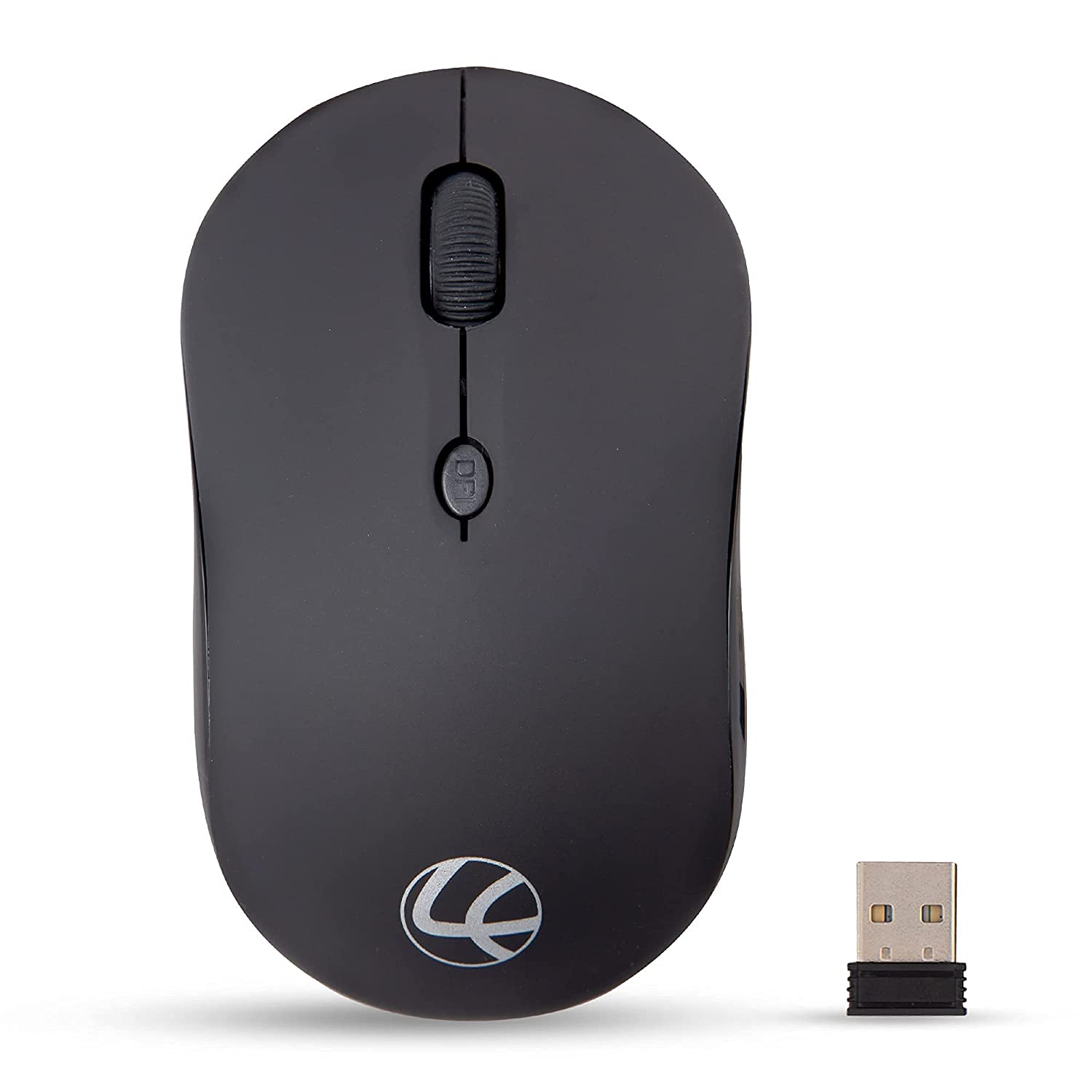
Image: Diagram showing the DPI button and its corresponding sensitivity levels for different tasks.
Maintenance
- Cleaning: Use a soft, dry cloth to clean the mouse. Avoid using harsh chemicals or abrasive materials.
- Battery Replacement: Replace the AA battery when the mouse performance degrades or it stops responding. Follow the battery installation steps.
- Storage: When not in use for extended periods, turn off the mouse to conserve battery life. Store the USB dongle in its dedicated slot on the mouse.
Troubleshooting
- Mouse not responding:
- Ensure the mouse is turned on.
- Check if the battery is correctly installed and has sufficient charge. Replace if necessary.
- For 2.4 GHz connection, ensure the USB dongle is securely plugged into a working USB port. Try a different USB port.
- For Bluetooth connection, ensure Bluetooth is enabled on your device and the mouse is paired. Try unpairing and re-pairing the mouse.
- Cursor lagging or skipping:
- Ensure the mouse is used on a clean, non-reflective surface.
- Move the mouse closer to the USB dongle or Bluetooth device to reduce interference.
- Check for other wireless devices that might be causing interference.
Specifications
| Brand | Lapcare |
| Model Number | LWM-006 |
| Connectivity Technology | Bluetooth 5.0, 2.4 GHz Wireless |
| Movement Detection Technology | Optical |
| DPI Settings | 800, 1200, 1600 |
| Compatible Devices | Laptop, MacBook, PC (Linux, Mac, PC platforms) |
| Power Source | Battery Powered (1 x AA battery included) |
| Average Battery Life | 12 Months |
| Product Dimensions | 10 x 6 x 3.7 cm |
| Item Weight | 50 g |
| Manufacturer | RX Infotech Pvt. Ltd. |
Product Overview Video
Video: A brief overview of the Lapcare Safari 006 Wireless Bluetooth Mouse, highlighting its features and connectivity options.
Warranty and Support
The Lapcare Safari 006 Wireless Bluetooth Mouse comes with a 3-year warranty. For any technical assistance, warranty claims, or product-related inquiries, please contact Lapcare customer support.
Toll-Free Support: 1800 120 0802
You can also visit the official Lapcare Store on Amazon for more information and product registration.