Introduction
The MANSNIX Smart Bridge M500 is an RF USB hub designed to integrate your motorized roller shades with smart home ecosystems. This device enables convenient control of your shades via mobile applications, voice commands through smart assistants like Alexa and Google Home, and custom scene automation.
Safety Information
Please read and follow all safety instructions to prevent damage to the device or injury. Keep the device away from water and extreme temperatures. Do not attempt to disassemble or repair the device yourself. Use only the recommended power source.
Package Contents
Verify that all items are present in your package:
- MANSNIX Smart Bridge M500 (RF USB Hub)
- Remote Control (for initial pairing and direct control)
- USB Charging Cable (for the remote, if applicable, or for the bridge power)
- Instruction Manual
- Installation Accessories (brackets, screws, if applicable for remote mounting)

Specifications
| Model Number | M500 (Lux Series) |
| Brand | MANSNIX |
| Device Type | Smart Bridge (RF USB Hub) |
| Connectivity | Wi-Fi, RF (for motorized shades) |
| Smart Home Compatibility | Alexa, Google Assistant, Tuya App |
| Control Capacity | Up to 30 blinds/shades |
| Power Source | USB (Power adapter not included) |
Setup
1. Physical Installation of the Smart Bridge
The MANSNIX Smart Bridge is a plug-and-play device. Simply connect the USB plug to a suitable power source. This can be a USB power adapter (not included), a power strip with a USB port, or a compatible USB hub.
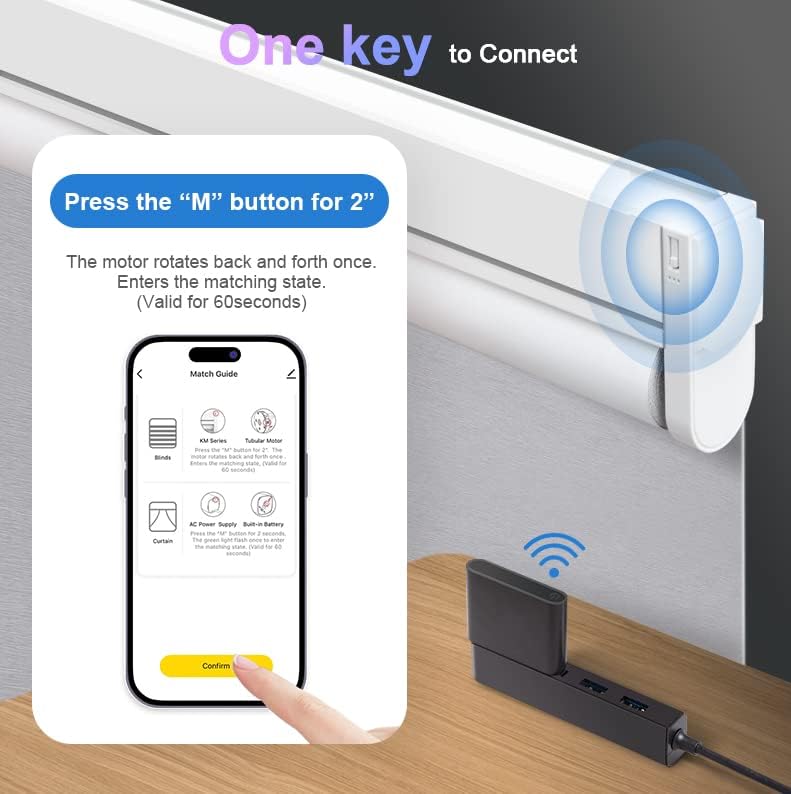


2. App Connection (Tuya App)
To enable mobile and voice control, download the Tuya App to your smartphone. Follow the in-app instructions to add the Smart Bridge. Ensure your phone and the Smart Bridge are connected to the same Wi-Fi network during the setup process.
3. Remote Control Pairing
To pair the remote control with your motorized shades, refer to the specific instructions provided with your shades. Typically, this involves pressing a pairing button on the shade motor and then a button on the remote. The Smart Bridge then facilitates communication between the remote/app and the shades.

Operating Instructions
1. Mobile Control (Tuya App)
Once connected to the Tuya App, you can control your motorized shades from anywhere. The app allows you to:
- Open and close shades individually or in groups.
- Set custom schedules for shades to open or close at specific times (e.g., sunrise/sunset).
- Create smart scenes based on weather, temperature, or other smart home device triggers.
2. Voice Control (Alexa & Google Assistant)
After linking your Tuya App account to Alexa or Google Assistant, you can use voice commands to operate your shades. Examples include:
- "Alexa, open the living room shades."
- "Hey Google, close the bedroom blinds."
- "Alexa, set the kitchen shades to 50%."
3. Remote Control
The included remote control provides direct, immediate operation of your shades without needing the app or voice commands. Use the dedicated buttons for up, down, and stop functions. The remote can also be used for initial setup and setting limits for the shades.
Maintenance
The MANSNIX Smart Bridge M500 requires minimal maintenance. Keep the device clean and free from dust. Ensure it is placed in a location with good Wi-Fi signal strength for optimal performance. If the remote control uses batteries, replace them as needed.
Troubleshooting
1. Shades Not Responding
- Check Power: Ensure the Smart Bridge is properly plugged into a working USB power source.
- Wi-Fi Connection: Verify that your Smart Bridge is connected to your home Wi-Fi network. Check the indicator light on the bridge for status.
- Remote Battery: If using the remote, check its battery level and replace if necessary.
- Shade Power: Ensure the motorized shades themselves have power (e.g., charged battery or plugged in).
- Pairing: Re-attempt the pairing process between the remote/app and the shades if they have become unpaired.
2. Voice Commands Not Working
- App Link: Confirm that your Tuya App account is correctly linked to your Alexa or Google Assistant account.
- Device Discovery: Ask your smart assistant to discover new devices.
- Command Phrasing: Use clear and correct voice commands. Refer to the Tuya App or smart assistant app for suggested phrases.
3. Limited Range
- Bridge Placement: Place the Smart Bridge in a central location within the room or home, ensuring it's within effective range of all shades it controls.
- Obstructions: Minimize physical obstructions between the Smart Bridge and the shades.

Warranty and Support
MANSNIX provides customer support for its products. If you encounter any issues not covered in this manual or require further assistance, please contact MANSNIX customer service. Refer to your product packaging or the MANSNIX website for contact information and detailed warranty terms.


