
Introduction
Thank you for choosing the Marvo K660 Wired Membrane Gaming Keyboard. This manual provides essential information for setting up, operating, maintaining, and troubleshooting your new keyboard. Please read these instructions carefully to ensure optimal performance and longevity of your device.
The Marvo K660 is an ergonomically designed wired membrane gaming keyboard featuring comfortable key presses, attractive rainbow backlighting with double-injection keycaps, and an integrated knob for controlling sound volume and backlight modes.

Image: Top-down view of the Marvo K660 Wired Membrane Gaming Keyboard, showcasing its full layout and vibrant rainbow backlighting.
Setup
Follow these steps to connect your Marvo K660 keyboard to your computer:
- Unpack the Keyboard: Carefully remove the keyboard from its packaging.
- Connect to USB Port: Locate an available USB port on your computer. Insert the USB connector of the Marvo K660 keyboard firmly into the USB port.
- Driver Installation: The keyboard is plug-and-play. Your operating system (e.g., Windows 10) will automatically detect and install the necessary drivers. No additional software installation is typically required.
- Verify Connection: Once connected, the keyboard's backlight should illuminate, indicating a successful connection. Test by typing in a text editor.

Image: Angled view of the Marvo K660 keyboard, illustrating its design and the integrated USB cable for connection.
Operating Instructions
The Marvo K660 keyboard offers various features to enhance your gaming and typing experience:
- Standard Typing: Use the keyboard as a standard QWERTY layout for all typing tasks.
- Rainbow Backlighting: The keyboard features an attractive rainbow backlight. The backlight is active upon connection.
- Volume Control Knob: An extra knob located on the top right of the keyboard allows for quick adjustment of your system's sound volume. Rotate clockwise to increase volume, counter-clockwise to decrease. Press the knob to mute/unmute audio.
- Backlight Mode Control Knob: The same knob can also be used to cycle through different backlight modes or adjust brightness. Refer to the keyboard's specific function key combinations (often involving the 'Fn' key) for advanced backlight customization if available.
- Function Keys (F1-F12): These keys perform their standard functions. Some may have secondary multimedia or system control functions when pressed in combination with the 'Fn' key.
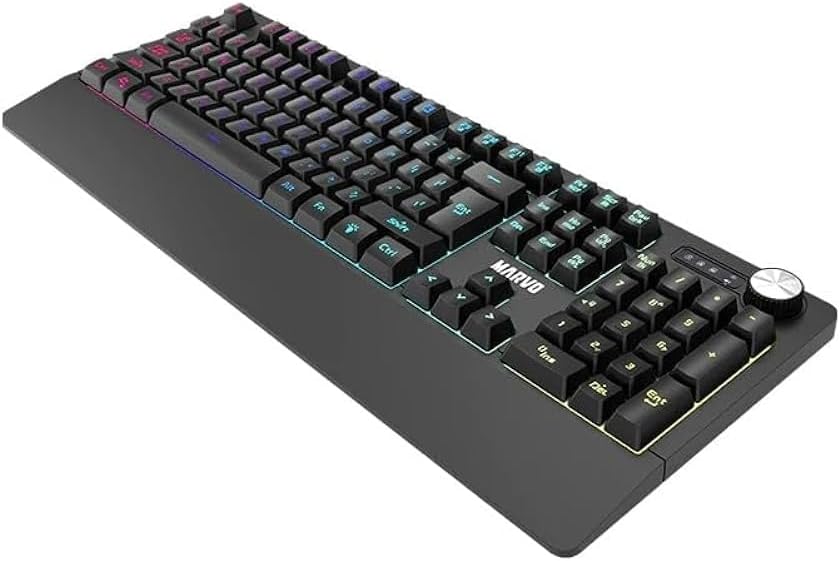
Image: Angled view of the Marvo K660 keyboard, focusing on the right side to highlight the multi-function knob for volume and backlight control.
Maintenance
Proper maintenance ensures the longevity and performance of your Marvo K660 keyboard:
- Cleaning: Regularly clean the keyboard to prevent dust and debris buildup. Use a soft, dry cloth to wipe the surface. For deeper cleaning, use compressed air to remove particles from between the keys. A slightly damp cloth (not wet) can be used for stubborn smudges, ensuring no liquid enters the keyboard.
- Avoid Liquid Spills: Keep liquids away from the keyboard to prevent damage to internal components. In case of a spill, immediately disconnect the keyboard and allow it to dry completely before reconnecting.
- Storage: When not in use, store the keyboard in a clean, dry environment, away from extreme temperatures and direct sunlight.
- Handle with Care: Avoid dropping the keyboard or subjecting it to excessive force, as this can damage the keys or internal circuitry.
Troubleshooting
If you encounter issues with your Marvo K660 keyboard, try the following solutions:
- Keyboard Not Responding:
- Ensure the USB cable is securely plugged into the computer's USB port.
- Try plugging the keyboard into a different USB port on your computer.
- Restart your computer.
- Test the keyboard on another computer to determine if the issue is with the keyboard or the computer.
- Backlight Not Working:
- Check if the keyboard is properly connected via USB.
- Ensure the backlight has not been turned off or dimmed using the control knob or any 'Fn' key combinations.
- Keys Not Registering:
- Clean the affected keys to remove any debris that might be obstructing their movement.
- If multiple keys are not working, try the steps for 'Keyboard Not Responding'.
Specifications
| Feature | Detail |
|---|---|
| Brand | MARVO |
| Model | K660 |
| Type | Wired Membrane Gaming Keyboard |
| Connectivity | USB |
| Color | Black (with RGB backlighting) |
| Material | Plastic |
| Item Weight | 580 g |
| Package Dimensions | 47.5 x 21.5 x 4 cm |
| Operating System | Windows 10 (and compatible with other major OS) |
| Special Features | Backlit, Volume/Backlight Control Knob |
Warranty and Support
For warranty information and technical support, please refer to the documentation provided with your purchase or visit the official MARVO website. Keep your proof of purchase for any warranty claims.
If you require further assistance, please contact MARVO customer support through their official channels.


