
WiZ Connected 604355
Contents
WiZ Connected Mobile Portable Light White Squire User Manual
Model: 604355
1. Introduction
This manual provides essential information for the proper setup, operation, and maintenance of your WiZ Connected Mobile Portable Light White Squire. Please read these instructions carefully before using the product to ensure optimal performance and safety.
The WiZ Mobile Portable Light is a smart, full-color portable light designed for versatile use indoors and outdoors. It offers endless combinations of warm to cool white light and vibrant colors, allowing you to create various ambiances.

The WiZ Connected Mobile Portable Light White Squire, a smart, full-color portable light, is designed for versatile use indoors and outdoors.
2. Product Overview
The WiZ Mobile Portable Light features a compact design and offers a range of smart lighting functionalities. Key features include:
- Portable Design: Easily move the light to any location, indoors or outdoors, to suit your needs.
- Full-Color Spectrum: Access 16 million colors and adjustable warm to cool white light.
- Dual Color Zones: Create dynamic lighting effects with two independent color zones.
- Smart Dimming: Adjust brightness levels via the WiZ Connected app or voice control.
- Wi-Fi Connectivity: Connects directly to your existing Wi-Fi network without requiring an additional hub.
- Voice Control: Compatible with popular voice assistants for hands-free operation.
- Scheduling: Program lights to turn on or off according to your daily routine.
- Vacation Mode: Automate lighting to mimic presence when you are away from home.

The light measures 11.6 cm (4.57 inches) in diameter and 19.3 cm (7.60 inches) in height, making it compact and portable.
3. Setup
Setting up your WiZ Mobile Portable Light is a simple process:
- Charge the Device: Before initial use, ensure the portable light is fully charged using the provided power adapter.
- Download the WiZ Connected App: Search for "WiZ Connected" in your smartphone's app store (iOS or Android) and download the application.
- Create an Account: Open the WiZ Connected app and follow the on-screen instructions to create a new user account or log in if you already have one.
- Add Your Light: In the app, select the option to add a new device. Follow the guided steps to connect your WiZ Mobile Portable Light to your home Wi-Fi network. No additional gateway is required.
- Placement: Place the light in your desired location. Its portable nature allows for flexible placement anywhere within your Wi-Fi range.
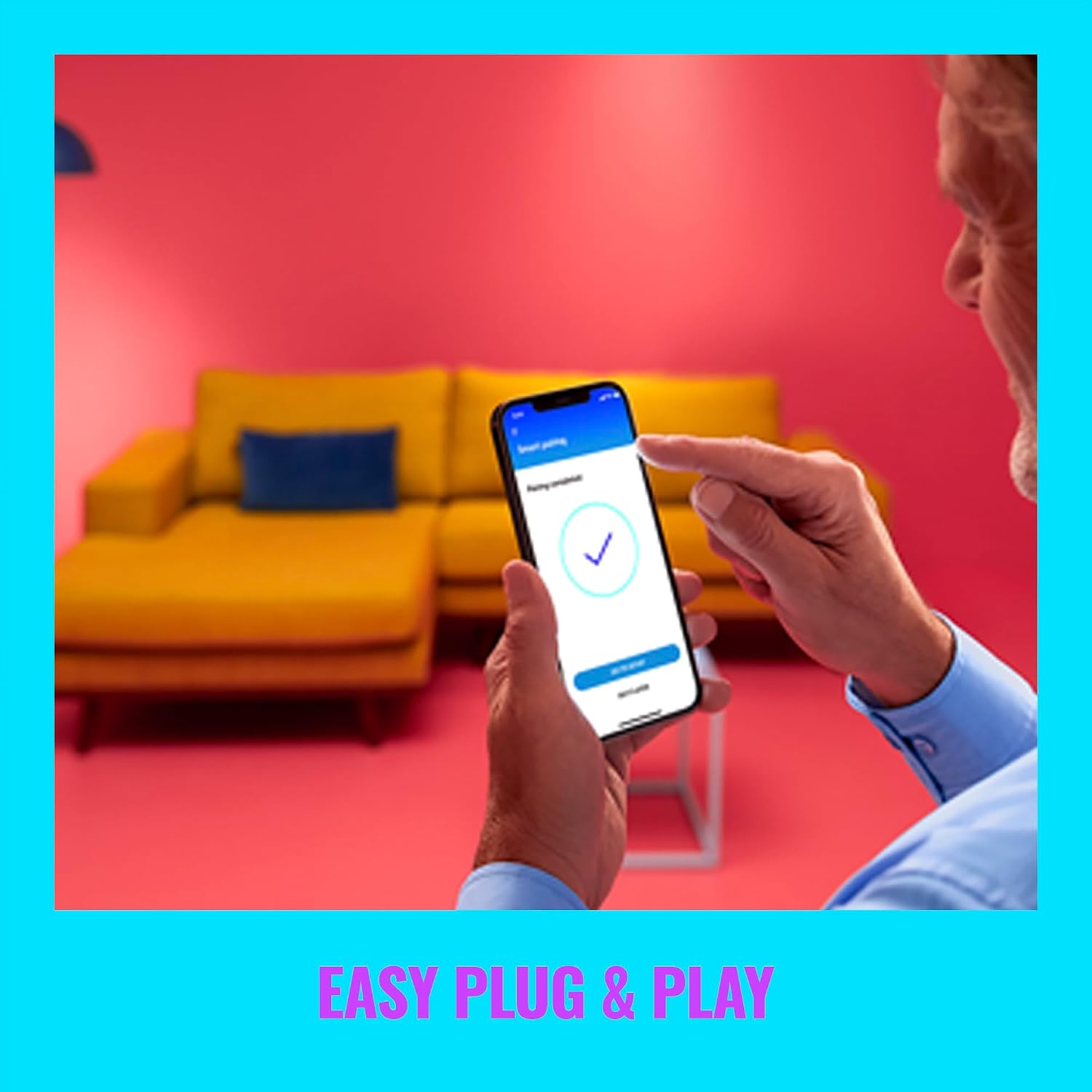
Setting up the WiZ light is straightforward. Simply plug it in, download the WiZ Connected app, and follow the in-app instructions to connect to your existing Wi-Fi network.
4. Operating Instructions
Your WiZ Mobile Portable Light can be controlled in several ways:
4.1. App Control
The WiZ Connected app provides full control over your light:
- Power On/Off: Toggle the light on or off.
- Brightness Adjustment: Dim or brighten the light to your preferred level.
- Color Selection: Choose from 16 million colors or adjust white light from warm to cool tones.
- Modes and Scenes: Select pre-set dynamic light modes or create custom scenes.
- Scheduling: Set schedules for automatic light activation or deactivation.
- SpaceSense: Configure motion detection settings for automatic lighting adjustments.
4.2. Touch Control
The light features a touch-sensitive area on its top for basic control:
- Single Tap: Turns the light on or off.
- Long Press: Cycles through different light modes or brightness levels.

The light features intuitive touch controls on its top surface for easy power and mode adjustments.
4.3. Voice Control
Integrate your WiZ light with compatible voice assistants (e.g., Google Home, Amazon Alexa) for hands-free control. Refer to your voice assistant's setup guide for integration instructions.

The WiZ light offers multiple control options, including the WiZ app, voice commands via Google Home or Alexa, and compatibility with smart switches and sensors. It also supports Matter for broader smart home integration.
4.4. Dual Zone Light Effect
The light is capable of displaying two distinct colors or shades simultaneously, creating a gradient effect. This feature can be customized within the WiZ Connected app.

This image illustrates the dual-zone light effect capability, allowing for distinct color gradients within a single light.
4.5. SpaceSense Feature
The SpaceSense feature utilizes the light's sensors to detect movement and automatically adjust lighting. This can be configured in the WiZ app to enhance convenience and energy efficiency.

The SpaceSense feature allows the light to detect motion and automatically adjust lighting, enhancing convenience and energy efficiency.
5. Maintenance
To ensure the longevity and proper functioning of your WiZ Mobile Portable Light, follow these maintenance guidelines:
- Cleaning: Use a soft, dry cloth to clean the exterior of the light. Do not use abrasive cleaners, solvents, or harsh chemicals, as these can damage the finish.
- Avoid Water Exposure: While portable, the device is not water-resistant. Avoid exposing it to rain, splashes, or submerging it in water.
- Storage: When not in use for extended periods, store the light in a cool, dry place.
- Battery Care: For optimal battery life, avoid fully discharging the battery frequently. Charge the device regularly.
6. Troubleshooting
If you encounter issues with your WiZ Mobile Portable Light, refer to the following common solutions:
- Light Not Responding: Ensure the light is charged or connected to power. Check your Wi-Fi connection and ensure the light is within range. Restart the light by turning it off and on.
- Cannot Connect to Wi-Fi: Verify your Wi-Fi network is 2.4GHz, as WiZ devices typically operate on this frequency. Ensure your Wi-Fi password is correct. Try resetting the light to factory settings (refer to the app for specific instructions on your model) and attempt pairing again.
- App Issues: Ensure your WiZ Connected app is updated to the latest version. If issues persist, try reinstalling the app.
- Inconsistent Performance: Check for Wi-Fi interference from other devices. Ensure the light's firmware is up to date via the WiZ app.
For persistent issues, consult the WiZ Connected app's help section or contact customer support.
7. Specifications
| Feature | Specification |
|---|---|
| Model Name | Wi-Fi BLE Pop Portable Light NAM Type A |
| Model Number | 604355 |
| Dimensions (D x W x H) | 4.57"D x 4.57"W x 7.6"H |
| Item Weight | 1.43 pounds (0.65 Kilograms) |
| Brightness | 400 Lumens |
| Wattage | 10 watts |
| Voltage | 120 Volts |
| Light Source Type | LED |
| Material | Plastic |
| Switch Type | Touch |
| Special Feature | Color Changing |
| Power Source | Corded Electric (also Cordless operation via battery) |
| Indoor/Outdoor Usage | Indoor |
| Control Method | Voice, App |
| UPC | 046677604356 |
8. Warranty Information
The WiZ Connected Mobile Portable Light White Squire comes with a 2-year manufacturer's warranty. This warranty covers defects in materials and workmanship under normal use. Please retain your proof of purchase for warranty claims.
For detailed warranty terms and conditions, please refer to the official WiZ Connected website or contact customer support.
9. Support
For further assistance, technical support, or to report issues not covered in this manual, please visit the official WiZ Connected support website or contact their customer service department. Contact information can typically be found on the product packaging or the WiZ Connected website.
You can also refer to the help section within the WiZ Connected app for frequently asked questions and troubleshooting guides.
Documents and downloads
Ask a question about this manual
Ask about setup, troubleshooting, compatibility, parts, safety, or missing instructions. Manuals+ will review the question and use this page’s manual context to help answer it.