
1. Product Overview
The UMIDIGI C1 Max is an unlocked Android smartphone designed for daily use. It features a large display, a high-capacity battery, and a versatile camera system.
Key Features:
- Display: 6.5-inch HD+ Full Screen for an immersive viewing experience.
- Battery: 5150mAh long-lasting battery with fast charging support.
- Camera: 50MP Main Camera, 2MP Depth Sensor, and 8MP Front Camera.
- Performance: Unisoc T610 Octa-core Processor with 6GB RAM and 128GB internal storage (expandable up to 256GB).
- Operating System: Android 12 for a smooth and secure user experience.
- Security: Side-mounted fingerprint sensor and AI Face Unlock.
- Connectivity: Dual SIM support, Global Bands, Bluetooth 5.0, GPS (Glonass, Galileo, Beidou).

Image: Front and back view of the UMIDIGI C1 Max smartphone.
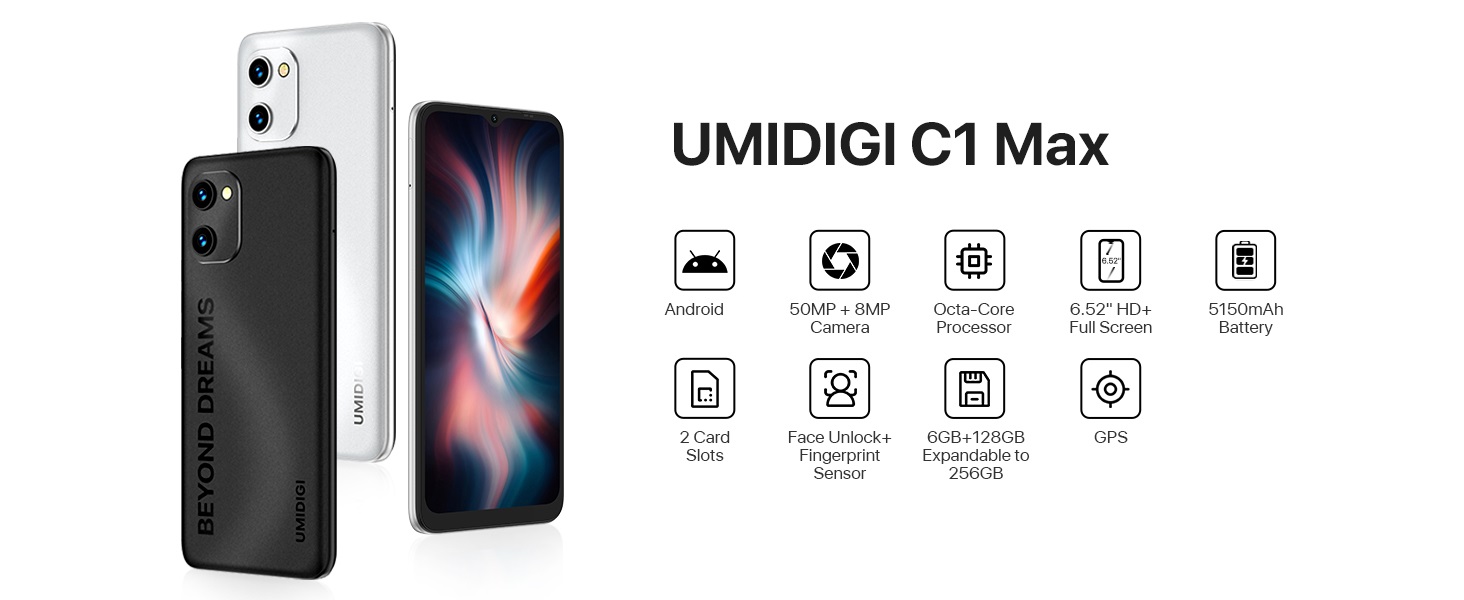
Image: Overview of UMIDIGI C1 Max key features.
Product Videos:
Video: UMIDIGI C1 Max Smartphone Features. This video highlights the main features of the C1 Max smartphone, including its design, camera capabilities, and performance.
Video: UMIDIGI C1 Max Cell Phone Overview. This video provides a general overview of the C1 Max cell phone, showcasing its design and user interface.
2. Package Contents
Verify that all items are present in your product package:
- UMIDIGI C1 Max Smartphone
- USB Cable
- Power Adapter (if included in your region)
- SIM Eject Tool
- Quick Start Guide
- Protective Case (may vary by region)
- Screen Protector (pre-applied or included)
3. Initial Setup
3.1. Inserting SIM Card(s) and MicroSD Card
- Locate the SIM tray on the side of your phone.
- Insert the SIM eject tool into the small hole next to the tray and press firmly until the tray pops out.
- Place your Nano-SIM card(s) and/or MicroSD card into the designated slots on the tray. Ensure the gold contacts face downwards.
- Carefully push the tray back into the phone until it is flush with the side.
3.2. Powering On/Off
- To Power On: Press and hold the Power button (usually on the right side) until the UMIDIGI logo appears.
- To Power Off: Press and hold the Power button until the power menu appears, then select "Power off".
- To Restart: Press and hold the Power button until the power menu appears, then select "Restart".
3.3. Initial Setup Wizard
Upon first power-on, the phone will guide you through the initial setup process. Follow the on-screen instructions to:
- Select your language.
- Connect to a Wi-Fi network.
- Copy data from another device (optional).
- Sign in with your Google account.
- Set up screen lock (PIN, pattern, password, fingerprint, face unlock).
- Review and accept terms and conditions.
4. Operating Your Smartphone
4.1. Basic Navigation (Android 12)
Your UMIDIGI C1 Max runs on Android 12, offering an intuitive user interface.
- Home Screen: Swipe left or right to access different home screen panels.
- App Drawer: Swipe up from the bottom of the home screen to view all installed applications.
- Notifications & Quick Settings: Swipe down from the top of the screen to access notifications and quick settings toggles (Wi-Fi, Bluetooth, etc.).
- Recent Apps: Swipe up from the bottom and hold (or tap the square navigation button if enabled) to see recently used applications.

Image: Examples of the Android 12 user interface.
4.2. Camera Usage
The UMIDIGI C1 Max features a triple camera system:
- 50MP Main Camera: For high-resolution photos.
- 2MP Depth Sensor: Enhances portrait mode with background blur.
- 8MP Front Camera: For selfies and video calls.
To use the camera:
- Open the Camera app.
- Select your desired mode (Photo, Video, Portrait, etc.).
- Tap the shutter button to capture an image or start/stop recording.
- Switch between front and rear cameras using the camera switch icon.

Image: UMIDIGI C1 Max camera specifications and examples.
4.3. Battery Management
The 5150mAh battery provides extended usage time. To optimize battery life:
- Adjust screen brightness.
- Enable Battery Saver mode when needed.
- Close unused apps running in the background.
- Disable Wi-Fi, Bluetooth, and GPS when not in use.
- Use the provided charger for optimal charging speed.

Image: UMIDIGI C1 Max 5150mAh battery capacity and estimated usage.
4.4. Storage and Memory
Your device comes with 6GB of RAM for smooth multitasking and 128GB of internal storage for your apps, photos, and files. Storage can be expanded up to 256GB using a MicroSD card.

Image: UMIDIGI C1 Max memory and storage details.
5. Care and Maintenance
To ensure the longevity and optimal performance of your UMIDIGI C1 Max, follow these maintenance guidelines:
- Cleaning: Use a soft, lint-free cloth to clean the screen and body. Avoid abrasive materials or harsh chemicals.
- Temperature: Do not expose the phone to extreme temperatures (hot or cold) or direct sunlight for prolonged periods.
- Water Exposure: The device is not water-resistant. Avoid contact with water or excessive moisture.
- Impact: Protect your phone from drops and impacts. Use a protective case and screen protector.
- Software Updates: Regularly check for and install system updates to ensure your device has the latest security patches and performance improvements.
6. Troubleshooting
If you encounter issues with your UMIDIGI C1 Max, refer to the following common solutions:
| Issue | Possible Solution |
|---|---|
| Phone not turning on | Ensure the battery is charged. Connect to a charger for at least 10 minutes, then try powering on. If unresponsive, press and hold the Power button for 10-15 seconds to force a restart. |
| Poor network signal | Check if the SIM card is correctly inserted. Try restarting the phone. Verify your location has network coverage. Contact your carrier if the issue persists. |
| Battery draining fast | Reduce screen brightness, close background apps, disable unused connectivity features (Wi-Fi, Bluetooth, GPS). Check battery usage in Settings to identify power-hungry apps. |
| Apps freezing or crashing | Clear the cache and data of the problematic app in Settings > Apps. Update the app to the latest version. If the issue continues, uninstall and reinstall the app. |
| Unable to connect to Wi-Fi | Ensure Wi-Fi is enabled on your phone. Restart your router. Forget the network in your phone's Wi-Fi settings and reconnect. |
For more complex issues, consider performing a factory reset (back up your data first) or contacting customer support.
7. Technical Specifications
| Feature | Specification |
|---|---|
| Brand | UMIDIGI |
| Model Name | C1 MAX |
| Operating System | Android 12.0 |
| RAM Memory Installed Size | 6 GB |
| Memory Storage Capacity | 128 GB (Expandable up to 256 GB) |
| CPU Model | Unisoc T610 Octa-core |
| Screen Size | 6.52 inches |
| Resolution | 1650 x 720 (HD+) |
| Display Type | OLED/AMOLED |
| Refresh Rate | 60 Hz |
| Rear Facing Camera Photo Sensor Resolution | 50 MP (Main) |
| Number of Rear Facing Cameras | 3 (50MP Main, 2MP Depth, 2MP Macro - 2MP Macro inferred from common triple camera setups, not explicitly listed as 3rd in JSON but 'Number of Rear Facing Cameras: 3' is present) |
| Front Photo Sensor Resolution | 8 MP |
| Battery Capacity | 5150 Milliamp Hours |
| SIM Card Slot Count | Dual SIM |
| Biometric Security Feature | Face Recognition, Fingerprint Sensor |
| Connectivity Technology | USB Type C, Wi-Fi, Bluetooth 5.0, LTE |
| Item Dimensions | 6.46 x 3.01 x 0.34 inches |
| Item Weight | 192 Grams |
Device Identification:
The IMEI (International Mobile Equipment Identity) is a unique number for your device. It can be found on the product packaging, in the phone's settings (Settings > About phone > IMEI), or on a label on the back of the phone.
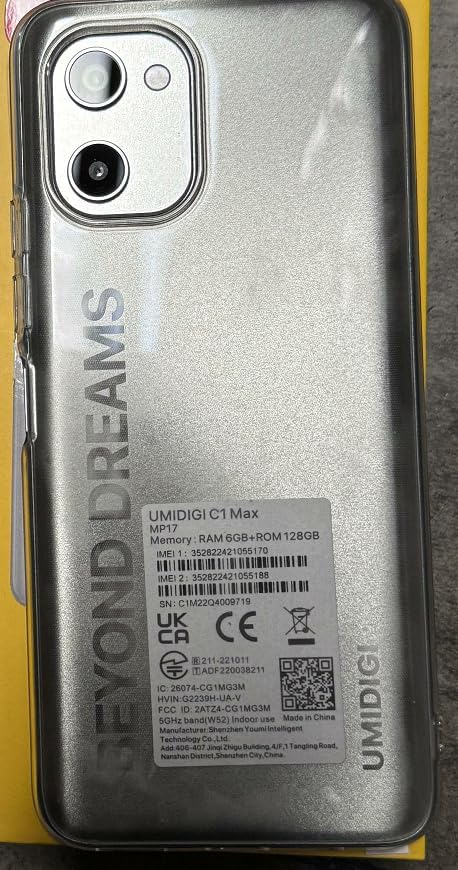
Image: IMEI and regulatory label on the back of the UMIDIGI C1 Max.

Image: Close-up of the IMEI label.
8. Warranty and Support
8.1. Product Warranty
Your UMIDIGI C1 Max smartphone is covered by a limited manufacturer's warranty. The specific terms and duration of the warranty may vary by region and retailer. Please refer to the warranty card included in your package or visit the official UMIDIGI website for detailed information.
8.2. Customer Support
For technical assistance, troubleshooting, or warranty claims, please contact UMIDIGI customer support through their official website or the contact information provided in your product documentation. Ensure you have your device's model number and IMEI readily available when seeking support.
Official UMIDIGI Store: Visit UMIDIGI Store on Amazon


