1. Introduction
Thank you for choosing the KINGTIME Backlit Surface Pro Keyboard. This manual provides detailed instructions on how to set up, operate, and maintain your new keyboard. Please read this manual thoroughly before use to ensure optimal performance and longevity of your device.
2. Product Overview
The KINGTIME Backlit Surface Pro Keyboard is designed to enhance your productivity with its responsive keys, multi-touch touchpad, and vibrant 7-color backlighting. It connects wirelessly via Bluetooth 5.0, offering a stable and fast connection, and features a long-lasting rechargeable battery.

Image: Top-down view of the KINGTIME Backlit Surface Pro Keyboard, showcasing its full QWERTY layout and integrated touchpad.
Key Features:
- 7-Color Backlighting: Customize your typing experience with various backlight colors and brightness levels.
- Rechargeable Battery: Built-in 750mAh battery provides extended standby time.
- Bluetooth 5.0 Connectivity: Ensures a fast, stable, and no-delay wireless connection up to 33 feet (10 meters).
- Integrated Touchpad: Features a larger touchpad with multi-touch gesture support and anti-mis-touch technology.
- Scissor Switch Keys: Offers a comfortable and quiet typing experience.
- Auto Sleep/Awake: Automatically enters sleep mode when closed and wakes up when opened, conserving battery.

Image: Depicts the keyboard in both attached and detached configurations with a Microsoft Surface Pro, illustrating its wireless connectivity.

Image: A user operating the keyboard with a Surface Pro, highlighting the 365-day standby time and 750mAh battery capacity.
3. Setup Guide
3.1 Charging the Keyboard
Before first use, fully charge the keyboard. Use the provided USB Type-C cable to connect the keyboard to a USB power source (e.g., computer USB port, wall adapter). The charging indicator light will show the charging status and turn off when fully charged.

Image: Close-up of the keyboard's USB Type-C charging port with a charging cable connected.
3.2 Bluetooth Pairing
- Ensure the keyboard is charged and powered on.
- Press the Fn + C keys simultaneously to enter Bluetooth pairing mode. The Bluetooth indicator light will blink.
- On your Surface Pro, go to Settings > Devices > Bluetooth & other devices.
- Turn on Bluetooth and click Add Bluetooth or other device.
- Select Bluetooth and choose "KINGTIME Keyboard" (or similar name) from the list of available devices.
- Follow any on-screen prompts to complete the pairing process. The indicator light on the keyboard will stop blinking once successfully paired.
4. Operating Instructions
4.1 Backlight Control
The keyboard features 7 different backlight colors and adjustable brightness levels to suit your preference and environment.
- Press the Light Bulb key (usually F10 or a dedicated key) to cycle through the 7 backlight colors.
- Press Fn + Light Bulb key to adjust the backlight brightness (usually three levels: low, medium, high, and off).
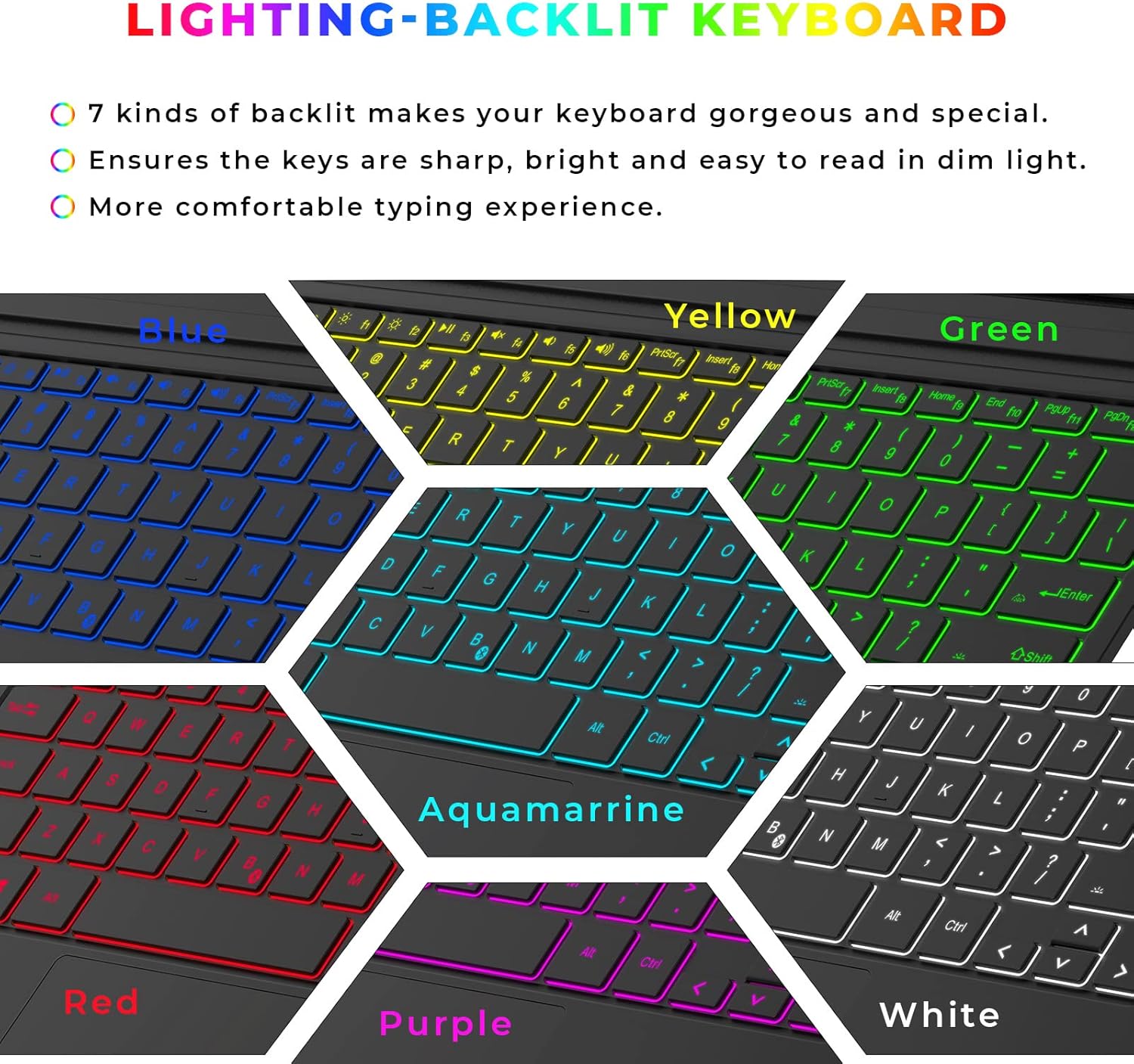
Image: Illustrates the keyboard with various backlight colors (Blue, Yellow, Green, Red, Aquamarine, Purple, White), emphasizing the 7-color backlighting feature.
4.2 Touchpad Functions
The integrated touchpad supports various gestures for intuitive navigation and control.
- Larger Touchpad: Provides ample space for comfortable navigation.
- Prevent Mis-touch: Designed to minimize accidental inputs while typing.
- Gesture Control: Supports multi-finger gestures for enhanced productivity.

Image: Demonstrates the touchpad's features, including its larger size, mis-touch prevention, and gesture control capabilities with hand illustrations.

Image: Diagram illustrating common touchpad gestures: Multitasking View (three fingers up), Show Desktop (three fingers down), Switch Desktop (three fingers left/right).
5. Compatibility
This keyboard is specifically designed for Microsoft Surface Pro models. Please refer to the list below for compatible and incompatible devices.
Compatible Devices:
- Surface Pro 7+ (2021)
- Surface Pro 7 (2019)
- Surface Pro 6 (2018)
- Surface Pro 5 (2017)
- Surface Pro 4 (2015)
Incompatible Devices:
- Surface Pro 8
- Surface Pro X
- Surface Go

Image: Visual representation of compatible Surface Pro models (7+, 7, 6, 5, 4) and incompatible models (Pro 8, Pro X, Go).
6. Maintenance
To ensure the longevity and optimal performance of your keyboard, follow these maintenance guidelines:
- Cleaning: Use a soft, lint-free cloth slightly dampened with water or a mild cleaning solution to wipe the surface of the keyboard. Avoid excessive moisture.
- Dust Removal: Use compressed air to remove dust and debris from between the keys.
- Storage: When not in use for extended periods, store the keyboard in a cool, dry place away from direct sunlight and extreme temperatures.
- Avoid Liquids: Do not expose the keyboard to liquids. In case of spills, immediately disconnect and power off the keyboard, then allow it to dry completely before reuse.
7. Troubleshooting
If you encounter any issues with your KINGTIME keyboard, please refer to the following common solutions:
| Problem | Possible Cause | Solution |
|---|---|---|
| Keyboard not connecting via Bluetooth | Low battery; Bluetooth not enabled on Surface Pro; Keyboard not in pairing mode; Interference. | Charge the keyboard; Ensure Bluetooth is on; Re-enter pairing mode (Fn + C); Move closer to Surface Pro; Remove other Bluetooth devices. |
| Backlight not working | Backlight turned off; Low battery. | Press the Light Bulb key to turn on/adjust brightness; Charge the keyboard. |
| Touchpad unresponsive | Touchpad disabled; Software glitch. | Ensure touchpad is enabled (check Fn key combinations); Restart Surface Pro and keyboard. |
| Keys not responding | Connection issue; Low battery. | Reconnect Bluetooth; Charge the keyboard. |
If the problem persists after trying these solutions, please contact customer support for further assistance.
8. Specifications
| Feature | Specification |
|---|---|
| Model Number | KT-0004 |
| Connectivity Technology | Bluetooth 5.0 |
| Compatible Devices | Surface Pro 7/7+/6/5/4 |
| Special Features | Backlit (7-color), Rechargeable, Touchpad |
| Battery Capacity | 750mAh |
| Standby Time | Up to 365 days |
| Operating Distance | Up to 33 feet (10 meters) |
| Material | Acrylonitrile Butadiene Styrene |
| Item Weight | 1.19 pounds |
| Package Dimensions | 13.39 x 9.33 x 0.79 inches |
| Number of Buttons | 78 |
9. Warranty and Support
KINGTIME products are manufactured to the highest quality standards. This product comes with a standard manufacturer's warranty. For specific warranty terms and conditions, please refer to the product packaging or contact our customer support.
Customer Support:
If you have any questions, require technical assistance, or need to claim warranty service, please contact us through the retailer's platform where you purchased the product or visit the official KINGTIME website for contact information.


