1. Product Overview
The Woibugee 6.9 Inch Single Din Touchscreen Car Stereo is a versatile multimedia system designed to enhance your in-car entertainment and navigation experience. Featuring an Android 10 operating system, it supports wireless Apple CarPlay and wireless Android Auto, providing seamless smartphone integration. The unit includes built-in GPS, Bluetooth for hands-free calling and music streaming, WiFi connectivity, FM radio, and steering wheel control compatibility.
Its 1280x480 IPS touchscreen offers a wide 178° viewing angle for clear and vibrant display. This single DIN unit is designed for universal fit in most standard single-DIN dashboard openings, though users should verify compatibility with their specific vehicle.

Figure 1: Front view of the Woibugee 6.9 Inch Single Din Touchscreen Car Stereo.
2. What's in the Box
Verify that all components are present in the package before beginning installation or setup:
- Single Din Touchscreen Car Stereo Unit
- Power Cable
- GPS Antenna
- RCA Cable
- Video Input Cable
- 4-pin USB Cable
- 6-pin USB Cable
- External Microphone
- Installation Brackets (Set)

Figure 2: Contents of the product package, including the main unit and various cables and accessories.
3. Installation Guide
Important Safety Note: Before starting installation, always disconnect the negative terminal of your vehicle's battery to prevent electrical shorts and damage. If you are installing this unit in a large truck (24V system), an additional DC24V to DC12V car voltage regulator is required.
3.1 Physical Installation
- Separate Sleeve: Carefully separate the short sleeve from the main radio body.
- Insert Sleeve: Insert the short sleeve into your car's radio installation window. Ensure it fits snugly.
- Secure Sleeve: Use mounting tools to press out the small tabs on the sleeve, securing it firmly to the car's dashboard.
- Insert Radio: Gently push the main radio body into the secured short sleeve until it snaps into place.
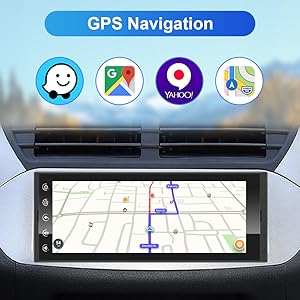
Figure 3: Visual guide for the physical installation process of the head unit.
3.2 Wiring Connections
Connect the provided cables to their respective ports on the car stereo and your vehicle's wiring harness. Refer to your vehicle's specific wiring diagram if necessary.
- Power Supply: Connect the power cable to the vehicle's power source.
- GPS Antenna: Connect the GPS antenna for navigation functionality. Position the antenna in a location with a clear view of the sky.
- USB Cables: Connect the 4-pin and 6-pin USB cables for data transfer and device charging.
- External Microphone: Connect the external microphone for improved call quality.
- RCA & Video Input Cables: Connect these for external audio/video sources, including backup cameras.

Figure 4: Rear view of the stereo showing connection points for power, GPS, USB, and audio/video inputs.
4. Basic Operation
The unit features a responsive 6.9-inch IPS touchscreen for intuitive control. Key functions are accessible via the main interface.
4.1 Power On/Off and Volume Control
To power on the unit, ensure it is correctly wired and your vehicle's ignition is on. The unit will boot up automatically. To adjust volume, use the on-screen controls or compatible steering wheel controls. The volume control is touch-based, requiring a tap and hold on the top of the screen to reveal the volume bar, then dragging your finger up or down.
4.2 Main Interface Navigation
The main screen provides access to various applications and settings. Swipe left or right to navigate between app pages. Tap on icons to launch applications such as Navigation, Music, Radio, Video, and Settings.
Video 1: Demonstration of the 6.9 Inch car stereo's main functions and interface navigation.
5. Wireless CarPlay & Android Auto
This unit supports both wireless Apple CarPlay and wireless Android Auto, allowing for seamless integration of your smartphone's features directly onto the car stereo display.
5.1 Connection Steps
- Enable Wi-Fi: Ensure your phone's Wi-Fi is turned on.
- Bluetooth Pairing: Search for the stereo's Bluetooth device name (e.g., "CarKit_blink") on your phone and pair using the passcode "0000".
- Connect via TLink5: Once paired, open the "TLink5" application on the car stereo. Follow the on-screen prompts to connect to wireless CarPlay or Android Auto and accept the connection request on your phone.
Note: If the TLink5 application is not installed, navigate to the file manager on the stereo, find the APK file, and install it.

Figure 5: Wireless Apple CarPlay in action, showing navigation and media playback.

Figure 6: Wireless Android Auto interface, demonstrating app integration and voice commands.
Video 2: Detailed steps for connecting your smartphone to the car stereo via wireless CarPlay.
6. Bluetooth Connectivity
The unit features upgraded Bluetooth technology for fast and stable connections, enabling hands-free calling and high-quality music streaming.
6.1 Pairing Your Phone
- Enable Bluetooth: On your phone, turn on Bluetooth.
- Search for Device: On your phone, search for Bluetooth devices. The stereo's device name is typically "carkit_blink".
- Enter Passcode: Input the password "0000" on your phone when prompted to pair.
- Play Music: After successful pairing, navigate to the "Bluetooth Music" app on the stereo to play audio from your phone.
Video 3: Guide on how to connect your phone via Bluetooth for music playback and hands-free calls.
7. GPS Navigation
The car stereo includes built-in GPS and Wi-Fi, allowing you to use popular navigation applications like Waze and Google Maps. It supports voice search via Siri or Google Assistant, providing turn-by-turn directions, real-time traffic updates, and estimated arrival times.

Figure 7: GPS navigation interface showing map applications and route information.
8. Multimedia Playback
The Android 10 system allows you to download and use various multimedia applications such as Spotify, Pandora, YouTube, and Netflix. The unit supports multiple inputs for full multimedia access.
8.1 Audio Playback
Access your local music files or stream from online services. The unit supports various audio formats and offers sound customization options.
8.2 Video Playback
Enjoy videos directly on the 6.9-inch IPS screen. The unit supports various video formats and can display content from connected devices via wireless mirroring.

Figure 8: Multimedia capabilities, showing video playback and available streaming apps.

Figure 9: Wireless mirroring feature, allowing content from your smartphone to be displayed on the stereo screen.
9. EQ Adjustment
Customize your audio experience with the built-in 12-band equalizer. Adjust frequency levels to match your preferences and vehicle acoustics for optimal sound quality.

Figure 10: The 12-band equalizer interface for fine-tuning audio output.
10. Steering Wheel Control (SWC)
The unit supports steering wheel controls, allowing you to manage audio playback, calls, and other functions without taking your hands off the wheel. This feature requires proper wiring and configuration, which may vary by vehicle model.

Figure 11: Steering wheel control integration for convenient operation.
11. Troubleshooting
| Problem | Possible Cause | Solution |
|---|---|---|
| Unit does not power on. | Incorrect wiring; Blown fuse; Insufficient power supply. | Check power connections (ACC, B+); Inspect vehicle fuses; Ensure 12V power supply (use voltage regulator for 24V systems). |
| Wireless CarPlay/Android Auto not connecting. | Bluetooth not paired; Wi-Fi off; TLink5 app not running or installed. | Ensure phone Bluetooth is on and paired (passcode 0000); Verify phone Wi-Fi is active; Open TLink5 app on stereo; Install TLink5 APK if missing. |
| No audio output. | Volume too low; Mute activated; Incorrect audio source selected; Speaker wiring issue. | Increase volume; Check mute setting; Select correct audio source; Verify speaker connections. |
| Screen unresponsive or frozen. | Software glitch; Temporary system error. | Perform a soft reset (refer to manual for specific button combination or power cycle the unit by turning off the vehicle ignition and restarting). |
| Screen blocks air vent/buttons in some vehicles. | Vehicle specific dashboard design. | This is a known compatibility note for some vehicles due to the screen size. Verify fitment before purchase. |
12. Specifications
- Model Name: 6.9 inch single din
- Display Size: 6.9 Inches
- Display Resolution: 1280x480 IPS
- Operating System: Android 10
- Connectivity: USB, Bluetooth, Wi-Fi, Wireless CarPlay, Wireless Android Auto
- Audio Output Mode: Surround (2.1-CH RCA Audio Out for front L/R and subwoofer)
- Amplifier: Max output 4*45W, RMS 4*25W
- Equalizer: DSP + 12-band EQ
- Voice Command: Touchscreen interface, supports Siri/Google Assistant via connected phone
- Product Dimensions: 7 x 5 x 4 inches (Length: 115mm, Width: 180mm, Height: 50mm)
- Item Weight: 2.46 pounds
- Country of Origin: China
13. Warranty and Support
The Woibugee 6.9 Inch Single Din Touchscreen Car Stereo comes with a 1-year warranty from the date of purchase. This warranty covers manufacturing defects and malfunctions under normal use. For technical support, troubleshooting assistance, or warranty claims, please contact Woibugee customer service through the retailer's platform or the official Woibugee website.
For additional resources, you may refer to the official User Guide (PDF) and Installation Manual (PDF) available online. Links to these documents can typically be found on the product's purchase page or the manufacturer's support section.
- User Guide (PDF): Download User Guide
- Installation Manual (PDF): Download Installation Manual


