
HUION HUION Note X10
Contents
Huion Note X10 Smart Digital Notebook User Manual
Model: HUION Note X10 | Brand: HUION
Introduction
The Huion Note X10 is an intelligent digital notebook designed to seamlessly integrate traditional handwriting with digital technology. It combines the tactile experience of writing on paper with the convenience of digital storage, editing, and sharing. This manual provides essential information for setting up, operating, maintaining, and troubleshooting your Huion Note X10.
Product Overview
The Huion Note X10 functions as both a smart A5 notebook and a pen tablet. It features a durable spunlace leather protective cover and comes with 50 replaceable paper pages. The device supports offline storage and one-click PDF sharing.

Figure 1: Huion Note X10 Smart Digital Notebook with its accompanying pen and a smartphone demonstrating real-time drawing synchronization.
What's in the Box

Figure 2: Included components of the Huion Note X10 package.
- Huion Note X10 Smart Digital Notebook
- Huion Scribo Pen (2nd Generation)
- 50 Replaceable Paper Pages (A5 size)
- Magnetic Pen Sleeve
- Ballpoint Pen Nibs (x3)
- Plastic Pen Nibs (x3)
- Nib Clip
- USB-C Cable (1m)
- Quick Start Guide
Setup
Initial Charging
Before first use, ensure your Huion Note X10 is fully charged using the provided USB-C cable. The device features a battery indicator to show the current charge level.
Connecting to Your Device (Bluetooth)
The Huion Note X10 automatically pairs with your device (smartphone or tablet) when the notebook is opened and the Huion Note App is launched. It disconnects when the notebook is closed. This stable Bluetooth 5.0 transmission ensures a reliable connection throughout the day.

Figure 3: The Huion Note X10 offers stable and durable transmission for extended use.
App Installation
To utilize the full features of the Huion Note X10, download and install the Huion Note App on your smartphone or tablet. For Pen Tablet Mode, ensure the appropriate Huion driver is installed on your PC.
OS Compatibility
- Note Mode (Wireless connection to phone/tablet): Compatible with iOS/iPadOS/Android.
- Pen Tablet Mode (Wired/Wireless connection to PC/laptop/desktop): Compatible with Windows/macOS/LinuxOS.
- Note: Currently, LinuxOS only supports wired connections for Pen Tablet Mode.
Operating Modes
1. Note Mode
In Note Mode, your handwritten notes are digitized and synchronized with the Huion Note App on your connected device. This mode allows for real-time synchronization, offline storage, and various editing and sharing functionalities.
Real-time Synchronization
As you write on the physical paper, your notes are instantly transferred to the Huion Note App, appearing as electronic documents.
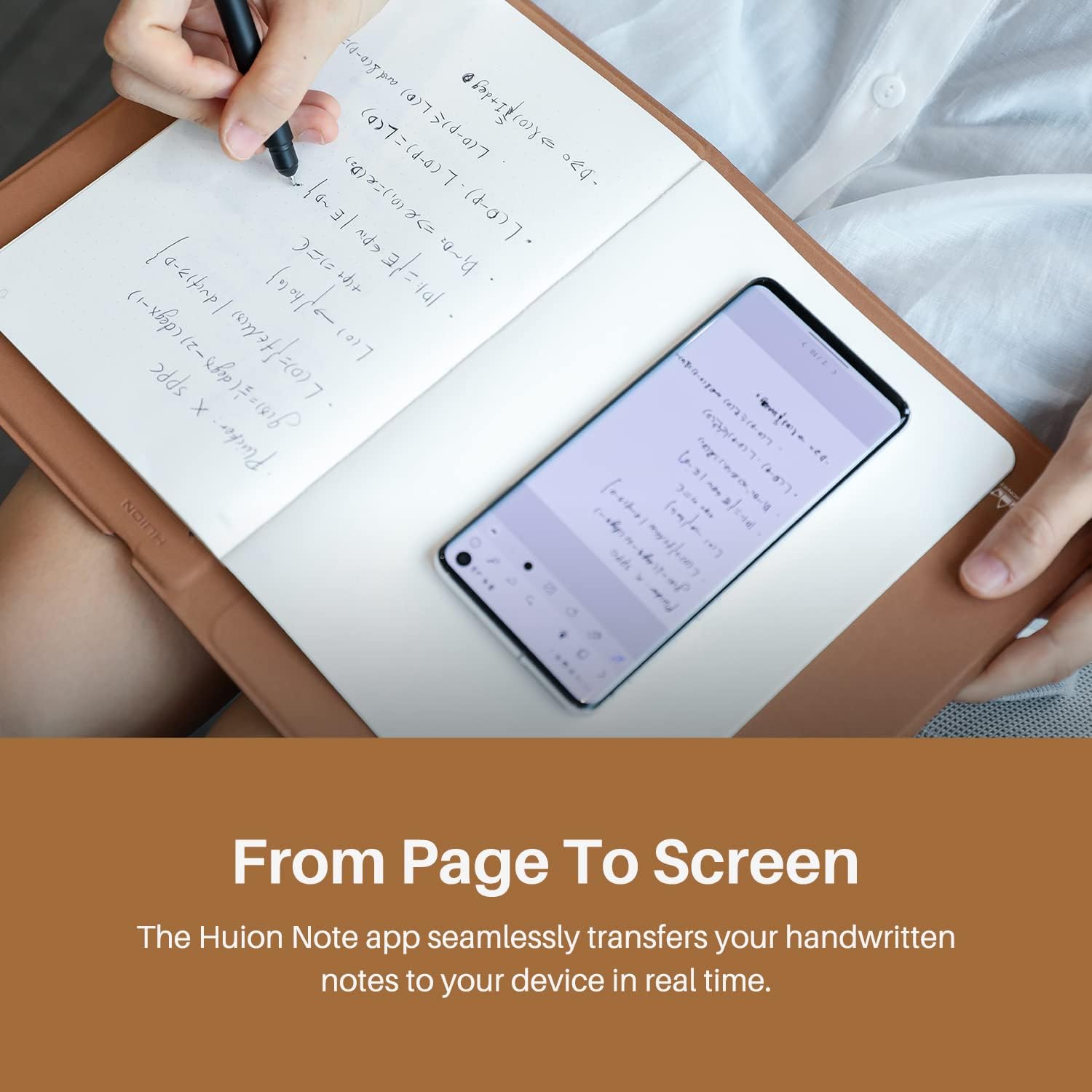
Figure 4: Real-time synchronization of handwritten notes from page to screen.
Offline Storage
The Huion Note X10 supports offline storage for up to 50 pages. You can write notes without being connected to your device and synchronize them later when a connection is established.

Figure 5: The Huion Note X10 allows for offline storage of notes.
Editing Tools in Huion Note App
The Huion Note App provides various editing tools, including highlighters, erasers, lasso tools, and color selectors, to modify your digitized notes.
Playback and Voice Recording
The app allows for playback of your writing process, which can be saved as a video. You can also record voice notes while writing, enabling you to capture key points during meetings or classes for later review.
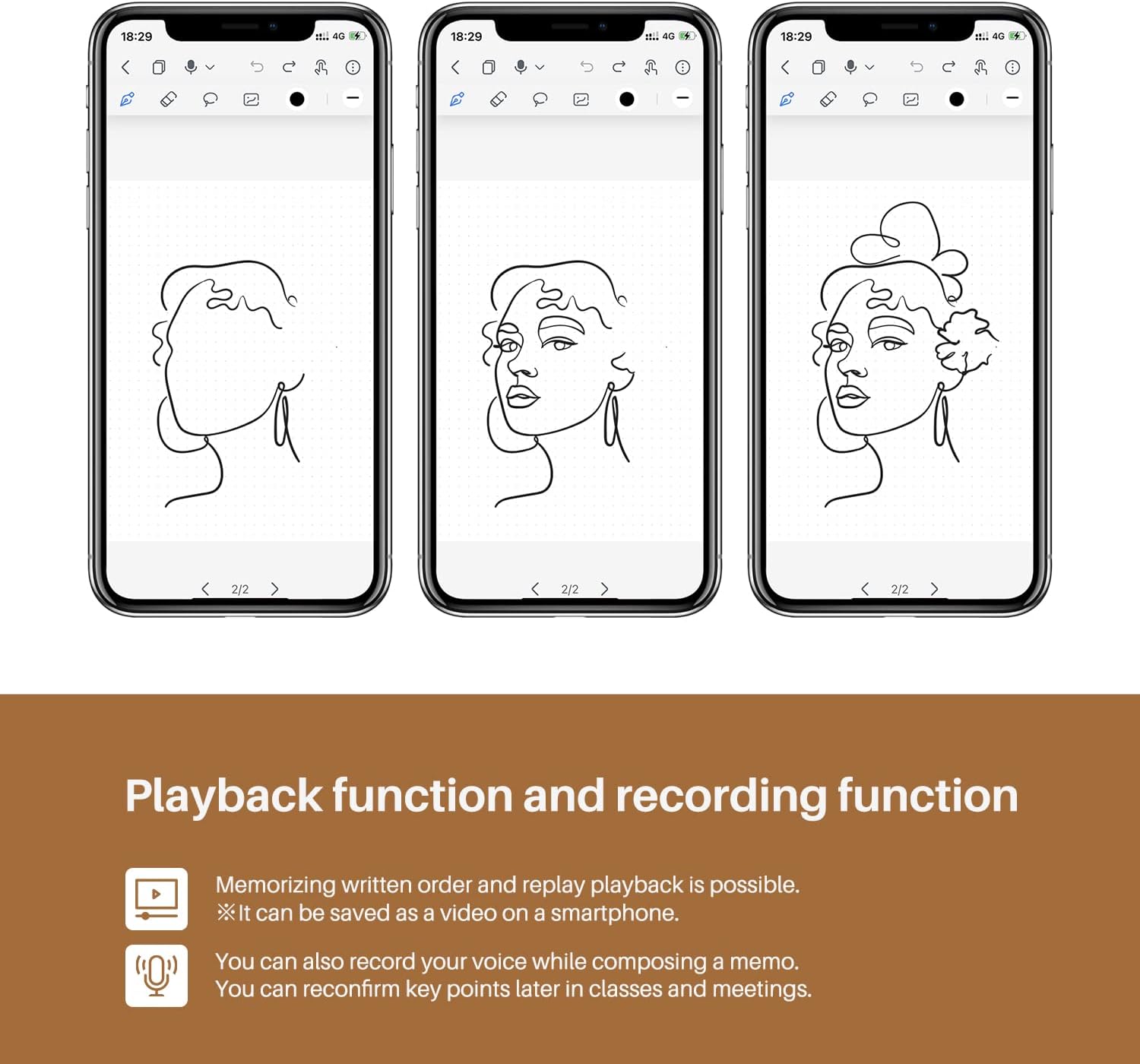
Figure 6: Playback function allows reviewing the writing process.
One-Click Sharing
Digitized content can be easily shared with others in PDF format, enhancing collaboration and communication.

Figure 7: One-click sharing options for your digitized notes.
2. Pen Tablet Mode
For artists and designers, the Huion Note X10 can transform into a pen tablet. Replace the inner paper pages with the dedicated panel found in the box, and connect the device to your PC (with the Huion driver pre-loaded). This mode provides 8192 levels of pressure sensitivity and a ±60° tilt function, offering a professional drawing experience.

Figure 8: The Huion Note X10 offers two distinct roles: Note Mode and Pen Tablet Mode.
Huion Scribo Pen (2nd Gen) and Refills
The Huion Note X10 comes with the 2nd Generation Huion Scribo Pen, featuring PenTech 3.0 technology for stable stroke performance and improved curve rendering. The pen is designed to provide a realistic writing experience.
Refill Types
The Scribo Pen is equipped with both plastic nibs for digital drawing and standard ballpoint refills for traditional writing on paper. This versatility allows the pen to meet various writing and drawing requirements.
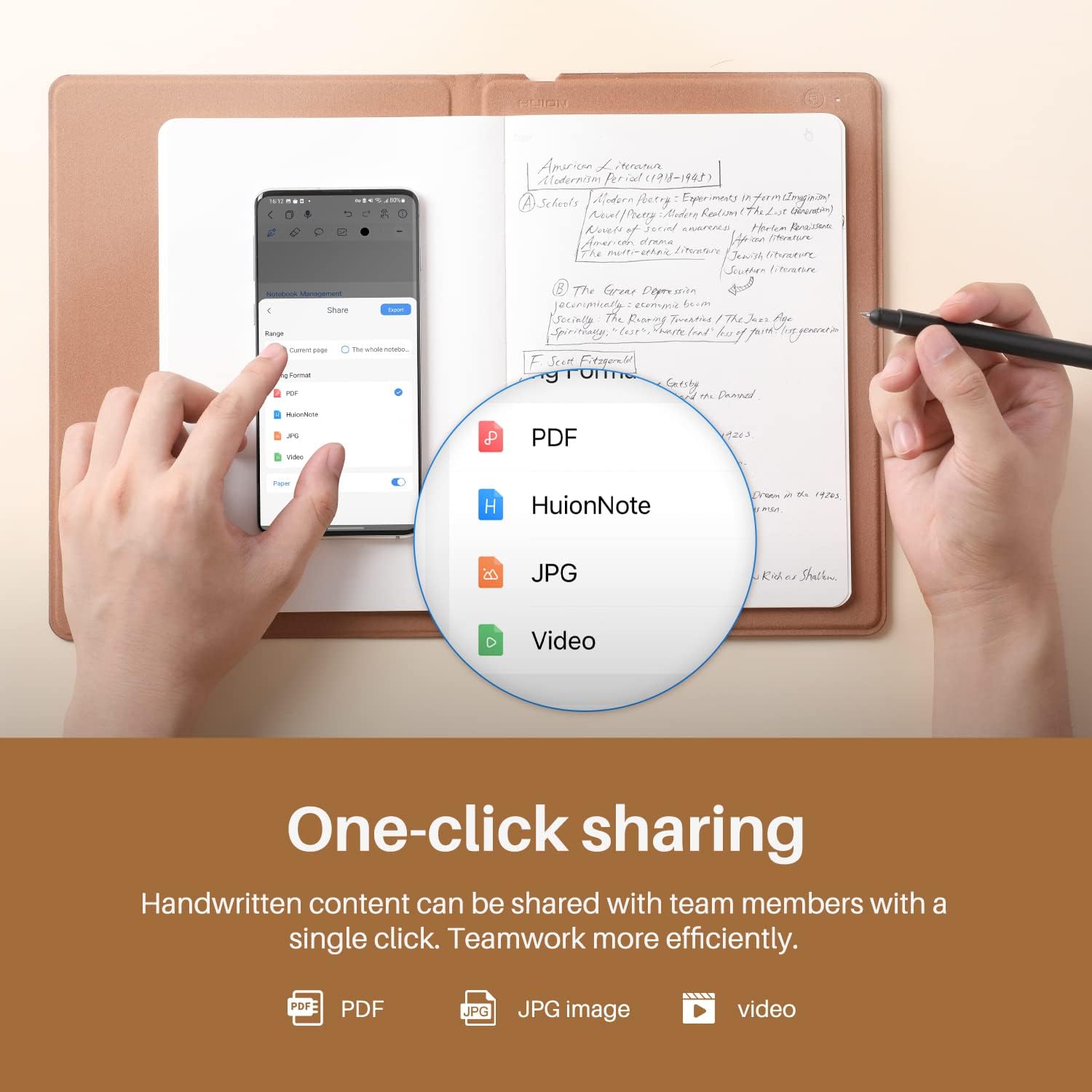
Figure 9: The Huion Scribo Pen uses standard ballpoint refills for a natural writing feel.
Maintenance
Battery Care
The Huion Note X10 has an 18-hour battery life for continuous use and a 30-day standby time. To prolong battery life, avoid extreme temperatures and store the device with a partial charge if not used for extended periods. The battery capacity is 1300mAh, and it takes less than 4 hours to fully charge.
Cleaning
Use a soft, dry cloth to clean the surface of the Huion Note X10 and the Scribo Pen. Avoid using abrasive cleaners or solvents.
Replacing Paper Pages
The Huion Note X10 uses replaceable A5-sized paper pages. When pages are full, simply replace them with new ones to continue using the device in Note Mode.
Troubleshooting
Common Issues and Solutions
- Pen Not Responding or Inaccurate Tracing:
- Ensure the pen nib is securely inserted.
- Check if the device battery is sufficiently charged.
- Verify that the Huion driver is correctly installed and updated on your PC for Pen Tablet Mode.
- If experiencing issues with drawing lines disappearing or reappearing incorrectly (e.g., creating straight lines), this may indicate a driver or software conflict. Try reinstalling the Huion driver or checking for updates.
- Connectivity Issues (Bluetooth):
- Ensure Bluetooth is enabled on your smartphone/tablet.
- Close and reopen the Huion Note App and the notebook to re-establish the connection.
- Restart both the Huion Note X10 and your connected device.
- Driver Installation Difficulties:
- The driver for Pen Tablet Mode needs to be manually downloaded and installed from the official Huion website. It does not install automatically upon connection.
- If encountering issues with the mouse pointer returning to the corner in multi-session environments (e.g., professional and private sessions on one PC), this is a known software interaction. Try using the device in a single user session or consult Huion support for specific workarounds.
- App Functionality Issues:
- Ensure the Huion Note App is updated to the latest version.
- Clear the app's cache or reinstall the app if persistent issues occur.
Specifications
| Feature | Specification |
|---|---|
| Brand | HUION |
| Model Name | HUION Note X10 |
| Color | Black |
| Screen Size | 19.18 Centimeters (7.35 x 5.5 Inch active area) |
| Connectivity Technology | Bluetooth |
| Operating System Compatibility | Note Mode: iOS/iPadOS/Android; Pen Tablet Mode: Windows/macOS/LinuxOS |
| Pressure Sensitivity | 8192 Levels |
| Tilt Function | ±60° (in Pen Tablet Mode) |
| Battery Composition | Lithium-ion |
| Battery Life | 18 hours (usage), 30 days (standby) |
| Battery Capacity | 1300mAh |
| Charging Time | Less than 4 hours |
| Special Features | Durable, Portable, Offline Storage, Voice Recording |
| Compatible Devices | Tablet, Laptop, Desktop, Smartphone |
| Included Components | 2nd Gen Huion Scribo Pen, 50 replaceable paper pages, magnetic pen sleeve |
Warranty and Support
For warranty information, technical support, or service inquiries regarding your Huion Note X10, please contact the official HUION support channels. Refer to the quick start guide or the official HUION website for contact details and further assistance.
Ask a question about this manual
Ask about setup, troubleshooting, compatibility, parts, safety, or missing instructions. Manuals+ will review the question and use this page’s manual context to help answer it.