
Introduction
Thank you for choosing the Steelplay Slimpack 2.4GHz Wireless Controller. This manual provides detailed instructions for the proper setup, operation, and maintenance of your controller. Designed for compatibility with PlayStation 4, PlayStation 3, and PC, this controller features dual vibration feedback and four programmable rear paddles for an enhanced gaming experience.
Package Contents
- Steelplay Slimpack 2.4GHz Wireless Controller
- 2.4GHz USB Receiver
- USB Charging Cable
- User Manual (this document)
Controller Layout
Familiarize yourself with the buttons and features of your Steelplay Slimpack Wireless Controller.
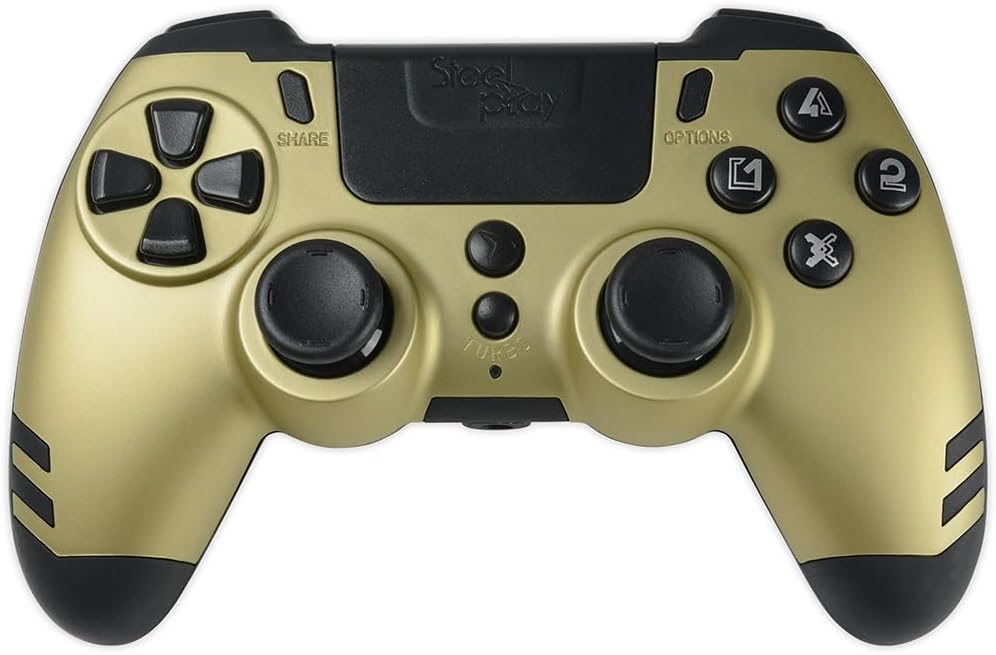
Figure 1: Top-down view of the Steelplay Slimpack Wireless Controller. This image displays the layout of the directional pad, action buttons (triangle, circle, cross, square), dual analog sticks, SHARE and OPTIONS buttons, and the central touchpad area.
- Directional Pad (D-Pad): For precise directional input.
- Action Buttons (Triangle, Circle, Cross, Square): Primary input buttons.
- Left/Right Analog Sticks: For movement and camera control.
- SHARE Button: Access sharing features (PS4).
- OPTIONS Button: Access in-game menus or system options.
- PS Button: Power on/off the controller, access system menu.
- L1/R1 Buttons: Shoulder buttons.
- L2/R2 Triggers: Analog triggers.
- Rear Paddles (P1, P2, P3, P4): Four programmable buttons located on the back of the controller.
- TURBO Button: Activates turbo function for selected buttons.
Setup
1. Charging the Controller
- Connect the small end of the USB charging cable to the charging port on the controller.
- Connect the large end of the USB charging cable to a USB port on your console (PS4/PS3) or PC, or a compatible USB wall adapter (not included).
- The LED indicator on the controller will slowly flash while charging and turn off when fully charged.
- A full charge typically takes approximately 2-3 hours.
2. Connecting to PS4/PS3/PC (2.4GHz Wireless)
The controller connects wirelessly via the included 2.4GHz USB receiver.
- Insert the 2.4GHz USB receiver into an available USB port on your PlayStation 4, PlayStation 3, or PC.
- Press the PS Button on the controller to power it on.
- The controller will automatically attempt to pair with the USB receiver. The LED indicator will flash rapidly during pairing and remain solid when successfully connected.
- If the controller does not connect, ensure the receiver is properly inserted and try pressing the PS button again.
Operating Instructions
Basic Controls
Once connected, the controller functions similarly to standard PS4/PS3/PC controllers. Refer to your game's instructions for specific button mappings.
Dual Vibration Feedback
The controller features dual vibration motors that provide tactile feedback during gameplay, enhancing immersion. This feature is automatically active when supported by the game.
Programming Rear Paddles
The four rear paddles (P1, P2, P3, P4) can be programmed to replicate other buttons on the controller, allowing for quick access to frequently used commands without repositioning your fingers.

Figure 2: Angled view of the Steelplay Slimpack Wireless Controller. This image shows the ergonomic design of the grips and the placement of the four programmable rear paddles on the underside of the controller.
- Enter Programming Mode: Press and hold the TURBO button and the SHARE button simultaneously for 3 seconds. The LED indicator will start flashing rapidly to indicate programming mode.
- Select Paddle: Press the rear paddle (P1, P2, P3, or P4) you wish to program. The LED indicator will flash slowly.
- Assign Button: Press the button on the front of the controller (e.g., X, O, Triangle, Square, L1, R1, L2, R2, D-Pad directions, Left/Right Stick clicks) that you want the paddle to emulate.
- Exit Programming Mode: Press the TURBO button again. The LED indicator will return to solid, indicating the paddle is programmed and programming mode is exited.
- Repeat for other paddles as desired.
- To clear a programmed paddle, enter programming mode, select the paddle, and then press the TURBO button without assigning another button.
Turbo Function
The Turbo function allows a button to be repeatedly pressed automatically as long as it is held down.
- Activate Turbo: Press and hold the TURBO button, then press the desired action button (e.g., X, O, Triangle, Square, L1, R1, L2, R2). The button will now have turbo functionality.
- Deactivate Turbo: To remove turbo from a button, press and hold the TURBO button again, then press the same action button.
Maintenance
- Cleaning: Use a soft, dry cloth to clean the controller. Do not use harsh chemicals or abrasive materials.
- Storage: Store the controller in a cool, dry place away from direct sunlight and extreme temperatures.
- Battery Care: To prolong battery life, avoid fully discharging the controller frequently. Charge it regularly.
- Avoid Impact: Do not drop or subject the controller to strong impacts, as this may damage internal components.
Troubleshooting
| Problem | Possible Cause | Solution |
|---|---|---|
| Controller does not power on. | Low battery. | Charge the controller using the provided USB cable. |
| Controller does not connect wirelessly. | USB receiver not properly inserted or not recognized. Controller not paired. | Ensure the 2.4GHz USB receiver is fully inserted into a working USB port. Press the PS button on the controller to initiate pairing. Try a different USB port. |
| Input lag or dropped connection. | Interference from other wireless devices. Controller too far from receiver. Low battery. | Move closer to the USB receiver. Ensure no major obstructions. Charge the controller. Minimize other 2.4GHz wireless devices nearby. |
| Buttons or analog sticks are unresponsive. | Software glitch. Physical damage. | Try resetting the controller (if a reset button is available, typically a small pinhole on the back). If the issue persists, contact customer support. |
Specifications
- Model Number: JVAMUL00154
- Connectivity: 2.4GHz Wireless
- Compatibility: PlayStation 4, PlayStation 3, PC
- Features: Dual Vibration Feedback, 4 Programmable Rear Paddles, Turbo Function
- Power Source: Built-in Rechargeable Battery
- Package Dimensions: 20.4 x 18.2 x 7.8 cm
- Item Weight: 360 g
Warranty and Support
For warranty information or technical support, please refer to the documentation provided with your purchase or visit the official Steelplay website. Keep your proof of purchase for warranty claims.


