Introduction
This manual provides comprehensive instructions for the setup, operation, and maintenance of your SMPL Big Button Corded Phone for Seniors, Model 56020. Designed with ease of use in mind, this phone features large buttons, amplified sound, and photo memory keys to enhance communication for individuals with hearing, vision, or dexterity challenges.
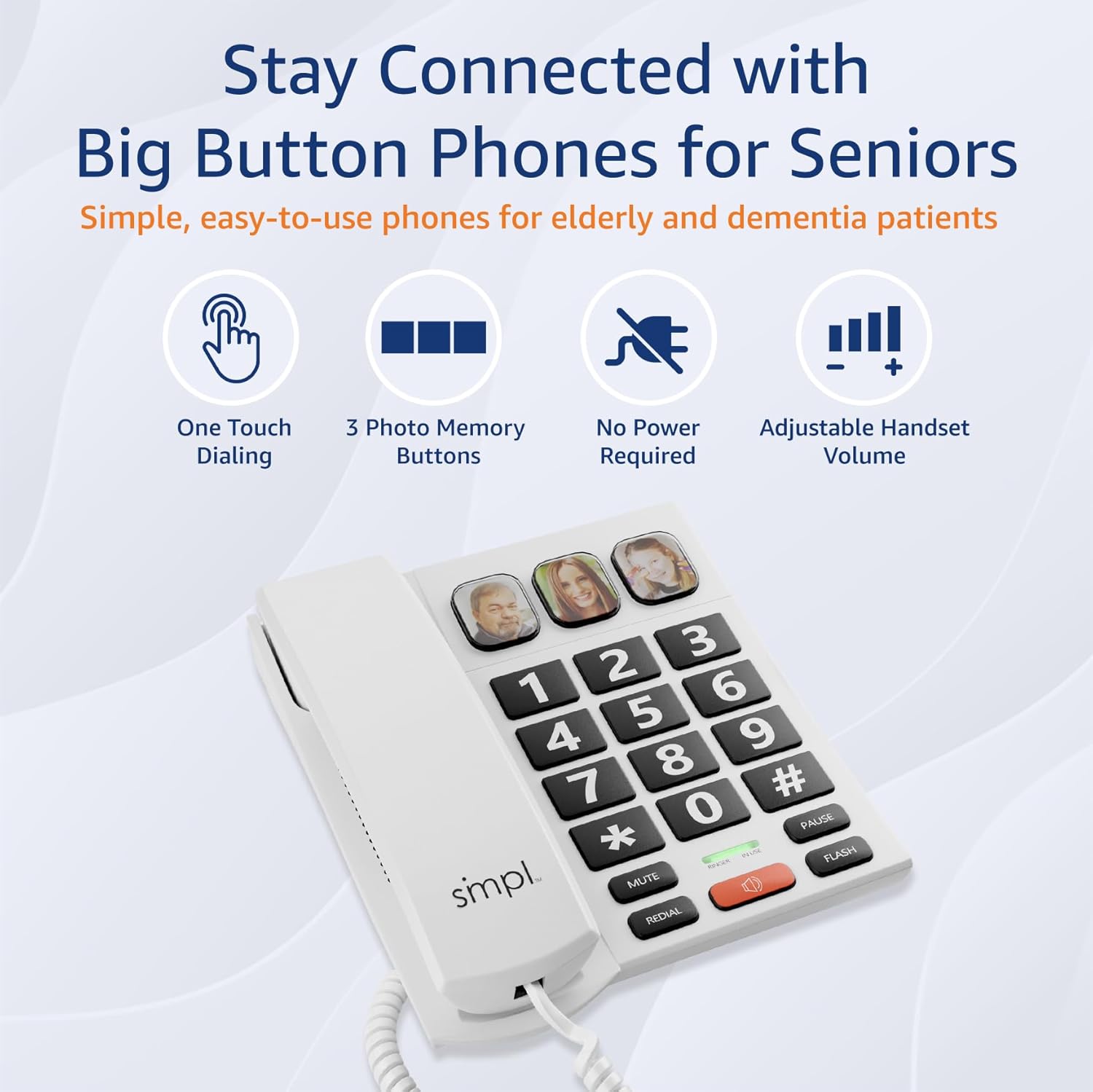
Image: The SMPL Big Button Corded Phone, showcasing its large keypad and three photo memory buttons.
Package Contents
Please verify that all items listed below are included in your package:
- 1 x Telephone Base
- 1 x Handset
- 1 x Handset Cord
- 1 x Phone Line Cord
- 1 x User Manual
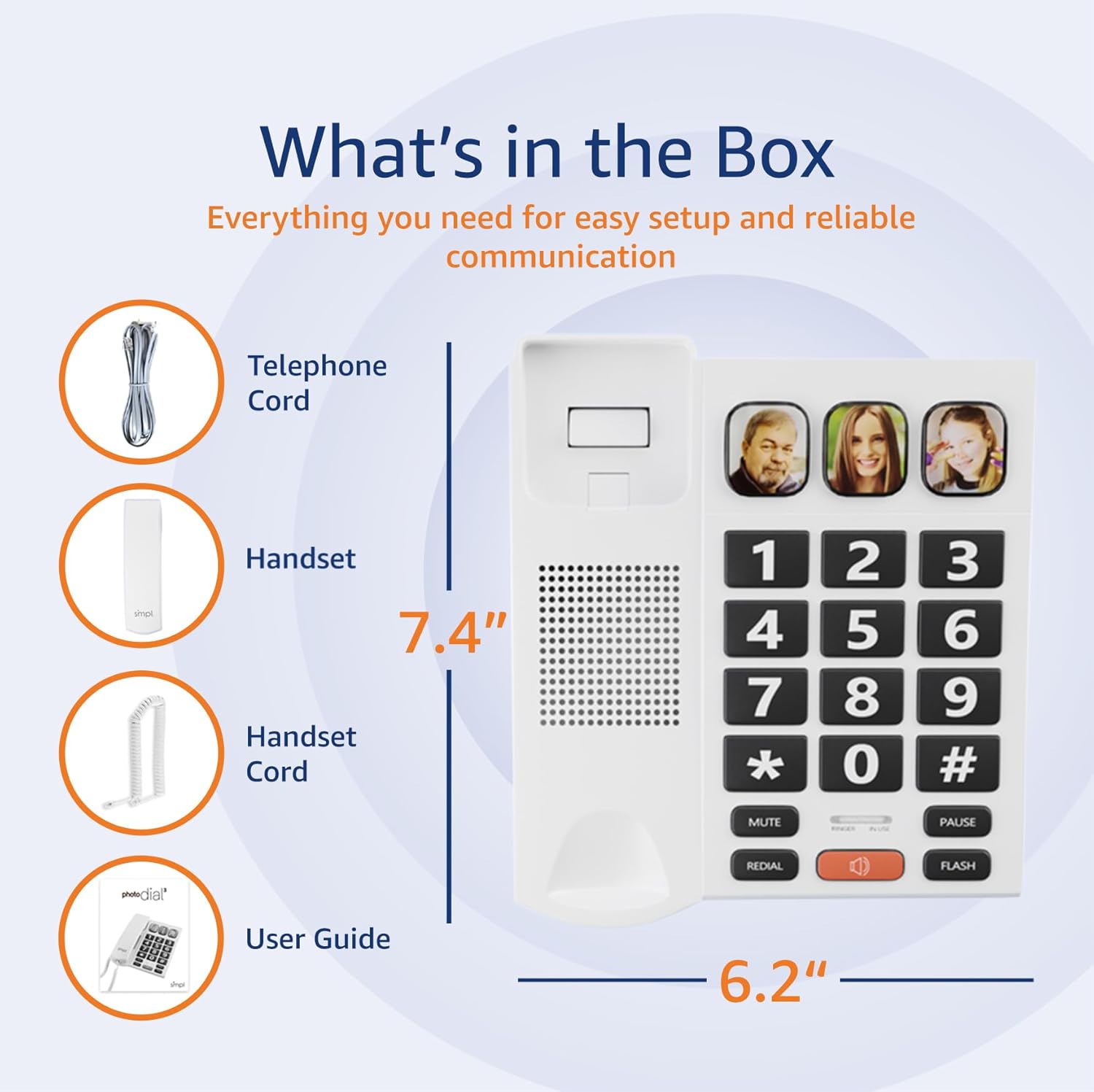
Image: A visual representation of the phone's components, including the telephone base, handset, cords, and user guide, laid out next to the packaging.
Setup Instructions
- Connect the Handset: Plug one end of the coiled handset cord into the handset and the other end into the designated port on the left side of the telephone base. Ensure a secure connection.
- Connect to Phone Line: Plug one end of the phone line cord into the "LINE" port on the back of the telephone base. Plug the other end into your wall phone jack.
- Power (Optional for VoIP): This phone operates on traditional landlines without external power. If you are using a VoIP service (Internet with voice), an optional power adapter (Model 56021, sold separately) may be required for full functionality. Check your service bill if unsure.
- Adjust Ringer Volume: Locate the "LOW HI RINGER" switch on the back of the phone. Adjust to your preferred volume setting (Low or High).
- Adjust Handset Volume: Locate the "MED HI VHI HANDSET VOLUME" switch on the back of the phone. Adjust to your preferred listening level (Medium, High, or Very High).

Image: The rear view of the phone base, highlighting the ports for the phone line and handset, along with the adjustable switches for ringer and handset volume.
Features Overview
- Large Buttons: Oversized, high-contrast buttons for easy visibility and dialing, reducing errors for users with visual impairments or dexterity issues.
- Three Photo Memory Keys: Dedicated buttons (M1, M2, SOS) allow users to program frequently called numbers with corresponding photos for one-touch dialing.
- Amplified Handset & Ringer Volume: Adjustable volume levels for both the handset (up to 85 dB) and ringer (over 75 dB) to accommodate varying degrees of hearing loss.
- Visual Flasher: An integrated visual alert flashes during incoming calls, providing an additional notification for users who may not hear the ringer.
- Speakerphone: Hands-free communication option for convenience and group conversations.
- Redial Function: Quickly redial the last number called.
- Flash Button: Used for call waiting or transferring calls (if supported by your phone service).

Image: A close-up of the phone's large, easy-to-read buttons and the visual flasher, emphasizing its user-friendly design.
Operating Instructions
Making a Call:
- Standard Dialing: Lift the handset or press the SPEAKER button. Dial the desired phone number using the large keypad.
- Photo Memory Key Dialing:
- Programming:
- Lift the handset.
- Press the STORE button.
- Dial the phone number you wish to save.
- Press the STORE button again.
- Press one of the photo memory keys (M1, M2, or SOS) to assign the number.
- Replace the handset.
- Dialing: Lift the handset or press the SPEAKER button, then simply press the desired photo memory key (M1, M2, or SOS). The phone will automatically dial the stored number.
- Programming:
Video: This video demonstrates how to add a phone number to a picture button on a similar Easyfone T6 model, illustrating the process of programming speed dial keys with associated images.
Video: This video illustrates how to dial numbers using the standard keypad function on a similar Easyfone T6 model, for calls not assigned to photo buttons.
Receiving a Call:
- When the phone rings, lift the handset or press the SPEAKER button to answer.
- To end the call, replace the handset or press the SPEAKER button again if using hands-free mode.
Adjusting Volume During a Call:
- While on a call, use the VOL+ and VOL- buttons (if available on your model) or the handset volume switch on the back of the phone to adjust the listening volume.
Maintenance
- Cleaning: Wipe the phone with a soft, damp cloth. Do not use harsh chemicals or abrasive cleaners.
- Storage: Store the phone in a cool, dry place away from direct sunlight and extreme temperatures.
- Cord Care: Avoid tangling or excessive pulling of the cords to prevent damage.
Troubleshooting
| Problem | Possible Solution |
|---|---|
| No dial tone |
|
| Cannot hear caller / Caller cannot hear me |
|
| Phone does not ring |
|
| Photo memory keys not working |
|
Specifications
- Model Number: 56020
- Product Dimensions: 19.1 x 20.7 x 6.4 cm
- Weight: 581 g
- Color: White
- Material: Plastic
- Telephone Type: Corded
- Power Source: Corded Electric (operates on landline power; optional adapter for VoIP)
- Dialer Type: Single Keypad
- Answering System Type: Digital (Recording Capacity: 24 Minutes)
- Compatible Devices: Hearing Aid
- Multiline Operation: Single-Line Operation
- Caller ID: No
- UPC: 628857560203
Warranty and Support
For warranty information or technical support, please refer to the contact details provided with your purchase documentation or visit the official SMPL website. Keep your purchase receipt as proof of purchase for warranty claims.


