
Veise G2
Veise G2 Smart Lock WiFi Gateway Instruction Manual
Model: G2 | Brand: Veise
1. Introduction
The Veise G2 WiFi Gateway is designed to enhance the functionality of your smart locks, enabling remote control and voice command capabilities. It acts as a bridge between your smart lock and your home Wi-Fi network, allowing you to manage your lock from anywhere using the compatible mobile application.
This gateway is compatible with smart locks that utilize the DD Lock App or TT Lock App. Please note that other applications are not supported. One gateway can be paired with multiple door locks within the same account.
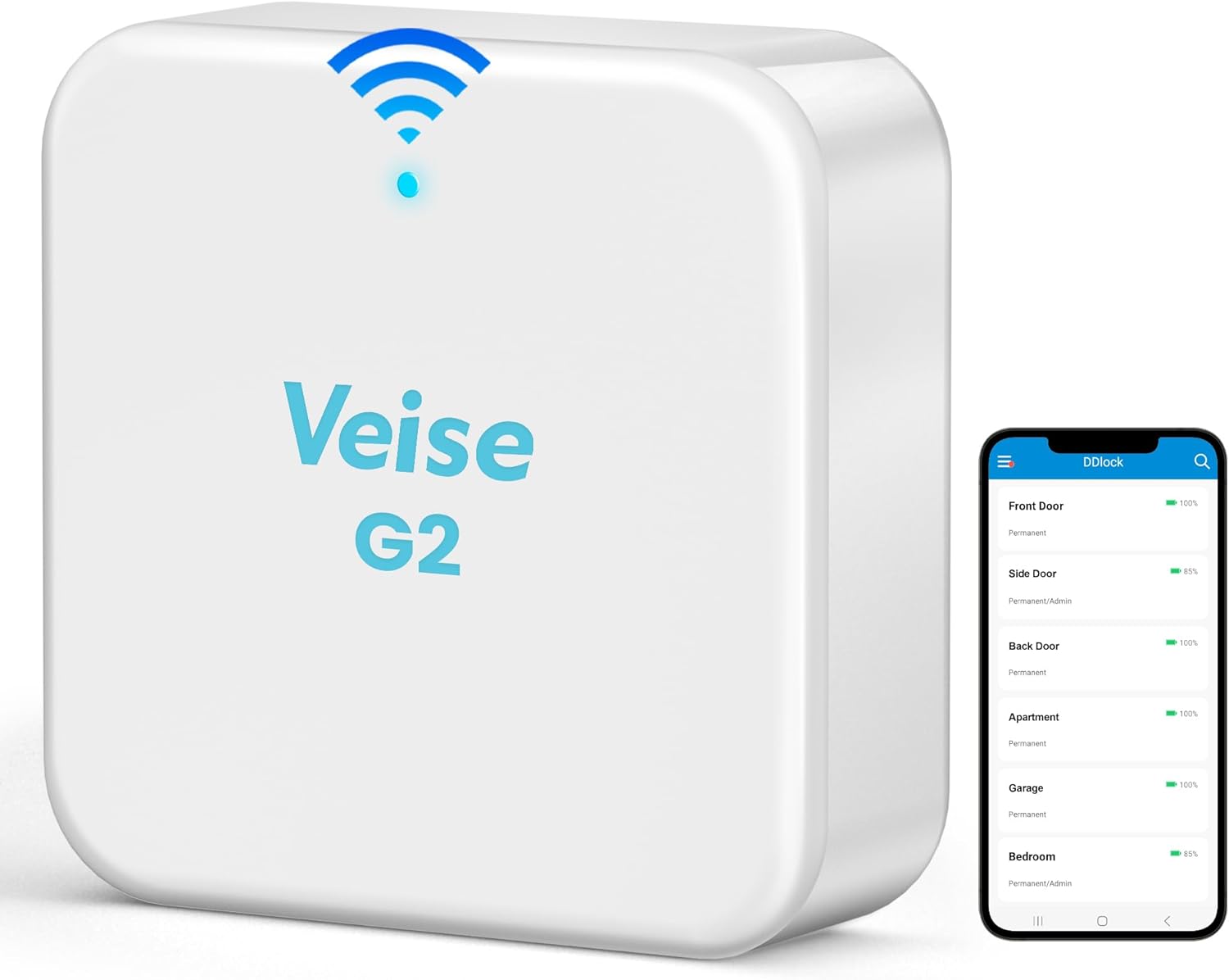
Figure 1: Veise G2 Gateway with DDLock App Interface
This image displays the compact Veise G2 Gateway alongside a smartphone screen showing the DDLock application, illustrating the central role of the gateway in smart lock management.

Figure 2: Gateway Compatibility Overview
This diagram visually confirms that the Veise G2 Gateway is exclusively compatible with Veise DDLock and TTLock smart lock models, highlighting the importance of using the correct lock type.
2. Setup Guide
Follow these steps to set up your Veise G2 Gateway and connect it to your smart lock.
2.1 Pre-installation Requirements
- A 2.4G WiFi network is required for pairing. 5G networks are not supported.
- Ensure a stable connection by placing the gateway within 32 feet (10 meters) of your smart lock.
- When adding the gateway, your smartphone and the gateway must be connected to the same Wi-Fi network.
2.2 Pairing with the App
Open the App: Launch the DD Lock App or TT Lock App on your smartphone.

Figure 3: Open the App
Begin by opening the compatible smart lock application on your mobile device.
Tap Menu Icon: Tap on the three-line menu icon located in the upper left corner of the screen.

Figure 4: Tap Menu Icon
Locate and tap the menu icon to access further options within the application.
Select Gateway: From the menu, select the 'Gateway' option.

Figure 5: Select Gateway
Navigate through the menu to find and select the 'Gateway' option to proceed with the setup.
Select G2: Choose 'G2' from the list of available gateways. Remember the 32 ft distance recommendation.
Figure 6: Select G2 Gateway
From the list of detected gateways, select the 'G2' model to initiate its configuration.
Plug in Gateway: Connect the gateway to a power source using the provided Type-C cable. Note: A power plug is not included and needs to be purchased separately.
Figure 7: Powering the Gateway
Connect the Veise G2 Gateway to a power outlet to turn it on and prepare for pairing.
Tap '+': While the gateway's light is flashing red and blue alternately, tap the '+' icon in the app to add the gateway.

Figure 8: Add Gateway in App
Once the gateway is powered on and its indicator light is flashing, tap the '+' button in the app to initiate the adding process.
Add Gateway Confirmation: Confirm the addition of the gateway in the app.

Figure 9: Confirm Gateway Addition
Follow the on-screen prompts to confirm that you wish to add the detected gateway to your account.
Select Network & Enter Password: Choose your 2.4G WiFi network from the list and enter your Wi-Fi password. If the process times out, please power off the gateway and try again.

Figure 10: Network Selection and Password Entry
Select your home's 2.4GHz Wi-Fi network from the list and input the corresponding password to connect the gateway to the internet.
2.3 Light Status Indicators
The LED indicator on the Veise G2 Gateway provides important information about its status:
- Flashing Red/Blue lights: Stand-by mode / Ready to Pair
- Blue light: Normal mode (connected and operating correctly)
- Red light: Network failure (connection issue)

Figure 11: Gateway Light Status
This image illustrates the different light indicators on the Veise G2 Gateway and their corresponding operational statuses, from pairing mode to network failure.
3. Operating Instructions
Once your Veise G2 Gateway is successfully set up, you can utilize its advanced features for convenient smart lock management.
3.1 Remote Control
The gateway enables full remote control of your connected smart locks. Through the DD Lock App or TT Lock App, you can:
- Lock/Unlock: Remotely lock or unlock your door from anywhere with an internet connection.
- Check Status: View the real-time status of your door lock (locked/unlocked).
- Manage Access: Set custom passwords, eKeys, or temporary access codes for guests or service providers.
- View Logs: Access a detailed log of lock activity, including who unlocked the door and when.

Figure 12: Remote App Control Interface
This image shows a smartphone displaying the remote control interface of the app, including options for remote access, monitoring lock status, message pushes, and viewing the records log.

Figure 13: Remote Password Setup
The image illustrates the capability of the Veise G2 Gateway to facilitate remote password setup for your smart lock, allowing for convenient access management from a distance.
3.2 Voice Control
After the gateway is paired with your smart lock, it becomes compatible with popular voice assistants, including Amazon Alexa and Google Assistant. This allows for hands-free control of your door lock.
- Enable Skill/Action: In your Alexa or Google Home app, enable the corresponding skill or action for your smart lock (e.g., 'Sciener Smart' routine for Alexa).
- Voice Commands: Use simple voice commands to lock or unlock your door. For example, "Alexa, unlock the front door" or "Hey Google, lock the back door."

Figure 14: Voice Control Integration
This image depicts a user interacting with smart speakers (Google Home and Amazon Echo Dot) to control their smart lock via voice commands, enabled by the Veise G2 Gateway.
4. Maintenance
The Veise G2 Gateway requires minimal maintenance to ensure optimal performance.
- Cleaning: Gently wipe the device with a soft, dry cloth to remove dust. Avoid using liquid cleaners or abrasive materials.
- Placement: Ensure the gateway is placed in a well-ventilated area, away from direct sunlight, excessive heat, or moisture.
- Power Supply: Use only the recommended power adapter (5V/500mA) and Type-C cable to prevent damage.
- Firmware Updates: Periodically check the DD Lock App or TT Lock App for any available firmware updates for the gateway to ensure it has the latest features and security enhancements.
5. Troubleshooting
If you encounter issues with your Veise G2 Gateway, refer to the following common problems and solutions.
| Problem | Possible Cause | Solution |
|---|---|---|
| Gateway not pairing with app. | Incorrect Wi-Fi band (not 2.4G), incorrect password, or gateway too far from router/phone. | Ensure your Wi-Fi is 2.4G. Double-check Wi-Fi password. Move gateway closer to your router and smartphone during setup. If pairing times out, power cycle the gateway and try again. |
| Remote control not working. | Gateway offline, poor signal between gateway and lock, or internet connectivity issues. | Check gateway light status (should be blue). Ensure gateway is within 32 ft of the smart lock. Verify your home internet connection. Restart the gateway and the app. |
| Voice control (Alexa/Google) not responding. | Incorrect skill/action enabled, gateway not linked to voice assistant, or command syntax error. | Ensure the correct skill (e.g., 'Sciener Smart' for Alexa) is enabled and linked in your voice assistant app. Verify the gateway is online and connected to your smart lock. Use precise voice commands. |
| Gateway frequently goes offline. | Unstable Wi-Fi signal, network interference, or IP address conflicts. | Ensure strong 2.4G Wi-Fi signal where the gateway is located. Try assigning a static IP address to the gateway in your router settings. Consider placing the gateway on a dedicated 2.4G network if possible. Move gateway away from other interfering electronic devices. |
6. Specifications
| Feature | Detail |
|---|---|
| Brand | Veise |
| Model Name | G2 |
| Lock Type Compatibility | Connect Bridge (for DD Lock App and TT Lock App compatible smart locks) |
| Connectivity Protocol | Wi-Fi (2.4G, IEEE standard 802.11 b/g/n) |
| Control Method | App, Voice (via Amazon Alexa, Google Assistant) |
| Material | Plastic |
| Color | White |
| Item Dimensions (L x W x H) | 2.76 x 2.76 x 1.02 inches (70 x 70 x 26 mm) |
| Item Weight | 1.6 ounces |
| Power Interface | Type-C Cable |
| Power Input | 5V/500mA |
| Included Components | Smart lock Gateway, Type-C Cable, User Manual |
| Batteries Required? | No |

Figure 15: Gateway Dimensions and Power
This image provides a visual representation of the Veise G2 Gateway's compact size and details its network and power input specifications.
7. Warranty and Support
Veise is committed to providing reliable products and excellent customer service.
7.1 Warranty Information
The Veise G2 Gateway comes with at least a 1-year warranty from the date of purchase.
7.2 Customer Support
For any questions, technical assistance, or warranty claims, please contact Veise customer support:
- Online Phone Support: Available Monday to Friday, 9 AM to 5 PM PST.
- After-sales Email Service: Available 24/7.
- Refer to the contact information provided in your product packaging or on the official Veise website for specific details.
Related documentsG2


Ask a question about this manual
Ask about setup, troubleshooting, compatibility, parts, safety, or missing instructions. Manuals+ will review the question and use this page’s manual context to help answer it.