
OPPO OPD2102A
OPPO Pad Air User Manual (Model: OPD2102A)
Your comprehensive guide to the OPPO Pad Air tablet.
1. Introduction
The OPPO Pad Air is a versatile tablet designed for various tasks, from content consumption to productivity. This manual provides essential information for setting up, operating, maintaining, and troubleshooting your device. Please read this manual thoroughly to ensure optimal use of your OPPO Pad Air.

Image 1.1: Front view of the OPPO Pad Air tablet.
2. Getting Started: Setup
2.1. Unboxing and Package Contents
Carefully unpack your OPPO Pad Air and verify that all items are present:
- OPPO Pad Air Tablet
- USB Data Cable
- Charger
- Quick Start Guide
- Warranty Card
- Ejector Tool
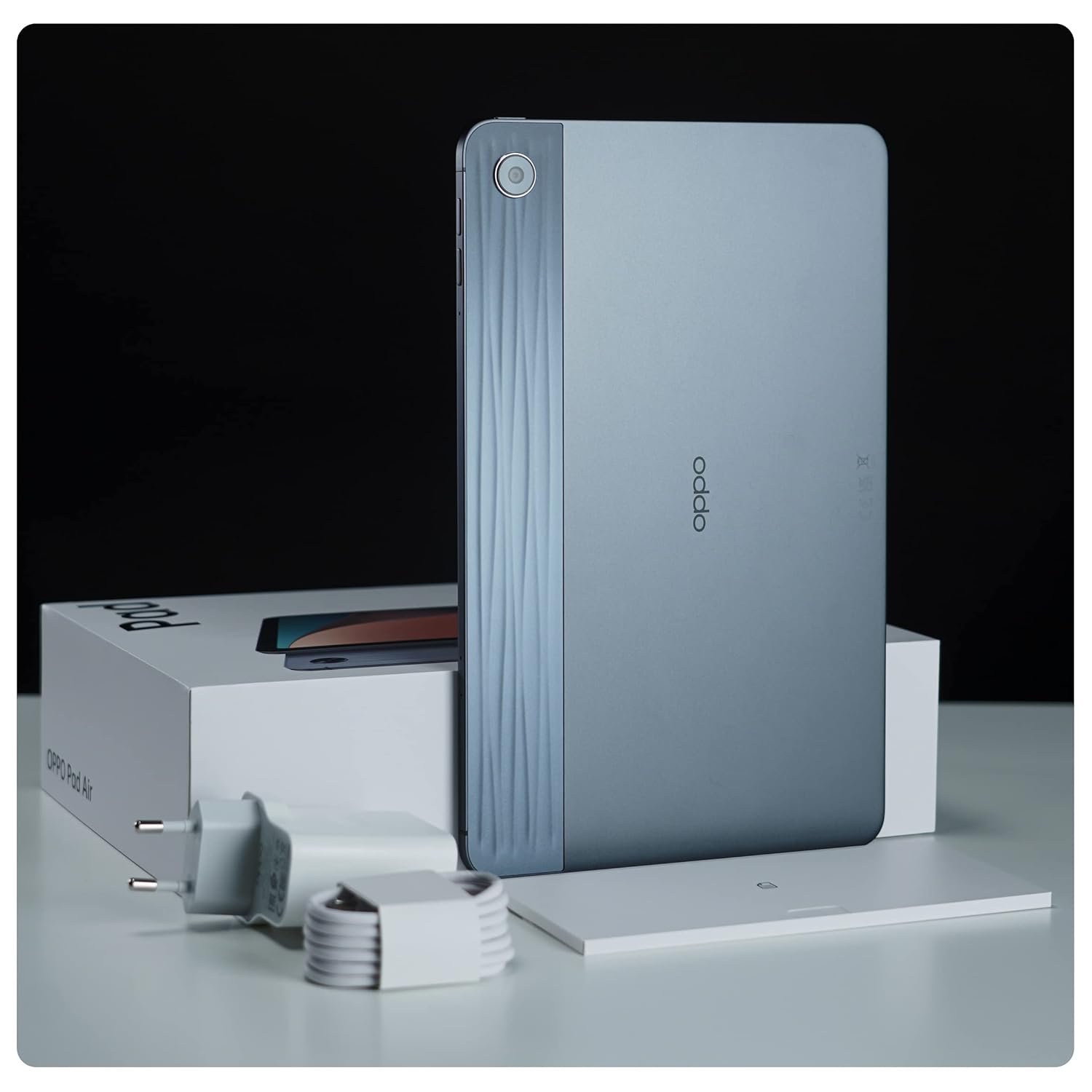
Image 2.1: OPPO Pad Air and included accessories.
2.2. Initial Power On and Basic Configuration
- Power On: Press and hold the Power button (located on the top edge when held horizontally) until the OPPO logo appears.
- Language Selection: Follow the on-screen prompts to select your preferred language.
- Wi-Fi Connection: Connect to a Wi-Fi network to access online services. You can manually enter network details or scan a QR code if available.
To connect to the OPPO-VPN Wi-Fi network, use the following details: SSID: OPPO-VPN, Password: (none).
- Google Account: Sign in with your Google account or create a new one to access the Google Play Store and other Google services.
- Date and Time: Set the correct date and time, or allow the device to set it automatically via the network.
- Security: Set up a screen lock (PIN, pattern, or password) for device security.
2.3. Charging the Device
Before first use, it is recommended to fully charge your OPPO Pad Air. Connect the USB data cable to the tablet's USB port and the charger, then plug the charger into a power outlet. The device features a 7100 mAh battery and supports 18W fast charging. A full charge typically takes approximately 3 hours.
3. Operating Your OPPO Pad Air
3.1. Physical Overview and Design
The OPPO Pad Air features a sleek and lightweight design, measuring approximately 6.94 mm in thickness and weighing around 440 grams. Its rear panel incorporates a unique sunset dune 3D texture with OPPO Glow, designed to resist fingerprints.

Image 3.1: OPPO Pad Air showcasing its thin design and textured back.
3.2. Display and Audio
The tablet is equipped with a 10.36-inch (26.31 cm) 2K IPS Eye-Care Display, offering a resolution of 2000x1200 pixels. It supports 1 billion colors and features 2048 levels of adaptive brightness for comfortable viewing. For an immersive audio experience, the OPPO Pad Air includes Dolby Atmos Stereo Quad Speakers.

Image 3.2: Display and audio features of the OPPO Pad Air.
3.3. Performance and Storage
The OPPO Pad Air is powered by the Qualcomm Snapdragon 680 octa-core 6nm processor, providing efficient performance for daily tasks. It comes with 4GB RAM, expandable by an additional 3GB (Extended RAM feature), and 64GB of internal storage. The storage can be expanded further up to 512GB using a microSD card.

Image 3.3: Core performance components: Processor, Battery, and Memory.
3.4. ColorOS for Pad Features
The OPPO Pad Air runs on Android with ColorOS 12.1 (upgradable to ColorOS 13 based on Android 13), offering several features to enhance productivity and user experience:
- Dual Windows: Run two applications simultaneously in separate windows for enhanced multitasking.
- Split Screen: Divide the screen to view and interact with two apps side-by-side.
- Multi-Device Connection: Seamlessly connect and interact with other OPPO devices.
- Clipboard Sharing: Share copied content between your tablet and other connected devices.
- File Drag-and-Drop: Easily move files between applications or storage locations.
- One-Tap Pairing: Quickly connect to a phone's mobile network for internet access.

Image 3.4: ColorOS for Pad productivity features.
4. Maintenance
4.1. Cleaning Your Device
- Use a soft, lint-free cloth to clean the screen and body.
- For stubborn smudges, slightly dampen the cloth with water or a screen cleaner designed for electronics.
- Avoid using harsh chemicals, abrasive materials, or excessive moisture.
4.2. Software Updates
Regularly check for and install software updates to ensure your device has the latest features, security patches, and performance improvements.
- Go to Settings.
- Scroll down and tap on About device or Software Update.
- Tap on Check for updates.
- If an update is available, follow the on-screen instructions to download and install it. Ensure your device has sufficient battery and a stable Wi-Fi connection during the update process.
4.3. Battery Care
- Avoid exposing the tablet to extreme temperatures.
- Do not let the battery completely drain frequently.
- For long-term storage, charge the battery to about 50% and power off the device.
- Use only the original charger and cable provided with the device.
5. Troubleshooting
This section addresses common issues you might encounter with your OPPO Pad Air.
5.1. Device Not Turning On
- Ensure the battery is charged. Connect the charger and wait a few minutes before attempting to power on again.
- Press and hold the Power button for at least 10-15 seconds to perform a forced restart.
5.2. Wi-Fi Connection Issues
- Check if Wi-Fi is enabled in Settings > Wi-Fi.
- Restart your Wi-Fi router and the OPPO Pad Air.
- Forget the network and reconnect by re-entering the password.
- Ensure you are within range of the Wi-Fi signal.
5.3. Slow Performance
- Close unnecessary background applications.
- Clear cache data for frequently used apps in Settings > Apps > App management > [App Name] > Storage usage > Clear cache.
- Ensure sufficient free storage space. Delete unused apps or large files.
- Restart the tablet periodically.
5.4. Screen Unresponsive
- Perform a forced restart by holding the Power button for 10-15 seconds.
- If the issue persists, contact customer support.
6. Specifications
| Feature | Specification |
|---|---|
| Model Name | OPPO Pad Air (OPD2102A) |
| Dimensions | 24.5 x 15.5 x 0.7 cm |
| Weight | 440 g |
| Display Size | 10.36 Inches (26.31 cm) |
| Display Resolution | 2000x1200 (2K IPS Eye-Care Display) |
| Processor | Qualcomm Snapdragon 680 Octa-core 6nm |
| RAM | 4 GB (with 3 GB Extended RAM) |
| Internal Storage | 64 GB |
| Expandable Storage | Up to 512 GB (microSD) |
| Operating System | Android (ColorOS 12.1) |
| Battery Capacity | 7100 mAh Lithium Ion |
| Charging | 18W Fast Charge |
| Audio | Dolby Atmos Stereo Quad Speakers |
| Connectivity | Wi-Fi (802.11ax), USB |
| Item Model Number | OPD2102A |
7. Warranty and Support
7.1. Product Warranty
The OPPO Pad Air comes with a 1-Year Manufacturer Warranty from the date of purchase. This warranty covers manufacturing defects under normal use. Please refer to the included Warranty Card for detailed terms and conditions, including exclusions and claim procedures.
7.2. Customer Support
For technical assistance, service, or further inquiries, please contact OPPO customer support:
- Manufacturer: Oppo
- Importer/Packer: OPPO Mobiles India Pvt Ltd, 5th FLOOR, Tower B, BUILDING, N-8, DLF Cyber City, DLF Phase 2, Gurugram, Haryana 122002
- Customer Service Tel: 18001032777
- Online Support: Visit the official OPPO website for support resources and contact options.
Related documentsOPD2102A


Ask a question about this manual
Ask about setup, troubleshooting, compatibility, parts, safety, or missing instructions. Manuals+ will review the question and use this page’s manual context to help answer it.