
keenetic KN-3710-01-EU
Keenetic Sprinter AX1800 Mesh Wi-Fi 6 Router/Extender User Manual
Model: KN-3710-01-EU | Brand: Keenetic
1. Introduction
The Keenetic Sprinter AX1800 is a high-performance Mesh Wi-Fi 6 Router/Extender designed to provide fast, reliable, and secure internet connectivity for your home or office. This device supports Wi-Fi 6 (802.11ax) technology, offering dual-band operation (2.4 GHz and 5 GHz) with speeds up to 1800 Mbps. It features four Gigabit Ethernet ports for stable wired connections and can seamlessly switch between router and extender modes. This manual provides essential information for setting up, operating, maintaining, and troubleshooting your Keenetic Sprinter AX1800.
2. Safety Information
- Use only the power adapter supplied with the device.
- Do not expose the device to water, fire, high humidity, or extreme temperatures.
- Avoid placing the device near heat sources or in direct sunlight.
- Ensure proper ventilation around the device to prevent overheating.
- Do not attempt to disassemble or repair the device yourself. Refer all servicing to qualified personnel.
3. Package Contents
Verify that all items are present in your package:
- Keenetic Sprinter AX1800 Device
- Power Adapter
- Ethernet Cable
- Telephone Cable (if applicable)
- DSL Splitter (if applicable)
- Multi-language Quick Start Guide
4. Product Overview
Familiarize yourself with the physical components of your Keenetic Sprinter AX1800.

Figure 4.1: Front view of the Keenetic Sprinter AX1800 router, showing the LED indicators for power, internet, Wi-Fi, and network activity.
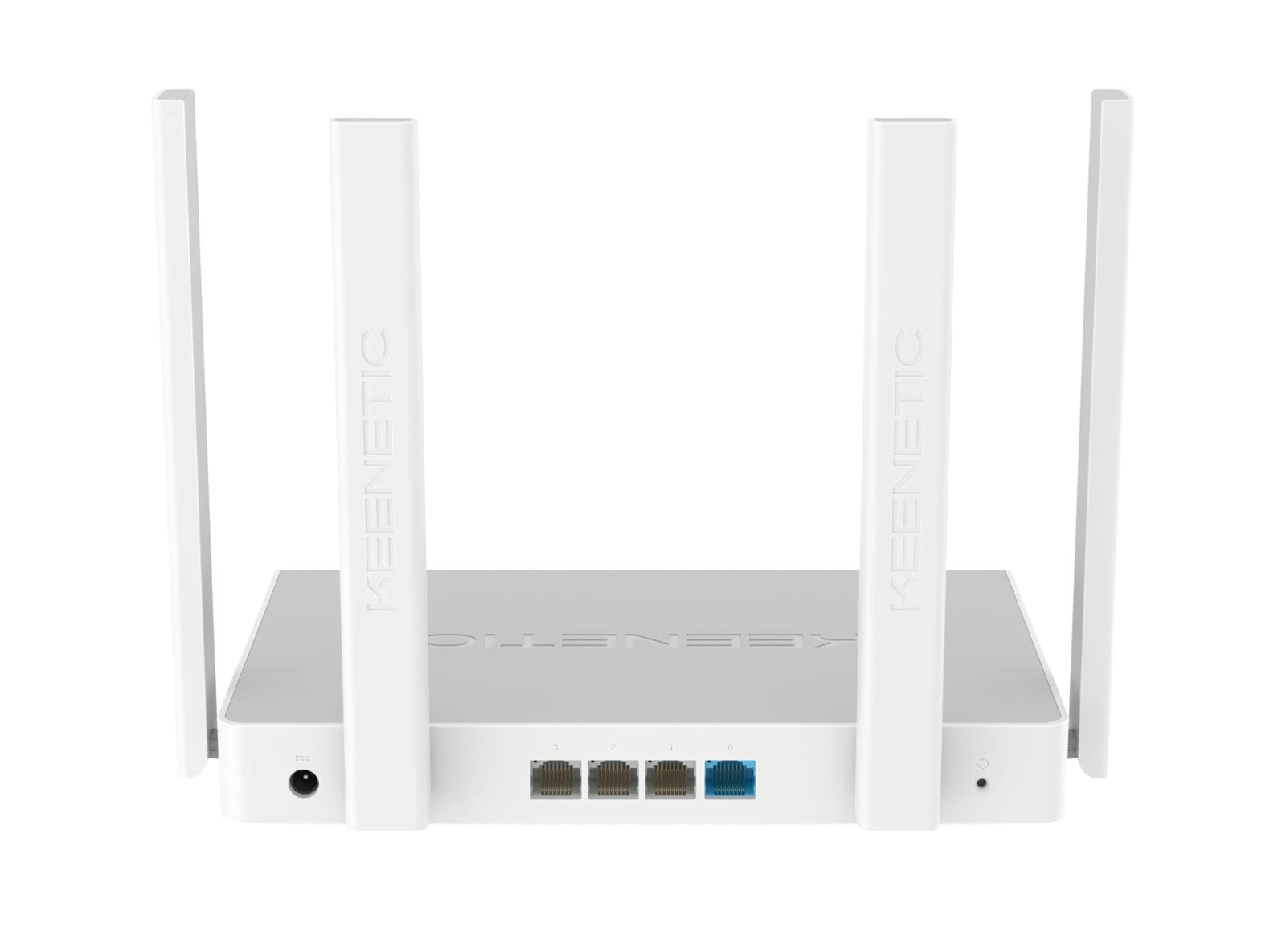
Figure 4.2: Rear view of the Keenetic Sprinter AX1800 router, highlighting the power input, four Gigabit Ethernet ports (one blue for WAN/LAN, three yellow for LAN), and the reset button.
LED Indicators:
- Power LED: Indicates power status.
- Internet LED: Indicates internet connection status.
- Wi-Fi LED: Indicates Wi-Fi activity.
- LAN LEDs: Indicate activity on the respective Ethernet ports.
Ports and Buttons:
- Power Input: Connects to the power adapter.
- Gigabit Ethernet Ports (4): One port can function as WAN or LAN, others are LAN.
- Reset Button: Used to restore factory settings.
- Mode Switch: Physical switch to toggle between Router and Extender modes.
5. Setup
5.1 Initial Connection
- Power On: Connect the power adapter to the router's power input and plug it into a power outlet. Wait for the Power LED to stabilize.
- Internet Connection: Connect your modem's Ethernet cable to the blue WAN/LAN port on the router.
- Wired Devices (Optional): Connect your computer or other wired devices to any of the yellow LAN ports using an Ethernet cable.
- Wireless Devices: Locate the default Wi-Fi network name (SSID) and password printed on the label at the bottom of the router. Connect your wireless devices to this network.
5.2 Configuration (Web Interface / Mobile App)
You can configure your router using either the web interface or the Keenetic mobile app.
Web Interface:
- Open a web browser on a connected device.
- Enter
my.keenetic.netor192.168.1.1in the address bar and press Enter. - Follow the on-screen instructions to complete the initial setup, including setting up your administrator password and Wi-Fi network details.
Mobile App:
- Download the free Keenetic app from your device's app store (Android/iOS).
- Open the app and follow the instructions to discover and set up your Keenetic device.
5.3 Router/Extender Mode Switching
The Keenetic Sprinter AX1800 features a physical switch to easily change its operating mode:
- Router Mode: The device acts as the primary internet gateway for your network.
- Extender Mode: The device extends an existing Wi-Fi network, providing broader coverage.
To switch modes, locate the physical switch on the device and move it to the desired position. The device will reboot and apply the new settings.
6. Operating
6.1 Wi-Fi 6 AX1800 Dual-Band Connectivity
The router supports the latest Wi-Fi 6 standard, providing enhanced speeds and efficiency for multiple devices simultaneously. It operates on two frequency bands:
- 2.4 GHz: Up to 574 Mbps, ideal for wider coverage and older devices.
- 5 GHz: Up to 1201 Mbps, ideal for high-bandwidth activities like 4K streaming and online gaming.
6.2 Gigabit Ethernet Ports
The four Gigabit Ethernet ports provide stable and high-speed wired connections for devices such as PCs, smart TVs, gaming consoles, and network-attached storage (NAS) devices. These ports ensure minimal latency and maximum throughput for critical connections.
6.3 Advanced Features
- VPN and Multi-WAN: Supports OpenVPN, WireGuard, L2TP/IPsec, and Multi-WAN for load balancing and automatic failover, enhancing network flexibility and reliability.
- IntelliQoS Bandwidth Control: Automatically prioritizes network traffic for applications like streaming, gaming, and video conferencing to prevent interruptions.
- Integrated Security Features: Includes SPI Firewall, SafeDNS parental controls, and AdGuard ad blocker for comprehensive network protection.
- Guest Network with Captive Portal: Provides a separate, secure network for guests with customizable access options.
- Remote Management: Manage your router remotely via the Keenetic mobile app or a secure web interface (HTTPS), including KeenDNS support.
7. Maintenance
7.1 Firmware Updates
Regularly update your router's firmware to ensure optimal performance, security, and access to new features. Firmware updates can be performed via the web interface or the Keenetic mobile app.
7.2 Cleaning
To clean the device, use a soft, dry cloth. Do not use liquid cleaners or aerosol sprays. Ensure the device is powered off and unplugged before cleaning.
7.3 Placement
Optimal placement of your router is crucial for Wi-Fi performance. Place the router in a central location, away from obstructions and sources of interference (e.g., microwaves, cordless phones).
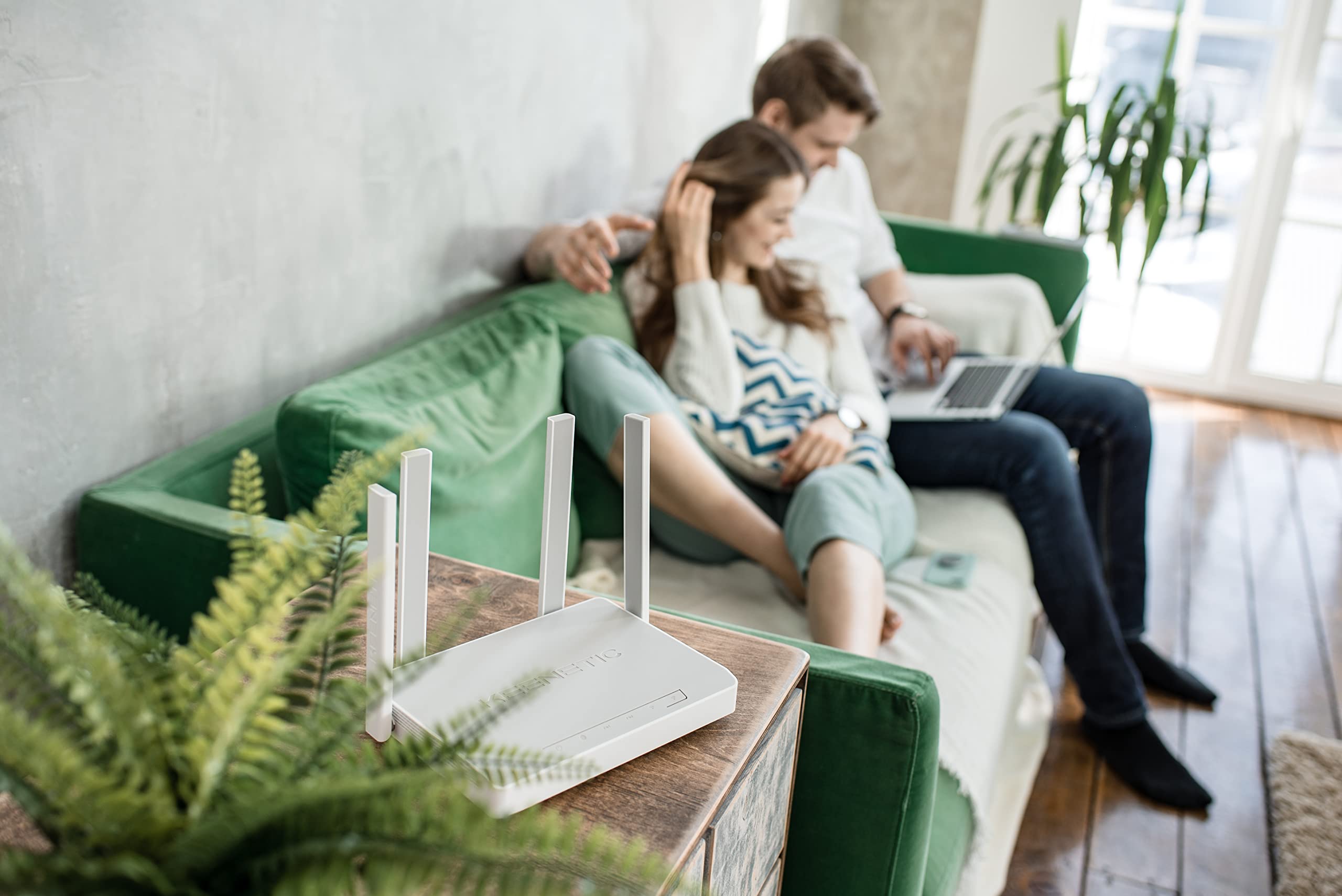
Figure 7.1: Example of the Keenetic Sprinter AX1800 router mounted vertically on a wall, demonstrating flexible placement options.

Figure 7.2: Example of the Keenetic Sprinter AX1800 router placed horizontally on a table, illustrating typical desktop placement.
8. Troubleshooting
Common Issues and Solutions:
- No Internet Connection:
- Check if the Internet LED is lit.
- Ensure the Ethernet cable from your modem is securely connected to the blue WAN/LAN port.
- Restart your modem and router.
- Verify your internet service provider (ISP) settings in the router's web interface.
- Weak Wi-Fi Signal:
- Relocate the router to a more central position.
- Avoid placing the router near large metal objects or electronic devices that may cause interference.
- Consider using the device in Extender mode or adding another Keenetic device for a Mesh Wi-Fi system.
- Cannot Access Web Interface:
- Ensure your device is connected to the router's network (wired or wireless).
- Try clearing your browser's cache or using a different browser.
- Verify the router's IP address (default is 192.168.1.1).
- Forgotten Administrator Password:
- Perform a factory reset by pressing and holding the Reset button for 10 seconds while the device is powered on. Note that this will erase all custom settings.
9. Specifications
| Feature | Description |
|---|---|
| Model Name | KN-3710 |
| Wireless Standard | 802.11ax (Wi-Fi 6) |
| Frequency Band Class | Dual-band (2.4 GHz & 5 GHz) |
| Max. Wireless Speed | AX1800 (574 Mbps on 2.4 GHz, 1201 Mbps on 5 GHz) |
| Ethernet Ports | 4 x 10/100/1000M Gigabit Ethernet (1 WAN/LAN, 3 LAN) |
| Antennas | 4 External Antennas |
| Special Features | QoS, VPN, Multi-WAN, Mesh Support, Guest Network, Parental Control |
| Product Dimensions | 24 x 69 x 2.5 cm |
| Item Weight | 400 Grams |
| Manufacturer | Keenetic Limited |
10. Warranty and Support
For warranty information and technical support, please refer to the official Keenetic website or contact their customer service. Keep your purchase receipt as proof of purchase for warranty claims.
Online Resources: Visit the Keenetic support page for FAQs, firmware downloads, and additional documentation.
Contact Support: Refer to the contact information provided in your Quick Start Guide or on the Keenetic official website.
Related documentsKN-3710-01-EU


Ask a question about this manual
Ask about setup, troubleshooting, compatibility, parts, safety, or missing instructions. Manuals+ will review the question and use this page’s manual context to help answer it.