
1. Product Overview
The SGEYR DE-USB404 is a 4-port USB 2.0 switch designed to allow up to four computers to share four USB 2.0 peripheral devices. This device eliminates the need to constantly swap cables between computers, providing a convenient solution for sharing keyboards, mice, printers, USB drives, and other USB peripherals in a multi-computer environment. It supports data transfer rates up to 480 Mbps and is backward compatible with USB 1.1 devices. The switch features a compact design, plug-and-play functionality, and can be controlled via a button on the unit or a wired remote control (if included).

Image 1.1: Front and rear view of the SGEYR DE-USB404 USB Switch, highlighting the 4 PC input ports (USB-B), 4 USB 2.0 output ports (USB-A), 5V Micro USB power input, indicator lights, and the select button.

Image 1.2: Diagram showing the 4-in-4-out functionality, where four PCs connect to the input side and shared peripherals like a mouse, keyboard, USB disk, and printer connect to the output side.
2. Package Contents
Please check the package for the following items:
- 1 x SGEYR DE-USB404 4-in-4-out USB 2.0 Sharing Box
- 4 x USB-A to USB-B Cables (for connecting PCs to the switch)
- 1 x USB Power Cable (Micro USB to USB-A, for optional external power)
- 1 x User Manual

Image 2.1: Visual representation of the package contents, including the USB switch, four USB-A to USB-B cables, a USB power cable, and the user manual.
3. Specifications
| Model | DE-USB404 |
| Brand | SGEYR |
| USB Standard | USB 2.0 (Backward compatible with USB 1.1) |
| Data Transfer Rate | Up to 480 Mbps |
| Input Ports | 4 x USB-B (for PC connection) |
| Output Ports | 4 x USB-A (for peripheral connection) |
| Control Method | Button on unit, Wired Remote Control (if included) |
| Power Supply | 5V (via Micro USB port, optional for high-power devices) |
| Dimensions (L x W x H) | 10 x 6.5 x 1.9 cm (approximately 4.01 x 2.55 x 0.74 inches) |
| Material | Copper, Brass (contact material) |
| Operating System Support | Windows XP / 7 / 8 / 10 / Vista, Mac OS 8.6 and above |
4. Setup Instructions
Follow these steps to set up your SGEYR DE-USB404 switch:
- Connect Computers: Use the provided USB-A to USB-B cables to connect each of your four computers to the PC1, PC2, PC3, and PC4 input ports on the switch.
- Connect Peripherals: Plug your USB peripheral devices (e.g., keyboard, mouse, printer, USB drive) into the four USB-A output ports on the front of the switch.
- Optional Power Connection: If you are connecting high-power USB devices (e.g., external hard drives), connect the included USB power cable to the 'IN 5V' Micro USB port on the switch and to a 5V USB power adapter (not included) or a USB port on one of your computers. For most low-power devices like keyboards and mice, external power is not required.
- Power On: Ensure all connected computers are powered on. The indicator lights on the switch will illuminate to show which computer is currently selected.

Image 4.1: Example setup with two laptops, a monitor, keyboard, and mouse connected to the USB switch, demonstrating how multiple computers can share peripherals.

Image 4.2: Illustration of a printer connected to the USB switch, allowing multiple computers to share printing capabilities.
5. Operating Instructions
The SGEYR DE-USB404 switch offers simple operation:
- Switching Computers: Press the 'Select' button on the top of the switch to cycle through the connected computers (PC1, PC2, PC3, PC4). The corresponding indicator light (1, 2, 3, or 4) will illuminate to show which computer currently has access to the shared USB peripherals.
- Wired Remote Control (if applicable): If your package includes a wired remote control, you can use it to switch between computers from a distance. Connect the remote to the designated port on the switch (if available) and press its button to switch.
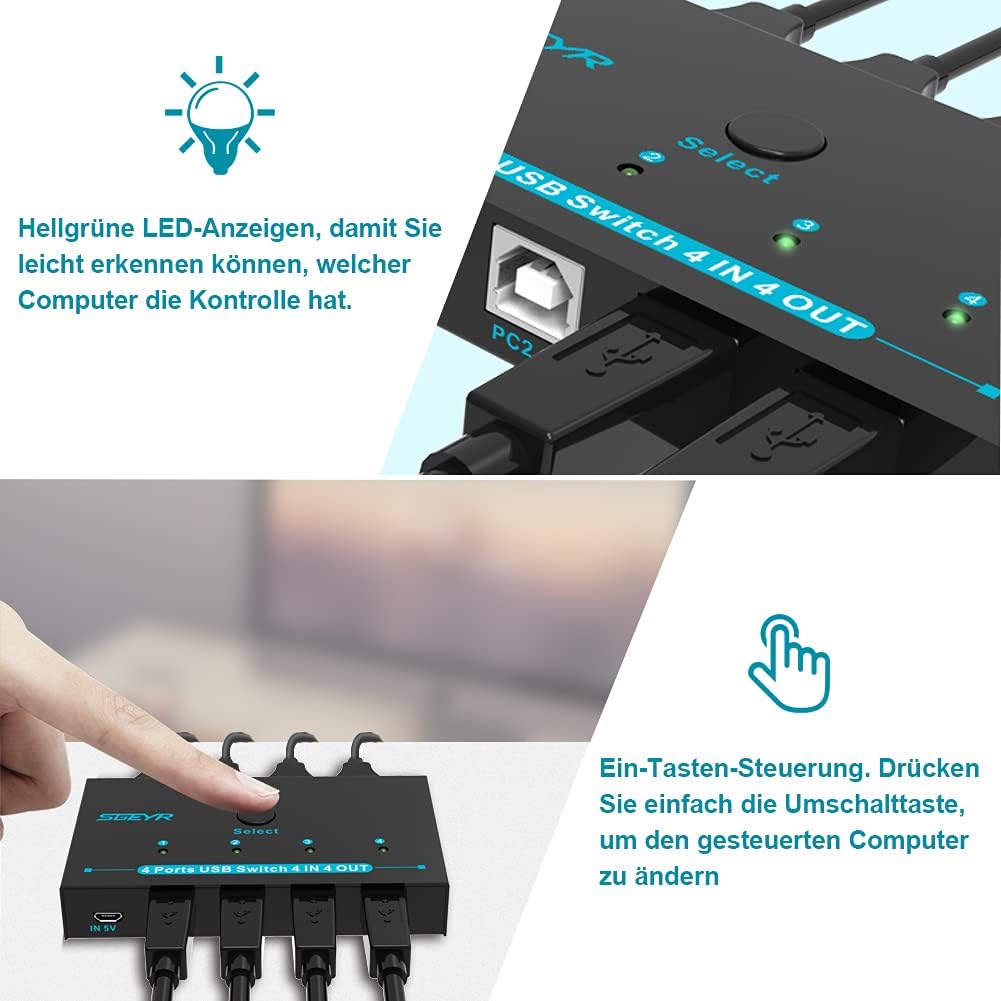
Image 5.1: A close-up view of the switch's top panel, showing the 'Select' button and the four LED indicator lights, which denote the active computer connection.
6. Maintenance
To ensure optimal performance and longevity of your SGEYR DE-USB404 switch:
- Cleaning: Use a soft, dry cloth to clean the exterior of the device. Avoid using liquid cleaners or abrasive materials.
- Environment: Keep the switch in a dry, well-ventilated area, away from direct sunlight, high temperatures, and humidity.
- Cable Management: Ensure all cables are connected securely and are not excessively bent or strained.
- Power: If using external power, ensure the power adapter provides a stable 5V output.
7. Troubleshooting
If you encounter issues with your USB switch, refer to the following common solutions:
- No Device Detection:
- Ensure all USB cables are securely connected to both the switch and the computers/peripherals.
- Try connecting the peripheral directly to the computer to verify its functionality.
- If using high-power devices, ensure the external 5V power supply is connected to the switch.
- Restart the computer(s) and the USB switch.
- Slow Data Transfer:
- Verify that both the computer's USB ports and the peripheral devices support USB 2.0 for optimal speed.
- Ensure the cables used are of good quality and meet USB 2.0 specifications.
- Switching Issues:
- Press the 'Select' button firmly.
- Check if the indicator light changes when you press the button. If not, try disconnecting and reconnecting the power (if used).
- Intermittent Connection:
- Ensure all connections are stable and not loose.
- Avoid placing the switch near sources of strong electromagnetic interference.
- Consider using the optional 5V external power supply if not already in use.
8. Support and Warranty
For technical support or warranty inquiries, please contact SGEYR customer service through the retailer where you purchased the product or visit the official SGEYR website for contact information. Please retain your proof of purchase for warranty claims.
