
Logitech 920-011479
Logitech K585 Multi-Device Slim Wireless Keyboard User Manual
Model: 920-011479
Introduction
The Logitech K585 Multi-Device Slim Wireless Keyboard is designed for versatile use across multiple devices, including laptops, tablets, desktops, and smartphones. Its compact and modern design aims to enhance productivity and comfort in various work environments. This manual provides essential information for setting up, operating, maintaining, and troubleshooting your keyboard.

Figure 1: Logitech K585 Multi-Device Slim Wireless Keyboard in Graphite.
Setup
1. Unboxing and Initial Inspection
Carefully remove all components from the packaging. Ensure the following items are present:
- Logitech K585 Keyboard
- 2 AAA batteries (pre-installed)
- Unifying USB receiver
- User documentation

Figure 2: Contents included in the Logitech K585 package.
2. Battery Installation (if not pre-installed or for replacement)
The keyboard comes with two AAA batteries pre-installed. If you need to replace them:
- Locate the battery compartment cover on the top edge of the keyboard, usually integrated with the device cradle.
- Gently slide or lift the cover to open the compartment.
- Insert two AAA batteries, ensuring correct polarity (+/-).
- Close the battery compartment cover securely.
3. Connecting via USB Receiver (Logitech Unifying Receiver)
For devices without Bluetooth or for a stable 2.4 GHz wireless connection:
- Locate the Unifying USB receiver, typically stored inside the battery compartment or within the product packaging.
- Plug the Unifying USB receiver into an available USB-A port on your computer (laptop or desktop).
- The keyboard should automatically connect.
4. Connecting via Bluetooth Wireless Technology
For devices with Bluetooth capability (laptops, tablets, smartphones):
- Turn on the keyboard using the power switch, usually located on the side.
- Press and hold one of the Easy-Switch keys (1, 2, or 3) for three seconds until the LED light above the key starts blinking rapidly. This indicates the keyboard is in pairing mode.
- On your device, go to Bluetooth settings and search for new devices.
- Select "Logitech K585" from the list of available devices.
- Follow any on-screen prompts to complete the pairing process. The LED light will turn solid for a few seconds and then turn off once connected.
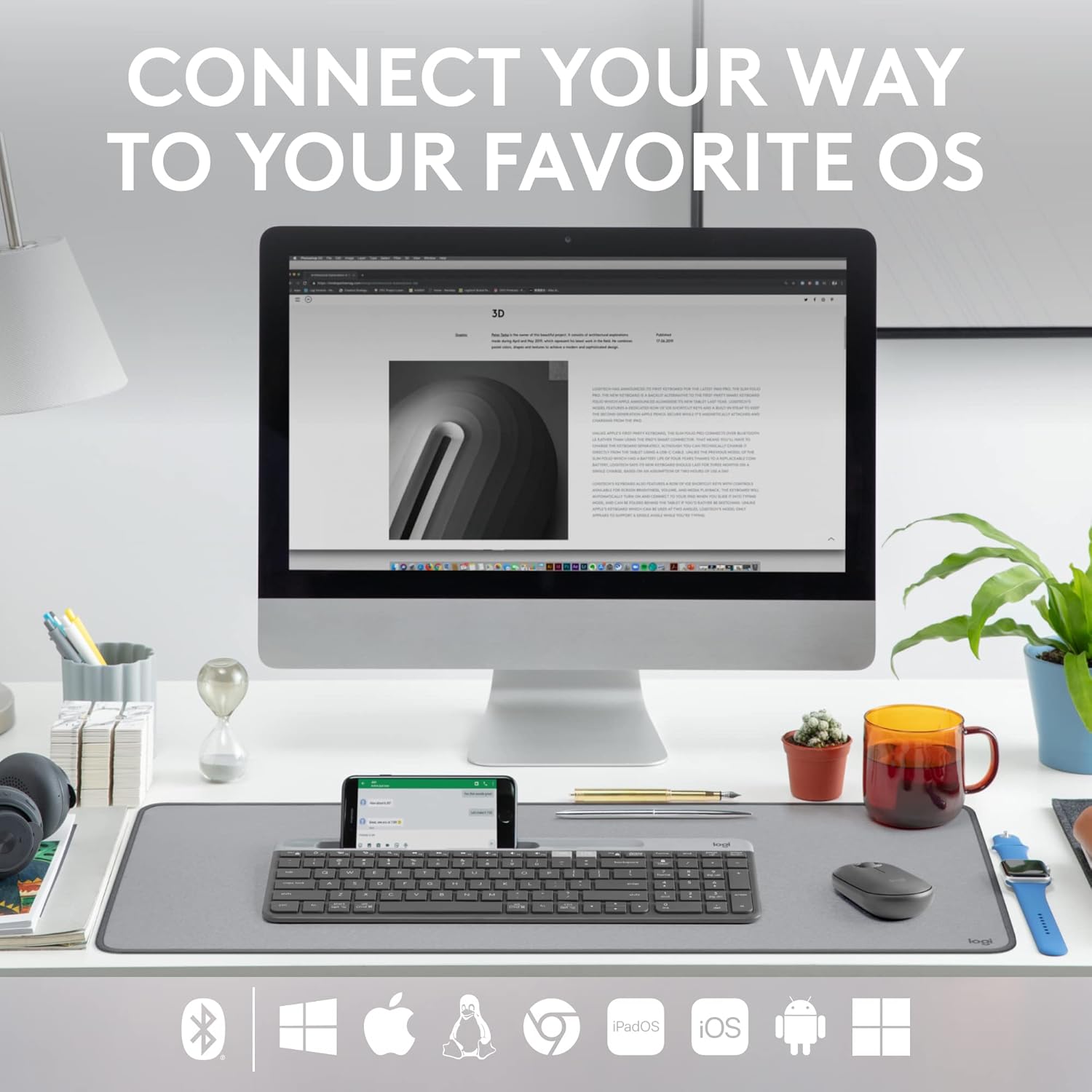
Figure 3: The Logitech K585 supports various operating systems including Windows, macOS, iOS, iPadOS, Android, and ChromeOS.
Operating the Keyboard
1. Easy-Switch Functionality
The K585 keyboard allows you to seamlessly switch between up to three connected devices:
- Press the Easy-Switch key (1, 2, or 3) corresponding to the device you wish to use. The LED light above the selected key will briefly illuminate to confirm the switch.
- This feature enables quick transitions between typing on your computer, tablet, or smartphone.
2. Built-in Phone Cradle
The integrated cradle at the top of the keyboard is designed to hold your smartphone or tablet, providing an optimal viewing angle for multitasking.

Figure 4: The K585 keyboard with a smartphone positioned in the integrated cradle for enhanced multitasking.
3. FN Keys and Shortcuts
The keyboard features 12 FN keys that provide easy access to media controls and other shortcuts. These keys can be customized using Logi Options+ Software for enhanced productivity.
- Media Controls: Play/pause, volume up/down, mute.
- Function Keys: F1-F12, often used for specific software functions.
- Customization: Download and install Logi Options+ Software from the official Logitech website to personalize FN key assignments.
4. Multi-OS Compatibility
The keyboard layout is optimized for both Windows and Mac OS commands, ensuring a familiar typing experience regardless of your operating system. It also supports iOS, iPadOS, Android, and ChromeOS devices.

Figure 5: Universal compatibility of the Logitech K585 keyboard across different platforms.
Maintenance
1. Battery Life and Management
The Logitech K585 keyboard offers an extended battery life of up to 24 months, thanks to its efficient design and an auto-sleep feature that activates when the keyboard is not in use. Battery life may vary based on user and computing conditions.

Figure 6: The K585 keyboard boasts a long-lasting 24-month battery life.
To maximize battery life, ensure the keyboard is switched off when not in use for extended periods.
2. Cleaning the Keyboard
To maintain the keyboard's appearance and functionality:
- Use a soft, lint-free cloth to wipe down the surface.
- For stubborn dirt, slightly dampen the cloth with water or a mild, non-abrasive cleaner.
- Avoid spraying liquids directly onto the keyboard.
- Do not use harsh chemicals or abrasive materials, as these can damage the finish.
Troubleshooting
If you encounter issues with your Logitech K585 keyboard, consider the following common solutions:
- No Connection:
- Ensure the keyboard is powered on.
- Check battery levels and replace if necessary.
- For USB receiver connection, try plugging the receiver into a different USB port.
- For Bluetooth connection, ensure Bluetooth is enabled on your device and try re-pairing the keyboard.
- Lag or Disconnections:
- Move the keyboard closer to the receiver or Bluetooth-enabled device.
- Avoid placing the keyboard near other wireless devices that might cause interference (e.g., Wi-Fi routers, cordless phones).
- Ensure your device's operating system and Bluetooth drivers are up to date.
- Keys Not Responding:
- Clean around the affected keys to remove any debris.
- Restart your computer or device.
- If using Logi Options+ Software, ensure it is running correctly and not causing conflicts.
For more detailed troubleshooting or persistent issues, refer to the official Logitech support website or the comprehensive user guide available for download.
Specifications
| Feature | Detail |
|---|---|
| Brand | Logitech |
| Model Number | 920-011479 |
| Connectivity Technology | Bluetooth, USB (2.4 GHz Unifying Receiver) |
| Compatible Devices | Laptop, PC, Smartphone, Tablet |
| Operating System Compatibility | Windows, macOS, iOS, iPadOS, Android, ChromeOS |
| Color | Graphite |
| Item Weight | 1.24 pounds (approx. 562g) |
| Product Dimensions (LxWxH) | 14.7 x 5.6 x 0.76 inches (approx. 37.3 x 14.2 x 1.9 cm) |
| Battery Life | Up to 24 months (may vary based on usage) |
| Wireless Range | Up to 10m (33ft) |

Figure 7: Detailed dimensions of the Logitech K585 keyboard.
Warranty and Support
For warranty information, technical support, and additional resources, please visit the official Logitech support website. You can also find a comprehensive User Guide in PDF format for this product:
Related documents920-011479


Ask a question about this manual
Ask about setup, troubleshooting, compatibility, parts, safety, or missing instructions. Manuals+ will review the question and use this page’s manual context to help answer it.