
1. Introduction
The Hama MyVoice1300 is a mono Bluetooth headset designed for comfortable communication and media playback. It features a compact design, voice control capabilities, and a dedicated USB charging station for convenience. This manual provides detailed instructions for setting up, operating, maintaining, and troubleshooting your headset.
2. Package Contents
Please check the package contents to ensure all items are present:
- 1 x Hama MyVoice1300 Mono Bluetooth Headset
- 1 x USB Charging Station
- 3 x Pairs of Silicone Earplugs (Sizes S, M, L)
- 1 x Instruction Manual
3. Product Overview
The Hama MyVoice1300 headset features an in-ear design with a built-in microphone and controls for easy access. The included USB charging station serves as a convenient dock when the headset is not in use.

Image: The Hama MyVoice1300 headset and its USB charging station, shown connected to a laptop for charging or use.
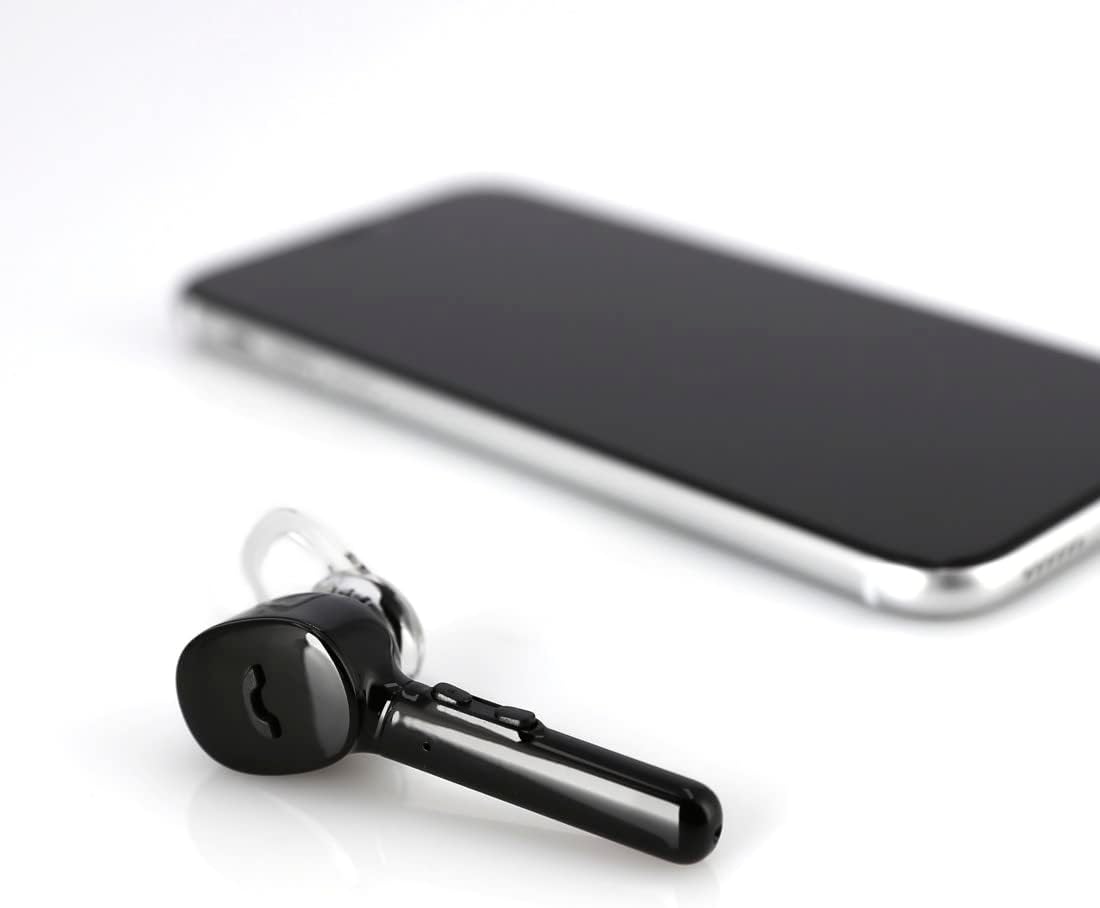
Image: The Hama MyVoice1300 headset positioned beside a smartphone, illustrating its primary use case.
Key Features:
- Multi-function Button: Controls calls (answer/reject/repeat last call) and activates smartphone functions.
- Volume Control: Adjust audio levels directly on the headset.
- Built-in Microphone: Omni-directional microphone with CVC 6.0 technology for clear voice quality.
- USB Charging Station: Provides a convenient charging and storage solution.
- Voice Control: Supports Siri, Google Assistant, and Microsoft Cortana.
- MultiPoint Technology: Connects to two smartphones simultaneously.
4. Setup
4.1. Charging the Headset
Before first use, fully charge the headset. The USB charging station allows you to charge the headset conveniently via any USB power source, such as a laptop, power adapter, or car charger.
- Place the MyVoice1300 headset into the USB charging station. Ensure the charging contacts align.
- Connect the USB charging station to a powered USB port.
- The headset will begin charging. A full charge takes approximately 2 hours.
- The charging status can be checked on compatible iOS and Android devices.
A fully charged headset provides up to 4 hours of communication time and up to 80 hours of standby time.

Image: The Hama MyVoice1300 headset securely docked in its USB charging station within a car interior, demonstrating convenient charging on the go.
4.2. Pairing with a Bluetooth Device
The MyVoice1300 headset uses Bluetooth 5.0 for wireless connection to your smartphone or other Bluetooth-enabled devices.
- Ensure the headset is charged and powered on.
- Activate Bluetooth on your smartphone or device.
- Search for available Bluetooth devices. The headset will appear as 'MyVoice1300'.
- Select 'MyVoice1300' to initiate the pairing process.
- Once paired, the headset will provide a successful connection announcement.
The headset has a transmission range of up to 10 meters.
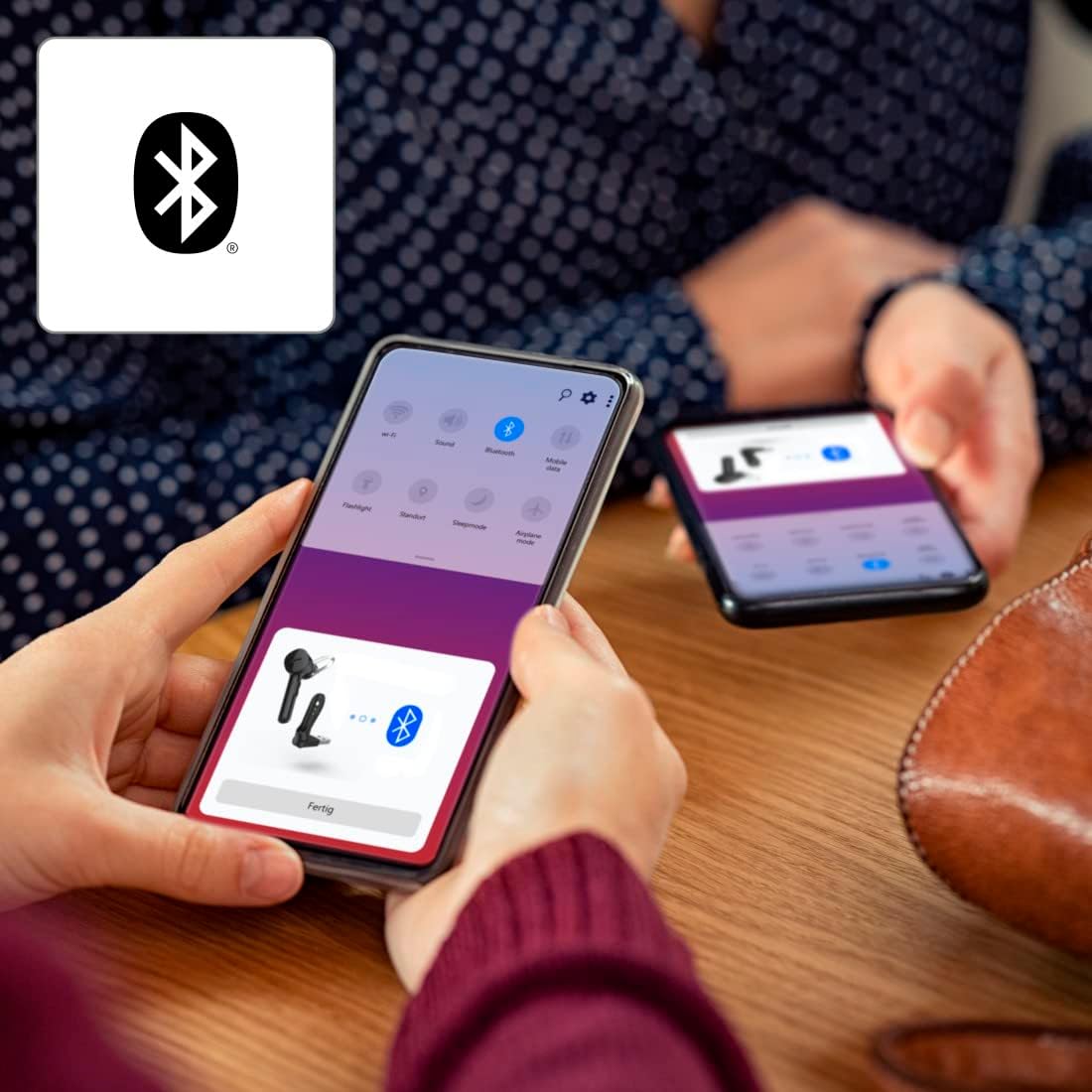
Image: A smartphone screen showing the Bluetooth pairing interface, with the Hama MyVoice1300 headset icon and 'Fertig' (Done) button, indicating a successful or pending connection.
4.3. MultiPoint Technology
The MyVoice1300 supports MultiPoint technology, allowing you to connect the headset to two smartphones simultaneously. This enables seamless switching between calls or audio from two different devices.

Image: An individual in an office environment using the Hama MyVoice1300 headset, with an overlay icon representing MultiPoint connectivity, suggesting use with multiple devices.
5. Operating the Headset
5.1. Call Functions
- Answering Calls: Simply remove the headset from the charging station to answer an incoming call, or press the multi-function button.
- Rejecting Calls: Press and hold the multi-function button.
- Ending Calls: Press the multi-function button.
- Redialing Last Call: Double-press the multi-function button.
5.2. Music Control
- Play/Pause: Press the multi-function button to play or pause music playback.
5.3. Volume Control
Adjust the volume directly on the headset using the dedicated volume buttons, or via your connected device's volume controls.
5.4. Voice Assistant
The MyVoice1300 headset supports popular voice assistants such as Apple Siri, Google Assistant, and Microsoft Cortana. Activate your device's voice assistant via the multi-function button or through voice commands.
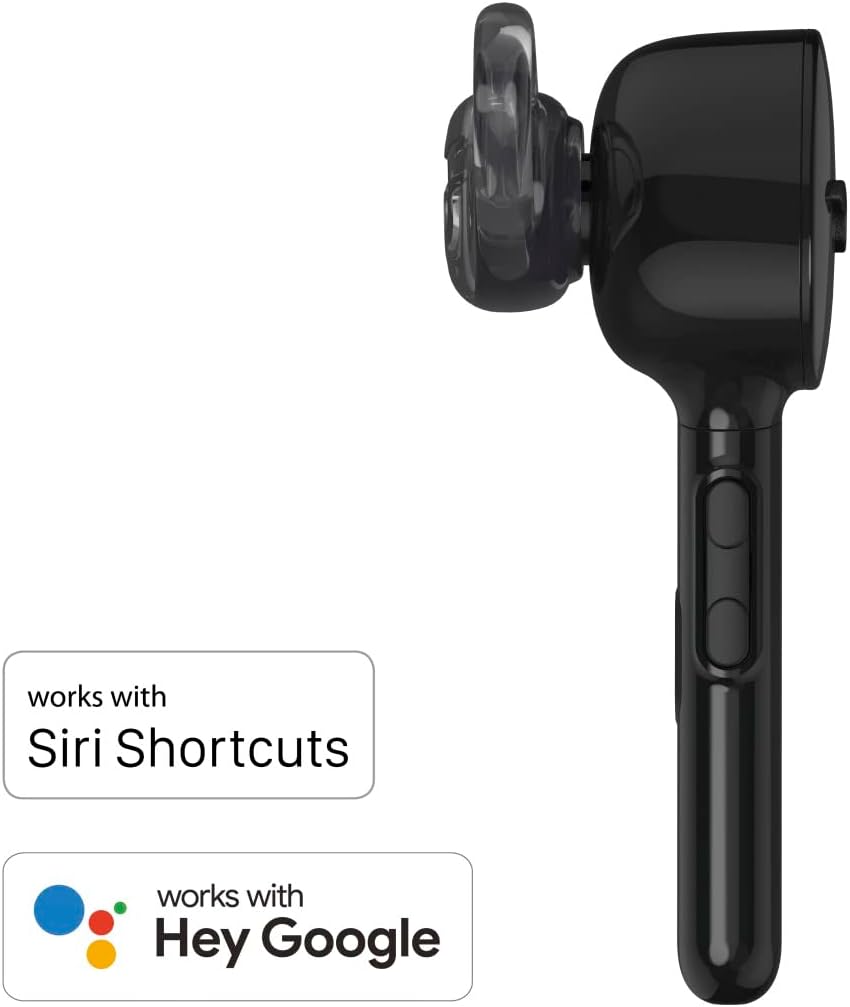
Image: The Hama MyVoice1300 headset displayed alongside logos indicating compatibility with Siri Shortcuts and Hey Google, highlighting its voice assistant integration.
6. Maintenance
6.1. Cleaning
- Clean the headset and charging station with a soft, dry, lint-free cloth.
- Do not use harsh cleaning agents or solvents.
- Regularly clean the silicone earplugs with a damp cloth and mild soap, then dry thoroughly before reattaching.
6.2. Storage
- Store the headset in its charging station or a protective case when not in use to prevent damage.
- Avoid exposing the headset to extreme temperatures, humidity, or direct sunlight.
6.3. Earplug Replacement
The headset comes with three sizes (S, M, L) of silicone earplugs to ensure a perfect custom fit. If the current earplugs are uncomfortable or damaged, replace them with a suitable size.
7. Troubleshooting
If you encounter issues with your Hama MyVoice1300 headset, refer to the following common solutions:
- Headset does not power on: Ensure the headset is fully charged. Connect it to the USB charging station and allow it to charge for at least 30 minutes before attempting to power it on again.
- Cannot pair with device:
- Ensure Bluetooth is enabled on your device and the headset is in pairing mode.
- Make sure the headset is within the 10-meter transmission range of your device.
- Turn off and on both the headset and your device, then try pairing again.
- If previously paired, remove the headset from your device's Bluetooth list and attempt to pair again.
- Poor audio quality or static:
- Ensure the headset is within range and there are no significant obstructions between the headset and your device.
- Check for interference from other wireless devices.
- The CVC 6.0 technology actively inhibits ambient noise for clearer calls; however, extreme noise environments may still affect performance.
- Short battery life:
- Ensure the headset is fully charged for the recommended 2 hours.
- Battery performance can degrade over time with usage.
- Operating at maximum volume or in areas with weak Bluetooth signals can consume more power.
- No sound:
- Check the volume levels on both the headset and your connected device.
- Ensure the headset is correctly paired and connected to your device.
- Verify that the audio output on your device is set to the Bluetooth headset.
8. Specifications
| Feature | Specification |
|---|---|
| Model Name | MyVoice1300 |
| Model Number | 00184149 |
| Connectivity | Bluetooth 5.0 |
| Bluetooth Profiles | A2DP/AVRCP/HFP/HSP compatible |
| Transmission Range | 10 m |
| Headphone Bandwidth | 20 Hz - 20 kHz |
| Microphone Bandwidth | 100 Hz - 8 kHz |
| Headphone Impedance | 16 Ω |
| Microphone Impedance | 0.4 kΩ |
| Headphone Sensitivity | 109 dB +/- 3 dB |
| Microphone Sensitivity | -44 dB +/- 3 dB |
| Charging Time | Approx. 2 hours |
| Max. Communication Time | 4 hours |
| Max. Standby Time | 80 hours |
| Battery Type | Lithium Polymer (included) |
| Weight | 12g (headset) / 33.28 Grams (item weight) |
| Material | Silicone (earplugs) |
| Special Features | Voice Control, MultiPoint Technology, CVC 6.0 Noise Cancellation |
9. Warranty and Support
Hama products are covered by a manufacturer's warranty. For detailed warranty information, please refer to the warranty card included in your product packaging or visit the official Hama website. For technical support or service inquiries, please contact Hama customer service through their official channels.