
LGIDTECH FUT037Z+
LGIDTECH FUT037Z+ Miboxer 3 in 1 LED Strip Controller User Manual
Model: FUT037Z+ | Brand: LGIDTECH
Introduction
The LGIDTECH FUT037Z+ Miboxer 3 in 1 LED Strip Controller is a versatile device designed to manage various types of LED strip lights, including RGB, RGBW, and RGB+CCT. It supports both Zigbee 3.0 and 2.4G wireless technologies, offering broad compatibility with smart home ecosystems like Philips Hue and Amazon Echo Plus (2nd Gen). This controller enables precise control over color, brightness, and saturation of your LED lighting.
Product Specifications
| Specification | Value |
|---|---|
| Product Name | 3 in 1 LED Strip Controller (Zigbee 3.0+ 2.4G) |
| Model Number | FUT037Z+ |
| Working Voltage | DC12~24V |
| Output | 6A/Channel |
| Total Output | Max 12A |
| Work Temperature | -10~40℃ |
| Wireless Technology | Zigbee 802.15.4, 2.4G RF |
| Zigbee Wireless Frequency | 2.400-2.480GHz |
| Zigbee Control Distance | 100m (328ft) in open area |
| 2.4G RF Remote Control Distance | 30 meters (98ft) |
| Dimensions (L x W x H) | 3 x 1.4 x 0.7 inches |
| Item Weight | 1.41 ounces |
| Included Components | LED Light Controller |
 Image: Top-down view of the LGIDTECH FUT037Z+ LED Strip Controller, illustrating its compact size and key specifications including working voltage, output, temperature, and wireless control distances. Dimensions are shown as 76mm length, 24mm width, and 37mm height for the packaging, and 74.5mm length, 36mm width, and 17mm height for the controller itself.
Setup and Installation
Before installation, ensure the power supply is disconnected. This controller requires a DC12~24V power source.
Wiring Instructions
The FUT037Z+ controller features input terminals for power and output terminals for connecting to your LED strip light. It supports RGB, RGBW, and RGB+CCT LED strips.
- Input: Connect your DC12~24V power supply to the V+ and V- terminals on the input side.
- Output: Connect your LED strip light to the corresponding output terminals.
- For RGB LED strips: Connect to V+, R, G, B.
- For RGBW LED strips: Connect to V+, R, G, B, W.
- For RGB+CCT LED strips: Connect to V+, R, G, B, CW, WW.
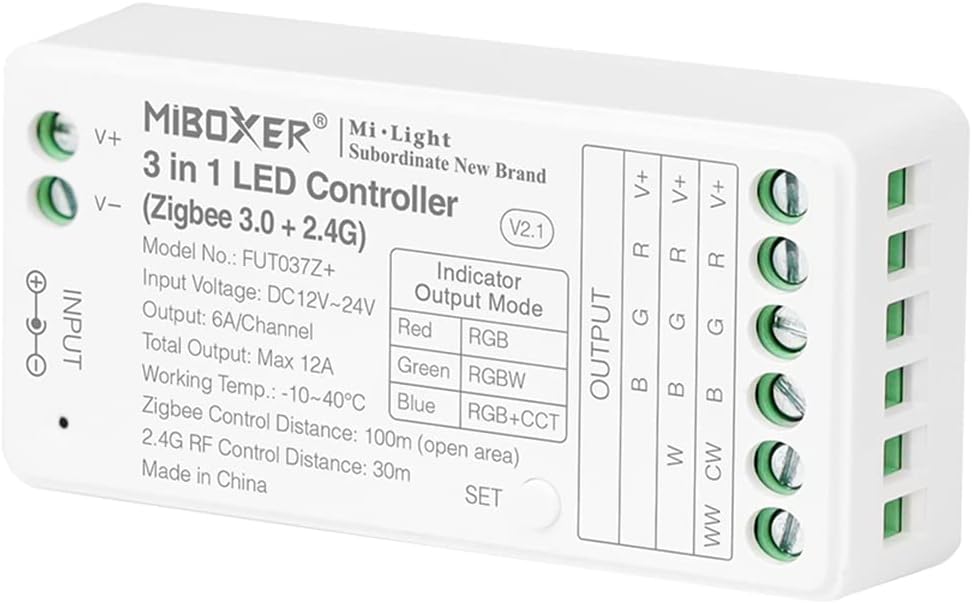 Image: Top view of the LGIDTECH FUT037Z+ LED Strip Controller, showing the input (V+, V-) and output terminals (V+, R, G, B, W, CW, WW). An indicator output mode table is visible, detailing which colors correspond to RGB, RGBW, and RGB+CCT modes.
 Image: Detailed view of the LGIDTECH FUT037Z+ LED Strip Controller, highlighting the LED light interface, classic PC material, and two power interfaces (wiring port / DC5.5*2.1). The SET button is also shown with instructions for its use: press once to activate linking mode, press continuously to change output mode, and long press for 3 seconds to activate Zigbee pairing mode.
Operating Instructions
Zigbee 3.0 Gateway Control
To utilize the full smart features of the controller, a Zigbee 3.0 gateway (e.g., Philips Hue, Amazon Echo Plus 2nd Gen, Echo Studio, IKEA TRÅDFRI) is required. The gateway needs to be purchased separately.
- Pairing: Refer to your Zigbee gateway's instructions for adding new devices. Typically, you will need to put the gateway into pairing mode, then long press the "SET" button on the FUT037Z+ controller for 3 seconds until the indicator flashes quickly.
- Once paired, you can control the LED strip's color, brightness, and saturation through the gateway's associated app.
 Image: A smartphone screen displaying the Tuya Smart app interface for controlling LED lighting, showing a color wheel and brightness slider. Next to it is a Zigbee 3.0 Gateway device. This image illustrates that a Zigbee 3.0 gateway is needed for app control, which is sold separately.
Voice Control
With a compatible Zigbee 3.0 gateway (e.g., Amazon Echo Plus 2nd Gen, Echo Studio, Echo 4th Gen, Echo Show 2nd Gen), the controller supports voice commands for ON/OFF, brightness, and other functions via Amazon Alexa or Google Assistant.
 Image: Icons for Amazon Alexa, Google Assistant, and Alisa, indicating voice control compatibility. Below these, images of smart speakers such as Amazon Echo, Google Home, and a generic smart speaker are shown, along with Philips Hue Bridge, IKEA TRÅDFRI gateway, and Amazon Echo Plus (2nd Gen), illustrating the types of Zigbee 3.0 gateways compatible with the controller for voice control.
2.4G RF Remote Control
The controller can also be operated using Miboxer/Milight 2.4GHz series remote controllers (e.g., FUT092, FUT089, B4, B8, S2-W). These remotes are sold separately.
- Linking Remote: To link a remote, power on the controller, then within 3 seconds, press the "SET" button on the controller once. Then, on the remote, press the "ON" button for the desired zone.
- Signal Transmitting: One controller can transmit signals from a remote to other controllers within 30 meters (98ft). If there are multiple controllers within 30m of each other, the remote control distance can be extended indefinitely through signal relay.
- Modes Synchronization: Multiple controllers can synchronize their modes when started at different times, controlled by the same remote, and within 30m distance.
 Image: Various Miboxer/Mi-Light 2.4GHz series remote controllers (FUT100, FUT099, FUT092, FUT089, FUT088, FUT096, S2-B/S2-W) are displayed, indicating compatibility with the LED controller. Features like 16 million colors, saturation control, color temperature (2700K-6500K), and stepless dimming brightness are also highlighted.
 Image: A diagram illustrating the signal transmitting and modes synchronization capabilities of the controller. It shows a 2.4G remote controlling a series of LED controllers, with each controller relaying the signal to the next within a 30-meter range, effectively extending the control distance.
Maintenance
To ensure optimal performance and longevity of your LED strip controller:
- Keep the device in a dry environment, away from moisture and extreme temperatures.
- Avoid exposing the controller to direct sunlight or corrosive substances.
- Clean the exterior with a soft, dry cloth. Do not use liquid cleaners.
- Ensure proper ventilation around the controller to prevent overheating.
Troubleshooting
If you encounter issues with your LGIDTECH FUT037Z+ controller, consider the following:
- LED Strip Not Lighting Up:
- Check power supply connection to the controller (DC12~24V).
- Verify LED strip wiring to the output terminals is correct and secure.
- Ensure the LED strip itself is functional.
- No Control via Zigbee Gateway:
- Confirm the controller is successfully paired with your Zigbee 3.0 gateway. Try re-pairing if necessary.
- Ensure your gateway is powered on and connected to your network.
- Check for any firmware updates for your gateway or controller (if applicable).
- Remote Control Not Working:
- Ensure the remote is a compatible Miboxer/Milight 2.4GHz series remote.
- Verify the remote is properly linked to the controller. Try re-linking.
- Check the remote's battery.
- Ensure the remote is within the 30-meter control distance.
- Incorrect Color/Mode Output:
- Press the "SET" button on the controller continuously to cycle through output modes (RGB, RGBW, RGB+CCT) to match your LED strip type.
- Verify the wiring matches the LED strip type (e.g., RGBW strip connected to RGBW terminals).
Support
For further assistance or technical support, please refer to the LGIDTECH official website or contact their customer service. You may also find additional resources and FAQs on the product's Amazon listing page.
Note: If you do not have a Zigbee 3.0 Gateway, LGIDTECH offers ZB-Box1 (B0992J7751) and ZB-Box2 (B0B5PK2683) gateways, sold separately.
Ask a question about this manual
Ask about setup, troubleshooting, compatibility, parts, safety, or missing instructions. Manuals+ will review the question and use this page’s manual context to help answer it.