
1. Introduction
This manual provides detailed instructions for setting up and operating your WAVLINK UTD02H Thunderbolt 3 Docking Station. This docking station is designed to expand the connectivity of your laptop, offering multiple display outputs, high-speed data transfer ports, Ethernet, and power delivery capabilities.
2. Package Contents
Please verify that all items are present in your package:
- WAVLINK UTD02H Thunderbolt 3 Docking Station
- Power Adapter
- Thunderbolt 3 Cable
- 2 x DisplayPort to HDMI 2.0 Adapters
- Instruction Manual
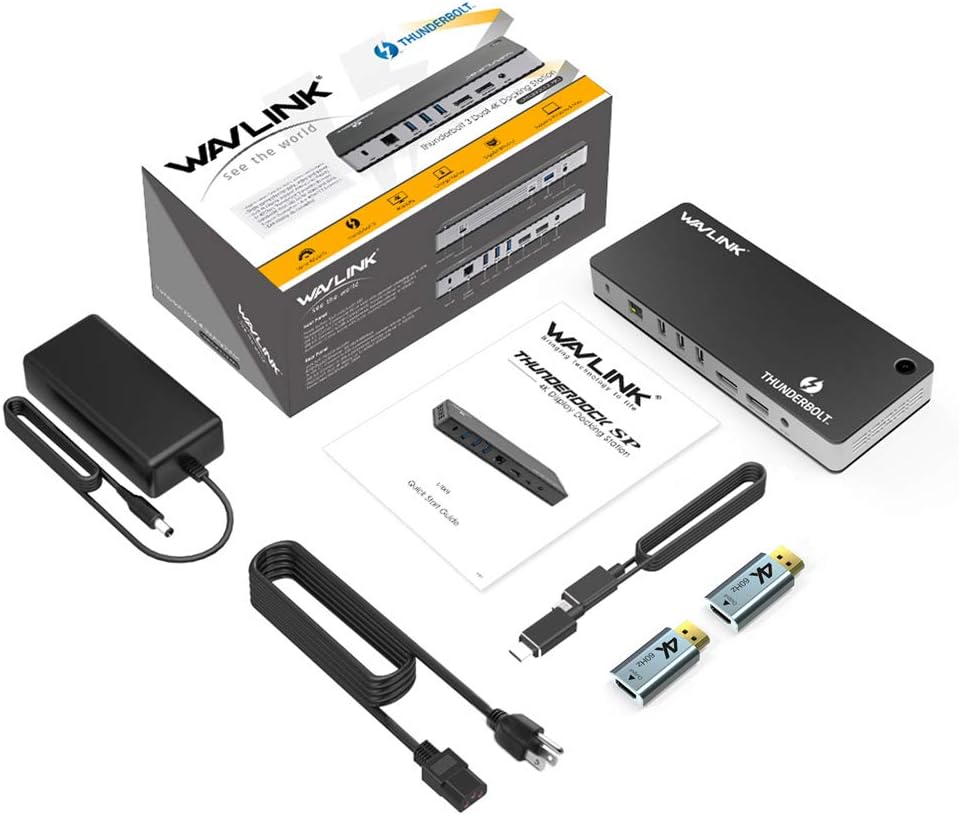
Image: The WAVLINK UTD02H Thunderbolt 3 Docking Station and its included accessories, such as the power adapter, Thunderbolt 3 cable, and two DisplayPort to HDMI adapters.
3. Product Overview
The WAVLINK UTD02H docking station features a comprehensive array of ports on its front and rear panels to connect various peripherals and displays.
Front Panel
- Thunderbolt 3 Port: Connects to your host laptop for data, video, and power.
- USB 3.1 (10Gbps) Port: For high-speed data transfer devices.
- USB 3.0 (5Gbps) Port: For standard USB devices.
- Audio/Microphone Jack: 3.5mm port for headphones or speakers with microphone functionality.
Rear Panel
- Security Lock Slot: For attaching a Kensington-style security cable.
- Gigabit Ethernet Port: Provides a stable wired network connection.
- 2 x USB 3.0 (5Gbps) Ports: For standard USB devices.
- 2 x USB 3.1 (10Gbps) Ports: For high-speed data transfer devices.
- 2 x DisplayPort 1.4 Ports: For connecting external monitors.
- DC 20V Power Input: Connects to the included power adapter.
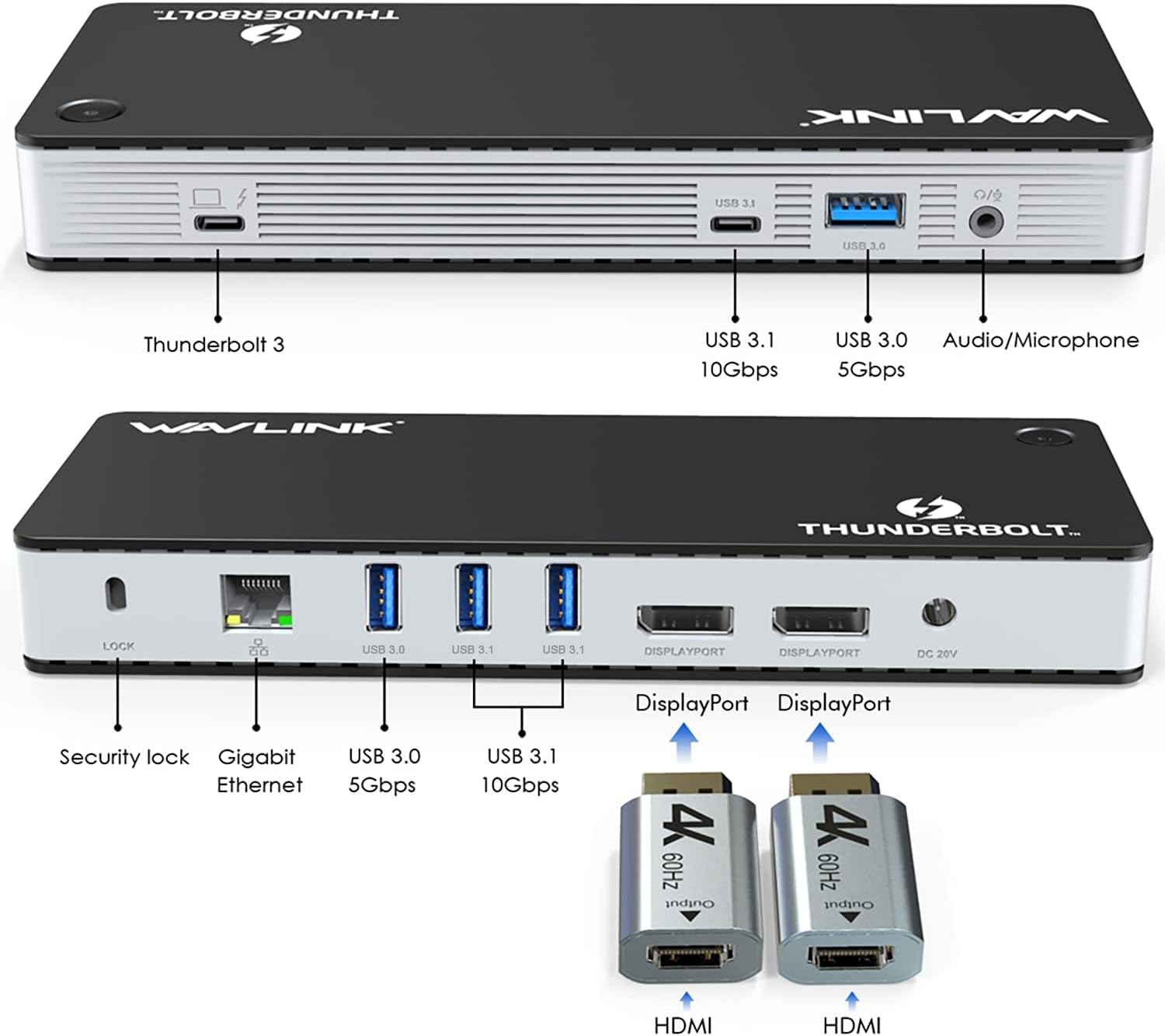
Image: Detailed view of the WAVLINK UTD02H docking station, highlighting the Thunderbolt 3, USB 3.1, USB 3.0, Audio/Mic, Gigabit Ethernet, DisplayPort, and power input ports.
4. Setup Instructions
Follow these steps to set up your WAVLINK UTD02H Thunderbolt 3 Docking Station:
- Connect Power: Plug the power adapter into the DC 20V input port on the rear of the docking station, then connect the adapter to a power outlet.
- Connect to Host Laptop: Use the provided Thunderbolt 3 cable to connect the Thunderbolt 3 port on the docking station to a Thunderbolt 3 or Thunderbolt 4 port on your laptop. Ensure your laptop's USB-C port supports Thunderbolt 3/4 or DisplayPort Alt Mode for full functionality.
- Connect Displays:
- For Single Display (up to 8K@30Hz or 5K@30Hz): Connect one monitor to either DisplayPort 1.4 port on the docking station.
- For Dual Displays (up to 4K@60Hz each): Connect two monitors to both DisplayPort 1.4 ports. If your monitors use HDMI, use the included DisplayPort to HDMI 2.0 adapters.
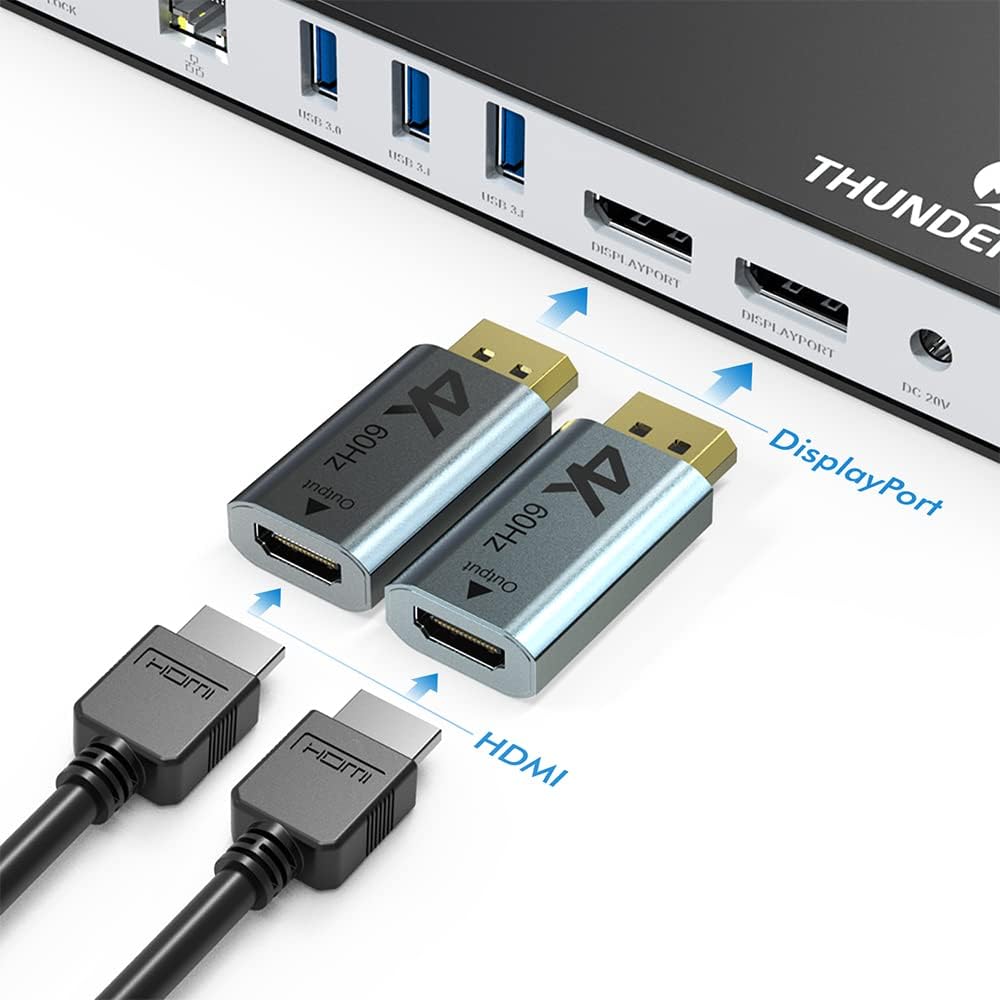
Image: Two DisplayPort to HDMI adapters shown connected to the docking station's DisplayPort outputs, illustrating how to connect HDMI monitors.

Image: Visual representation of connecting a single 8K display or dual 4K displays to a laptop through the docking station.
- Connect Peripherals: Plug your USB devices (keyboard, mouse, external drives), Ethernet cable, and audio devices into the corresponding ports on the docking station.
5. Operating Instructions
Display Modes
The docking station supports various display modes for both Windows and macOS:
- Extend Mode: Each monitor displays a different desktop, expanding your workspace.
- Mirror Mode: All connected monitors display the same content as your primary screen.
- Rotation Mode: Allows you to rotate the display orientation (e.g., portrait mode).
- Clamshell Mode: Operate your laptop with the lid closed while connected to external displays.
Note: For MacBooks with M1/M2/M3 chips, only one external display may be supported in Extend Mode, depending on the specific model and configuration.

Image: Examples of Primary/Replace, Mirror, and Extend display modes, showing how the docking station can be used with different monitor setups.

Image: A visual guide to the various display modes supported by the docking station, including Extend, Mirror, Rotation, and Clamshell modes.
Data Transfer and Charging
- The Thunderbolt 3 port supports data transfer speeds up to 40Gbps.
- USB 3.1 ports offer speeds up to 10Gbps, and USB 3.0 ports up to 5Gbps.
- The docking station provides up to 87W Power Delivery (PD3.0) to charge your connected laptop.
Ethernet Connection
The Gigabit Ethernet port ensures a stable and fast wired network connection up to 1000Mbps.
6. Compatibility
This docking station is compatible with:
- Laptops with Thunderbolt 3 or Thunderbolt 4 ports.
- Specific Type-C laptops where the host Type-C port supports DisplayPort Alt Mode. Examples include MacBook Pro 2016/2017/2018, iMac 2017, Dell XPS 9350/9360/9370/9550/9560/9570, Lenovo Yoga 720 13" & Carbon X1 5th Gen, and most 13" HP Spectre x360 models.
Operating System Compatibility:
- Windows 10 or later
- Mac OS 10.X or later (Note: macOS 10.13.4 is not supported.)
Image: This diagram illustrates the display capabilities based on host DisplayPort version (DP1.4&DSC, DP1.4, DP1.2) for single and dual monitor setups, including resolutions and refresh rates.

Image: A visual representation of the docking station's wide compatibility with Windows, Mac, and Chromebook operating systems, emphasizing the display chip.

Image: Examples of compatible devices, including Thunderbolt 3 laptops and specific Type-C laptops that support DisplayPort Alt Mode.

Image: Important note before purchase, illustrating supported and unsupported Type-C port functionalities to ensure compatibility with video output (DP alt mode).
7. Maintenance
- Keep the docking station in a clean, dry environment.
- Ensure the cooling holes are not obstructed to maintain optimal performance and longevity.
- Utilize the Kensington Lock Slot for physical security of the device.

Image: Close-up of the docking station showing the Kensington Lock Slot and cooling holes, emphasizing advanced protection features.
8. Troubleshooting
No Display Output
- Ensure the docking station is powered on and the power adapter is securely connected.
- Verify that the Thunderbolt 3 cable is firmly connected to both the docking station and your laptop.
- Confirm that your laptop's USB-C port supports Thunderbolt 3/4 or DisplayPort Alt Mode. Not all USB-C ports support video output.
- Check monitor input settings and cable connections between the dock and monitors.
- Try updating your laptop's graphics drivers.
Ethernet Not Working on macOS
- The Ethernet port uses Realtek 8152B/8153/8156 drivers. These drivers may require specific installation steps on macOS.
- During installation, you may need to go to System Settings > Privacy & Security to allow the drivers to work.
- After initial installation and restart, it might be necessary to run the installer again for the Ethernet to appear.
- Refer to WAVLINK's official website for the latest drivers and installation guides.
Laptop Not Charging or Charging Slowly
- The dock provides up to 87W of power. If your laptop requires higher wattage (e.g., 90W or 100W) for intensive tasks, it might charge slowly or not at all.
- In such cases, it is safe to connect your laptop's original higher-wattage power supply directly to the laptop. The laptop will prioritize the highest wattage source.
Random Reboots or Video Drops
- Ensure all connections are secure. Loose cables can cause intermittent issues.
- Update your laptop's operating system and drivers (graphics, Thunderbolt).
- If issues persist, try disconnecting and reconnecting the dock, or restarting your laptop.
- Contact WAVLINK support if the problem continues.
9. Specifications
| Feature | Specification |
|---|---|
| Product Dimensions | 8.27 x 3.27 x 1.28 inches |
| Item Weight | 1.21 pounds (550 Grams) |
| ASIN | B0BKW2WPSH |
| Date First Available | October 29, 2022 |
| Manufacturer | WAVLINK |
| Brand | WAVLINK |
| Model (Color) | UTD02H |
| Hardware Interface | Ethernet, Thunderbolt 3, USB 3.0, USB 3.1 Type A, USB 3.1 Type C |
| Compatible Devices | Dell, HP, Huawei, Lenovo, MacBook |
| Total USB Ports | 5 |
| Number of Ports | 14 |
| Total HDMI Ports | 2 (via included DP to HDMI adapters) |
| Power Delivery | Up to 87W (PD3.0) |
10. Warranty and Support
For technical support or warranty inquiries, please contact WAVLINK customer service:
- Phone: +1 8889730883 (Mon - Fri 9AM - 6PM UTC-5)
- Email: Contact@wavlink.com