
Introduction
The Solid State Logic SSL CONNEX is an advanced portable USB microphone designed for a wide range of audio applications, including conferencing, content creation, live streaming, and music recording on PC and Mac. It features a high-quality quad condenser microphone array and optimized studio-quality processing to ensure clear and concise audio capture.
What's in the Box
- SSL CONNEX Microphone Unit
- 2m USB Type-C to Type-C Cable
- USB Type-C (female) to Type-A (male) Adapter
- 1/4" Camera Tripod Thread Adapter
- Quick Start and Safety Guide
Setup
- Connect the Microphone: Use the provided 2m USB Type-C to Type-C cable to connect the SSL CONNEX to your computer or smart device. If your device only has a USB Type-A port, use the included USB Type-C to Type-A adapter.
Wherever possible, it is best to connect SSL Connex directly to a spare USB port on your computer. If you do need to connect via a USB 2.0 compliant hub, then it is recommended that you choose one of high enough quality to provide reliable performance - not all USB hubs are created equal.
- Operating System Recognition:
- **Mac OS:** The SSL CONNEX is Core Audio compliant and will be automatically recognized by Apple Mac OS systems. No additional drivers are required.
- **Windows:** For Windows users, it is recommended to download and install the SSL USB Control Panel application and ASIO drivers from the Solid State Logic website (solidstatelogic.com/support/downloads).
- **iOS/Android:** SSL Connex is not officially supported on iOS or Android, however, SSL Connex is a class compliant USB audio interface and should work with any device that supports class compliant devices. Additional cables/adapter kits and an external power source may also be required to connect SSL Connex to iOS/Android devices.
- Placement: Place the microphone on a flat surface or mount it using the 1/4" camera tripod thread adapter. Ensure the front of the mic (identifiable by the headphone socket and the legible orientation of the SSL logo) is facing the main sound source. The rubberized non-slip coating on the underside helps prevent rumble or noise.
- Headphone Connection (Optional): Connect your headphones to the 3.5 mm stereo headphone output on the front of the unit for monitoring.
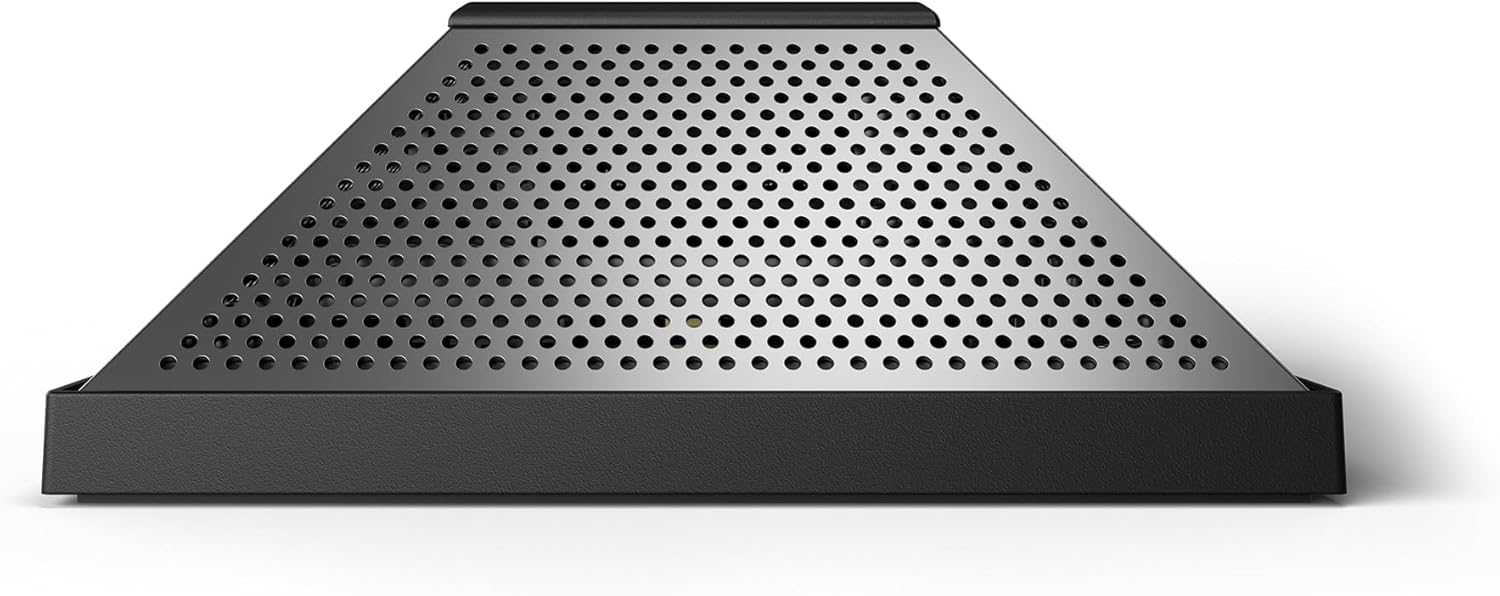
Image: The SSL CONNEX microphone connected via USB to a laptop, ready for use.
Operating Modes
The SSL CONNEX features four pre-set user modes, each optimized for specific applications. The backlit RGB illuminated Solid State Logic logo indicates the current user mode by changing color.

Image: Visual representation of the four user modes (Solo, Group, Vocal, Music) and their corresponding SSL logo colors.
- Solo Mode (White Logo): Designed for picking up a single sound source from the front of the unit. Ideal for individual use in conference calls, podcasting, or streaming. Only the front mic capsule is utilized, and internal audio processing is optimized for speech intelligibility.

Image: The SSL CONNEX in Solo Mode (white logo), shown in a home office setting, suitable for individual use.
- Group Mode (Green Logo): Designed for picking up multiple sound sources in a space, such as broadcasting a round table discussion or video conferencing. All four mic capsules are intelligently mixed to a mono signal, with internal audio processing optimized for speech.

Image: The SSL CONNEX in Group Mode (green logo), positioned on a table during a group meeting, suitable for multiple speakers.
- Vocal Mode (Magenta Logo): Designed for picking up sound sources from the front of the unit, e.g., a person singing. All four mic capsules are utilized and mixed down to a stereo signal, focused around the front of the unit. Internal audio processing is optimized for relatively quiet sources.

Image: The SSL CONNEX in Vocal Mode (magenta logo), shown with a person singing and playing guitar, suitable for vocal recording.
- Music Mode (Blue Logo): Designed for picking up louder sound sources from the front of the unit, e.g., a musical instrument. All four mic capsules are utilized and mixed down to a stereo signal, focused around the front of the unit. Internal audio processing is optimized for louder musical sources.

Image: The SSL CONNEX in Music Mode (blue logo), positioned near a guitar, suitable for recording musical instruments.
Controls
The SSL CONNEX features intuitive touch-sensitive controls for easy operation.
- Headphone Level Adjustment: Use the touch-sensitive '+' and '-' buttons on the top of the unit to increase or decrease the headphone output level. The headphone symbol will flash white with each adjustment.
- Mic Mute (SSL Logo): Tap the SSL logo on the top of the unit to mute the microphone input. The logo will turn red when muted.
- Push-to-Talk: When the mic is muted (red logo), tap and hold down the SSL logo to temporarily unmute the mic. Release to re-mute. This is useful for occasional speaking in conferencing situations.
- Cough Switch: When the mic is unmuted (color corresponding to mode), tap and hold down the SSL logo to temporarily mute the mic. Release to unmute. This allows for brief interruptions without fully muting.
- Accessing Setup Menu: Press and hold down both the '-' and '+' buttons together for approximately 1 second until the SSL logo starts to pulse.
- Changing Modes (within Setup Menu): While in the setup menu, tap the SSL logo to cycle through the different user modes (Solo, Group, Vocal, Music).
- Exiting Setup Menu: Press and hold down both the '-' and '+' buttons again until the SSL logo stops pulsing. The device will automatically exit the setup menu after 20 seconds of inactivity.
Connectivity & Compatibility
- USB Powered: The SSL CONNEX is USB powered, drawing power directly from the connected device.
- High Power 3.5 mm Headphone Output: Provides crystal clear audio monitoring.
- Operating Systems: Compatible with Windows and Mac OS. Works with laptops or USB tablets.
Video: An in-depth look at the features and connectivity of the SSL CONNEX microphone, provided by the seller.
Immersive Mode
Immersive Mode is a unique feature that allows access to each of the four individual mic sources for the purpose of immersive and spatial recordings or broadcasts.
- Enabling Immersive Mode: Access the settings menu and hold down the SSL logo until it flashes yellow. Then exit the settings menu. The white SSL logo will flash yellow every 8 seconds to indicate immersive operation.
- Channel Configuration in Immersive Mode:
- Channels 1 & 2: Dual mono/stereo mix of mic signals (depending on the audio processing mode selected).
- Channel 3: Front mic (headphone socket side).
- Channel 4: Back mic (USB socket side).
- Channel 5: Left mic.
- Channel 6: Right mic.
- Disabling Immersive Mode: Open the settings menu again and hold down the SSL logo until it flashes red.
When first powering up your CONNEX, immersive mode is automatically disabled. Once enabled, the state of immersive mode will be stored in the SSL CONNEX unit until the next time you use it, or until it's disabled again.
Loopback Mode
Loopback mode allows some of the microphone signal to be added to the headphone output circuitry. This enables the user to hear their surroundings and their own voice without having to compensate for the isolation provided by headphones.
- Adjusting Loopback Level: Loopback mode can be adjusted from the device's setup menu by using the '-' and '+' buttons while in the setup menu. The headphone symbol on the top of the unit lights up to show the loopback level (off, or dim to bright indicating low to high levels).
- Muting Loopback: When you mute the mic, the loopback is also muted. This allows you to listen back to audio from your system without causing feedback.
- Caution: When using loopback mode, avoid placing your headphones on or near the SSL CONNEX with loopback enabled, as this can cause feedback. If removing your headphones, first mute the mic or move the headphones further away.
Specifications
| Feature | Detail |
|---|---|
| Item Weight | 7.1 ounces |
| Product Dimensions | 3.62 x 3.62 x 1.57 inches |
| Item Model Number | 729770x1 |
| Color Name | Black |
| Compatible Devices | Headphone, Personal Computer |
| Connector Type | USB |
| Material Type | Plastic Metal |
| Hardware Platform | Smartphone |
| Power Source | Corded Electric |
Troubleshooting
- Background Noise: If you experience background noise, especially when monitoring with headphones at high volume, it may be due to high gain settings. The microphone is designed to be omnidirectional and pick up surrounding audio. Adjusting the microphone's position or using a pop filter (not included) may help.
- Sound Quality for Loud Sources: For recording loud sources like electric instruments, ensure the microphone is set to Music Mode and placed far enough away from the source to prevent distortion. Monitor input levels in your recording application to avoid clipping.
- Compatibility Issues with Other Audio Interfaces (Mac): If using the SSL CONNEX with another audio interface (e.g., SSL 2+), and experiencing driver conflicts, you may need to create an "aggregate audio device" in the Audio MIDI Setup app on macOS to combine both interfaces.
- Microphone Base Stability: The microphone base is solid and heavy, designed for stability. Ensure the side screws are tightened to prevent wobbling. If using a different base or mounting, ensure it provides adequate stability.
- Factory Reset: To reset your SSL CONNEX to its factory settings, enter the setup menu (press and hold '-' and '+' until SSL logo pulses). Then, press and hold the SSL logo and both '-' and '+' buttons for at least 7 seconds until the SSL logo starts cycling through all colors. Release the buttons, and the unit will reboot with default settings (mic unmuted, Solo mode, loopback and immersive modes off, headphone level at -42 dB output).
Warranty & Support
For detailed warranty information and further technical support, please refer to the official Solid State Logic website or contact their customer service directly. The Quick Start and Safety Guide included in your product packaging also contains important information.
Online resources, including extended user guides and driver downloads, can be found at: solidstatelogic.com/support/downloads


