
1. Introduction
The Ezlo Secure Smart Home Hub is a central control unit designed to manage and automate a wide range of smart home devices. It supports Z-Wave, Zigbee, and integrates with thousands of Wi-Fi devices through Amazon Alexa and Google Assistant. This manual provides essential information for setting up, operating, maintaining, and troubleshooting your Ezlo Secure Hub.
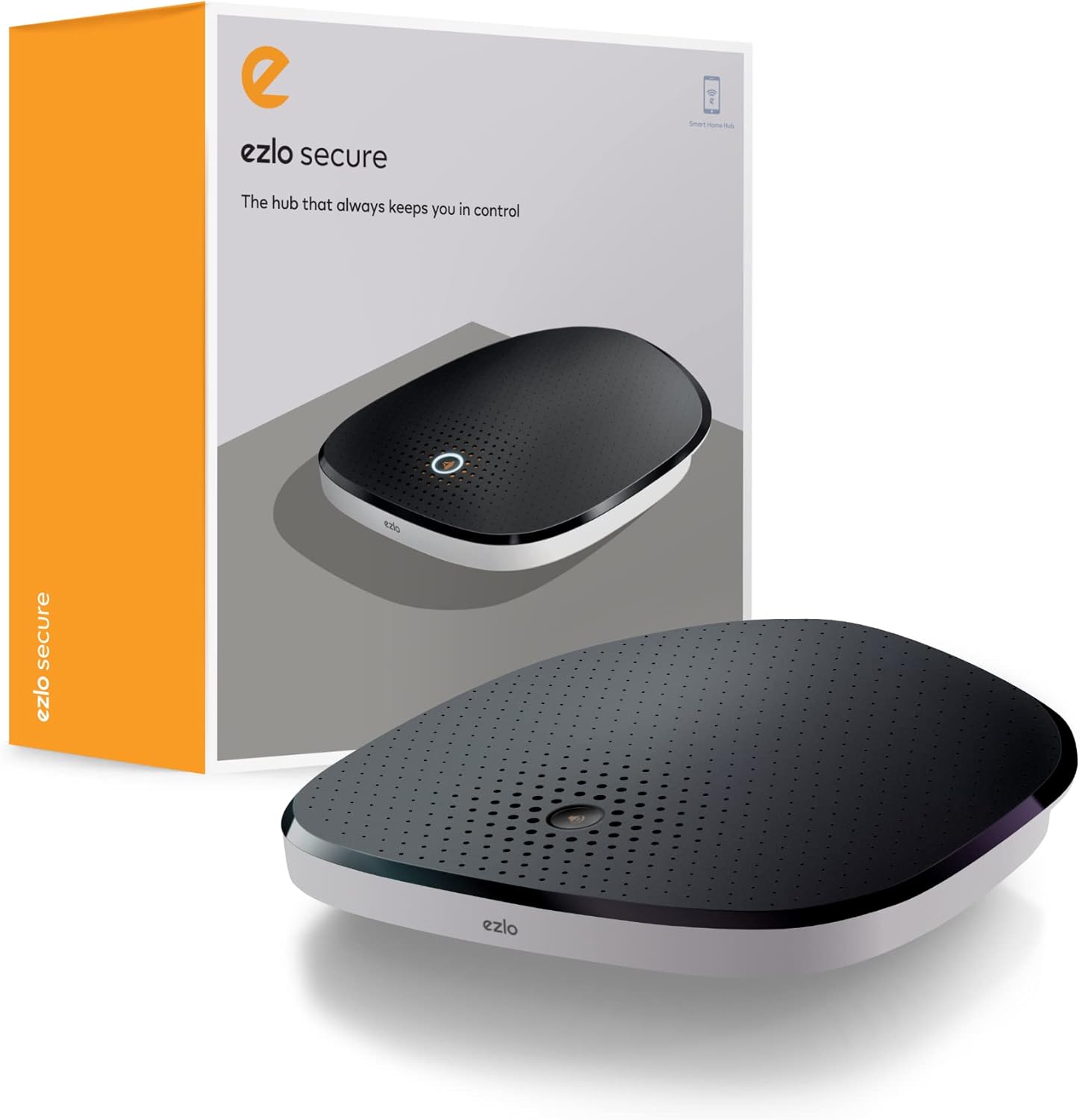
Figure 1: The Ezlo Secure Smart Home Hub and its retail packaging.
2. Setup
2.1 Package Contents
- Ezlo Secure Smart Home Hub
- Ethernet Cable
- Power Adapter
- Non-standard battery (pre-installed)
2.2 Initial Connection
- Connect the Ezlo Secure Smart Home Hub to your Wi-Fi router using the provided Ethernet cable. Ensure your router has an available Ethernet port and is connected to the internet.
- Connect the power adapter to the hub and plug it into a power outlet.
- Wait for the hub to power on and establish a network connection. The indicator light on the hub will change to indicate readiness.
2.3 App Installation and Configuration
- Download the Ezlo mobile application from your device's app store. The app requires iOS 9.0 or later, or Android 8.1 or later.
- Open the Ezlo app and follow the in-app guide to create an account and add your Ezlo Secure Hub.
- Once the hub is added, you can begin pairing your smart devices (Z-Wave, Zigbee, Wi-Fi) through the app. Refer to the app's specific instructions for pairing different device types.

Figure 2: The Ezlo Secure Hub placed on a wooden surface, ready for operation.
3. Operating the Ezlo Secure Hub
3.1 Device Integration and Control
The Ezlo Secure Hub operates on the MiOS Property OS, allowing for seamless integration and control of various smart devices. It supports Z-Wave and Zigbee protocols directly, and can control thousands of Wi-Fi devices when linked with Amazon Alexa or Google Assistant.
- Z-Wave & Zigbee Devices: Pair compatible Z-Wave and Zigbee devices directly with the hub through the Ezlo app.
- Wi-Fi Devices: Connect your Ezlo Secure Hub to your Amazon Alexa or Google Assistant account to enable voice and app control for Wi-Fi devices already linked to those platforms.
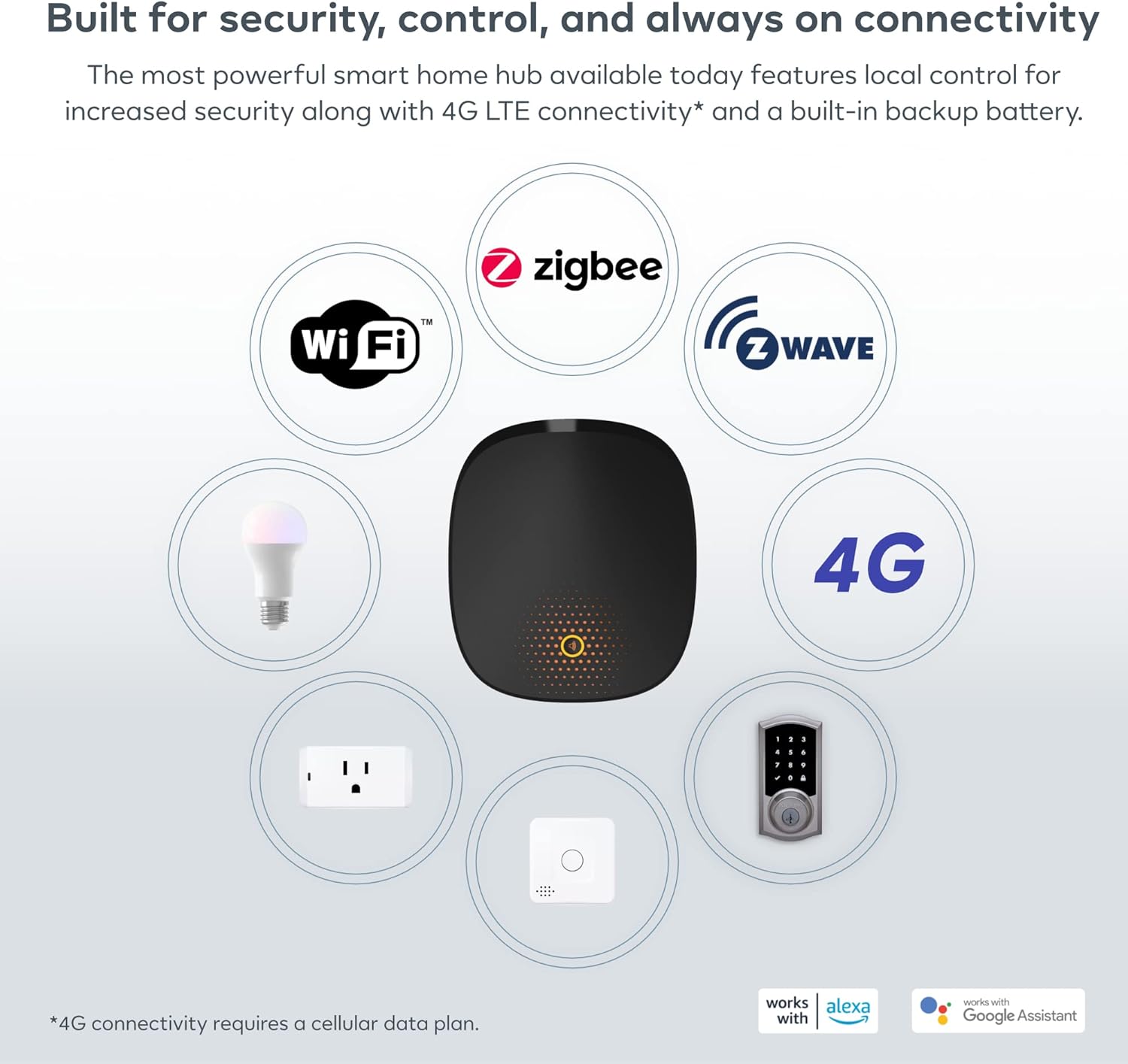
Figure 3: The Ezlo Secure Hub's broad compatibility with various smart home technologies and devices.
3.2 Automation and Scenes (MeshBots)
Utilize the powerful automation engine, known as MeshBots, to create custom workflows and scenes for your smart home. This allows devices to interact automatically based on predefined conditions.
- Creating Automations: In the Ezlo app, navigate to the automation section. Define triggers (e.g., motion detected, time of day) and actions (e.g., turn on lights, send notifications).
- Example Automation: If a front door sensor detects motion, turn on a floodlight, send an alert, log a security entry, and turn off the floodlight if no motion is detected after 2 minutes.

Figure 4: Example of an automation sequence using MeshBots.
3.3 Voice Control
Integrate your Ezlo Secure Hub with Amazon Alexa or Google Assistant to control your smart devices using voice commands. This feature allows for hands-free operation of lights, locks, and other connected devices.
- Linking Accounts: Follow the instructions in the Ezlo app to link your Amazon Alexa or Google Assistant account.
- Voice Commands: Once linked, use standard voice commands (e.g., "Alexa, turn on the living room lights" or "Hey Google, lock the front door").
3.4 Local Control and Security Features
The Ezlo Secure Hub offers local control, ensuring your smart home continues to function even if your internet connection is lost. It also includes a built-in backup battery and siren for enhanced security.
- Local Mode: Critical automations and device control can operate locally without an internet connection.
- Backup Battery: Provides power to the hub during outages, maintaining system functionality.
- Built-in Siren: Can be triggered as part of security automations to deter intruders.

Figure 5: The Ezlo Secure Hub maintains functionality and security even during power or internet outages.
4. Maintenance
The Ezlo Secure Hub requires minimal maintenance. Follow these guidelines to ensure optimal performance:
- Firmware Updates: Regularly check for and install firmware updates through the Ezlo app. Updates often include performance improvements, new features, and security enhancements.
- Cleaning: Use a soft, dry cloth to clean the exterior of the hub. Avoid using liquid cleaners or abrasive materials.
- Placement: Ensure the hub is placed in a central location within your home, away from large metal objects or other sources of interference, to maximize wireless signal range for connected devices.
- Battery Check: While the hub has a backup battery, it is designed for short-term power outages. Ensure the hub is always connected to a reliable power source.
5. Troubleshooting
If you encounter issues with your Ezlo Secure Hub, refer to the following common problems and solutions:
| Problem | Possible Cause | Solution |
|---|---|---|
| Hub not powering on | Power adapter disconnected or faulty outlet | Check power connections. Try a different outlet. |
| No internet connection | Ethernet cable loose, router issue, or internet outage | Ensure Ethernet cable is securely connected. Restart your router. Check your internet service. |
| Cannot pair devices | Device too far, incorrect pairing mode, or interference | Move device closer to hub. Ensure device is in pairing mode. Reduce interference. Consult device manual. |
| Voice control not working | Alexa/Google Assistant not linked or device not discovered | Verify Ezlo account is linked in Alexa/Google Home app. Ask Alexa/Google to discover devices. |
| Hub blinking/disconnecting | Network instability or firmware issue | Ensure stable network. Check for and apply firmware updates. If persistent, contact support. |
For more detailed troubleshooting or issues not listed here, please refer to the Ezlo support website or contact customer service.
6. Specifications
Detailed technical specifications for the Ezlo Secure Smart Home Hub:
| Feature | Detail |
|---|---|
| Manufacturer | Ezlo |
| Model Number | EZLOSECURE-US-2022_V2 |
| Product Dimensions | 10.49 x 10.49 x 3.45 cm |
| Item Weight | 821 grams |
| Color | Black |
| Included Components | Ethernet cable, Power source |
| Batteries | 1 Non-standard Lithium Ion battery (included) |
| Operating System | MiOS by Ezlo |
| Connectivity | Z-Wave, Zigbee, Wi-Fi (via Alexa/Google Assistant), 4G (requires cellular data plan) |
| Mobile App Requirements | iOS 9.0+; Android 8.1+ |

Figure 6: Overview of the Ezlo Secure Hub's key features and capabilities.
7. Warranty and Support
7.1 Warranty Information
Please refer to the warranty card included with your product packaging or visit the official Ezlo website for detailed warranty terms and conditions. The warranty typically covers manufacturing defects for a specified period from the date of purchase.
7.2 Customer Support
For technical assistance, troubleshooting, or any questions regarding your Ezlo Secure Smart Home Hub, please contact Ezlo customer support:
- Online Support: Visit the Ezlo support portal on their official website for FAQs, knowledge base articles, and community forums.
- Contact Form/Email: Use the contact form available on the Ezlo website or email their support team directly.
- Phone Support: Check the Ezlo website for regional phone support numbers and operating hours.


