1. Product Overview & Key Features
The ALLDOCUBE iPlay50 is a versatile Android 14 tablet designed for a seamless user experience. It combines powerful performance with a vibrant display and extensive storage capabilities.
- Newest Android 14 System: Experience the latest Android 14 with features like horizontal screen view, multi-window operation, humanized reading mode, eye protection mode, and dark color mode.
- GMS Certified with Widevine L1: Equipped with Google Mobile Service (GMS) certification for access to the latest Android apps. Widevine L1 support ensures high-quality streaming from platforms like Netflix.
- High Performance Octa-core T618 CPU: Powered by a 12nm Unisoc T618 eight-core processor (two A75, six A55 cores) for strong computing power and efficient energy use.
- Ample Storage & RAM: Features 14GB (6GB physical + 8GB virtual) RAM and 128GB ROM, expandable up to 2TB via TF card.
- Dual Cameras & Speakers: Includes a 5MP front camera and an 8MP rear camera for photos and video calls, complemented by dual speakers for immersive audio.
- Long-Lasting Battery: A 6000mAh battery provides approximately 8 hours of usage for various activities, supported by AI intelligent power management.
2. What's in the Box
Upon unboxing your ALLDOCUBE iPlay50 tablet, please ensure all the following items are present:
- 1 x ALLDOCUBE iPlay50 Tablet
- 1 x 5V-2A Charger (medium gauge)
- 1 x Screen Protector (three-layer PET, pre-installed or included)
- 1 x User Manual (with warranty, certificate of conformity)
- 1 x USB-C Cable
- 1 x Card Removal Pin
- 1 x Packaging Box
3. Physical Overview
Familiarize yourself with the physical components and layout of your ALLDOCUBE iPlay50 tablet.

Image: Front and back view of the ALLDOCUBE iPlay50 tablet, showcasing its sleek design and camera placement.
The tablet features a 10.4-inch 2K IPS FullView display with slim bezels. On the back, an 8MP camera is located in the upper left corner. The device has a metal body with flat edges, contributing to its premium feel.
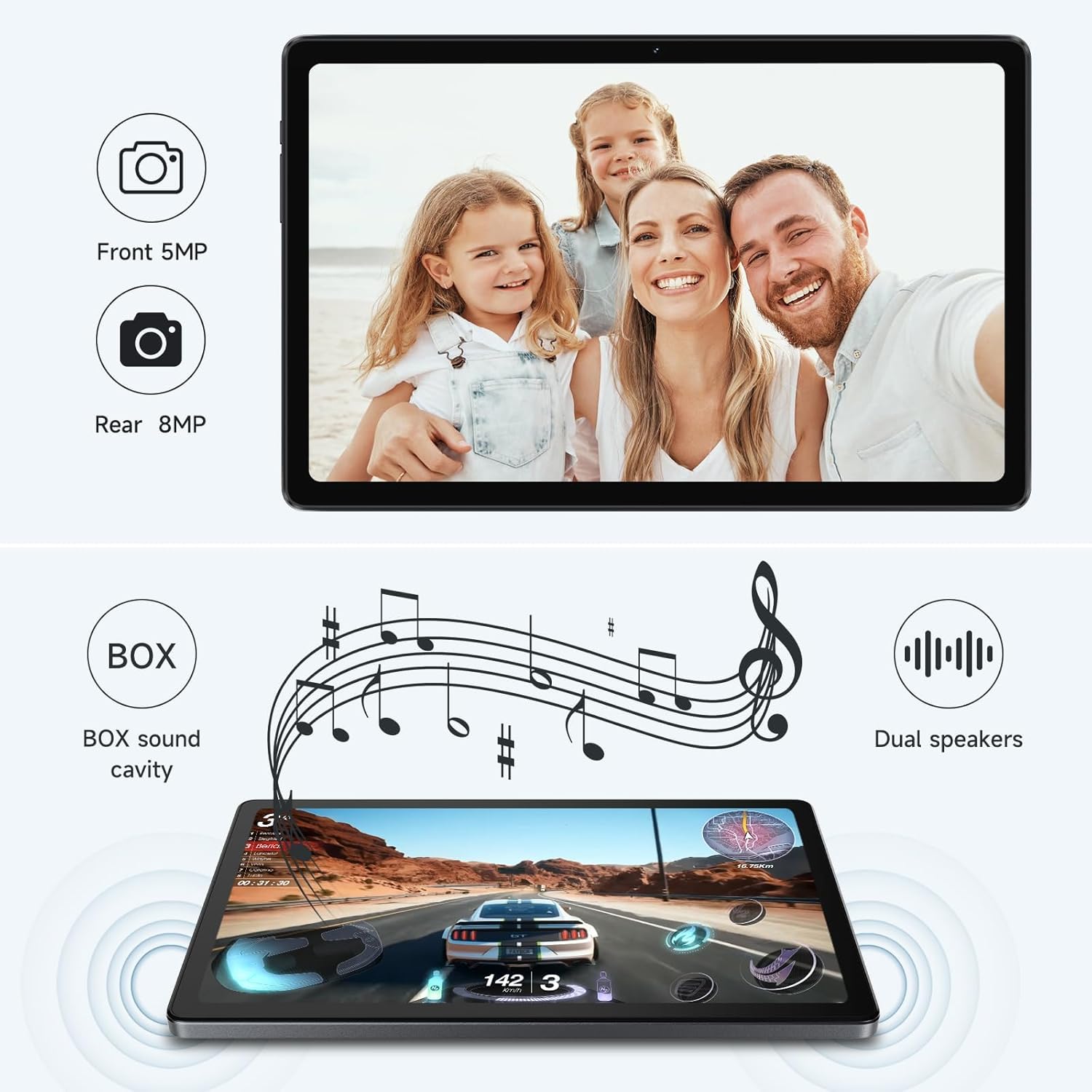
Image: Side view of the ALLDOCUBE iPlay50 tablet, highlighting the volume buttons, power button, USB-C port, and headphone jack.
Along the sides, you will find the power button, volume controls, a USB-C port for charging and data transfer, a 3.5mm headphone jack, and a slot for expandable memory (TF card).
4. Setup and Initial Configuration
Follow these steps to set up your new ALLDOCUBE iPlay50 tablet for the first time:
- Charge the Tablet: Before first use, it is recommended to fully charge the tablet using the provided USB-C cable and 5V-2A charger.
- Power On: Press and hold the power button located on the side of the tablet until the ALLDOCUBE logo appears on the screen.
- Initial Setup Wizard: The tablet will guide you through an initial setup process. Select your preferred language, connect to a Wi-Fi network, and agree to the terms and conditions.
- Google Account Setup: Sign in with your existing Google account or create a new one. This is necessary to access the Google Play Store and other Google services.
- Security Setup: Configure your preferred screen lock method (PIN, pattern, password, or face unlock).
- Data Transfer (Optional): If you are upgrading from another device, you may have the option to transfer data during this stage.
Video: An official ALLDOCUBE video demonstrating the unboxing and initial setup of an iPlay 50 tablet. Please note the video title mentions Android 12, but this product runs Android 14.
5. Operating System Features
Your ALLDOCUBE iPlay50 runs on the latest Android 14, offering a range of enhanced features for productivity and entertainment.

Image: Visual representation of the Android 14 operating system and Google Mobile Service (GMS) certification, indicating access to a wide range of apps.
- Android 14: Enjoy the latest Android experience with improved privacy controls, enhanced notifications, and a more intuitive user interface.
- GMS Certification: Full access to Google Play Store, Google Maps, Gmail, YouTube, and other essential Google applications.
- Widevine L1 Support: Stream high-definition content from popular streaming services like Netflix, Disney+, Hulu, and Amazon Prime Video without quality degradation.
- Multi-Window Operation: Run multiple applications side-by-side for enhanced multitasking.
- Reading & Eye Protection Modes: Optimize your viewing experience with dedicated modes that reduce eye strain during prolonged use.

Image: A tablet screen displaying a comparison between Widevine L1 (1080P) and L3 (720P) streaming quality, emphasizing the tablet's L1 certification.
6. Performance and Storage
The iPlay50 is engineered for smooth performance and offers ample space for your applications and media.

Image: A diagram illustrating the Unisoc T618 octa-core chip, highlighting its ARM Mali-G52 GPU, octa-core design, and A75/A55 core architecture.
- Unisoc T618 Octa-core CPU: This 12nm processor ensures efficient and powerful performance for gaming, multitasking, and demanding applications.
- 14GB RAM (6GB + 8GB Virtual): The generous RAM allows for smooth switching between applications and efficient handling of multiple tasks simultaneously.
- 128GB Internal Storage (ROM): Provides substantial space for your apps, photos, videos, and documents.
- 2TB Expandable Storage: Utilize a TF (microSD) card to significantly expand your storage capacity, accommodating large media libraries or extensive app collections.

Image: Infographic detailing the tablet's 14GB RAM, 128GB ROM, and 2TB expansion capability.
7. Camera and Audio
Capture moments and enjoy rich audio with the tablet's integrated cameras and speaker system.

Image: A split image showing the tablet's front 5MP camera capturing a family photo and a diagram illustrating the dual speakers with BOX sound cavity.
- Front 5MP Camera: Ideal for video calls, online meetings, and selfies.
- Rear 8MP Camera: Suitable for capturing photos and videos, offering clear image quality for everyday use.
- Dual Speakers: Designed to deliver high-quality, powerful stereo sound for an enhanced audio experience when watching videos, playing games, or listening to music.
8. Battery Life and Power Management
The ALLDOCUBE iPlay50 is equipped with a robust battery and intelligent power management features to maximize usage time.

Image: An illustration of the tablet's internal components highlighting the 6000mAh battery, with a clock graphic indicating extended usage time.
- 6000mAh High-Capacity Battery: Provides up to 8 hours of battery life for activities such as reading, browsing, watching movies, and playing games.
- AI Intelligent Power Management: This feature effectively controls power consumption by optimizing application standby, clearing background processes on lock screen, and managing auto-start applications to extend battery longevity.
9. Specifications
Detailed technical specifications for the ALLDOCUBE iPlay50 tablet:
| Feature | Specification |
|---|---|
| Brand | ALLDOCUBE |
| Model Name | iPlay 50 Max |
| Operating System | Android 14 |
| Screen Size | 10.4 Inches |
| Screen Resolution | 2000×1200 Pixels (2K IPS FullView) |
| Processor | Unisoc T618 Octa-core (2 GHz) |
| Graphics Coprocessor | Mali G52 3EE |
| RAM | 14 GB (6GB + 8GB Virtual) |
| Flash Memory Size (ROM) | 128 GB |
| Expandable Storage | Up to 2 TB (via TF card) |
| Rear Webcam Resolution | 8 MP |
| Front Webcam Resolution | 5 MP |
| Wireless Type | 802.11ac, 802.11ad, 802.11b, 802.11g, 802.11n |
| Connectivity | 4G LTE Dual SIM, GPS |
| Battery Capacity | 6000mAh |
| Average Battery Life | 8 Hours |
| Item Weight | 0.08 ounces |
| Product Dimensions | 9.76 x 6.21 x 0.33 inches |
| Color | Black |
10. Maintenance
To ensure the longevity and optimal performance of your ALLDOCUBE iPlay50 tablet, follow these maintenance guidelines:
- Regular Cleaning: Use a soft, lint-free cloth to clean the screen and body of the tablet. Avoid abrasive materials or harsh chemicals.
- Software Updates: Regularly check for and install system updates to ensure you have the latest features, security patches, and performance improvements.
- Battery Care: Avoid fully discharging the battery frequently. For optimal battery health, try to keep the charge between 20% and 80%. Avoid exposing the tablet to extreme temperatures.
- Storage Management: Periodically review and delete unnecessary files and applications to free up storage space and maintain performance.
- Protect from Physical Damage: Use a protective case and screen protector to guard against drops, scratches, and impacts.
11. Troubleshooting
If you encounter issues with your ALLDOCUBE iPlay50 tablet, refer to the following common troubleshooting steps:
- Tablet Not Turning On: Ensure the tablet is sufficiently charged. Connect it to the charger and wait for a few minutes before attempting to power it on again. If it still doesn't turn on, try holding the power button for an extended period (10-15 seconds).
- Screen Unresponsive: If the screen is frozen, try a forced restart by holding down the power button until the device reboots.
- Wi-Fi Connectivity Issues: Check if your Wi-Fi router is working correctly. Restart both the tablet and the router. Forget the network on your tablet and reconnect.
- Apps Crashing/Freezing: Clear the cache and data for the problematic app via Settings > Apps. If the issue persists, uninstall and reinstall the app. Ensure the app is updated to its latest version.
- Slow Performance: Close unnecessary background apps. Clear cached data. Consider performing a factory reset if performance issues are severe and persistent (back up your data first).
12. Warranty and Support
ALLDOCUBE is committed to providing quality products and customer satisfaction. Your iPlay50 tablet comes with comprehensive support.
- One-Year Warranty: ALLDOCUBE offers a one-year warranty for tablets purchased from the ALLDOCUBE Official Flagship Store. This includes a 12-month free repair warranty.
- Technical Support: Benefit from lifetime technical support. If you encounter any issues, please contact customer service. You can expect a response within 24 hours.
- Return or Exchange Service: In case of product issues, ALLDOCUBE provides return or exchange services.
For further assistance, please refer to the contact information provided in your included User Manual or visit the official ALLDOCUBE website.


