
1. Introduction
Thank you for choosing the FILIEKEU Smart Watch I9. This manual provides essential information for setting up, operating, and maintaining your device. Please read it carefully to ensure proper use and to maximize the watch's features.
The FILIEKEU Smart Watch I9 is designed to enhance your daily life with features such as Bluetooth calling, health monitoring, activity tracking, and smart notifications. It is compatible with smartphones running iOS 8.0 or Android OS 4.4 and above, and requires Bluetooth 4.0 or higher for connectivity.

Figure 1: FILIEKEU Smart Watch I9, C-Black variant.
2. Setup
2.1 Initial Charging
Before first use, fully charge the smart watch. Connect the magnetic charging cable to the charging contacts on the back of the watch and plug the USB end into a standard USB power adapter (not included). The watch display will indicate charging status.
2.2 App Installation
To unlock all features and synchronize data, download the companion application on your smartphone. Scan the QR code provided in the watch packaging or search for the app name (usually found in the watch's settings or quick start guide) in your phone's app store (Google Play Store for Android, Apple App Store for iOS).
2.3 Device Pairing
- Ensure Bluetooth is enabled on your smartphone.
- Open the companion app and follow the on-screen instructions to add a new device.
- Select 'FILIEKEU I9' from the list of available Bluetooth devices.
- Confirm the pairing request on both your watch and smartphone.

Figure 2: Watch display highlighting full touch screen and system compatibility.
3. Operating the Smart Watch
3.1 Basic Navigation
The FILIEKEU Smart Watch I9 features a 1.3-inch full touch screen. Swipe left, right, up, or down to navigate through menus and functions. Tap to select an option. Brightness can be adjusted through the watch settings.
3.2 Bluetooth Call Function
Once paired with your smartphone, the watch supports making and receiving calls directly. You can dial numbers from the watch interface or answer/hang up incoming calls.

Figure 3: Using the watch to make a direct Bluetooth call.
3.3 Notifications
The watch vibrates to alert you of incoming calls, SMS messages, and notifications from various social media applications such as Facebook, WeChat, WhatsApp, Skype, Line, Instagram, and Twitter. Ensure notification permissions are enabled in the companion app.

Figure 4: Smart reminder displaying message content and app icons.
3.4 Health Monitoring
The watch provides 24-hour monitoring for heart rate, blood pressure, and blood oxygen levels. These measurements are for reference only and should not be used for medical diagnosis. The watch also automatically tracks your sleep patterns, including awake, light, and deep sleep stages, to help you understand and improve your sleep quality.

Figure 5: Health monitoring features including heart rate, blood pressure, and blood oxygen.
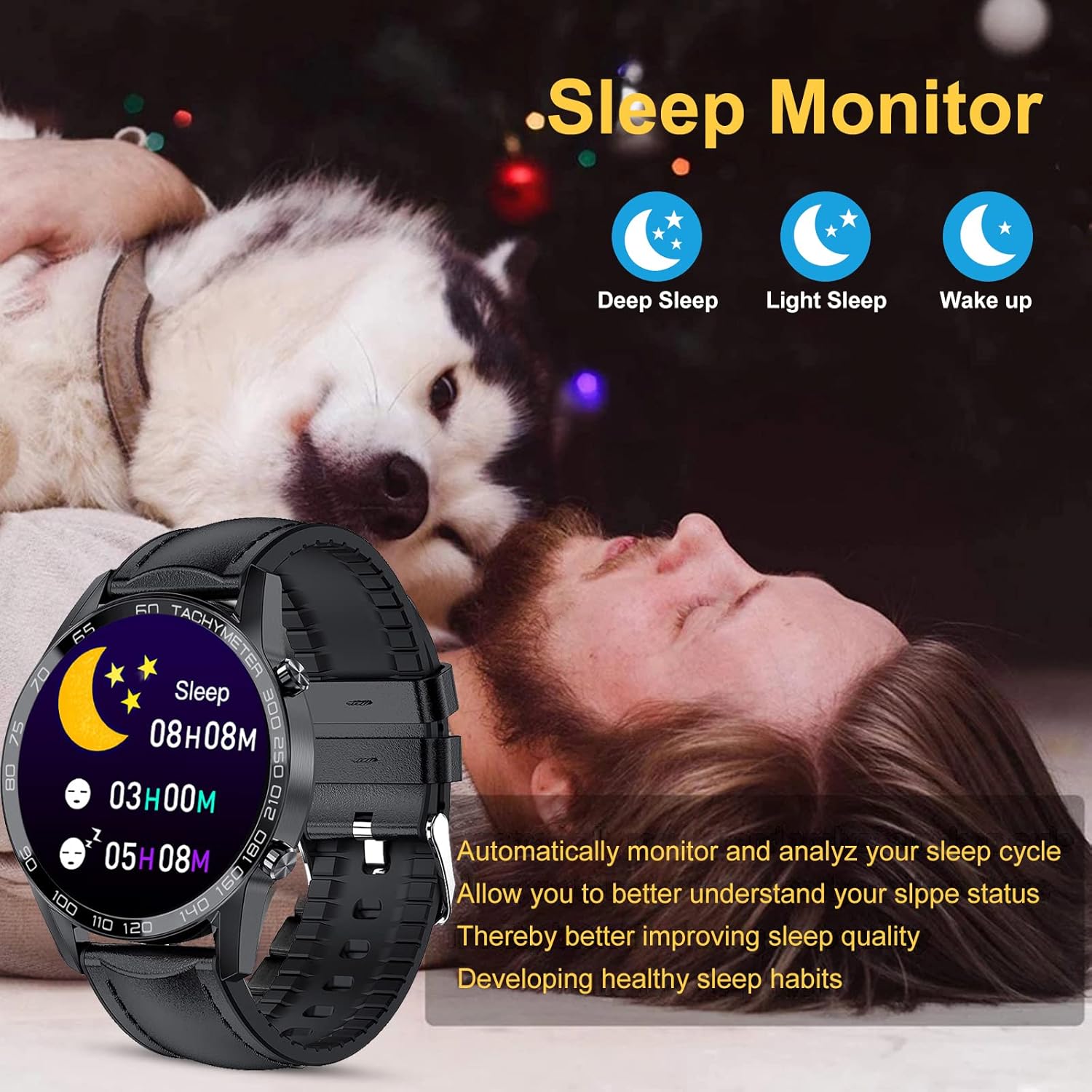
Figure 6: Sleep monitoring interface on the smart watch.
3.5 Activity Tracking and Sports Modes
The watch tracks daily activities such as steps, distance, and calories burned. It includes 10 built-in sport modes: walking, running, cycling, rock climbing, swimming, diving, table tennis, badminton, football, and basketball. Use the stopwatch function to time your workouts.

Figure 7: Exploring the 10 available sport modes and activity tracking.
3.6 Additional Features
- Alarm: Set alarms directly from the watch or through the app.
- Remote Camera Control: Use the watch as a remote shutter for your phone's camera.
- Sedentary Reminder: Receive alerts to move after periods of inactivity.
- Music Control: Control music playback (play, pause, next, previous song) on your connected smartphone.
- Weather Forecast: Synchronize with your phone to display real-time weather conditions.

Figure 8: Real-time weather display and music control functions.

Figure 9: Overview of various smart functions including sedentary reminder.
4. Maintenance
4.1 Cleaning
Regularly clean your watch and strap with a soft, dry cloth. For stubborn dirt, a slightly damp cloth can be used. Avoid using harsh chemicals or abrasive materials.
4.2 Strap Adjustment
If your watch comes with a metal link strap, use the provided strap adjustment tool to remove or add links for a comfortable fit. Carefully align the tool with the pin on the link and gently push to remove. Refer to the diagram for guidance.

Figure 10: Watch strap adjustment tool and instructions for link removal.
5. Troubleshooting
- Watch not turning on: Ensure the watch is fully charged. Connect it to the charger and wait a few minutes before attempting to power it on.
- Cannot pair with phone: Make sure Bluetooth is enabled on your phone and the watch. Restart both devices and try pairing again. Ensure the companion app has necessary permissions.
- Notifications not received: Check if notifications are enabled in the watch's settings and the companion app. Verify that the app has permission to display notifications on your phone.
- Inaccurate health data: Ensure the watch is worn snugly on your wrist, not too tight or too loose. Avoid excessive movement during measurements. Remember, data is for reference only.
- Charging issues: Ensure the magnetic charging contacts are clean and properly aligned with the watch's charging points. Try a different USB power source.
6. Specifications
| Feature | Detail |
|---|---|
| Model Number | I9 |
| Display | 1.3-inch Full Touch Screen |
| Connectivity | Bluetooth 4.0 and above |
| Compatibility | iOS 8.0+ / Android OS 4.4+ |
| Water Resistance | IP67 (Refer to product details for specific usage guidelines) |
| Health Monitoring | Heart Rate, Blood Pressure, Blood Oxygen, Sleep Monitor |
| Activity Tracking | Steps, Distance, Calories, 10 Sport Modes |
| Other Functions | Bluetooth Calls, Notifications, Alarm, Remote Camera, Sedentary Reminder, Music Control, Weather |
| Item Length | 8.66 inches |
| Item Width | 4.2 centimeters |
7. Warranty and Support
For warranty information, please refer to the product packaging or contact the seller directly. If you encounter any issues not covered in this manual, please reach out to customer support for assistance.