
AMprime B0BKSN7ZLB
AMprime Android 11 Car Stereo User Manual
Model: B0BKSN7ZLB
1. Introduction
This manual provides detailed instructions for the installation, operation, maintenance, and troubleshooting of your new AMprime Android 11 Double Din Car Stereo. Please read this manual thoroughly before using the product to ensure proper functionality and safety. Keep this manual for future reference.
2. Product Overview
The AMprime Android 11 Car Stereo is a versatile in-dash navigation system designed to enhance your driving experience. It features a 10.1-inch touch screen, runs on Android 11, and supports wireless Apple CarPlay and Android Auto. Key functionalities include Bluetooth connectivity, Wi-Fi, GPS navigation, FM/RDS radio, HiFi audio, steering wheel control compatibility, dual USB inputs, and a backup camera input.
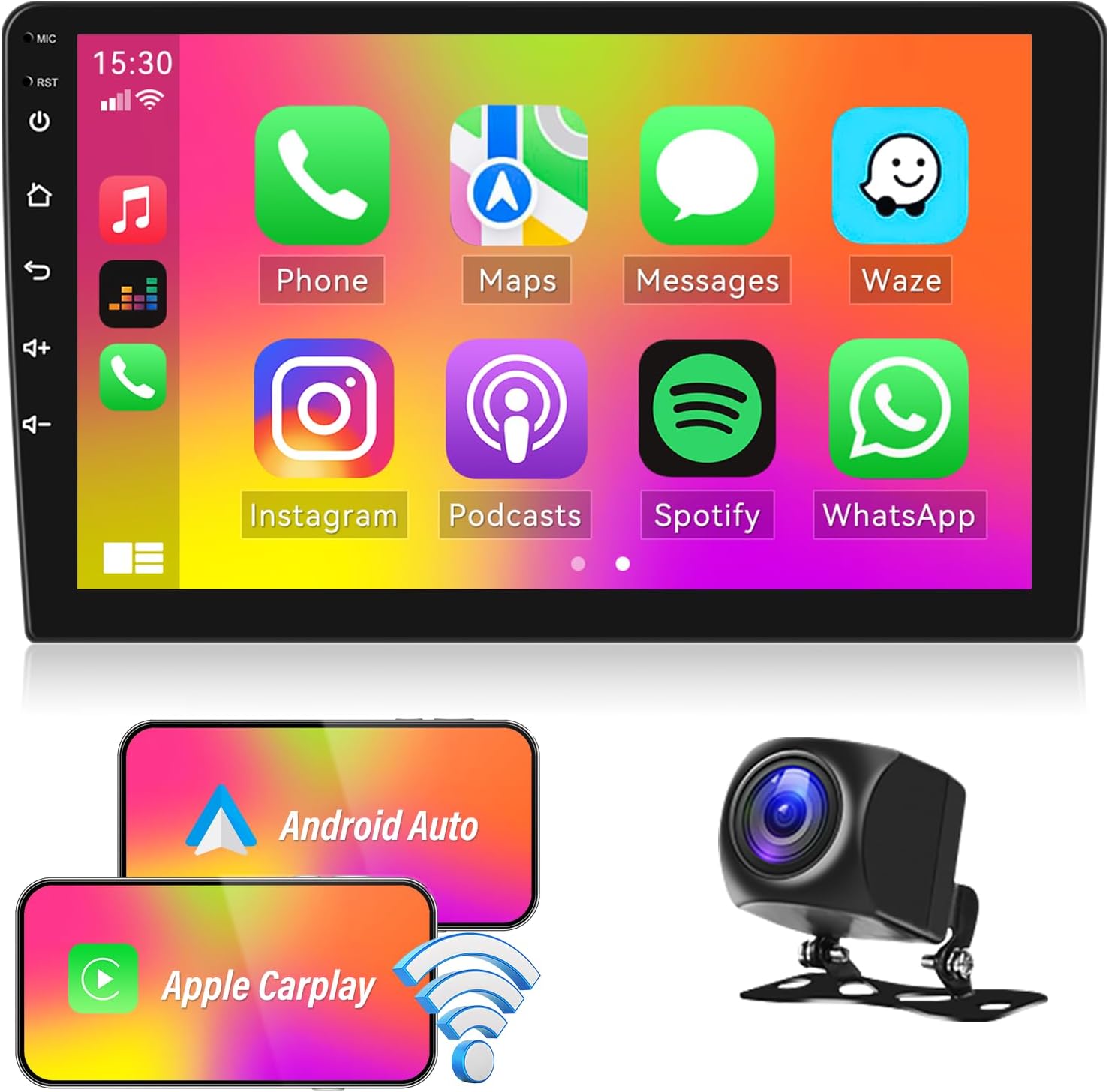
Figure 1: AMprime Android 11 Double Din Car Stereo with included backup camera.
3. Setup and Installation
3.1 Unboxing and Package Contents
Before beginning installation, verify that all components are present:
- AMprime Android 11 Car Stereo Unit
- Power Cable
- GPS Antenna
- RCA Cable
- USB Cables (2)
- Mounting Brackets
- AHD Rear View Camera
- User Manual (this document)

Figure 2: Included components and wiring diagram for the car stereo.
3.2 Wiring Connections
Carefully follow the wiring diagram provided with your unit. Ensure all connections are secure to prevent malfunctions. Professional installation is recommended.
- Power Connection: Connect the main power harness to your vehicle's power supply (ACC, B+, GND).
- Speaker Connections: Connect the speaker wires according to the color codes.
- GPS Antenna: Connect the GPS antenna and place it in a location with a clear view of the sky for optimal signal reception.
- USB Inputs: Connect the dual USB cables for media playback and phone connectivity.
- Backup Camera: Connect the AHD rear view camera. The camera's power supply should be connected to the positive pole of your car's reversing light. The video signal cable connects to the 'CAM IN' port on the stereo.
- Steering Wheel Control (SWC): Connect the SWC wires to your vehicle's steering wheel control interface (if applicable).
Video 1: Detailed wiring instructions for the backup camera. This video demonstrates connecting the camera's power and video signal to the car stereo and the car's reversing light circuit.
3.3 Initial Power On
After all connections are made, turn on your vehicle's ignition. The car stereo should power on automatically. Follow any on-screen prompts for initial setup.
4. Operating Instructions
4.1 Touch Screen Navigation
The 10.1-inch touch screen allows for intuitive control. Swipe left/right to navigate between home screens and tap icons to open applications.
4.2 Wireless Apple CarPlay & Android Auto
This unit supports both wireless Apple CarPlay and Android Auto. Connect your smartphone via Bluetooth or USB to project your phone's interface onto the stereo screen. This allows access to navigation, calls, messages, and music apps directly from the stereo.

Figure 3: The car stereo supports both Apple CarPlay and Android Auto for seamless smartphone integration.
4.3 FM/RDS Radio
Access the 'Radio' application to tune into FM stations. The RDS (Radio Data System) feature displays station information where available. You can save your favorite stations as presets.

Figure 4: The FM/RDS radio interface and Bluetooth connectivity for hands-free calling and audio streaming.
4.4 Bluetooth Connectivity
Pair your phone via Bluetooth for hands-free calling and audio streaming. Navigate to the Bluetooth settings on the stereo, enable Bluetooth on your phone, and select the stereo from the list of available devices. The built-in microphone ensures clear call quality.
4.5 GPS Navigation
The unit comes with built-in GPS. Connect to Wi-Fi to download and use online maps (e.g., Google Maps, Waze) or utilize pre-loaded offline maps. Ensure the GPS antenna is properly installed for accurate positioning.

Figure 5: Built-in GPS navigation and Wi-Fi module for online map access and app downloads.
4.6 Steering Wheel Control (SWC)
If your vehicle supports steering wheel controls, you can configure them through the stereo's settings. This allows you to control functions like volume, track skipping, and answering calls directly from your steering wheel for safer driving.

Figure 6: The display showing the waterproof AHD backup camera view and options for configuring steering wheel controls.
4.7 Media Playback
Utilize the dual USB inputs to connect USB drives for playing multimedia files (audio and video). The unit supports various formats and provides high-fidelity sound quality.

Figure 7: Internal specifications highlighting 1GB RAM + 16GB ROM, Hi-Fi audio capabilities, and dual USB ports for expanded functionality.
5. Maintenance
To ensure the longevity and optimal performance of your car stereo, follow these maintenance guidelines:
- Cleaning: Use a soft, dry cloth to clean the touch screen and exterior. Avoid abrasive cleaners or solvents.
- Temperature: Do not expose the unit to extreme temperatures or direct sunlight for prolonged periods.
- Software Updates: Periodically check for software updates to ensure the system runs smoothly and has the latest features.
- Connections: Ensure all cables and connections remain secure. Loose connections can lead to intermittent issues.
6. Troubleshooting
If you encounter issues with your car stereo, refer to the following common problems and solutions:
| Problem | Possible Cause | Solution |
|---|---|---|
| Unit does not power on. | Incorrect wiring, blown fuse, vehicle power issue. | Check power connections, inspect vehicle's fuse box, ensure vehicle ignition is on. |
| Slow software performance or lags. | Too many apps running, low memory, software glitch. | Close unused applications, clear cache, restart the unit. Consider a factory reset if issues persist (backup data first). |
| Songs skip when using steering controls. | Incorrect SWC configuration, software conflict. | Reconfigure steering wheel controls in settings. Ensure firmware is up to date. |
| Backup camera not displaying. | Incorrect wiring, camera settings, faulty camera. | Verify camera power and video connections. Check 'Reversing camera settings' in factory settings (password may be required, refer to video 1 for guidance). |
| Bluetooth not connecting. | Pairing mode not active, device not discoverable, interference. | Ensure stereo is in pairing mode. Restart both stereo and phone. Delete previous pairings and try again. |
If the problem persists after attempting these solutions, please contact customer support.
7. Specifications
| Feature | Detail |
|---|---|
| Item Weight | 3.01 pounds |
| Package Dimensions | 12.6 x 9.45 x 3.39 inches |
| Display Size | 10.1 Inches |
| Voice Command | Microphone, Touchscreen |
| ASIN | B0BKSN7ZLB |
| Manufacturer | AMPrime |
| Brand | AMprime |
| Vehicle Service Type | Car |
| Special Feature | Bluetooth, Touchscreen |
| Connectivity Technology | USB, Wi-Fi |
| Map Type | North America |
| Included Components | backup camera |
| Audio Output Mode | Stereo |
| Mounting Type | Dashboard Mount |
8. Warranty Information
Your AMprime car stereo is covered by a manufacturer's warranty. Please refer to the warranty card included in your package or visit the official AMprime website for detailed warranty terms and conditions.
9. Support
For technical assistance, troubleshooting, or general inquiries, please contact AMprime customer support through the following channels:
- Email: support@amprime.com (example)
- Phone: 1-800-XXX-XXXX (example)
- Website: AMprime Official Store on Amazon
Please have your product model number (B0BKSN7ZLB) and purchase date ready when contacting support.
Ask a question about this manual
Ask about setup, troubleshooting, compatibility, parts, safety, or missing instructions. Manuals+ will review the question and use this page’s manual context to help answer it.