
Rii K18S IT
Rii Mini i18S Wireless + Bluetooth Keyboard
User Manual
1. Introduction
The Rii Mini i18S is a compact, versatile keyboard featuring both 2.4G wireless and Bluetooth connectivity. It integrates a large touchpad and LED backlighting, making it suitable for a wide range of devices including Smart TVs, TV Boxes, Tablets, Smartphones, Consoles, and PCs. This manual provides detailed instructions for setup, operation, maintenance, and troubleshooting to ensure optimal use of your device.

Figure 1: Rii Mini i18S keyboard demonstrating its dual wireless and Bluetooth connectivity.
2. Package Contents
Please check the package for the following items:
- Rii Mini i18S Wireless + Bluetooth Keyboard
- USB RF 2.4 GHz Receiver
- USB Charging Cable
- USB Extension Cable
- User Manual (this document)
3. Product Overview
The Rii Mini i18S features a QWERTY layout keyboard. It has a large multi-touch touchpad, and dedicated multimedia keys. It is designed for comfortable and efficient input across various platforms.
3.1 Key Features
- Dual Connectivity: 2.4G Wireless and Bluetooth 4.0.
- Large Touchpad: High sensitivity with multi-touch gestures.
- LED Backlighting: Two selectable colors (blue, green) for use in low-light conditions.
- Rechargeable Battery: Built-in lithium polymer battery.
- Multimedia Controls: Dedicated keys for media playback.
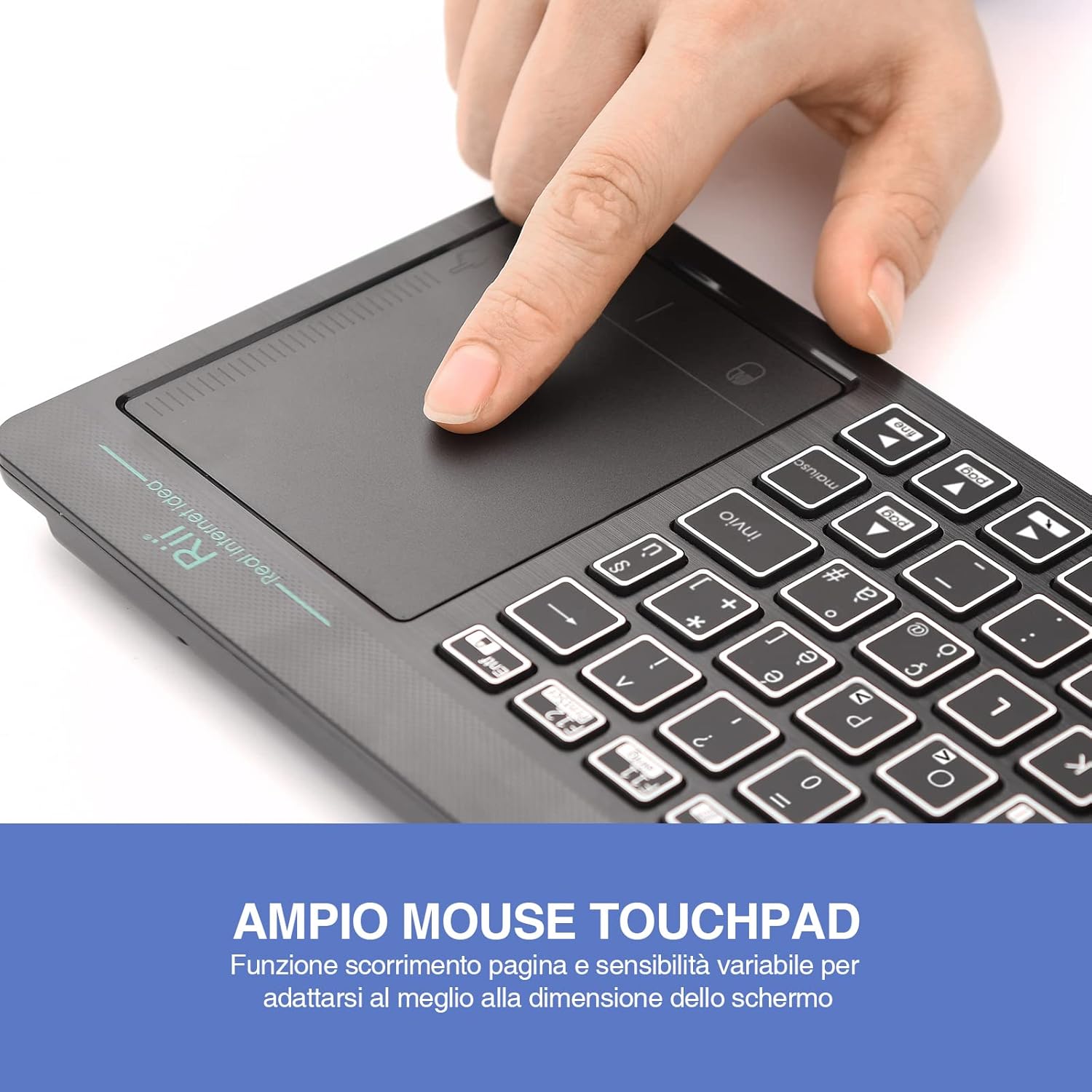
Figure 2: The large, sensitive touchpad of the Rii Mini i18S, supporting multi-touch gestures.

Figure 3: The Rii Mini i18S keyboard showcasing its two-color LED backlighting (blue and green).
4. Setup
4.1 Charging the Keyboard
Before initial use, fully charge the keyboard. Connect the provided USB charging cable to the keyboard's microUSB port and the other end to a USB power source (e.g., computer USB port, USB wall adapter).
- The charging indicator LED will illuminate during charging.
- The LED will turn off or change color when fully charged.
- Battery capacity: 400mAh.
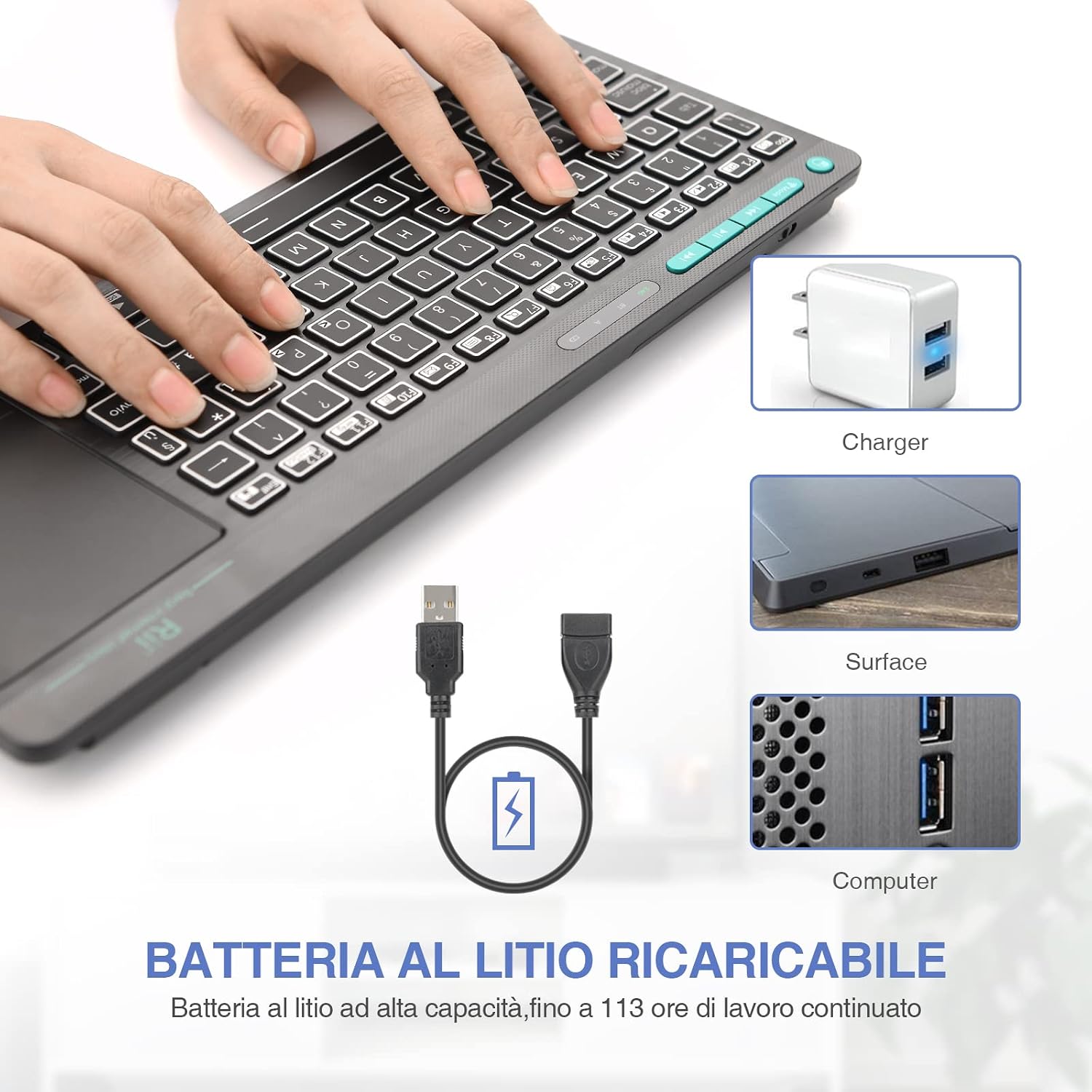
Figure 4: The Rii Mini i18S keyboard being charged using the included USB cable, connected to a power source.
4.2 2.4G Wireless Connection
For 2.4G wireless connection, use the included USB receiver.
- Locate the USB receiver in the back compartment of the keyboard.
- Insert the USB receiver into an available USB port on your device (Smart TV, PC, TV Box, etc.).
- Press the MODE button on the keyboard until the 2.4G indicator LED is active.
- The keyboard should automatically connect to your device. If not, try pressing Fn + RF to re-pair.

Figure 5: The USB wireless receiver stored securely in the back compartment of the Rii Mini i18S keyboard.
4.3 Bluetooth Connection
For Bluetooth connection, ensure your device has Bluetooth enabled.
- Press the MODE button on the keyboard until the BT indicator LED is active.
- On your device, go to Bluetooth settings and search for new devices.
- Select "Rii Mini i18S" from the list of available devices to pair.
- Follow any on-screen prompts to complete the pairing process.
The dual connection technology allows you to manage up to two devices simultaneously: one via Bluetooth and one via 2.4G wireless.

Figure 6: The Rii Mini i18S keyboard demonstrating its dual mode connectivity, shown here connected to a tablet.
5. Operating Instructions
5.1 Basic Keyboard Functions
The keyboard features a standard QWERTY layout. All keys function as labeled. Use the Fn key in combination with other keys for special functions (e.g., multimedia controls).
- CAPS LOCK: Press to toggle uppercase/lowercase. An indicator LED will show its status.
5.2 Touchpad Functions
The integrated touchpad supports various gestures:
- Single Finger Tap: Left-click.
- Two Finger Tap: Right-click.
- Two Finger Scroll: Drag two fingers up or down to scroll pages.
- Single Finger Drag: Move the cursor.
- Left Mouse Button: A physical left mouse button is also available on the top-left side of the keyboard for convenience.
5.3 Backlight Control
The keyboard features LED backlighting with two selectable colors.
- Press the light bulb icon key to cycle through backlight colors (blue, green) or turn it off.
5.4 Multimedia Keys
Use the Fn key in conjunction with the F1-F12 keys (or other labeled keys) to access multimedia functions such as volume control, play/pause, and track skipping.
6. Maintenance
6.1 Cleaning
To clean the keyboard, use a soft, dry cloth. For stubborn dirt, slightly dampen the cloth with water or a mild cleaning solution. Avoid using harsh chemicals or abrasive materials.
6.2 Battery Care
- Avoid exposing the keyboard to extreme temperatures.
- Charge the keyboard regularly, even if not in frequent use, to maintain battery health.
- The keyboard features a programmable standby mode (3 minutes or 2 hours) to conserve battery life.
7. Troubleshooting
7.1 Keyboard Not Responding
- Check Battery: Ensure the keyboard is charged. Connect it to a power source.
- Check Connection:
- For 2.4G Wireless: Ensure the USB receiver is properly inserted and the keyboard is in 2.4G mode. Try a different USB port.
- For Bluetooth: Ensure Bluetooth is enabled on your device and the keyboard is in Bluetooth mode. Re-pair the device if necessary.
- Restart: Turn the keyboard off and on again. Restart your connected device.
7.2 Touchpad Not Working Correctly
- Clean Touchpad: Ensure the touchpad surface is clean and free of debris.
- Sensitivity: Adjust touchpad sensitivity if available in your device's settings.
7.3 Backlight Not Working
- Check Battery: Low battery might disable backlighting. Charge the keyboard.
- Toggle: Press the light bulb icon key to ensure it's not turned off.
8. Specifications
| Model | K18S IT |
| Connectivity | 2.4 GHz RF Wireless, Bluetooth 4.0 |
| Operating Range | Up to 10 meters (2.4 GHz RF), Up to 8 meters (Bluetooth) |
| Keyboard Layout | QWERTY (Italian layout) |
| Touchpad Resolution | Up to 1000 DPI |
| Backlight Colors | Blue, Green (selectable) |
| Battery Type | Rechargeable Lithium Polymer |
| Battery Capacity | 400mAh |
| Charging Port | MicroUSB (5V 350mA) |
| Dimensions (L x W x H) | 31.7 x 12.3 x 1.8 cm |
| Weight | 340g |
| Compatible OS | Windows (XP/Vista/7/8/10/11), Mac OS, Linux (Ubuntu 11.04+), Android (2.3+), iOS, Raspbian, PlayStation (PS3/PS4/PS5), Xbox (360/One/S/X), Fire TV |
| Certifications | CE, RoHS, FCC |
9. Warranty and Support
Rii products are designed for reliability and performance. For warranty information and technical support, please refer to the official Rii website or contact your local distributor. Keep your purchase receipt for warranty claims.
Official website: www.riitek.com
Related documentsK18S IT


Ask a question about this manual
Ask about setup, troubleshooting, compatibility, parts, safety, or missing instructions. Manuals+ will review the question and use this page’s manual context to help answer it.