
Mibro XPAW009
Mibro C2 Smart Watch User Manual
Model: XPAW009
1. Introduction
This manual provides comprehensive instructions for the operation, maintenance, and troubleshooting of your Mibro C2 Smart Watch. Please read this manual carefully before using the device to ensure proper functionality and to extend its lifespan.

Figure 1: Mibro C2 Smart Watch with its main display showing various health metrics.
2. Safety Information
To ensure safe and effective use of your Mibro C2 Smart Watch, please observe the following precautions:
- Do not attempt to disassemble or modify the device.
- Keep the device away from extreme temperatures, direct sunlight, and strong magnetic fields.
- Avoid exposing the device to chemicals or corrosive substances.
- Clean the device with a soft, dry cloth. Do not use abrasive cleaners.
- Consult a medical professional before starting any new exercise regimen, especially if you have pre-existing health conditions. The heart rate and SpO2 measurements are for reference only and should not be used for medical diagnosis.
3. Product Features
The Mibro C2 Smart Watch offers a range of advanced features designed to enhance your daily life and fitness tracking:
- 1.69-inch HD Screen: A large, high-definition display for clear visibility of information and watch functions.
- 24-Hour Heart Rate Monitoring: Continuous heart rate tracking with early warning modes for exercise, resting, and sleep.
- Blood Oxygen Saturation (SpO2) Measurement: Optical sensor for on-demand SpO2 readings.
- 20 Sports Modes: Automatic recognition for running mode and real-time data display for various activities.
- 2ATM Waterproof: Suitable for daily use and water exposure up to 20 meters, but not for diving or high-velocity water sports.
- 7-Day Battery Life: Long-lasting battery for extended usage on a single charge in daily mode.
- Lightweight Design: Weighing approximately 34g for comfortable wear.
- Smart Sleep Monitoring: Helps establish regular bedtime routines and tracks sleep trends.
- Life Assistant Features: Timely reminders for messages, calls, weather, and alarms.

Figure 2: The Mibro C2 Smart Watch highlighting its lightweight design and large screen.

Figure 3: The 1.69-inch HD screen provides a large and clear view for all information.

Figure 4: The optical sensor on the back of the watch for 24-hour heart rate monitoring.

Figure 5: The 2ATM waterproof rating allows for use in various water-related activities, excluding deep diving or high-pressure water sports.
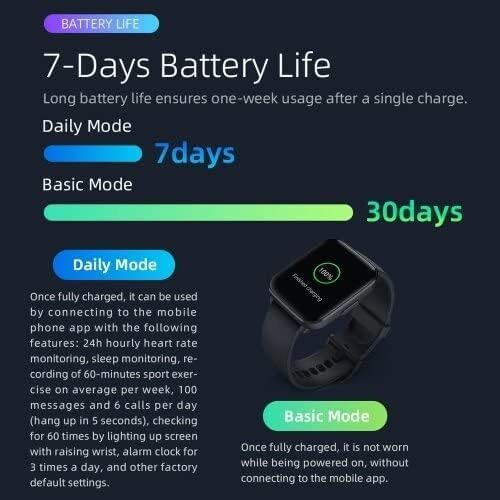
Figure 6: Battery life illustration, showing 7 days in daily mode and up to 30 days in basic mode.
4. Setup
4.1 Charging the Device
Before first use, fully charge your Mibro C2 Smart Watch. Connect the magnetic charging cable to the charging contacts on the back of the watch and plug the USB end into a power adapter (not included) or a computer's USB port.
- Ensure the charging contacts are clean and dry.
- A charging icon will appear on the screen to indicate charging status.
- Full charge typically takes approximately 2 hours.
4.2 Powering On/Off
- Power On: Press and hold the side button until the Mibro logo appears.
- Power Off: From the watch face, swipe down to access quick settings, then tap the power icon, or go to Settings > System > Power Off. Confirm your choice.
4.3 Pairing with Your Smartphone
To unlock the full potential of your Mibro C2 Smart Watch, pair it with the official Mibro Fit application on your smartphone.
- Download the "Mibro Fit" app from your smartphone's app store (Google Play Store for Android, Apple App Store for iOS).
- Open the Mibro Fit app and create an account or log in.
- Ensure Bluetooth is enabled on your smartphone.
- In the app, navigate to "Device" or "Add Device" and select "Mibro C2" from the list of available devices.
- Follow the on-screen prompts in the app and on your watch to complete the pairing process. A confirmation message will appear on both devices once successfully paired.
Note: For optimal performance, keep the Mibro Fit app running in the background and ensure your watch is within Bluetooth range of your phone.
5. Operating Instructions
5.1 Basic Navigation
- Swipe Up: Access notifications.
- Swipe Down: Access quick settings (e.g., brightness, battery, DND mode).
- Swipe Left/Right: Navigate through widgets (e.g., heart rate, activity data, weather).
- Press Side Button: Return to the watch face or open the app list.
- Tap: Select an item or open an application.

Figure 7: The Mibro C2 Smart Watch displaying a dynamic watch face with health data.
5.2 Health Monitoring
The Mibro C2 Smart Watch provides continuous health monitoring features:
- Heart Rate: The watch automatically monitors your heart rate throughout the day. You can view real-time data by swiping to the heart rate widget or opening the Heart Rate app.
- SpO2: To measure your blood oxygen saturation, open the SpO2 app on the watch. Keep your arm still and the watch snug on your wrist for accurate readings.
- Sleep Monitoring: Wear the watch to bed for automatic sleep tracking. Data on sleep stages and quality will be available in the Mibro Fit app the next morning.
- Steps & Calories: The watch tracks your daily steps, distance, and estimated calories burned. This data is visible on the watch face and in the activity widget.

Figure 8: Smart sleep monitoring helps track your sleep patterns and quality.
5.3 Sports Modes
The Mibro C2 supports 20 different sports modes. To start a workout:
- From the app list, select the "Workout" or "Sports" icon.
- Choose your desired sport (e.g., Running, Cycling, Walking).
- Tap "Go" or the start icon to begin tracking.
- During the workout, you can view real-time data such as duration, heart rate, and calories.
- To pause or end the workout, press the side button or swipe on the screen and select the appropriate option.

Figure 9: Visual representation of the 20 sports modes supported by the Mibro C2 Smart Watch.
5.4 Notifications and Reminders
Once paired with your smartphone, the Mibro C2 can receive notifications for calls, messages, and app alerts. Ensure notification permissions are enabled in the Mibro Fit app and your phone's settings.
- Incoming Calls: The watch will vibrate and display caller ID. You can choose to mute or reject the call from the watch.
- Messages: View message content directly on your watch screen.
- App Alerts: Receive notifications from selected apps.

Figure 10: The Mibro C2 acts as a life assistant, providing timely reminders and information like weather updates.
6. Maintenance
6.1 Cleaning the Watch
- Regularly clean the watch body and strap with a soft, lint-free cloth.
- For stubborn dirt, dampen the cloth slightly with water. Do not use soap or harsh chemicals.
- Ensure the charging contacts on the back of the watch are clean and free of debris to maintain proper charging.
6.2 Strap Care
To prevent skin irritation and maintain the strap's condition:
- Keep the strap clean and dry.
- If the strap gets wet, dry it thoroughly before wearing.
- Avoid prolonged exposure to direct sunlight or high temperatures.
6.3 Storage
When not in use for extended periods, store the watch in a cool, dry place. It is recommended to charge the watch to about 50% before storing to preserve battery health.
7. Troubleshooting
| Problem | Possible Cause | Solution |
|---|---|---|
| Watch does not power on. | Low battery; device malfunction. | Charge the watch for at least 30 minutes. If it still doesn't power on, contact support. |
| Cannot pair with smartphone. | Bluetooth off; app issue; watch not discoverable. | Ensure Bluetooth is on. Restart both watch and phone. Reinstall Mibro Fit app. Reset watch to factory settings. |
| Notifications not received. | Permissions not granted; app not running; watch out of range. | Check notification permissions in Mibro Fit app and phone settings. Ensure app is running in background. Keep watch close to phone. |
| Inaccurate heart rate/SpO2 readings. | Loose fit; sensor obstruction; movement during measurement. | Ensure watch is snug on wrist. Clean sensor. Remain still during measurement. |
| Short battery life. | Frequent use of features; high brightness; continuous monitoring. | Reduce screen brightness. Limit continuous monitoring features. Use basic mode for longer battery life. |
8. Specifications
| Feature | Detail |
|---|---|
| Model Number | XPAW009 |
| Display | 1.69-inch HD Touchscreen |
| Dimensions | 4.5 x 3.53 x 1.12 cm |
| Weight | 34 g |
| Battery Capacity | 270 mAh Lithium Polymer |
| Battery Life | Up to 7 days (Daily Mode), Up to 30 days (Basic Mode) |
| Water Resistance | 2ATM (20 meters) |
| Connectivity | Bluetooth |
| Operating System | watchOS |
| Sensors | Heart Rate Monitor, SpO2 Sensor |
| GPS | Via Smartphone |
| Memory Storage Capacity | 2300 MB |
9. Warranty and Support
9.1 Warranty Information
The Mibro C2 Smart Watch comes with a standard manufacturer's warranty. Please refer to the warranty card included in your product packaging for specific terms and conditions, including warranty period and coverage details. Keep your purchase receipt as proof of purchase for warranty claims.
Note: Damage caused by misuse, unauthorized modification, or failure to follow instructions in this manual is not covered under warranty.
9.2 Customer Support
For technical assistance, troubleshooting, or warranty inquiries, please contact Mibro customer support through the following channels:
- Official Mibro Website: Visit the official Mibro website for FAQs, support resources, and contact information.
- Mibro Fit App: The app may contain a "Help" or "Support" section with useful information and direct contact options.
- Retailer Support: Contact the retailer where you purchased the device for assistance.
When contacting support, please have your product model number (XPAW009) and purchase details ready.
Related documentsXPAW009


Ask a question about this manual
Ask about setup, troubleshooting, compatibility, parts, safety, or missing instructions. Manuals+ will review the question and use this page’s manual context to help answer it.