Product Overview
The doqo Keyboard Case is designed to enhance your iPad experience, transforming it into a versatile workstation. It features a high-precision multi-touch touchpad, backlit keys, and a floating cantilever stand, all housed within a durable aluminum alloy metal case.

Image: The doqo Keyboard Case with an iPad Pro attached, showcasing its open, laptop-like configuration.
Compatibility
This keyboard case is compatible with various iPad Pro 11-inch and iPad Air 10.9-inch models. Please verify your iPad's model number before use.
- iPad Pro 11-inch:
- 4th Generation 2022 (Model: A2759)
- 3rd Generation 2021 (Model: A2377/A2459/A2301/A2460)
- 2nd Generation 2020 (Model: A2228/A2068/2230/A2231)
- 1st Generation 2018 (Model: A1980/A2013/A1943/A1979)
- iPad Air 10.9-inch:
- 5th Generation 2022 (Model: A2588/A2589/A2591)
- 4th Generation 2020 (Model: A2325/A2324/A2316/A2072)
Note: For touchpad functionality, ensure your iPadOS is upgraded to 15.0 or above.

Image: A visual guide demonstrating how to verify your iPad's model number, either on the back of the device or through the iPad Settings app.
Setup Guide
1. Initial Charging
Before first use, fully charge the keyboard case. Connect the provided USB-C cable to the charging port on the right side of the keyboard and to a power source. A full charge typically takes approximately 3 hours.

Image: Close-up of the keyboard's Type-C charging port and details on battery life: 3 hours charging time, 90 days standby time, 5 hours working time with backlight open, 80 hours with backlight off.
2. Attaching Your iPad
Align your iPad with the magnetic back panel of the keyboard case. The strong magnetic attraction will securely hold your iPad in place, providing effective protection for both the front and back of your device.

Image: An illustration showing the magnetic attachment points on the keyboard case and how the iPad is secured, highlighting the floating cantilever design.
3. Bluetooth Pairing
To connect the keyboard to your iPad via Bluetooth:
- Ensure the keyboard is charged.
- Turn on the keyboard. The power button is a touch sensor located above the keyboard on the right side next to the lights. Tap it twice to activate.
- On your iPad, go to Settings > Bluetooth and ensure Bluetooth is enabled.
- Press the Fn key and the C key simultaneously on the doqo keyboard. The Bluetooth indicator light on the keyboard should begin to flash, indicating it is in pairing mode.
- On your iPad, select "doqo Keyboard" from the list of available devices.
- Once paired, the Bluetooth indicator light on the keyboard will stop flashing.
Note: The 'C' key often has a small Bluetooth symbol printed on it.
Operating Instructions
Multi-Touch Touchpad
The integrated high-precision sensitive touchpad supports multi-touch gestures and iOS cursors, specifically designed for iPadOS. This allows for efficient navigation, document editing, presentation management, and web browsing.

Image: A close-up of the keyboard's multi-touch touchpad, illustrating its responsiveness and the presence of iOS shortcut keys.
Backlight Adjustment
The keyboard features 3 levels of adjustable backlight brightness, allowing for comfortable and accurate typing even in low-light environments.

Image: The keyboard case with its backlight illuminated, demonstrating its utility in a dimly lit setting.
iOS Shortcut Keys
Utilize the dedicated iOS shortcut keys for quick access to common functions, enhancing productivity. These keys are designed to streamline your workflow on iPadOS.

Image: A detailed view of the keyboard highlighting the iPadOS shortcut keys and their functions, indicating that pressing "fn +" achieves the desired icons.
Automatic Sleep and Wake Function
The keyboard case is equipped with an automatic sleep and wake function. Your iPad will automatically wake up when the case is opened and go to sleep when it is closed, helping to preserve battery life.
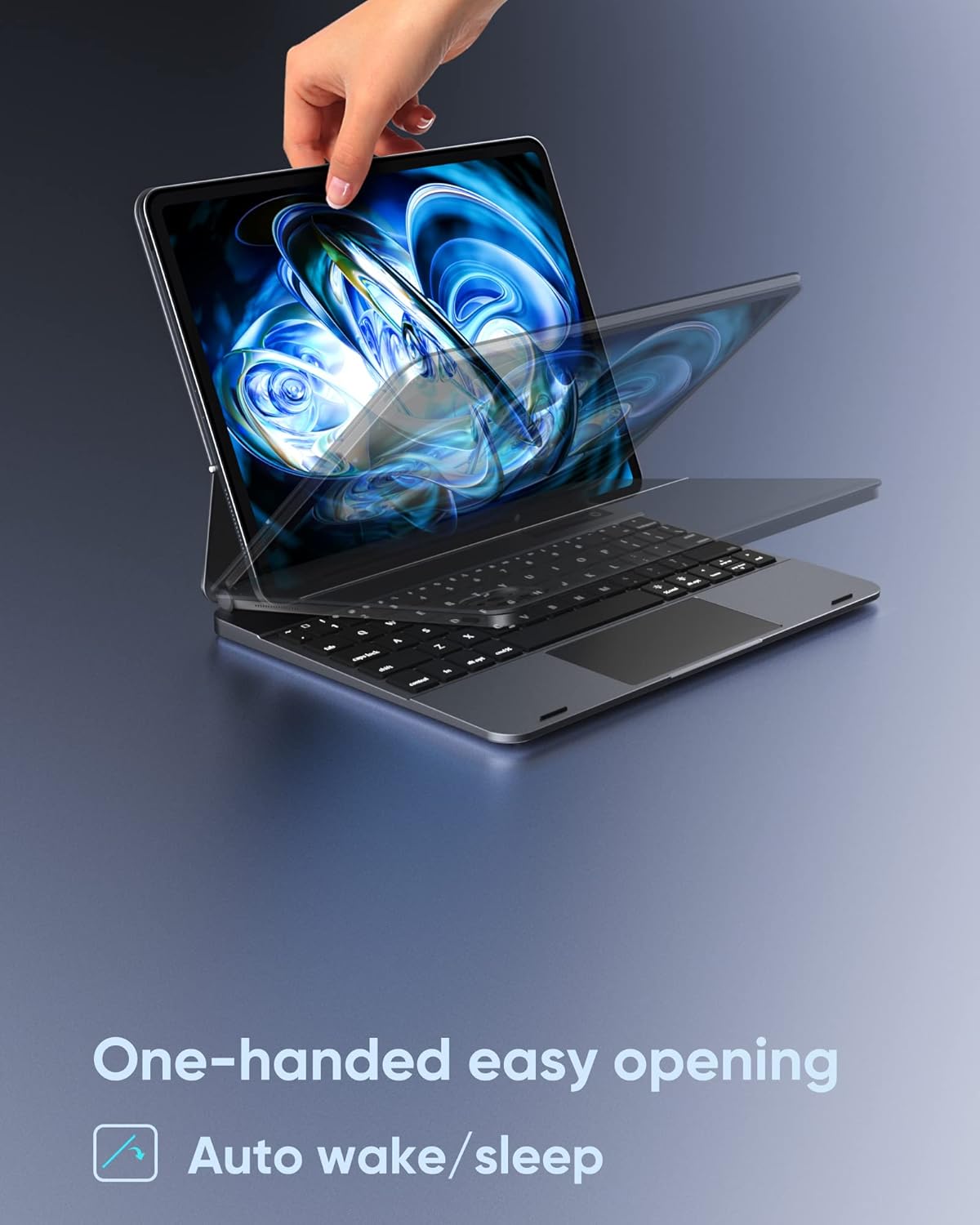
Image: A hand demonstrating the one-handed opening of the keyboard case, with text indicating the auto wake/sleep feature.
Maintenance
To ensure the longevity and optimal performance of your doqo Keyboard Case, follow these maintenance guidelines:
- Cleaning: Use a soft, dry, lint-free cloth to clean the exterior of the case and the keyboard keys. For stubborn smudges, slightly dampen the cloth with water. Avoid using harsh chemicals, abrasive cleaners, or aerosol sprays.
- Storage: When not in use, keep the keyboard case closed to protect the iPad screen and keyboard. Store it in a cool, dry place away from direct sunlight and extreme temperatures.
- Handling: While the aluminum alloy construction is durable, avoid dropping the case or subjecting it to strong impacts, which could damage internal components or the iPad.
- Charging Port: Keep the USB-C charging port free of dust and debris.
Troubleshooting
If you encounter issues with your doqo Keyboard Case, refer to the following common solutions:
Keyboard Not Connecting via Bluetooth
- Recharge Keyboard: Ensure the keyboard has sufficient battery charge. Connect it to a power source using the USB-C cable.
- Re-pair Device:
- On your iPad, go to Settings > Bluetooth.
- If "doqo Keyboard" is listed, tap the "i" icon next to it and select "Forget This Device".
- Ensure the keyboard is powered on (tap the touch sensor twice).
- Press Fn + C on the keyboard to enter pairing mode.
- Select "doqo Keyboard" from the available devices on your iPad.
- Restart Devices: Try restarting both your iPad and the keyboard case.
Touchpad Not Responding or Slow
- iPadOS Version: Ensure your iPadOS is updated to version 15.0 or higher for optimal touchpad functionality.
- Clean Touchpad: Ensure the touchpad surface is clean and free of debris or moisture.
- Re-pair Keyboard: Sometimes re-pairing the Bluetooth connection can resolve responsiveness issues.
Backlight Not Working
- Battery Level: Low battery can affect backlight functionality. Ensure the keyboard is fully charged.
- Brightness Adjustment: Cycle through the backlight brightness levels to ensure it's not set to the lowest or off setting.
Case Peeling or Wear
While the case is designed for durability, normal wear and tear may occur over time. For significant peeling or damage, please refer to the warranty information or contact customer support.
Specifications
| Feature | Detail |
|---|---|
| Model Number | doqo3bt |
| Compatible Devices | iPad Pro 11-inch (4th, 3rd, 2nd, 1st Gen), iPad Air 10.9-inch (5th, 4th Gen) |
| Connectivity Technology | Wireless (Bluetooth) |
| Keyboard Description | Ergonomic with Multi-Touchpad |
| Special Feature | Magnetic Floating Cantilever Stand, Backlit Keys, Auto Sleep/Wake |
| Color | Aluminum Alloy Gray |
| Keyboard Backlighting | Single Color, 3 adjustable levels |
| Material | Aluminum, Metal |
| Item Weight | 2.59 pounds |
| Package Dimensions | 10.75 x 8.19 x 1.22 inches |
| Battery Type | 1 Lithium Ion battery (included) |
| Charging Time | Approx. 3 hours |
| Standby Time | Up to 90 days |
| Working Time | Approx. 5 hours (with backlight), Approx. 80 hours (backlight off) |
What's in the Box
The doqo Keyboard Case package includes the following items:
- doqo Keyboard Case
- USB Cable (for charging)
Warranty and Support
For warranty information, technical support, or any inquiries regarding your doqo Keyboard Case, please refer to the manufacturer's official website or contact doqo customer service directly. You can also visit the doqo Store on Amazon for additional resources and contact options.
