
1. Introduction
Thank you for choosing the Doohoeek Floating Bluetooth Keyboard. This manual provides detailed instructions for setting up, operating, and maintaining your keyboard, designed to enhance your iPad experience with its floating design, backlit keys, and integrated trackpad. This keyboard is compatible with iPad Air 5 (2022) and iPad Pro 11-inch (2022) models.

The Doohoeek Floating Bluetooth Keyboard with an iPad securely attached, showcasing its design.
2. Package Contents
- Doohoeek Floating Bluetooth Keyboard Case
- USB-C Charging Cable
- User Manual
3. Setup
3.1 Charging the Keyboard
Before first use, fully charge the keyboard. Connect the provided USB-C charging cable to the keyboard's charging port and to a USB power adapter (not included). The charging indicator light will show the charging status.
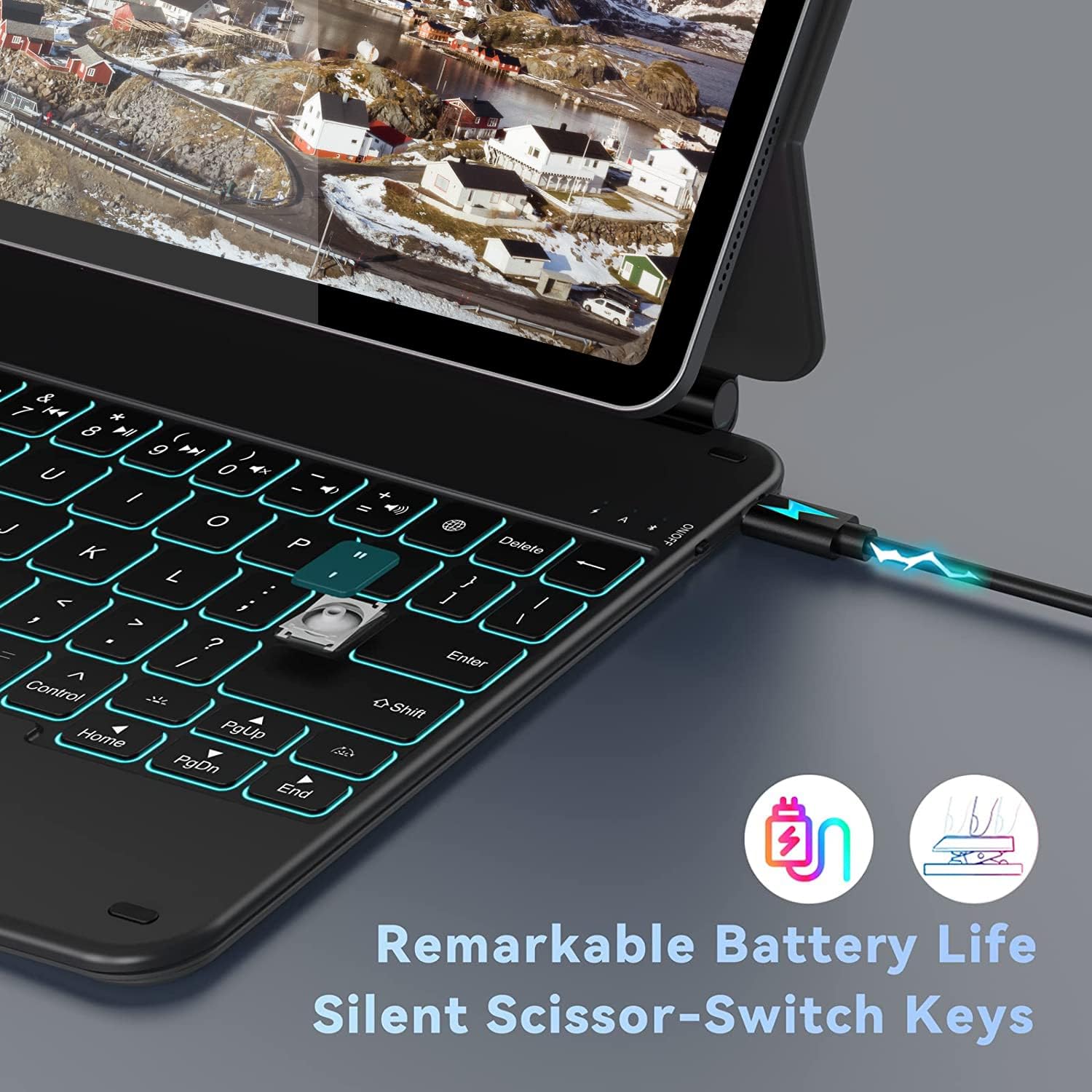
This image shows the charging port, indicating the keyboard's battery life, and emphasizes the silent scissor-switch key mechanism.
3.2 Attaching Your iPad
- Open the keyboard case.
- Align your iPad with the magnetic back panel of the keyboard case. The strong magnets will securely attach the iPad.
- Adjust the viewing angle to your preference. The floating cantilever design allows for smooth angle adjustments up to 130 degrees.

The floating design allows for smooth angle adjustment, providing comfortable viewing for work or entertainment.
3.3 Bluetooth Pairing
- Ensure the keyboard is charged and powered on. The power switch is typically located on the side or back of the keyboard.
- On your iPad, go to Settings > Bluetooth.
- Turn on Bluetooth. Your iPad will search for discoverable devices.
- On the keyboard, press the Fn + C keys simultaneously to enter pairing mode. The Bluetooth indicator light will flash.
- Select "Doohoeek Keyboard" (or similar name) from the list of available devices on your iPad.
- Once paired, the Bluetooth indicator light on the keyboard will turn off, and your iPad will show the keyboard as "Connected."
4. Operating Instructions
4.1 Keyboard Functions
The keyboard features a standard QWERTY layout with additional function keys for iPadOS control.
- Fn Key: Used in combination with other keys for special functions (e.g., media control, volume).
- Command (Cmd) Key: Functions as the Command key in iPadOS for shortcuts.
- Control (Ctrl) Key: Functions as the Control key in iPadOS.
- Option (Opt) Key: Functions as the Option key in iPadOS.
4.2 Backlight Control
The keyboard features 7-color backlighting with 3 adjustable brightness levels.
- To adjust backlight brightness: Press the Brightness Up/Down key (often represented by a sun icon) to cycle through brightness levels.
- To change backlight color: Press the RGB key (often represented by a lightbulb icon) to cycle through the 7 available colors.

The keyboard features 7-color and 3-level brightness backlit keys, adjustable for various lighting conditions.
4.3 Trackpad Usage
The integrated trackpad supports multi-touch gestures for seamless navigation within iPadOS.
- Single Finger Tap: Click/Select.
- Two Finger Scroll: Scroll up/down or left/right.
- Two Finger Pinch: Zoom in/out.
- Three Finger Swipe Up: Go to Home Screen.
- Three Finger Swipe Left/Right: Switch between open apps.
- Four Finger Pinch: Open App Switcher.
Note: Ensure "Tap to Click" is enabled in your iPad's settings for optimal trackpad performance. Go to Settings > General > Trackpad > Tap to Click.

The built-in trackpad supports familiar iPadOS gestures, offering precise control and navigation.
5. Maintenance
5.1 Cleaning
- Use a soft, lint-free cloth to wipe the keyboard and case.
- For stubborn dirt, slightly dampen the cloth with water or a mild, non-abrasive cleaner.
- Avoid getting moisture into the charging port or between the keys.
5.2 Battery Care
- Charge the keyboard regularly to maintain battery health.
- Avoid fully discharging the battery frequently.
- If storing for an extended period, charge the keyboard to about 50% and store in a cool, dry place.
6. Troubleshooting
6.1 Keyboard Not Connecting
- Ensure the keyboard is powered on and charged.
- Turn off and on your iPad's Bluetooth.
- Forget the device in iPad's Bluetooth settings and re-pair.
- Restart your iPad.
6.2 Backlight Not Working
- Ensure the keyboard has sufficient battery charge.
- Press the brightness adjustment keys to ensure it's not set to the lowest level.
6.3 Trackpad Unresponsive
- Ensure the keyboard is properly connected via Bluetooth.
- Check iPad settings for "Tap to Click" and other trackpad options.
- Clean the trackpad surface.
7. Specifications
| Feature | Detail |
|---|---|
| Brand | Doohoeek |
| ASIN | B0BKP2H7XJ |
| Keyboard Description | Wireless |
| Recommended Product Uses | Office work, content creation, productivity |
| Keyboard Backlight Color Management | RGB (7 colors, 3 levels) |
| Material | Plastic |
| Power Source | Battery Powered (1 Lithium metal battery required) |
| Switch Type | Mechanical |
| Number of Keys | 78 |
| Generation (iPad Compatibility) | 5 (iPad Air 5th Gen, iPad Pro 11-inch 1st, 2nd, 3rd Gen) |
| Spare Parts Availability | Information not available |
| Software Updates Guaranteed Until | Not available |
8. Warranty Information
Doohoeek products are covered by a limited warranty against manufacturing defects from the date of purchase. Please retain your proof of purchase for warranty claims. For specific warranty terms and conditions, refer to the documentation included with your product or contact customer support.
9. Customer Support
If you encounter any issues or have questions regarding your Doohoeek Floating Bluetooth Keyboard, please contact our customer support team. Contact information can typically be found on the product packaging or the official Doohoeek website.