
1. Introduction
This manual provides essential information for the proper use and care of your Relndoo Y101 Android Tablet. Please read it thoroughly before using your device to ensure optimal performance and longevity.

Image 1.1: The Relndoo Y101 Android Tablet, showcasing its sleek design and display.
2. What's in the Box
Upon opening your Relndoo Y101 Android Tablet package, you should find the following items:
- 10.1 inch Tablet
- USB-C Charging cable
- Screen Protector
- Protective Cover
- User Guide
- User Manual (this document)
3. Setup
3.1 Charging the Tablet
Before first use, fully charge your tablet. Connect the provided USB-C charging cable to the tablet's USB-C port and the other end to a compatible power adapter (not always included) or a computer's USB port. The battery indicator on the screen will show charging status.
3.2 Powering On/Off
- To Power On: Press and hold the Power button located on the side of the tablet until the Relndoo logo appears.
- To Power Off: Press and hold the Power button until the power options appear on the screen. Select "Power off" and confirm.
- To Restart: Press and hold the Power button until the power options appear. Select "Restart" and confirm.
3.3 Initial Setup
The first time you power on your tablet, you will be guided through an initial setup process. This includes:
- Language Selection: Choose your preferred language.
- Wi-Fi Connection: Connect to a Wi-Fi network to access the internet. This is crucial for downloading apps and updates.
- Google Account: Sign in with your Google account or create a new one. This is required for accessing the Google Play Store and other Google services.
- Date & Time: Set the correct date and time.
- Security: Set up a screen lock (PIN, pattern, or password) for security.
3.4 Inserting a Micro SD Card
Your tablet supports storage expansion up to 512GB using a Micro SD card. Locate the Micro SD card slot on the side of the tablet. Gently insert the card into the slot until it clicks into place. Ensure the card is oriented correctly.
4. Operating the Tablet
4.1 Basic Navigation
The Relndoo Y101 features a responsive HD touch screen. Use the following gestures for navigation:
- Tap: To select an item or open an app.
- Swipe: To scroll through pages or menus.
- Pinch-to-Zoom: To zoom in or out on images and web pages.
- Long Press: To access contextual menus or move app icons.
4.2 Wi-Fi and Bluetooth Connectivity
To manage your wireless connections:
- Go to Settings > Network & internet.
- Toggle Wi-Fi or Bluetooth on/off.
- For Wi-Fi, select your desired network and enter the password if prompted.
- For Bluetooth, select a device from the list to pair.
4.3 Using the Cameras
Your tablet is equipped with a 2MP front camera and a 5MP rear camera.
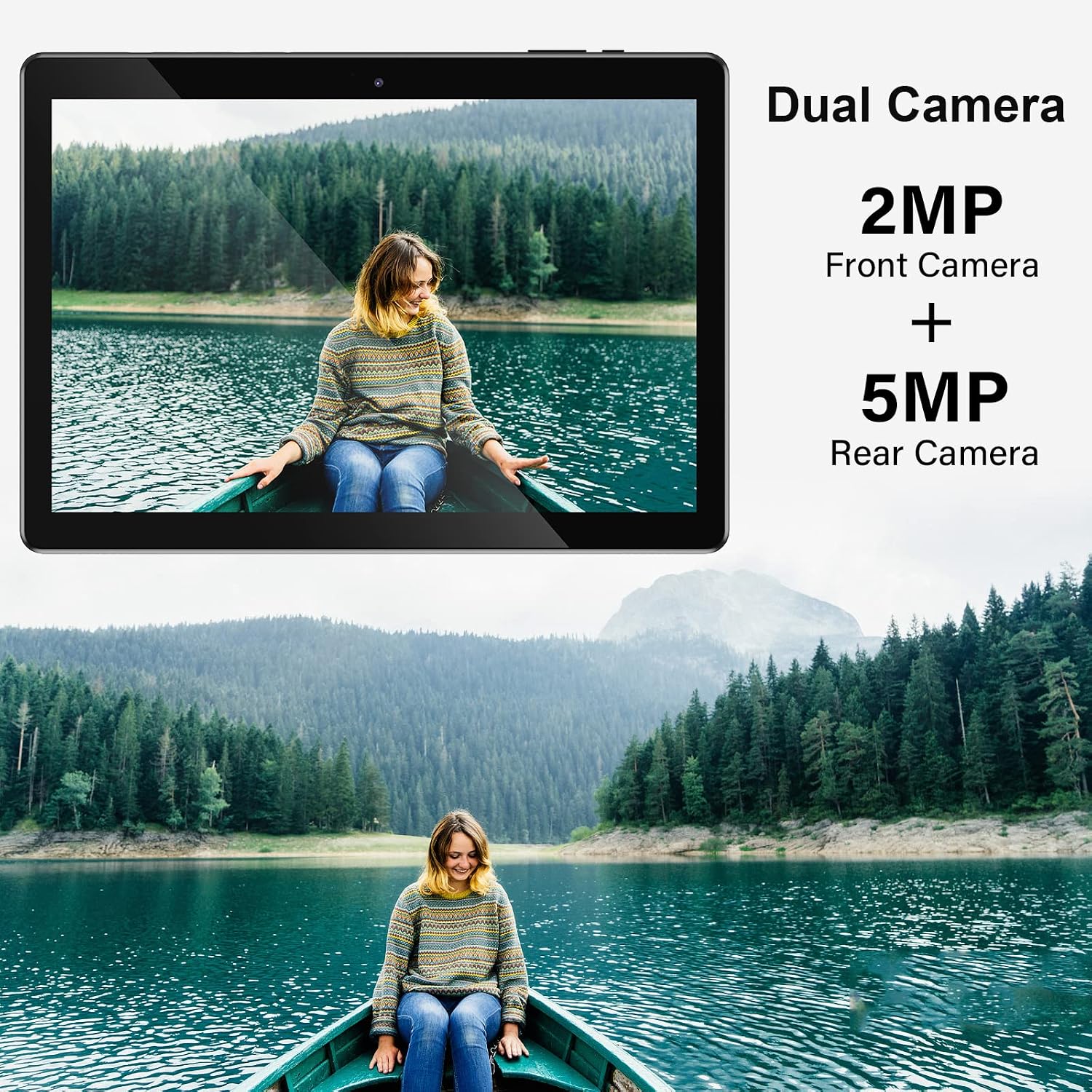
Image 4.1: Illustration of the tablet's dual camera system, featuring a 2MP front camera and a 5MP rear camera.
Open the Camera app to take photos or record videos. You can switch between the front and rear cameras within the app interface.
4.4 App Management
As a Google GMS Certified device running Android 11, your tablet has full access to the Google Play Store.

Image 4.2: The tablet displaying the Android 11 interface with Google Play, YouTube, and Netflix icons, indicating GMS certification.
- Installing Apps: Open the Google Play Store app, search for your desired app, and tap "Install."
- Uninstalling Apps: Long-press an app icon on the home screen or app drawer, then drag it to the "Uninstall" option, or go to Settings > Apps & notifications, select the app, and tap "Uninstall."
4.5 Media and Entertainment
The 10.1-inch HD screen is suitable for various media activities.

Image 4.3: The tablet displaying a racing game, demonstrating its capability for entertainment.
You can stream videos from platforms like YouTube and Netflix, browse the web, or play games. The tablet's 8000mAh battery supports extended usage.
4.6 General Usage Scenarios

Image 4.4: A collage showing the tablet being used for studying, video calls, gaming, and work, highlighting its versatility.
The tablet is designed for various tasks including studying, video calls, gaming, and work-related activities, supported by its dual cameras for video conferencing.

Image 4.5: The tablet being used for a video conference, demonstrating its suitability for communication and remote work.
5. Maintenance
5.1 Cleaning the Tablet
Use a soft, lint-free cloth to clean the screen and body of the tablet. Avoid using harsh chemicals or abrasive materials, as these can damage the screen and finish. For stubborn smudges, slightly dampen the cloth with water or a screen-cleaning solution.
5.2 Battery Care
To prolong the life of your 8000mAh Li-ion battery:
- Avoid extreme temperatures.
- Do not let the battery completely drain frequently.
- If storing the tablet for a long period, charge it to about 50% before turning it off.
5.3 Software Updates
Regularly check for and install software updates. These updates often include performance improvements, security patches, and new features. Go to Settings > System > System update to check for available updates.
6. Troubleshooting
If you encounter issues with your tablet, try the following solutions:
6.1 Common Issues
- Tablet not turning on: Ensure the battery is charged. Connect the charger and wait a few minutes before attempting to power on again.
- Wi-Fi connectivity issues: Check if Wi-Fi is enabled in settings. Restart your router and the tablet. Ensure you are within range of the Wi-Fi signal.
- Slow performance: Close unused apps. Clear cache for frequently used apps (Settings > Apps & notifications > [App Name] > Storage & cache > Clear cache). Restart the tablet.
- Apps crashing: Ensure the app is updated to its latest version. Clear the app's cache and data. If the problem persists, uninstall and reinstall the app.
6.2 Factory Reset
If software issues persist, you may need to perform a factory reset. Warning: This will erase all data on your tablet. Back up important files before proceeding.
- Go to Settings > System > Reset options.
- Select Erase all data (factory reset).
- Follow the on-screen prompts to confirm the reset.
7. Specifications
Key technical specifications for the Relndoo Y101 Android Tablet:

Image 7.1: An overview of the tablet's key specifications, including display size, OS, CPU, RAM, ROM, and battery capacity.
| Feature | Detail |
|---|---|
| Model Name | Y101 |
| Operating System | Android 11 (GMS Certified) |
| Screen Size | 10.1 Inches |
| Screen Resolution | 1280 x 800 HD (Supports FHD) |
| Processor Brand | Allwinner Quad Core |
| RAM | 2 GB |
| Internal Storage (ROM) | 32 GB |
| Expandable Storage | Up to 512GB (Micro SD card) |
| Rear Camera | 5 MP |
| Front Camera | 2 MP |
| Battery | 8000mAh Li-ion Battery |
| Wireless Connectivity | 2.4G WiFi, Bluetooth |
| Ports | 1 x Type-C USB, 1 x 3.5mm Earphone Jack, 1 x Micro SD Card Slot |
| Dimensions (LxWxH) | 9 x 5 x 1 inches |
| Weight | 1.84 pounds |
8. Warranty & Support
8.1 Product Warranty
Your Relndoo Y101 Android Tablet comes with a standard manufacturer's warranty. Please refer to the warranty card included in your product packaging for specific terms, conditions, and duration. Keep your proof of purchase for warranty claims.
8.2 Customer Support
For technical assistance, troubleshooting beyond this manual, or warranty inquiries, please contact Relndoo customer support. Contact information can typically be found on the official Relndoo website or on the packaging materials.