
1. Product Overview
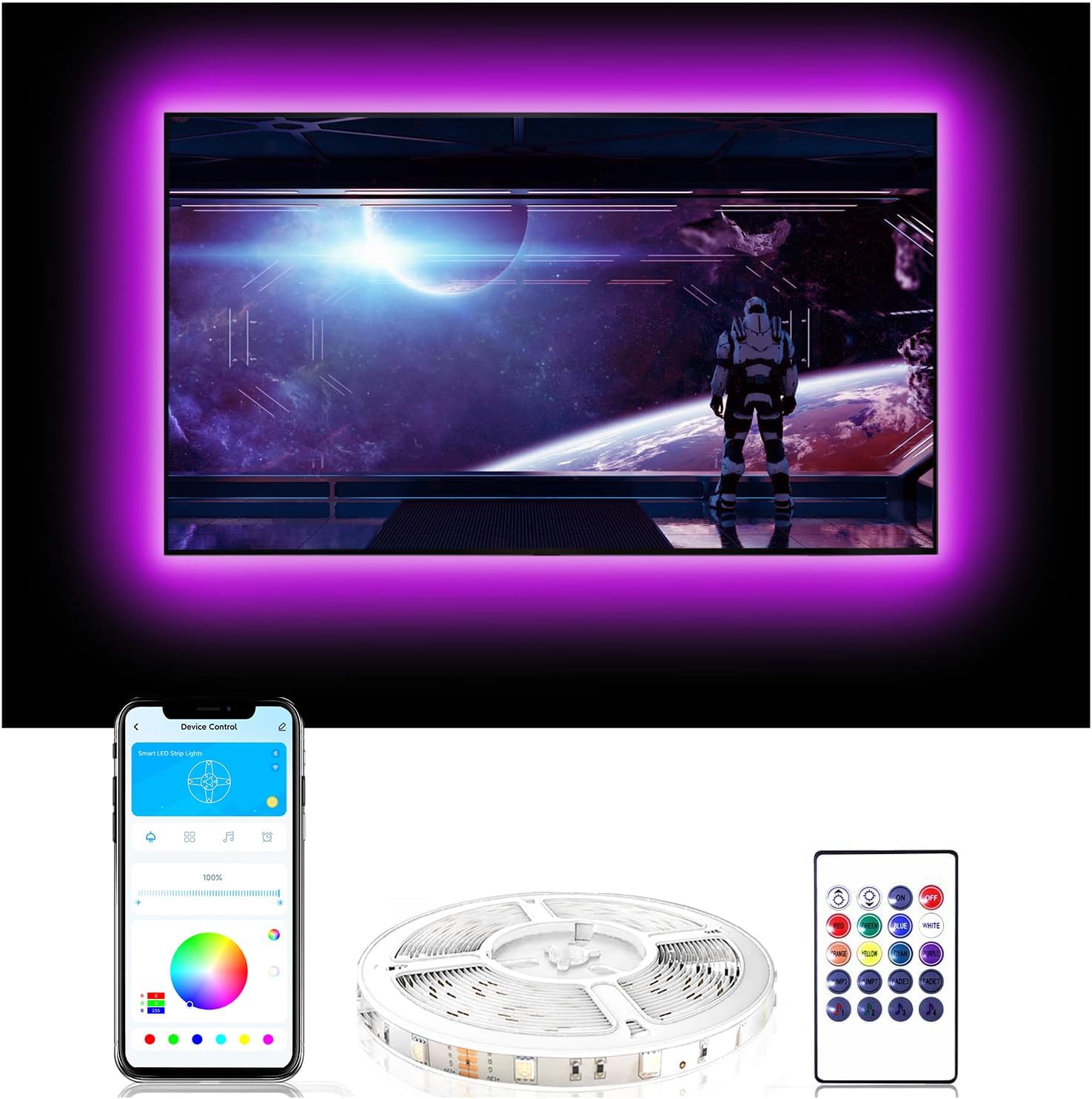
The DAYBETTER TV LED Backlight enhances your viewing experience by providing ambient lighting behind your television. This LED strip light features 16 million color variations, music sync capabilities, and a sleeping mode, all controllable via a remote or a Bluetooth application. It is powered conveniently via a USB port, allowing for synchronous operation with most TV models.
2. Setup and Installation
Follow these steps for proper installation of your TV LED Backlight:
- Check Product Functionality: Before installation, unroll the LED strip and connect it to a USB power source to ensure all lights are working correctly.
- Clean the Surface: Thoroughly clean the back of your TV or the desired installation surface. Ensure it is free of dust, dirt, and grease. A clean, dry surface is crucial for proper adhesive bonding.
- Plan Placement: Determine the optimal placement for the LED strip on the back of your TV. For best results, position the strip about 1-2 inches from the edge of the TV to create an even glow.
- Peel and Stick: Carefully peel off the adhesive backing from the LED strip and firmly press the strip onto the cleaned surface. Apply even pressure along the entire length.
- Connect Power: Connect the USB power line from the LED strip to an available USB port on your TV. Alternatively, you can use a UL-certified USB adapter (not included) for power. Ensure the 4-pin connector between the USB cable and the LED strip is inserted in the correct orientation; if the lights do not turn on, try reversing the connector.
- Power On: Once connected, the lights should turn on automatically with your TV or can be activated via the remote control or the Bluetooth app.

3. Operating Instructions
Your DAYBETTER TV LED Backlight offers multiple control options for a customized lighting experience.
3.1 Control Methods
- Remote Control: Use the included 20-key remote controller to adjust colors, brightness, and lighting modes. Ensure there is no obstruction between the remote and the IR receiver.
- Bluetooth APP Control: Download the designated app (refer to packaging for QR code or app name) on your smartphone. Connect to the LED lights via Bluetooth to access a wider range of features, including 16 million color options, custom DIY colors, and advanced mode settings.

3.2 Key Features
- Music Sync: The built-in high-sensitivity microphone allows the LED lights to synchronize with the beat of music or your voice, creating a dynamic audio-visual experience.
- 16 Million Colors: Access a vast spectrum of colors to match your mood or content.
- Sleeping Mode: Pre-set specific times for the LED lights to automatically turn on or off, and even change colors, for a smart and convenient viewing environment.


Video 1: This video demonstrates the dynamic color-changing capabilities of the DAYBETTER LED lights, showcasing how they can transform a room's ambiance and sync with various activities like watching TV or dancing.
4. Care and Maintenance
To ensure the longevity and optimal performance of your DAYBETTER TV LED Backlight, follow these care guidelines:
- Cleaning: Use a soft, dry cloth to gently wipe the LED strip and controller. Do not use abrasive cleaners, solvents, or excessive moisture, as this can damage the electronic components.
- Handling: Avoid bending or twisting the LED strip excessively, especially at the connection points, as this can damage the internal wiring.
- Storage: If you need to remove or store the LED lights, carefully peel them off the surface and re-roll them loosely. Store in a cool, dry place away from direct sunlight.
- Power Source: Always use the provided USB power line or a compatible UL-certified USB adapter. Do not connect to power sources exceeding 5 Volts or 5 Watts.
5. Troubleshooting
If you encounter issues with your DAYBETTER TV LED Backlight, refer to the following common problems and their solutions:
| Problem | Possible Cause | Solution |
|---|---|---|
| Lights do not turn on. | Incorrect connection of the 4-pin plug; insufficient power; faulty USB port. | Ensure the 4-pin plug between the USB cable and LED strip is inserted correctly (try reversing it). Test with a different USB port or a wall adapter. |
| Remote control is not working. | Dead battery; IR receiver obstructed; remote out of range. | Replace the remote control battery. Ensure the IR receiver on the LED strip controller is not covered. Point the remote directly at the receiver within range. |
| Lights are dim or flickering. | Insufficient power; loose connection. | Ensure the USB power source provides adequate power (5V, 1A recommended). Check all connections for tightness. |
| App cannot connect to the lights. | Bluetooth is off; app not updated; incorrect pairing. | Ensure Bluetooth is enabled on your device. Restart the app and try pairing again. Check for app updates. |
| Adhesive is not sticking. | Surface not clean or dry; improper application. | Clean and dry the surface thoroughly before applying. Apply firm, even pressure during installation. For persistent issues, consider using additional adhesive clips (not included). |
6. Technical Specifications
| Specification | Detail |
|---|---|
| Model Number | DTHTVRGB06B |
| Length | 20ft (suitable for 85-100 inch TVs) |
| Color | Multicolor (RGB) |
| Light Source Type | LED |
| Power Source | USB Powered (Corded Electric) |
| Voltage | 5 Volts |
| Wattage | 5 Watts |
| Control Method | Remote, Bluetooth APP |
| Special Features | APP Control, Music Sync, USB Powered, Timing (Sleeping Mode) |
| Indoor/Outdoor Usage | Indoor |
| Item Weight | 4.2 ounces |
| Included Components | 20ft TV backlight, USB power line, Bluetooth box controller, 20 key remote controller |
7. Warranty and Support
7.1 Warranty Information
Specific warranty details for the DAYBETTER TV LED Backlight (Model DTHTVRGB06B) are not provided in this manual. Please refer to the product packaging, the manufacturer's official website, or your purchase receipt for comprehensive warranty terms and conditions.
7.2 Customer Support
For any questions, technical assistance, or support regarding your DAYBETTER TV LED Backlight, please contact DAYBETTER customer service. Contact information can typically be found on the product packaging, the manufacturer's website, or through the retailer where the product was purchased.