
1. Introduction
Thank you for choosing the Septpenta One Handed Mechanical Keyboard. This compact and versatile keypad is designed for enhanced productivity and gaming, featuring 5 fully programmable keys and dual-mode connectivity (wired USB and wireless Bluetooth). This manual provides essential information for setup, operation, maintenance, and troubleshooting to ensure optimal performance.
2. Product Overview
The Septpenta One Handed Mechanical Keyboard offers a streamlined experience with its mini portable design. It is equipped with silent silicone keys and supports both wired and wireless connections, making it suitable for various applications including office work, gaming, music production, and media control.

Image: Front view of the Septpenta One Handed Mechanical Keyboard, showcasing its compact design and five white keys.
What's in the Box:
- 1 x Septpenta One Handed Mechanical Keyboard
- 1 x USB Data Cable (USB-A to USB-C)
- 4 x Foot Pads

Image: The Septpenta One Handed Mechanical Keyboard, USB data cable, and four foot pads as included in the package.
3. Setup
3.1 Initial Charging
Before first use, it is recommended to fully charge the keyboard's built-in 200mAh lithium-ion battery. Connect the provided USB data cable to the keyboard's USB-C port and the other end to a USB power source (e.g., computer USB port, wall adapter).

Image: A close-up view of the USB-C port located on the side of the Septpenta keyboard, used for charging and wired connection.
3.2 Wired USB Connection
- Connect the USB-C end of the data cable to the keyboard.
- Connect the USB-A end of the data cable to an available USB port on your computer.
- The keyboard will be automatically recognized by your operating system (plug and play).
3.3 Wireless Bluetooth Connection
- Ensure the keyboard is charged.
- Locate the mode switch on the keyboard (if present, usually on the side or back) and switch it to Bluetooth mode.
- On your computer or device, enable Bluetooth and search for new devices.
- Select the Septpenta keyboard from the list of available devices to pair. Follow any on-screen prompts to complete the pairing process.
The keyboard supports simultaneous connection with another standard keyboard without interference.
4. Operating Instructions
4.1 Basic Use
Once connected via USB or Bluetooth, the 5 keys on the keyboard will function according to their programmed settings. These keys can be assigned to perform various actions, from single key presses to complex shortcut combinations.
4.2 Programming Keys
The Septpenta One Handed Mechanical Keyboard features 5 fully programmable keys. To customize the functions of these keys, dedicated software is typically required. Please refer to the Septpenta official website or product support page for information on downloading and using the programming software specific to this model. The manual does not cover the detailed steps for software-based key programming.

Image: The Septpenta keyboard highlighting its programmable keys, capable of executing complex shortcut combinations.
4.3 Applications
This mini keyboard is highly versatile and can be used in various scenarios:
- Office: For quick access to frequently used functions or macros.
- Gaming: Assign complex in-game actions or macros to single keys for a competitive edge.
- Music/Media: Control playback, volume, or trigger specific software functions.
- Industrial Control/Laboratory: For specialized input requirements.
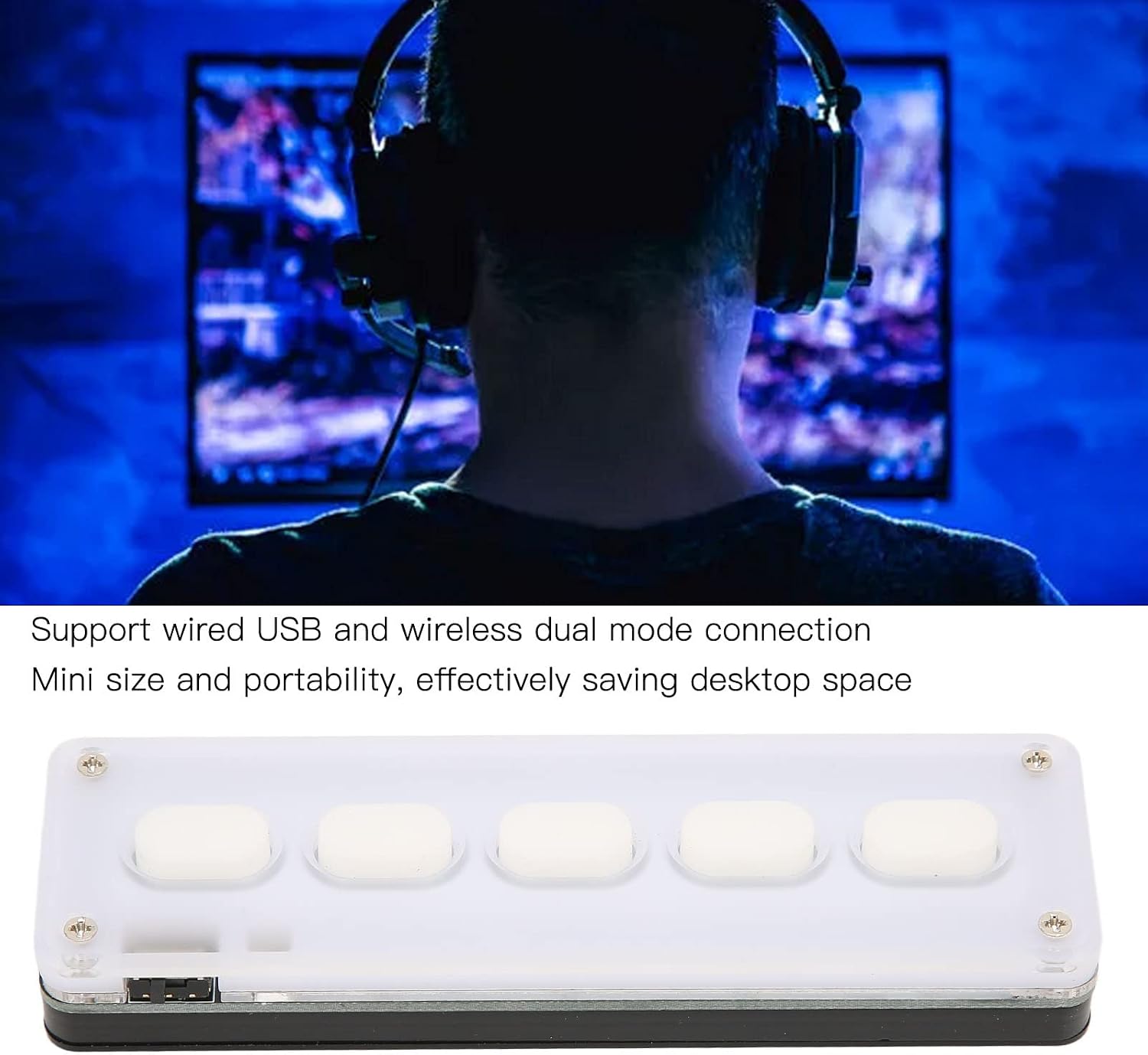
Image: A user engaged in gaming, utilizing the Septpenta One Handed Mechanical Keyboard for quick access to commands.
5. Maintenance
5.1 Cleaning
To clean the keyboard, use a soft, dry cloth. For stubborn dirt, a slightly damp cloth with mild soap can be used, ensuring no liquid enters the device. Avoid abrasive cleaners or solvents.
5.2 Battery Care
To prolong battery life, avoid fully discharging the keyboard frequently. If storing for an extended period, charge the battery to approximately 50% and store in a cool, dry place.
6. Troubleshooting
- Keyboard not responding (Wired):
- Ensure the USB cable is securely connected to both the keyboard and the computer.
- Try connecting to a different USB port on your computer.
- Test the keyboard on another computer if possible.
- Keyboard not responding (Bluetooth):
- Ensure the keyboard is charged and powered on in Bluetooth mode.
- Check that Bluetooth is enabled on your device and the keyboard is paired.
- Try unpairing and re-pairing the keyboard.
- Ensure the keyboard is within the effective range of your device's Bluetooth signal.
- Keys not performing programmed functions:
- Verify that the programming software (if used) has successfully applied the desired settings.
- Ensure the keyboard is in the correct mode (if multiple profiles are supported by software).
7. Specifications
| Feature | Detail |
|---|---|
| Brand | Septpenta |
| Model Number | Septpentai0bame2ktc-12 |
| Key Type | 5 Key Silicone Silent Keyboard (Mechanical) |
| Connectivity | Bluetooth, USB (Dual Mode) |
| Material | Acrylic, Silicone |
| Battery Type | Built-in 200mAh Lithium Ion Battery |
| Compatible Devices | Laptop (Universal for computers) |
| Item Weight | 0.12 Kilograms |
| Color | White |
8. Warranty and Support
For warranty information, technical support, or further assistance, please contact Septpenta customer service through their official website or the retailer where the product was purchased. Please have your model number (Septpentai0bame2ktc-12) and purchase details ready.