
Formuler Z11PRO
Formuler Z11 Pro User Manual
Model: Z11PRO
1. Introduction
Welcome to the user manual for your new Formuler Z11 Pro streaming media player. This guide provides essential information for setting up, operating, maintaining, and troubleshooting your device. Please read this manual thoroughly to ensure optimal performance and longevity of your product.
2. Product Overview
The Formuler Z11 Pro is a powerful 4K Android 11 streaming media player designed to deliver a superior entertainment experience. It features robust hardware and versatile connectivity options.
Key Features:
- Formuler Z11 Pro Android 11 Operating System
- 2GB RAM and 16GB ROM for smooth performance and ample storage
- 4K (3840 x 2160) Output Resolution for stunning visuals
- Dual Band 5G 2x2 AC Wi-Fi for fast and stable wireless connectivity
- Gigabit LAN (1000M) for high-speed wired network connections
Technical Specifications:
- CPU: RealTek RTD1319C
- GPU: Mali-G57 MC1
- RAM: 2GB DDR @2400MHz
- Storage: 16GB eMMC
- Operating System: Android 11
- Wireless: Dual-Band 2x2 AC Wireless
- Bluetooth: 5.0
- Ethernet: 1000M (Gigabit)
- Dimensions (L/W/T): 105mm / 105mm / 21mm
- Color: Black
- Ports: 1x Power Input, 1x USB 3.0, 1x USB 2.0, 1x HDMI, 1x Gigabit LAN, 1x Micro SD Card, 1x IR Extension

Figure 2.1: The Formuler Z11 Pro streaming media player, its remote control, and product packaging.
3. Setup
Follow these steps to set up your Formuler Z11 Pro for the first time:
- Connect to TV: Use an HDMI cable (not included) to connect the HDMI port on the Formuler Z11 Pro to an available HDMI input on your television.
- Connect to Power: Plug the power adapter into the "Power Input" port on the device and then into a wall outlet.
- Connect to Internet:
- Wired Connection: For optimal performance, connect an Ethernet cable from your router to the "Gigabit LAN" port on the device.
- Wireless Connection: If using Wi-Fi, the device will prompt you to select your network and enter the password during the initial setup wizard.
- Insert Micro SD Card (Optional): If you wish to expand storage, insert a Micro SD card into the designated slot.
- IR Extension (Optional): If you plan to place the device out of sight, connect the IR extension cable to the "IR Extension" port and position the IR receiver in a visible location.
- Power On: The device should power on automatically. If not, press the power button on the remote control.
- Initial Setup Wizard: Follow the on-screen instructions to complete the initial setup, including language selection, network configuration, and Google account sign-in.

Figure 3.1: Rear ports of the Formuler Z11 Pro, including Gigabit LAN, HDMI, USB 2.0, Micro SD, IR Extension, and Power Input.
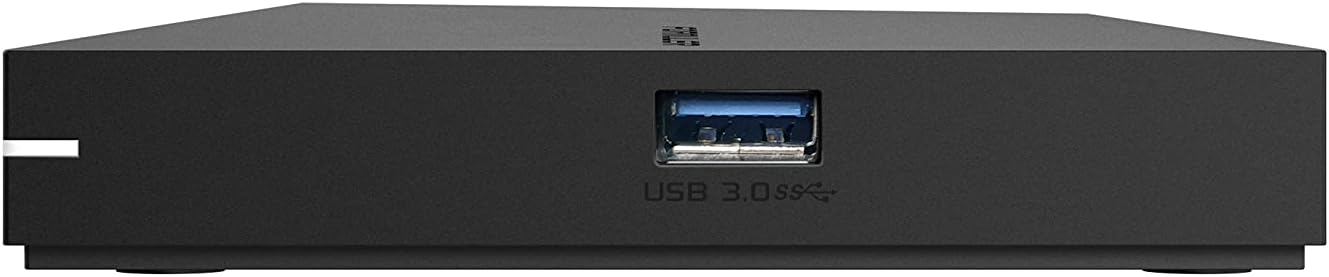
Figure 3.2: Side view of the Formuler Z11 Pro, highlighting the USB 3.0 port.
4. Operating Instructions
Your Formuler Z11 Pro runs on Android 11, providing access to a wide range of applications and features.
4.1 Remote Control Functions
The included remote control is your primary interface for navigating the device. Familiarize yourself with its buttons:

Figure 4.1: Formuler IR1 Premium Learning IR Remote with TV Control. Key buttons include Power (TV/STB), Number Pad, Navigation (OK, Vol, Ch), Info, Guide, Menu, Back, Home, Playback controls, and colored function buttons.
- Power (TV/STB): Press once to put TV/STB into standby mode. Press and hold for Learning mode.
- TV Control: OK, Source, Vol-, Vol+ (Learning mode).
- Number Pad: Direct channel number input.
- Favorite Channels: Show/set favorite channels.
- Colored Buttons: Hotkey functions, follow on-screen instructions.
- Info: Press twice to show detailed information.
- Guide: Show grid EPG (Electronic Program Guide).
- Vol: Adjust STB volume.
- OK: Select.
- Navigation Arrows: Move Cursor, Channel List navigation.
- Ch: Change channels Page Up/Down.
- Menu: Show Main Menu.
- Back: Previous menu.
- Home: Go to System Home screen.
- Playback Controls: Timeshift/Resume, Pause playback, Start recording.
4.2 Applications and Features
- MyTVOnline3: This is the best media viewing client for IPTV services. It offers advanced features for professional and user-friendly experience.
- Google Play Store: Download and install a wide variety of Android applications, including streaming services, VPNs, games, and web browsers.
- YouTube: Access YouTube content directly from your device.
- Media Browser: Browse and play local media files from connected USB drives or Micro SD cards.
- USB Recording (DVR): Utilize the USB ports to connect external storage and record your favorite shows. The remote includes a dedicated record button.
- VPN Support: The device supports VPN integration, allowing for secure and private browsing. A 30-day free trial to ExpressVPN may be included.
5. Maintenance
Proper maintenance ensures the longevity and optimal performance of your Formuler Z11 Pro.
- Cleaning: Use a soft, dry cloth to clean the exterior of the device. Do not use liquid cleaners or abrasive materials.
- Ventilation: Ensure the device is placed in a well-ventilated area. Do not cover ventilation openings.
- Temperature: Avoid exposing the device to extreme temperatures or direct sunlight.
- Firmware Updates: Periodically check for and install firmware updates to ensure your device has the latest features and security enhancements. These are typically found in the device's settings menu.
6. Troubleshooting
If you encounter issues with your Formuler Z11 Pro, try the following solutions:
- No Power:
- Check if the power adapter is securely connected to the device and the wall outlet.
- Ensure the wall outlet is functioning correctly.
- No Picture/Sound:
- Verify the HDMI cable is securely connected to both the device and the TV.
- Ensure your TV is set to the correct HDMI input source.
- Check the volume settings on both the device and your TV.
- No Internet Connection:
- For wired connections, ensure the Ethernet cable is properly connected and your router is working.
- For wireless connections, re-enter your Wi-Fi password in the network settings. Ensure your Wi-Fi router is on and broadcasting.
- Restart your router and the Formuler Z11 Pro.
- Remote Control Not Responding:
- Replace the batteries in the remote control.
- Ensure there are no obstructions between the remote and the device's IR receiver.
- App Freezing/Crashing:
- Close and reopen the application.
- Clear the app's cache and data in the Android settings.
- Restart the Formuler Z11 Pro.
7. Warranty and Protection Plans
For information regarding the product warranty, please refer to the warranty card included in your product packaging or visit the official Formuler website. Additionally, extended protection plans may be available for purchase to cover your device beyond the standard warranty period. These plans typically offer:
- 2-Year Protection Plan
- 3-Year Protection Plan
- Complete Protect: A monthly plan covering eligible past and future purchases.
Please check with your retailer or the Formuler website for details on coverage, terms, and pricing of these protection plans.
8. Support
If you require further assistance or have questions not covered in this manual, please contact Formuler customer support through their official website or consult their online resources.
Official Website: www.formuler.tv (Example, replace with actual if known)
For the latest FAQs, software updates, and community forums, please visit the support section of the Formuler website.
Ask a question about this manual
Ask about setup, troubleshooting, compatibility, parts, safety, or missing instructions. Manuals+ will review the question and use this page’s manual context to help answer it.