1. Introduction
This manual provides essential information for the installation, operation, and maintenance of your ZOTAC Gaming GeForce RTX 4080 16GB Trinity graphics card. This high-performance graphics processing unit (GPU) is designed to deliver exceptional visual fidelity and speed for gaming and demanding applications, leveraging the NVIDIA Ada Lovelace architecture. Please read this manual thoroughly before proceeding with installation and use to ensure optimal performance and system stability.
2. What's in the Box
Verify that all components listed below are present in your product packaging. If any items are missing or damaged, please contact your retailer or ZOTAC support.
- ZOTAC GAMING GeForce RTX 4080 16GB Trinity graphics card
- GPU Support Stand
- 3-pin RGB Header Cable
- 3x 8-pin-to-12VHPWR power cable
- User Manual (this document)

Image: Contents of the ZOTAC Gaming GeForce RTX 4080 Trinity retail box.
3. Setup and Installation
Proper installation is crucial for the performance and longevity of your graphics card. Ensure your system meets the minimum requirements before proceeding.
3.1 System Requirements
- Motherboard: PCI Express 4.0 x16 slot
- Power Supply: Minimum 750-watt power supply recommended.
- Power Connectors: 1 x 12VHPWR power input. Use the provided 3x 8-pin-to-12VHPWR cable if your PSU does not have a native 12VHPWR connector.
- Case Clearance: Ensure your PC case has adequate space for the card's dimensions (Length: 356.1mm, Height: 150.1mm, Width: 3.5 slot / 71.4mm).
- Operating System: Windows 11 / 10 (64-bit, April 2018 update or later).
3.2 Physical Installation
- Prepare Your System: Power off your computer and unplug it from the wall outlet. Open your PC case.
- Remove Old Graphics Card (if applicable): Disconnect any power cables and display cables from your old graphics card. Unscrew the retention bracket and carefully remove the card from the PCIe slot.
- Install the Graphics Card: Align the ZOTAC Gaming GeForce RTX 4080 with an available PCI Express 4.0 x16 slot on your motherboard. Press down firmly until the card is securely seated and the retention clip engages. Secure the card to the case with screws.
- Connect Power: Connect the 12VHPWR power cable to the graphics card. If using the adapter, ensure all 8-pin connectors from your power supply are securely connected to the adapter, and the adapter is fully seated into the graphics card's 12VHPWR port.
- Connect Display Cables: Connect your monitor(s) to the graphics card's DisplayPort 1.4a or HDMI 2.1a ports.
- Install GPU Support Stand: Due to the size and weight of the card, it is highly recommended to install the included GPU Support Stand to prevent sag. Refer to the quick guide included in the box for specific instructions.
- Connect RGB Header Cable (Optional): If you wish to synchronize the card's SPECTRA 2.0 RGB lighting with an external LED strip, connect the provided 3-pin RGB Header Cable to the graphics card and your compatible LED strip.
- Close Case and Power On: Close your PC case, plug in the power cable, and power on your computer.

Image: Front view of the ZOTAC Gaming GeForce RTX 4080 Trinity graphics card.

Image: Display output ports on the ZOTAC Gaming GeForce RTX 4080 Trinity.
3.3 Driver Installation
After physical installation, install the latest NVIDIA drivers for your graphics card.
- Visit the official NVIDIA website (nvidia.com/drivers).
- Select "GeForce RTX 40 Series" and "GeForce RTX 4080" from the product type and series dropdowns.
- Choose your operating system and download the latest "Game Ready Driver" or "Studio Driver" as per your needs.
- Run the installer and follow the on-screen instructions.
- Consider installing NVIDIA GeForce Experience for optimal game settings, driver updates, and other features.
4. Operating Your Graphics Card
Your ZOTAC Gaming GeForce RTX 4080 Trinity is equipped with advanced features to enhance your computing and gaming experience.
4.1 Key Features
- NVIDIA Ada Lovelace Architecture: Provides significant performance and power efficiency improvements.
- IceStorm 2.0 Advanced Cooling: Features a robust cooling system with multiple fans and a large heatsink to maintain optimal temperatures.
- FREEZE Fan Stop: Fans automatically stop during low load conditions to reduce noise.
- Active Fan Control: Allows independent control of fan speeds for optimized cooling.
- SPECTRA 2.0 RGB Lighting: Customizable RGB lighting zones on the card, controllable via the ZOTAC GAMING FireStorm Utility.
- Dual BIOS: Provides a backup BIOS, allowing for recovery in case of a BIOS update failure or to switch between performance profiles.
- Metal Backplate: Enhances structural rigidity and aids in heat dissipation.
4.2 ZOTAC GAMING FireStorm Utility
The FireStorm Utility is ZOTAC's proprietary software for monitoring and customizing your graphics card.
- Download: Obtain the latest version from the official ZOTAC website.
- Functions:
- Monitor GPU temperature, clock speeds, and fan speeds.
- Adjust fan curves and activate/deactivate FREEZE Fan Stop.
- Customize SPECTRA 2.0 RGB lighting effects and colors.
- Overclock the GPU for additional performance (use with caution).
- Switch between Dual BIOS profiles.

Image: ZOTAC Gaming GeForce RTX 4080 Trinity with SPECTRA 2.0 RGB Lighting.
Video: Overview of ZOTAC Gaming GeForce RTX 40 Series features, including cooling, durability, and RGB lighting.
5. Maintenance
Regular maintenance helps ensure the longevity and optimal performance of your graphics card.
- Dust Removal: Periodically clean dust from the fans and heatsink using compressed air. Ensure the system is powered off and unplugged before cleaning. Hold the fan blades gently to prevent them from spinning rapidly during cleaning.
- Driver Updates: Keep your graphics drivers updated to the latest version from NVIDIA's website for performance improvements and bug fixes.
- Temperature Monitoring: Use the ZOTAC GAMING FireStorm Utility or other monitoring software to keep an eye on GPU temperatures, especially during heavy loads. Ensure adequate airflow within your PC case.
- Cable Management: Ensure all power and display cables are securely connected and not obstructing airflow.
6. Troubleshooting
If you encounter issues with your graphics card, refer to the following common troubleshooting steps.
6.1 No Display Output
- Check Cables: Ensure display cables are securely connected to both the graphics card and the monitor.
- Power Connections: Verify that the 12VHPWR power cable (and any 8-pin connectors if using an adapter) is fully and correctly seated into the graphics card. An improperly connected power cable can prevent the card from powering on.
- Monitor Input: Confirm your monitor is set to the correct input source (e.g., DisplayPort, HDMI).
- Reseat Card: Power off the PC, unplug it, and reseat the graphics card firmly into the PCIe slot.
6.2 Performance Issues or Crashes
- Driver Updates: Ensure you have the latest NVIDIA drivers installed. Consider a clean installation of drivers.
- Temperature: Monitor GPU temperatures. High temperatures can lead to throttling or crashes. Ensure proper case airflow and clean the heatsink/fans.
- Power Supply: Verify your power supply meets the recommended 750-watt requirement and is providing stable power.
- Software Conflicts: Temporarily disable any overclocking software or background applications to rule out conflicts.
6.3 RGB Lighting Not Working
- FireStorm Utility: Ensure the ZOTAC GAMING FireStorm Utility is installed and running. Check the RGB settings within the software.
- Cable Connection: If using an external LED strip, verify the 3-pin RGB Header Cable is correctly connected.
If issues persist after attempting these steps, please refer to the ZOTAC support website or contact their technical support.
7. Specifications
| Feature | Detail |
|---|---|
| GPU | NVIDIA GeForce RTX 4080 |
| CUDA Cores | 9728 |
| Video Memory | 16GB GDDR6X |
| Memory Bus | 256-bit |
| Engine Boost Clock | 2505 MHz |
| Memory Clock | 22.4 Gbps |
| PCI Express | 4.0 16x |
| Display Outputs | 3 x DisplayPort 1.4a (up to 7680x4320@60Hz), 1 x HDMI 2.1a (Supports 4K 120Hz HDR, 8K 60Hz HDR) |
| HDCP Support | 2.3 |
| Multi-Display Capability | Quad simultaneous display capable |
| Recommended Power Supply | 750-watt |
| Power Consumption | 320-watt max |
| Power Input | 1 x 12VHPWR |
| Product Dimensions (L x H x W) | 356.1mm (14in) x 150.1mm (5.9in) x 71.4mm (2.8in) (3.5 slot) |
| Software Compatibility | Game Ready and NVIDIA Studio Drivers, PCI Express Gen 4, Microsoft DirectX 12 Ultimate, Vulkan RT APIs, Vulkan 1.3, OpenGL 4.6, Windows 11 / 10 (64-bit) |
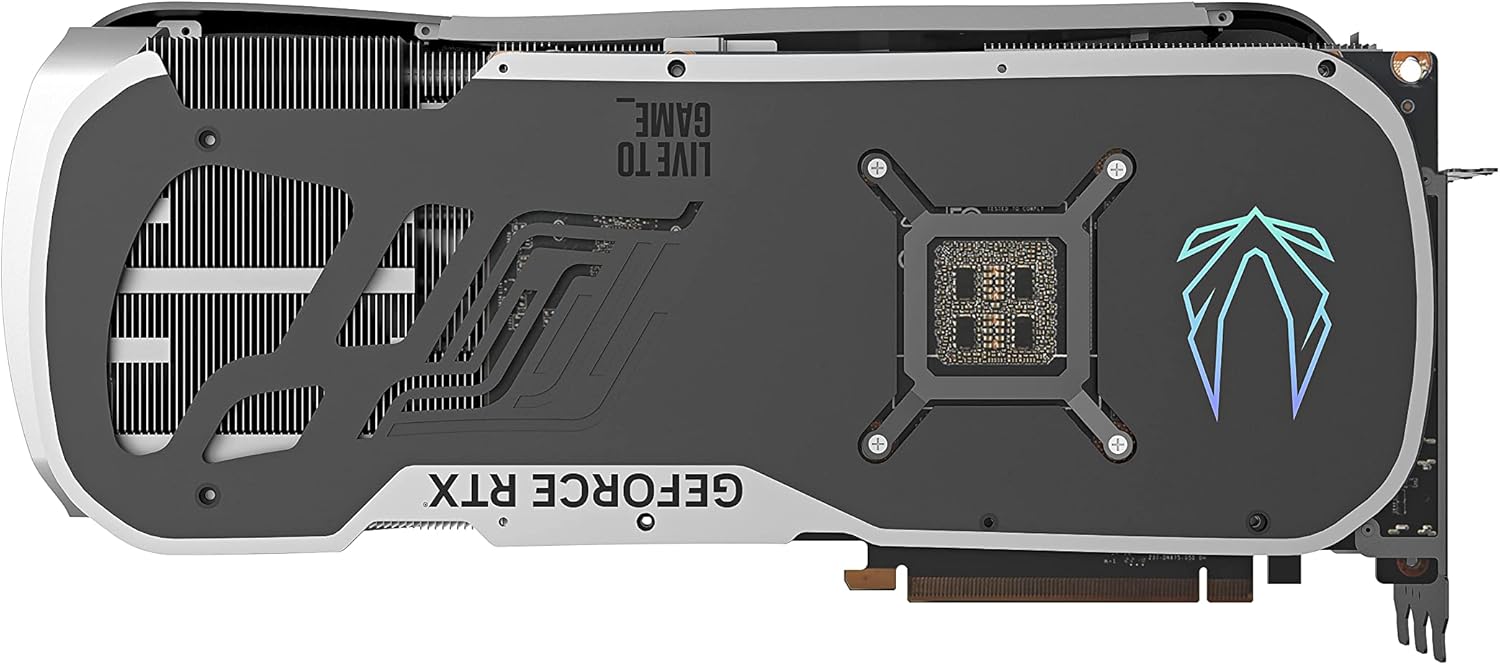
Image: Rear view of the ZOTAC Gaming GeForce RTX 4080 Trinity, highlighting the metal backplate.
8. Warranty and Support
ZOTAC products are manufactured to the highest quality standards. Your ZOTAC Gaming GeForce RTX 4080 Trinity graphics card comes with a limited warranty. Please register your product on the official ZOTAC website to activate and understand the full terms and conditions of your warranty.
8.1 Product Registration
Visit zotac.com/support#product-registration to register your graphics card. Product registration is often required for warranty claims and extended warranty benefits.
8.2 Technical Support
For technical assistance, driver downloads, or further information, please visit the ZOTAC support page: zotac.com/support. You can find FAQs, troubleshooting guides, and contact information for ZOTAC's customer service team.


