
Phomemo B246d
Phomemo B246d Thermal Label Printer Instruction Manual
Model: B246d / 246s
Brand: Phomemo
1. Introduction
The Phomemo B246d Thermal Label Printer is a monochrome label printer designed for efficient and cost-effective label printing for small businesses. Utilizing advanced thermal printing technology, it eliminates the need for ink or toner, providing a cleaner and more environmentally friendly printing solution. This manual provides comprehensive instructions for setting up, operating, maintaining, and troubleshooting your Phomemo B246d printer.

Image: The Phomemo B246d thermal label printer, showcasing its compact design and a label being printed.
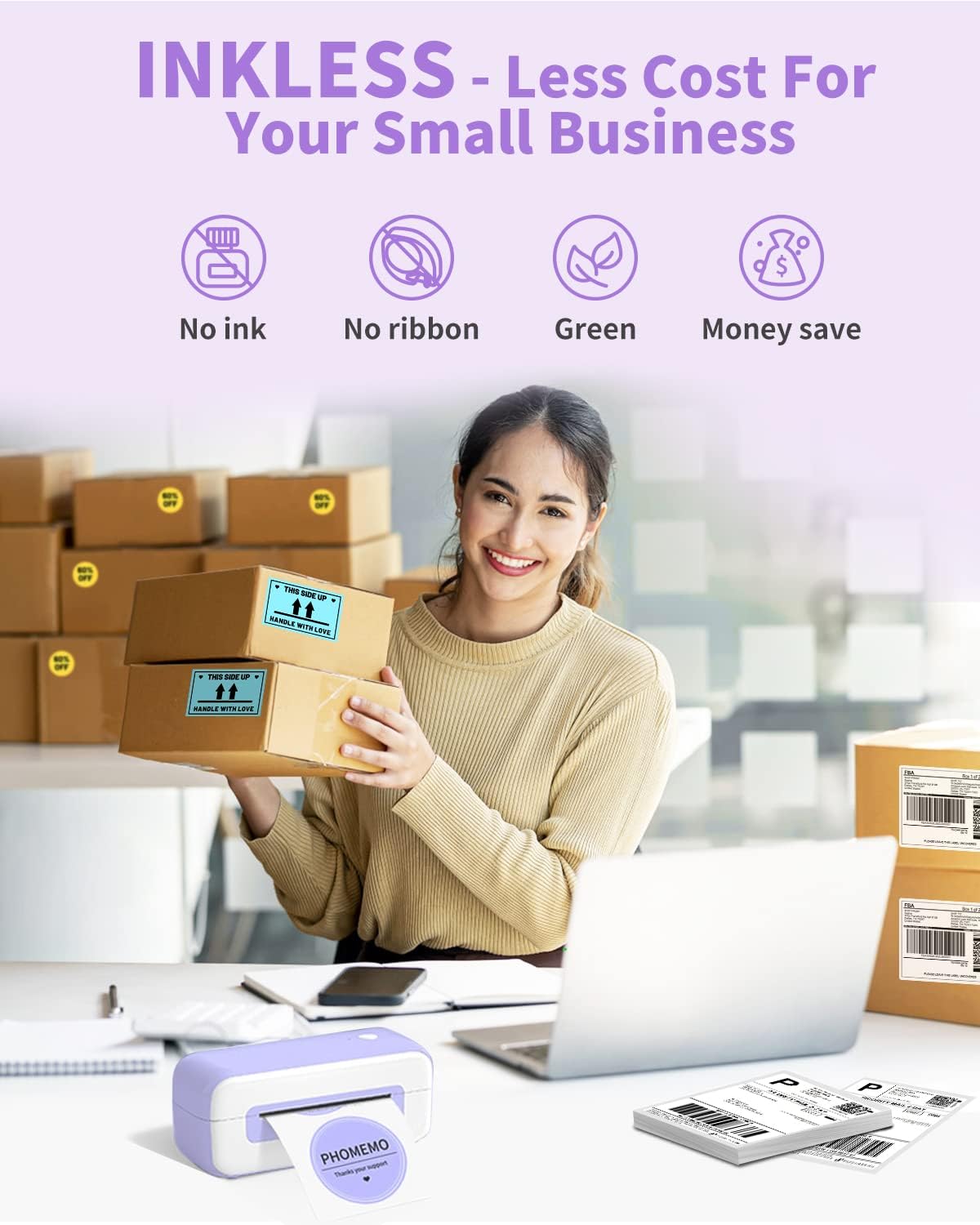
Image: Visual representation highlighting the inkless thermal printing technology, emphasizing cost savings and environmental benefits.
2. What's in the Box
Please verify that all the following items are included in your package:
- 1 x Phomemo 246S Purple Shipping Label Printer
- 1 x PM-246S Quick Start Guide
- 1 x Power Cord & Adapter
- 1 x USB-C Adapter for MAC OS
- Labels (sample roll)

Image: All components included with the Phomemo B246d printer, laid out for clear identification.
3. Specifications
| Feature | Detail |
|---|---|
| Product Dimensions | 9.84"D x 3.46"W x 3.46"H |
| Controller Type | USB thermal printer (No Bluetooth/WiFi support) |
| Maximum Media Size | 4 x 6 inch |
| Print Media | Labels |
| Max Print Speed (Black & White) | 72 labels per minute (152mm/s) |
| Compatible Devices | Laptops, PC (Windows, Mac, Chromebook) |
| Sheet Size Compatibility | 1-4.7 inches |
| Maximum Black and White Print Resolution | 4x6 dpi |
| Hardware Interface | USB |
| Printer Ink Type | Thermal |
| Memory Storage Capacity | 64 MB |
| Item Weight | 1.76 pounds (800 Grams) |
| Color | Purple |
| Printer Output | Monochrome |
4. Setup Guide
4.1 Unboxing and Initial Placement
Carefully remove the printer and all accessories from the packaging. Remove any protective films or tapes from the printer. Place the printer on a stable, flat surface near your computer and a power outlet.
4.2 Connecting the Printer
- Connect the power adapter to the printer's power port and then plug the power cord into a wall outlet.
- Connect the USB cable from the printer to an available USB port on your computer. If you are using a Mac, use the provided USB-C adapter.
- Important Note: The Phomemo B246d printer supports USB connection only. It does not support Bluetooth or Wi-Fi connectivity.
4.3 Driver Installation (Windows/Mac/Chromebook)
The printer requires a driver for proper operation. Phomemo provides a "one-click setup" for driver installation. For Chromebook users, a Chrome extension is available.
For Chromebook Users (Chrome Extension Installation Guide):
Follow these steps to install the Labelife Chrome extension for your Chromebook:
- Open the Chrome browser on your Chromebook.
- Click the three-dot menu icon in the top right corner of the browser.
- Navigate to "More tools" > "Extensions".
- On the Extensions page, click the three-line menu icon in the top left corner to open the sidebar.
- Scroll down and click "Open Chrome Web Store".
- In the Chrome Web Store search bar, type "Labelife" and press Enter.
- Locate the "Labelife - Label Printer Extension" and click "Add to Chrome".
- Confirm by clicking "Add extension" in the pop-up window.
- Once installed, click the extensions icon (puzzle piece) in the Chrome toolbar and select "Labelife".
- In the Labelife Printer Manager, click "Connect Printer" and select your printer from the list.
- After successful connection, you can manage paper size and configure settings.
- To print a label, open the PDF label file (e.g., a 4x6 shipping label) in your Chromebook's file manager.
- Click the print icon in the PDF viewer, select "Chrome_LabelPrinter" as the destination, and ensure "Paper size" is set to "ISO_4.00" x 6.00" (101.6 x 152.4mm)" and "Scale" is "Fit to paper". Then click "Print".
Video: A step-by-step guide demonstrating how to install the Chrome extension for the Phomemo B246d printer and print a sample label on a Chromebook.
For Windows and Mac users, please refer to the included PM-246S Quick Start Guide or visit the official Phomemo website for driver download and installation instructions.

Image: Overview of operating system compatibility for the Phomemo printer extension, highlighting USB-only connection.
4.4 Loading Labels
- Ensure the printer is powered on.
- Open the top cover of the printer.
- Align your thermal labels with the label guide. The printable side of the labels should face upwards.
- Insert the labels into the printer's feed slot. The printer features automatic label detection, which will adjust the position precisely to prevent label waste.
- Close the top cover.

Image: Demonstrates the printer's versatility with various label sizes and types, from shipping to round labels.
5. Operating the Printer
5.1 Printing Labels
Once the printer is set up and labels are loaded, you can print directly from your computer using various platforms.
- Open the document or platform from which you wish to print your label (e.g., Amazon, eBay, Shopify, Etsy, UPS, FedEx, DHL, USPS, ShipStation, Shippo, Ordoro).
- Select the print option within the application.
- Choose "Phomemo B246d" or "Chrome_LabelPrinter" (for Chromebook) as your printer.
- Ensure the paper size settings match your label dimensions (e.g., 4x6 inches). Adjust scaling to "Fit to paper" if necessary to prevent cropping.
- Initiate the print job. The printer is capable of printing up to 72 labels per minute.

Image: A visual guide to the wide range of e-commerce and shipping platforms compatible with the Phomemo B246d printer.

Image: Illustrates the high-speed printing capability of the Phomemo B246d, emphasizing efficiency and time-saving.
6. Maintenance
Regular maintenance ensures optimal performance and extends the life of your Phomemo B246d printer.
6.1 Cleaning the Print Head
The print head is a critical component and should be cleaned periodically, especially if print quality degrades (e.g., faded lines, streaks).
- Turn off the printer and unplug the power cord.
- Open the top cover.
- Gently wipe the print head (the dark strip inside the printer) with an alcohol swab or a lint-free cloth lightly dampened with isopropyl alcohol.
- Allow the print head to dry completely (a few minutes) before closing the cover and turning the printer back on.
6.2 Cleaning the Roller
If labels are not feeding smoothly, the roller might need cleaning.
- Turn off the printer and unplug the power cord.
- Open the top cover.
- Use a lint-free cloth lightly dampened with isopropyl alcohol to wipe the rubber roller.
- Rotate the roller manually to clean its entire surface.
- Allow it to dry completely before use.
7. Troubleshooting
This section addresses common issues you might encounter with your Phomemo B246d printer.
7.1 Printer Not Responding / Not Printing
- Ensure the power cord is securely connected to both the printer and the power outlet.
- Verify the USB cable is firmly connected to both the printer and your computer. Try a different USB port.
- Confirm that the printer driver is correctly installed and selected as the default printer in your system settings or printing application.
- Restart both the printer and your computer.
7.2 Poor Print Quality (Faded, Streaky, or Incomplete Prints)
- Clean the print head as described in the Maintenance section.
- Ensure you are using high-quality thermal labels.
- Check the print density settings in your printer preferences or the Labelife extension. Increasing the density might improve print darkness.
- Verify that the labels are loaded correctly with the printable side facing up.
7.3 Labels Not Feeding Correctly / Paper Jams
- Ensure labels are loaded straight and aligned with the guides.
- Check for any obstructions in the label path.
- Clean the roller as described in the Maintenance section.
- If the first label is consistently unusable, ensure the "Fit to paper" or appropriate scaling option is selected in your print settings to prevent partial prints.
7.4 Printer Not Connecting via Bluetooth/Wi-Fi
- The Phomemo B246d (246S) model does not support Bluetooth or Wi-Fi connections. It is designed for USB-connected printing only. Please ensure you are using a direct USB cable connection.
For more detailed troubleshooting, please refer to the Troubleshooting Guide (PDF) available online or contact Phomemo customer support.
8. Warranty and Support
Phomemo offers a free replacement service for up to 24 months from the date of purchase. Additionally, lifetime technical support is provided for the Phomemo B246d printer.
8.1 Technical Support Channels
You can reach Phomemo technical support through various channels:
- Live Chat
- Phone Calls
- Emails
- Remote-desktop operations support (as needed)
For assistance, please visit the official Phomemo website or refer to the contact information provided in your quick start guide.

Image: Illustration of the professional technical support services offered by Phomemo, including various contact methods.
Related documentsB246d


Ask a question about this manual
Ask about setup, troubleshooting, compatibility, parts, safety, or missing instructions. Manuals+ will review the question and use this page’s manual context to help answer it.