
C idea CM9100
C idea 10-inch Android 12 Tablet User Manual
Model: CM9100 | Brand: C idea
Introduction
This manual provides essential information for the safe and efficient operation of your C idea 10-inch Android 12 Tablet, model CM9100. Please read this manual thoroughly before using the device to ensure proper functionality and to prevent damage.

Image: Front and back view of the C idea 10-inch Android 12 Tablet, showcasing its sleek design and dual camera setup.
Getting Started: Setup
Package Contents
Verify that all items are present in the package:
- C idea 10-inch Android 12 Tablet
- USB Type-C Charging Cable
- Power Adapter (may vary by region)
- User Manual (this document)
Device Layout and Ports

Image: Detailed diagram illustrating the location of the TF Card Slot, Front Camera, 3.5mm Audio Jack, Volume buttons, Power ON/OFF button, Type-C port, Speakers, Reset button, and Rear Camera on the tablet.
- TF Card Slot: For inserting a Micro SD card to expand storage.
- Front Camera: Used for video calls and selfies.
- 3.5mm Audio Jack: For connecting headphones or external speakers.
- Volume + / -: Adjusts the device's volume.
- Power ON/OFF: Press and hold to power on/off or restart. Short press to turn screen on/off.
- Type-C Port: For charging the tablet and connecting to a computer.
- Speaker: Provides audio output.
- Reset: Small pinhole for force restarting the device if unresponsive.
- Rear Camera: For taking photos and videos.
Charging the Tablet
Before first use, fully charge the tablet. Connect the USB Type-C cable to the tablet's Type-C port and the other end to the power adapter. Plug the adapter into a wall outlet. The battery indicator on the screen will show charging status. A full charge takes approximately 5 hours.
Powering On/Off
- To Power On: Press and hold the Power ON/OFF button until the C idea logo appears.
- To Power Off: Press and hold the Power ON/OFF button until the power options menu appears, then select "Power off".
- To Restart: From the power options menu, select "Restart".
- Screen On/Off: Short press the Power ON/OFF button to turn the screen on or off (sleep/wake).
Initial Setup
Upon first power-on, the tablet will guide you through the initial setup process:
- Select your preferred language.
- Connect to a Wi-Fi network.
- Sign in with your Google account or create a new one. This is necessary to access the Google Play Store and other Google services.
- Set up screen lock (PIN, pattern, password, or Facial Unlock).
- Review and accept terms and conditions.
Inserting a Micro SD Card
The tablet supports Micro SD cards up to 512GB for expanded storage.
- Locate the TF Card Slot on the side of the tablet.
- Gently insert the Micro SD card into the slot with the gold contacts facing down until it clicks into place.
- To remove, gently push the card in until it springs out.
Operating Your Tablet
Basic Navigation
The tablet uses a touch-sensitive screen for navigation:
- Tap: To select an item or open an app.
- Tap & Hold: To access contextual menus or move icons.
- Swipe: To scroll through pages or lists.
- Pinch: To zoom in or out on images or web pages.
Connecting to Wi-Fi
- Go to Settings > Network & internet > Wi-Fi.
- Toggle Wi-Fi On.
- Select your desired network from the list.
- Enter the password if prompted, then tap Connect.
Using the Google Play Store
The tablet is GMS certified, providing full access to the Google Play Store for downloading apps, games, movies, and more.
- Tap the Play Store icon on your home screen or app drawer.
- Browse or search for apps.
- Tap Install to download and install an app.
Camera Functions
The tablet features an 8 MP rear camera and a 5 MP front camera.
- Open the Camera app.
- Switch between front and rear cameras using the camera switch icon.
- Tap the shutter button to take a photo or start/stop video recording.
Display and Visual Experience
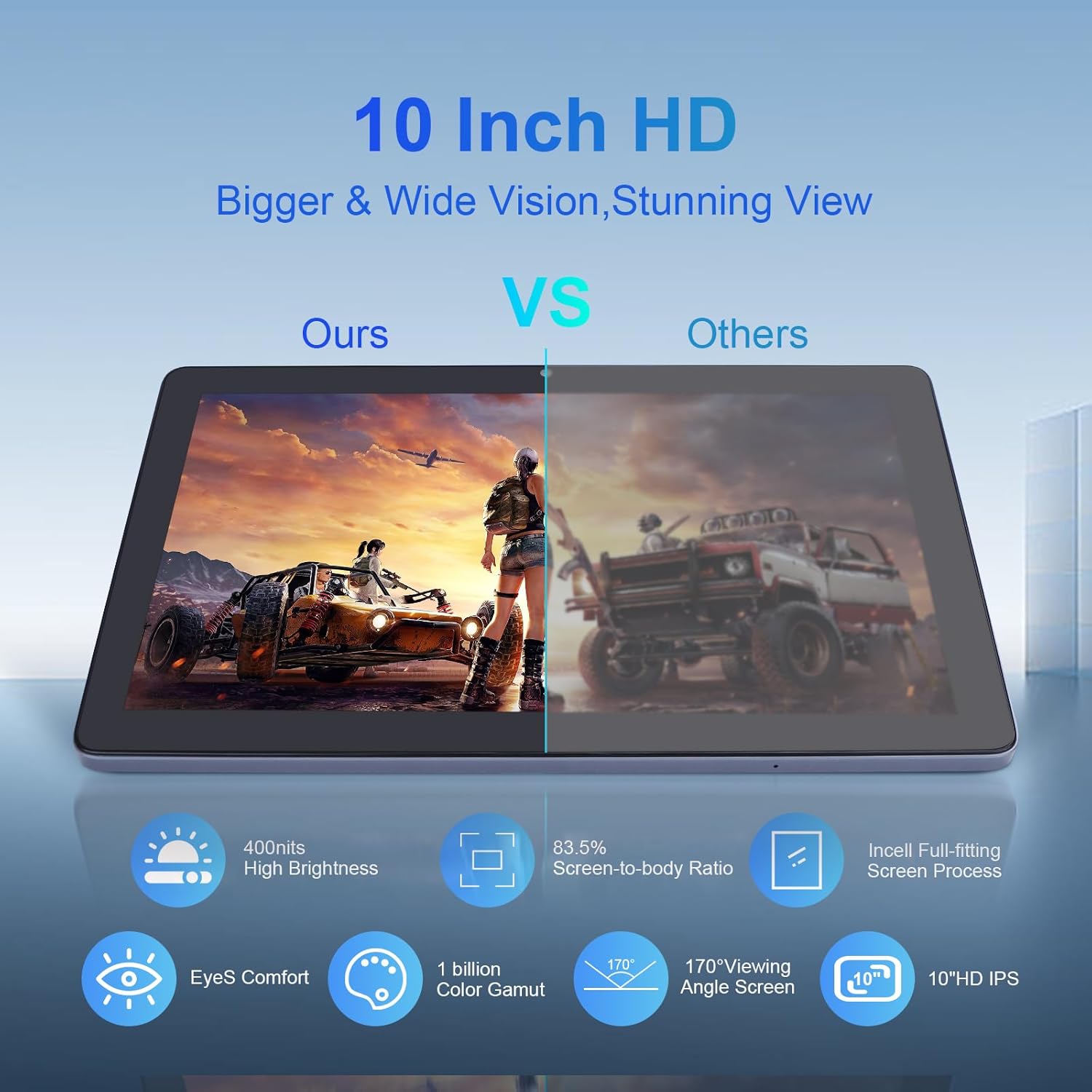
Image: Visual comparison demonstrating the C idea tablet's superior 10-inch HD IPS display with 400 nits brightness, 83.5% screen-to-body ratio, 170° viewing angle, and EyeS Comfort technology.
Your tablet features a 10-inch IPS HD display with 1280x800 resolution, offering vibrant colors and wide viewing angles. Adjust brightness and enable EyeS Comfort mode in Settings > Display for optimal viewing and reduced eye strain.
Facial Unlock

Image: Illustration of Android 12 features, including enhanced privacy, security controls, convenient facial unlock, and low bluelight mode for night-time use.
For quick and secure access, set up Facial Unlock. Go to Settings > Security & privacy > Face unlock and follow the on-screen instructions to register your face.
Maintenance
Cleaning Your Tablet
Use a soft, lint-free cloth to clean the screen and body of the tablet. Do not use liquid cleaners or aerosols directly on the device. Avoid getting moisture into openings.
Battery Care
To prolong battery life:
- Avoid extreme temperatures.
- Do not let the battery drain completely before recharging regularly.
- Use the provided charger or a certified compatible charger.
Software Updates
Periodically check for system updates to ensure your tablet has the latest features and security patches. Go to Settings > System > System update.
Storage Management
Regularly manage your tablet's storage to maintain optimal performance. Delete unnecessary files, uninstall unused apps, and move large media files to your Micro SD card or cloud storage. The tablet comes with 64GB of internal storage, expandable up to 512GB.

Image: Information detailing the tablet's 1.8 GHz Multifunctional Cortex-A55 processor, 64-Bit architecture, 12nm low power design, Mali-G52 GPU, 3GB RAM, 64GB ROM, and 128GB TF card expandability.
Troubleshooting
If you encounter issues with your tablet, refer to the following common solutions:
- Tablet not turning on: Ensure the battery is charged. Connect the charger and wait a few minutes before attempting to power on.
- Screen frozen or unresponsive: Press and hold the Power ON/OFF button for about 10-15 seconds to force a restart. If that doesn't work, use a thin pin to press the Reset pinhole.
- Wi-Fi connection issues: Check if Wi-Fi is enabled in settings. Restart your Wi-Fi router. Forget the network and reconnect.
- Apps crashing or slow performance: Close background apps. Clear app cache (Settings > Apps > [App Name] > Storage > Clear cache). Restart the tablet. Ensure sufficient storage space.
- Battery draining quickly: Reduce screen brightness. Close unused apps. Turn off Wi-Fi or Bluetooth when not in use. Limit background data usage.
For persistent issues, consider performing a factory reset (Settings > System > Reset options > Erase all data (factory reset)). Warning: This will erase all data on your tablet. Back up important data before proceeding.
Specifications
| Feature | Specification |
|---|---|
| Brand | C idea |
| Model Number | CM9100 |
| Operating System | Android 12 |
| Processor Brand | MediaTek |
| Processor Speed | 1.6 GHz |
| Number of Cores | 8 (Octa-Core) |
| RAM | 3 GB |
| Internal Storage (ROM) | 64 GB |
| Expandable Storage | Up to 512 GB (Micro SD) |
| Screen Size | 10 Inches |
| Display Resolution | 1280 x 800 pixels (HD IPS) |
| Graphics Chipset Brand | ARM (GPU: PowerVR G8322) |
| Connectivity | Wi-Fi (802.11a/b/g), Bluetooth (implied by modern tablet, though not explicitly listed in specs, but common), 3.5mm Audio, USB 3.0 Type-C |
| Battery Life (Video Playback) | Approx. 5.5 hours |
| Battery Capacity | 6000 mAh (Lithium-polymer) |
| Dimensions (L x W x H) | 32 x 8.6 x 3.31 cm |
| Weight | 600 grams |
| Special Features | Thin metal body, Stereo speakers, USB OTG support, GMS Certified |
Warranty and Support
For warranty information and technical support, please refer to the documentation provided with your purchase or contact C idea customer service directly. Information regarding spare parts availability and guaranteed software updates is not available in this manual.
For further assistance, visit the official C idea website or contact their support channels.
Related documentsCM9100


Ask a question about this manual
Ask about setup, troubleshooting, compatibility, parts, safety, or missing instructions. Manuals+ will review the question and use this page’s manual context to help answer it.