Introduction
This user manual provides comprehensive instructions for the installation, operation, and maintenance of your SWEETYSUN 4K@60Hz Dual Monitor KVM Switch. This device allows you to control two computers using a single set of keyboard and mouse, while sharing two monitors in either extended or duplicated display modes. It also provides four USB 2.0 ports for sharing additional peripherals.
Please read this manual thoroughly before using the product to ensure proper functionality and to avoid any potential issues.
Package Contents
Verify that all items are present and in good condition. If any items are missing or damaged, please contact customer support.
- 1 x SWEETYSUN 4K@60Hz Dual Monitor KVM Switch
- 2 x KVM Cables (HDMI + USB)
- 1 x Power Adapter (5V)
- 1 x IR Remote Control
- 1 x User Manual (this document)
Product Overview
The SWEETYSUN Dual Monitor KVM Switch is designed to streamline your workspace by allowing two computers to share two monitors and multiple USB peripherals. Below is an illustration of the device and its ports.

Figure 1: Front and Rear View of the KVM Switch with included remote control.
Port Descriptions:
- ON/OFF Switch: Power toggle for the device.
- DC 5V: Power input port.
- Console (USB Ports): Dedicated USB ports for keyboard and mouse.
- HUB1, HUB2 (USB 2.0 Ports): General purpose USB 2.0 ports for other peripherals like printers, USB drives.
- S-Monitor, M-Monitor (HDMI Output): HDMI outputs for connecting to your two monitors.
- S-PC1, M-PC1 (HDMI Input): HDMI inputs for connecting to Computer 1's two display outputs.
- S-PC2, M-PC2 (HDMI Input): HDMI inputs for connecting to Computer 2's two display outputs.
Setup Instructions
Follow these steps carefully to set up your KVM switch. Ensure all devices are powered off before making connections.
- Power Off Devices: Ensure both computers and monitors are powered off.
- Connect Monitors to KVM: Connect your two monitors to the KVM switch's S-Monitor and M-Monitor HDMI output ports using HDMI cables.
- Connect Computers to KVM:
- For Computer 1: Connect its two HDMI outputs to the KVM switch's S-PC1 and M-PC1 HDMI input ports.
- For Computer 2: Connect its two HDMI outputs to the KVM switch's S-PC2 and M-PC2 HDMI input ports.
- Important: Each computer requires two HDMI connections to the KVM switch for dual monitor functionality. Ensure your computers support dual display output.
- Connect USB Cables:
- Connect the USB-A end of the KVM cable (which also has an HDMI connector) from Computer 1 to the KVM switch's M-PC1 port (the USB side of the KVM cable).
- Connect the USB-A end of the KVM cable from Computer 2 to the KVM switch's M-PC2 port (the USB side of the KVM cable).
- Note: The KVM cable's HDMI side needs to be connected to the M-PC port (not S-PC port) of the KVM switch to ensure normal operation of the mouse and keyboard. The HDMI+USB sides of the KVM cable must be connected to the same PC.
- Connect Keyboard and Mouse: Connect your USB keyboard and mouse to the dedicated Console USB ports on the KVM switch.
- Connect Other USB Peripherals: Connect any other USB devices (e.g., printer, USB drive) to the HUB1 and HUB2 USB 2.0 ports.
- Connect Power Adapter: Connect the 5V power adapter to the KVM switch's DC 5V port and then plug it into a power outlet.
- Power On: Power on the KVM switch using the ON/OFF switch, then power on your monitors, and finally power on your computers.
- Initialization: For the first time use, press and hold the No. 1 button on the KVM panel for 8-10 seconds until you hear a BEEP sound. This initializes the device.
- Configure Display Settings: After connecting, you may need to set the screen output mode on your computer. Press Windows + P and select your desired output mode (e.g., Extend or Duplicate) in the pop-up window.

Figure 2: Detailed connection diagram for the KVM switch.
Operating Instructions
The KVM switch offers multiple methods for switching between connected computers.
Switching Modes:
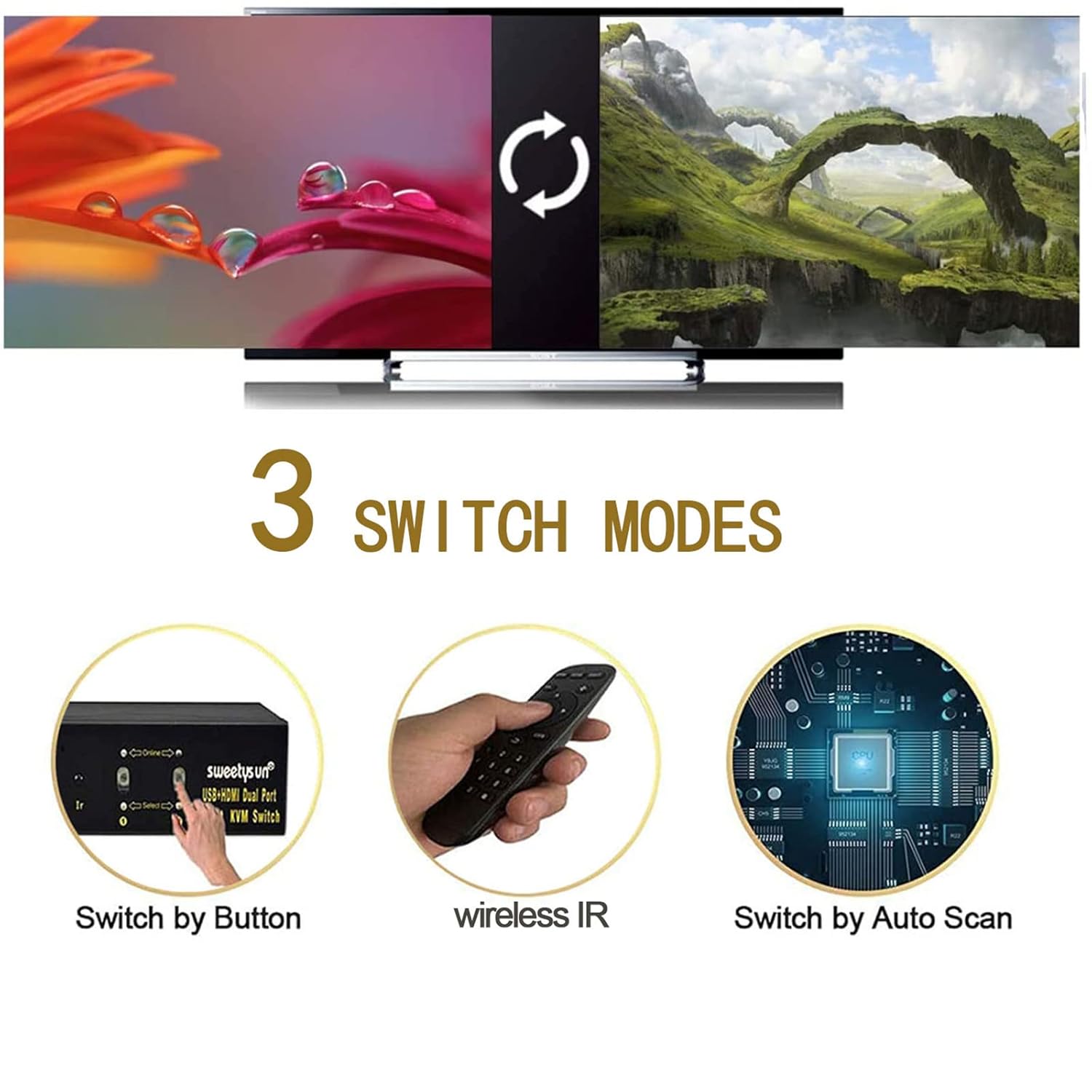
Figure 3: Available switching methods for the KVM switch.
- Front Panel Button: Press the "PC1" or "PC2" button on the front panel of the KVM switch to switch to the corresponding computer. The LED indicator will show the active computer.
- Wireless IR Remote Control: Use the provided IR remote control to switch between computers. Point the remote at the KVM switch and press the desired PC button.
- Auto Scan: The KVM switch supports an auto-scan feature, which automatically cycles through connected computers. Refer to the specific hotkey commands (if any, not specified in input) or remote control options for activating this mode.
Display Modes:
The KVM switch supports both extended and duplicated (mirror) display modes, depending on your computer's settings.

Figure 4: Mirrored vs. Extended Display Modes.
- Extended Display Mode: This mode allows you to output two different screens, effectively extending your desktop across two monitors.
- Steps (Windows):
- Right-click on the desktop and select "Display settings" or press Windows + P.
- Find the option to adjust the computer resolution.
- Select "Extend these displays" in the multi-display option.
- Save the changes.
- Steps (Windows):
- Duplicated (Mirror) Display Mode: This mode outputs two identical screens, mirroring the content on both monitors.
- Steps (Windows):
- Right-click on the desktop and select "Display settings" or press Windows + P.
- Find the option to adjust the computer resolution.
- Select "Duplicate these displays" or "Copy these displays" in the multi-display option.
- Save the changes.
- Steps (Windows):
The KVM switch supports a maximum resolution of 3840x2160 at 60Hz. For 4K resolution, ensure you use HDMI 2.0 cables and that your computers and monitors support 4K resolution.
Maintenance
To ensure the longevity and optimal performance of your KVM switch, follow these maintenance guidelines:
- Cleaning: Use a soft, dry cloth to clean the exterior of the KVM switch. Do not use liquid cleaners or aerosols, as they may damage the device.
- Ventilation: Ensure the KVM switch is placed in a well-ventilated area to prevent overheating. Do not block any ventilation openings.
- Cable Management: Keep cables organized and free from kinks or excessive bending to prevent damage to the cables and ports.
- Power Off When Not in Use: If the KVM switch will not be used for an extended period, it is recommended to power it off and unplug the power adapter.
- Environmental Conditions: Avoid exposing the device to extreme temperatures, humidity, or direct sunlight.
Troubleshooting
If you encounter issues with your KVM switch, refer to the following common problems and solutions:
- No Display on Monitors:
- Ensure all HDMI cables are securely connected to both the KVM switch and your computers/monitors.
- Verify that the KVM switch is powered on.
- Check if your computers are powered on and outputting a signal.
- Confirm that each computer has two HDMI cables connected to the KVM switch for dual monitor setup.
- Perform the initialization step: Press and hold the No. 1 button on the KVM panel for 8-10 seconds until you hear a BEEP sound.
- Set the screen output mode on your computer (Windows + P) to "Extend" or "Duplicate".
- Keyboard/Mouse Not Working:
- Ensure the keyboard and mouse are connected to the dedicated Console USB ports.
- Verify that the KVM cable's HDMI+USB sides are connected to the same PC and the USB side is connected to the M-PC port on the KVM switch.
- Try reconnecting the keyboard and mouse.
- Some specialized keyboards/mice (e.g., gaming keyboards with extra features) may not be fully compatible. Try a standard keyboard/mouse.
- Only One Monitor Displays:
- Ensure both computers have dual output ports and support dual screen extended display.
- Verify that two HDMI cables are connected from each computer to the KVM switch.
- Check your computer's display settings (Windows + P) to ensure "Extend" or "Duplicate" mode is selected, not "Second screen only" or "PC screen only".
- The KVM switch is not compatible with DVI to HDMI converters. DP to HDMI or VGA to HDMI converters may be compatible.
- 4K Resolution Issues:
- Ensure all HDMI cables used are HDMI 2.0 compliant.
- Verify that your computers' graphics cards and monitors support 4K resolution at 60Hz.
- USB 2.0 Ports Not Recognizing Devices:
- Ensure the device is connected to the HUB1 or HUB2 ports.
- Some devices, like HD Webcams and certain MacBook Pro models, may not be compatible.
- Try connecting the USB device directly to the computer to confirm it functions independently.
Specifications
| Feature | Description |
|---|---|
| Model | B0BK6CMV5C |
| Brand | SWEETYSUN |
| Product Dimensions | 5.91 x 3.15 x 1.57 inches |
| Weight | 2.4 Pounds |
| Max Resolution | 3840x2160 @ 60Hz (4K@60Hz) |
| HDMI Version | HDMI 2.0 compatible |
| USB Ports | 2 x Console USB (Keyboard/Mouse), 2 x USB 2.0 (HUB) |
| Switching Modes | Front Panel Button, IR Remote Control, Auto Scan |
| Operating Voltage | 5 Volts |
| Operation Mode | Push Button |
| Connector Type | HDMI, USB |
| Manufacturer | JunBetter |
| Date First Available | October 23, 2022 |
Warranty and Support
SWEETYSUN products are designed for reliability and performance. For warranty information and technical support, please refer to the official SWEETYSUN website or contact their customer service directly.
Customer Support: For any questions or issues not covered in this manual, please contact SWEETYSUN customer support through their official channels. Provide your product model (B0BK6CMV5C) and a detailed description of the issue for faster assistance.
Online Resources: Visit the SWEETYSUN Store on Amazon for product updates, FAQs, and additional support.