
1. Introduction
Thank you for choosing the HAGOR HP Twin Stand Public Mount. This mobile display stand is designed to securely hold and present one or two displays in public environments, offering flexibility and stability. This manual provides essential information for safe assembly, operation, and maintenance of your stand. Please read these instructions thoroughly before installation and retain them for future reference.
2. Safety Information
To ensure safe installation and operation, please observe the following safety precautions:
- Read all instructions carefully before assembly and use.
- Ensure all components are present and undamaged before beginning assembly. Do not use if any parts are missing or faulty.
- Do not exceed the maximum weight capacity specified for the display mount. Refer to the specifications section.
- Always use appropriate tools and follow the assembly steps in the correct order.
- Ensure the stand is placed on a stable, level surface.
- When moving the stand, ensure displays are securely mounted and move slowly to prevent tipping. Engage wheel brakes when the stand is stationary.
- Keep children and pets away from the stand during assembly and operation.
- Periodically check all fasteners and connections to ensure they remain tight and secure.
3. Package Contents
Before assembly, please verify that all the following components are included in your package. If any parts are missing or damaged, contact your retailer immediately.
- Base with wheels (pre-assembled or requiring wheel attachment)
- Vertical support columns (2 pieces)
- Display mounting brackets (VESA compatible)
- Adjustable shelf
- Hardware kit (screws, washers, nuts, Allen keys, etc.)
- Cable management clips/ties
4. Assembly Instructions
Follow these steps carefully to assemble your HAGOR HP Twin Stand. It is recommended to have two people for assembly, especially when mounting displays.
Step 1: Attach Wheels to Base (if not pre-assembled)
If your base does not have wheels pre-attached, securely fasten the four caster wheels to the base using the provided screws and wrench. Ensure all wheels are firmly attached and two of them have locking brakes.
Step 2: Install Vertical Support Columns
Attach the two vertical support columns to the base. Align the holes on the columns with the mounting points on the base and secure them using the designated bolts and washers from the hardware kit. Tighten firmly.
Step 3: Attach Display Mounting Brackets
Slide the display mounting brackets onto the vertical columns. These brackets allow for height adjustment. Secure them at the desired height using the locking mechanisms or screws provided. Ensure they are level.

Figure 1: Side view illustrating the vertical columns and display mounting brackets.
Step 4: Install Adjustable Shelf
Attach the adjustable shelf to the vertical columns at your preferred height. Use the provided hardware to secure it firmly. This shelf is suitable for media players, laptops, or other accessories.
Step 5: Mount Displays
Carefully attach your display(s) to the VESA mounting plates on the brackets. Ensure the VESA pattern on your display matches the stand's compatibility. Use the appropriate screws and spacers from the hardware kit. Tighten all screws securely, but do not overtighten. Verify the display is level and stable.

Figure 2: Stand with a transparent overlay showing a mounted display.

Figure 3: Fully assembled HAGOR HP Twin Stand Public Mount.
5. Operation
Adjusting Display Height
The display mounting brackets can be adjusted vertically along the support columns. To adjust, loosen the locking mechanisms or screws, carefully slide the display(s) to the desired height (it is recommended to have assistance), and then securely tighten the locking mechanisms or screws.
Moving the Stand
To move the stand, unlock the brakes on the caster wheels. Gently push the stand from the base or lower columns. Avoid pushing directly on the display. Once in the desired position, engage the wheel brakes to secure the stand.
Cable Management
Utilize the integrated cable management features or provided clips to route and organize display and power cables along the vertical columns. This helps maintain a tidy appearance and prevents tripping hazards.
6. Maintenance
- Cleaning: Wipe the stand with a soft, damp cloth. Avoid abrasive cleaners or solvents that could damage the finish.
- Fastener Check: Periodically (e.g., every 3-6 months) inspect all screws, bolts, and connections to ensure they are tight. Retighten if necessary.
- Wheel Inspection: Check caster wheels for smooth operation and ensure brakes are functioning correctly.
7. Troubleshooting
- Stand is unstable: Ensure all assembly screws are tightened. Verify the stand is on a level surface. Do not exceed the maximum weight capacity.
- Display is not level: Check that the display mounting brackets are installed evenly on both vertical columns. Adjust as needed.
- Difficulty moving the stand: Ensure all wheel brakes are disengaged. Check for any obstructions or debris around the wheels.
- Missing parts: Refer to the 'Package Contents' section. If parts are missing, contact your retailer or HAGOR customer support.
8. Specifications
Detailed specifications for the HAGOR HP Twin Stand Public Mount (Model: HAGOR-8209):
| Feature | Detail |
|---|---|
| Brand | HAGOR |
| Model Number | HAGOR-8209 |
| Material | Aluminum Alloy Steel |
| Color | Black |
| Minimum Display Height (center) | 1200 mm (approx. 47.2 inches) |
| Maximum Display Height (center) | 1500 mm (approx. 59.1 inches) |
| Maximum Total Height | 2190 mm (approx. 86.2 inches) |
| Base Dimensions (W x D) | 900 mm x 635 mm (approx. 35.4 x 25 inches) |
| Shelf Dimensions (W x D) | 450 mm x 310 mm (approx. 17.7 x 12.2 inches) |
| VESA Compatibility | Supports various VESA patterns (e.g., 200x200, 300x300, 400x400, 600x400, etc. - inferred from image) |
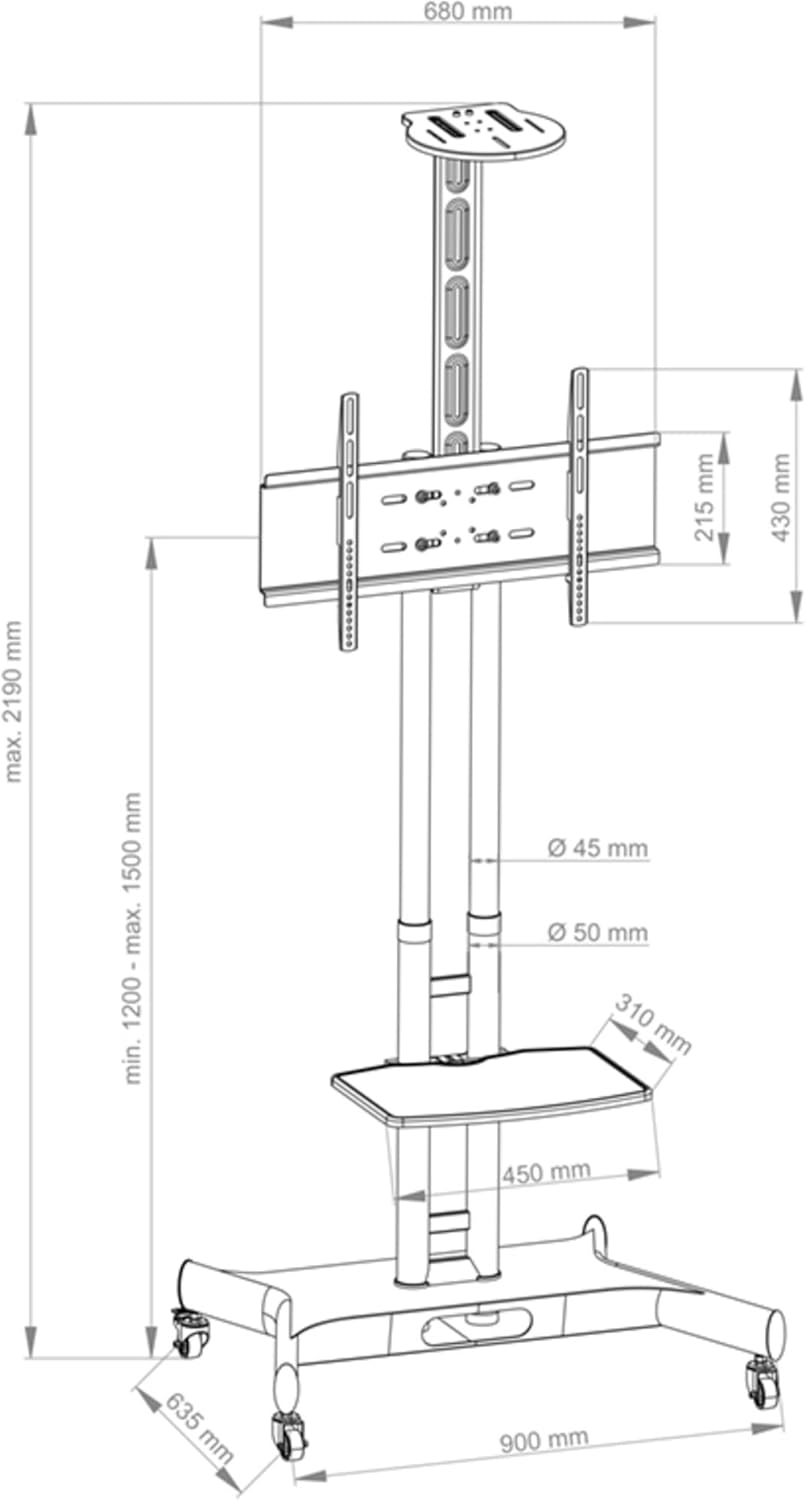
Figure 4: Dimensional drawing of the HAGOR HP Twin Stand Public Mount.
9. Warranty and Support
HAGOR products are manufactured to high-quality standards. For specific warranty information, please refer to the warranty card included with your product or visit the official HAGOR website. For technical support, replacement parts, or any inquiries, please contact your local HAGOR distributor or customer service department.


