Welcome
Thank you for choosing the TobenONE 18-in-1 Multiport Docking Station. This universal docking station is designed to expand your workstation by connecting all your external devices to your computer through a single hybrid 2-in-1 USB cable. It supports dual 4K@60Hz displays and offers a wide array of ports for enhanced productivity. This manual provides detailed instructions for setup, operation, maintenance, and troubleshooting to ensure optimal performance of your device.
Product Overview and Package Contents
The TobenONE docking station is a compact and powerful solution for expanding your laptop's connectivity. It features a robust design and a comprehensive set of ports to meet diverse needs.

Image: The TobenONE 18-in-1 Universal Docking Station, its power adapter, and the hybrid USB cable.
Package Contents:
- 1 x TobenONE 18-in-1 Docking Station
- 1 x 65W Power Supply
- 1 x Hybrid 2-in-1 USB Cable (3.3ft length)
- 1 x User Manual

Image: Visual representation of the items included in the product package.
Port Layout:
Familiarize yourself with the various ports on your docking station:
- Front Panel: SD/TF Card Slot, USB-C 3.1, USB-A 3.1, 3x USB-A 3.0, Audio In & Out.
- Rear Panel: 2x Driver-Based HDMI (Display 1 & 2), 2x Driver-Based DisplayPort (Display 1 & 2), 3x USB 2.0, DC Port (Power Input), Gigabit Ethernet (LAN), Host (USB-C/USB 3.0 connection to laptop).
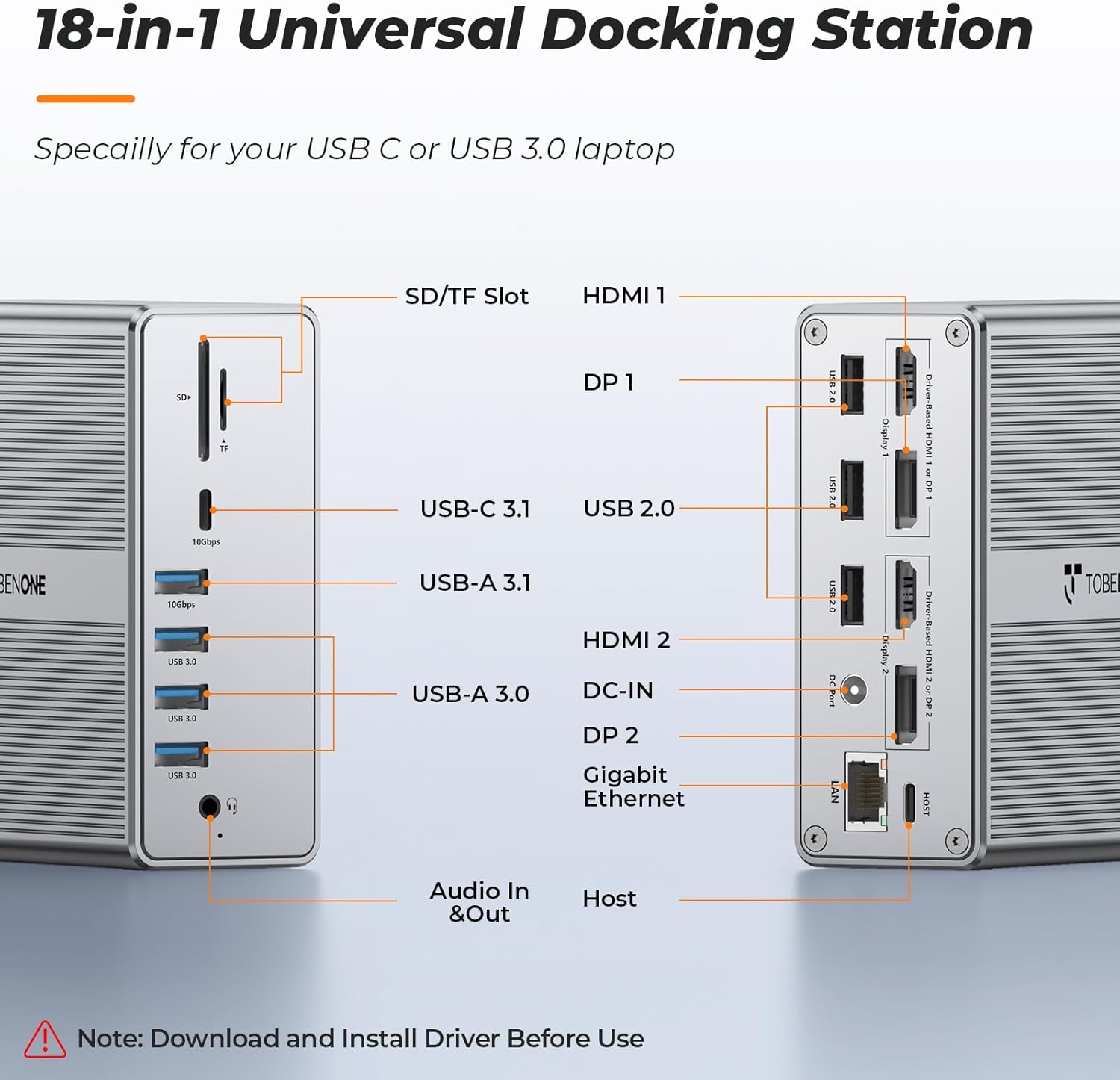
Image: Front and rear views of the docking station with all 18 ports clearly labeled.
Setup Guide
1. Driver Installation (Crucial First Step)
Before connecting the docking station, it is essential to download and install the DisplayLink driver. This driver enables the multi-display functionality of the docking station.
- Go to the official DisplayLink website: www.displaylink.com
- Choose your operating system (Windows, macOS, ChromeOS).
- Download and install the latest DisplayLink driver.
- Follow the on-screen instructions to complete the installation.
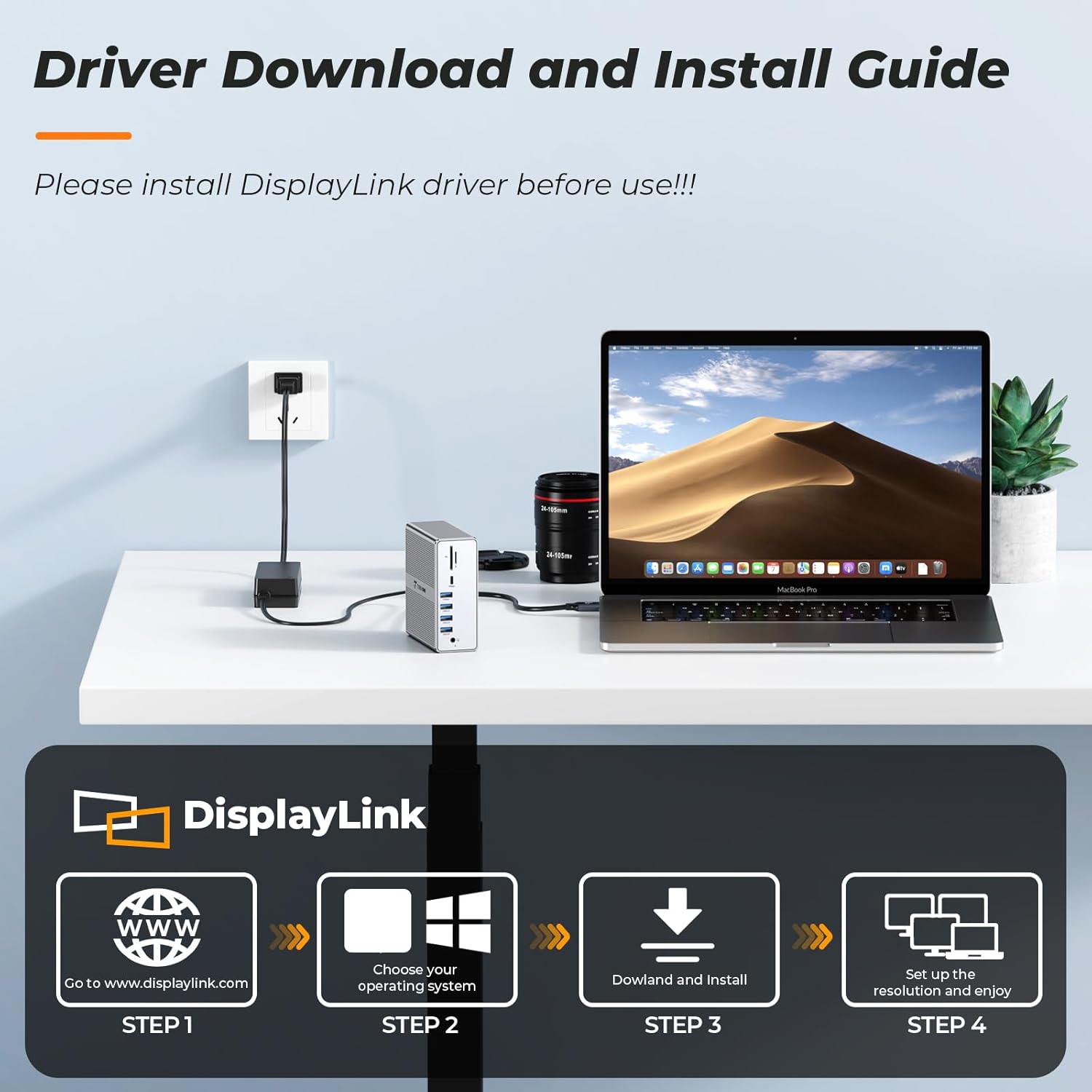
Image: Step-by-step guide for DisplayLink driver installation.
2. Connecting the Docking Station
Once the DisplayLink driver is installed, proceed with the hardware connections:
- Power Connection: Connect the included 65W power adapter to the DC-IN port on the docking station and then plug it into a wall outlet. This provides stable power to the docking station and can charge your laptop.
- Host Connection: Use the hybrid 2-in-1 USB cable to connect the docking station's 'Host' port to your laptop's USB-C or USB 3.0 port. An adapter is included for USB-A laptops.
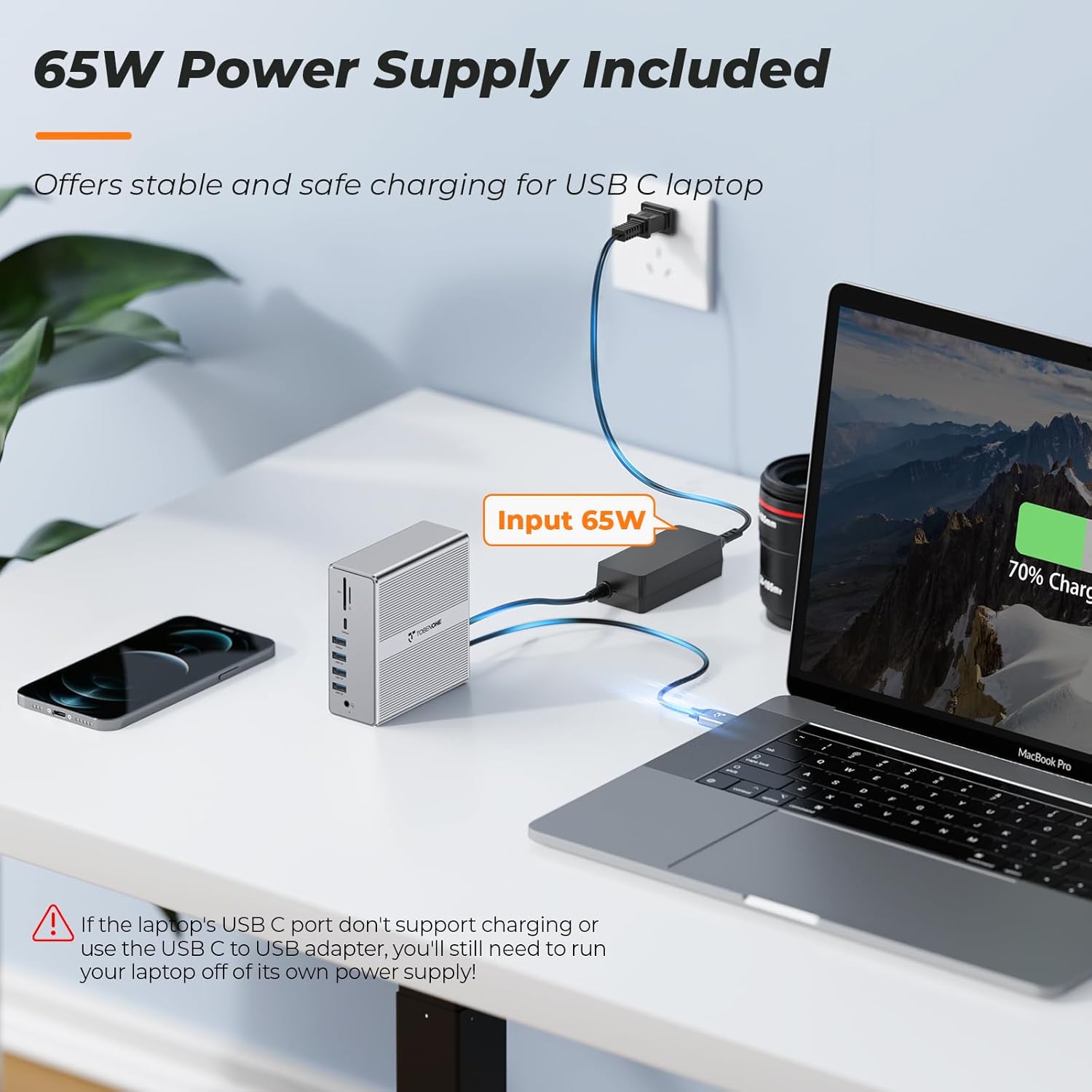
Image: Docking station connected to power and a laptop, illustrating the 65W power delivery.

Image: Demonstrates connecting the docking station to both USB-C and USB-A laptops.
Operating Your Docking Station
1. Dual 4K@60Hz Monitor Setup
The docking station supports dual 4K@60Hz displays via HDMI or DisplayPort. You can use a combination of both.
- Connect your monitors to the HDMI 1/2 or DP 1/2 ports on the rear of the docking station using appropriate cables.
- Ensure your monitors are powered on and set to the correct input source.
- Adjust display settings (resolution, arrangement) through your computer's operating system display settings.

Image: Dual 4K monitor setup with a MacBook and the docking station.

Image: Dual 4K monitor setup with a Windows laptop and the docking station.

Image: Multiple 4K@60Hz display mode options.
2. Connecting USB Devices
The docking station provides ample USB ports for all your peripherals:
- USB 3.0 Ports (3x): For high-speed devices like external hard drives, cameras, and printers.
- USB 2.0 Ports (3x): Ideal for keyboards, mice, and other low-bandwidth devices.
- USB 3.1 Ports (1x USB-A, 1x USB-C): Offer ultra-fast data transfer speeds up to 10Gbps, perfect for large file transfers.

Image: Connecting up to 8 external USB devices to the docking station.

Image: Highlighting the high-speed data transfer capabilities of USB 3.1 ports.
3. Ethernet Connection
For a stable and ultra-fast network connection, use the Gigabit Ethernet port:
- Connect an Ethernet cable from your router or modem to the LAN port on the docking station.
- This provides a reliable wired internet connection, compatible with 10/100/1000Mbps networks.

Image: Docking station connected to an Ethernet cable for stable network access.
4. Audio and Card Reader
- 3.5mm Audio In & Out: Connect your headphones, speakers, or microphone to the dedicated audio ports on the front panel.
- SD/TF Card Slot: Insert your SD or TF (microSD) cards for quick data transfer and access.
5. Compatibility
The TobenONE docking station is widely compatible with various operating systems and laptop models:
- macOS: Windows 10/11 & macOS 10.15.x and later, ChromeOS 100.x and later.
- Windows: Supports full-featured USB-C, USB 3.0, USB4.0 and Thunderbolt 5/ Thunderbolt 4/Thunderbolt 3 systems.
- Apple Silicon (M1/M2/M3/M4): Fully compatible with M1/M2/M3-based MacBook Pro/Air (Original M1/M2/M3/M4, M1 Pro, M1 Max, M2 Pro, M2 Max, M3 Pro, M3 Max, M4 Pro, M4 Max).
- Intel-based MacBooks: Compatible with Intel-based Thunderbolt 3 MacBooks (late 2016+).
- Other Laptops: Dell XPS 13/15, Dell Latitude, Dell Inspiron series; Microsoft Surface Pro/ Go/ Book/ Laptop models; HP ProBook, HP EliteBook, HP Spectre x360 series; Lenovo ThinkPad, Lenovo IdeaPad, and Lenovo Yoga; LG Gram; and thousands of other laptops compliant with USB-C ports (including Thunderbolt 5/ Thunderbolt 4/Thunderbolt 3 ports), USB 3.0 or USB 4.0 ports.

Image: Comprehensive compatibility overview for various operating systems and laptop models.
Care and Maintenance
To ensure the longevity and optimal performance of your TobenONE docking station, follow these care and maintenance guidelines:
- Cleaning: Use a soft, dry cloth to clean the exterior of the docking station. Avoid using liquid cleaners or aerosols, as they may damage the device.
- Storage: Store the docking station in a cool, dry place away from direct sunlight and extreme temperatures.
- Handling: Handle the device with care. Avoid dropping it or subjecting it to strong impacts.
- Ventilation: Ensure proper ventilation around the docking station to prevent overheating. Do not block the ventilation openings.
- Cable Management: Keep cables organized and untangled to prevent damage to ports and cables.
Troubleshooting Common Issues
If you encounter any issues with your docking station, please refer to the following common solutions:
- No Display Output:
- Ensure the DisplayLink driver is correctly installed and updated.
- Check all cable connections (HDMI/DP, host cable, power).
- Verify monitor input settings.
- Restart your computer and the docking station.
- USB Devices Not Recognized:
- Ensure the docking station is properly powered and connected to the host laptop.
- Try connecting the USB device to a different port on the docking station or directly to your laptop to rule out device issues.
- Update your computer's USB drivers.
- Network Connection Issues:
- Check the Ethernet cable connection to both the docking station and your router/modem.
- Verify network settings on your computer.
- Ensure the Ethernet driver is installed and updated.
- Laptop Not Charging:
- Ensure the 65W power adapter is securely connected to the docking station and a working power outlet.
- Confirm your laptop's USB-C port supports power delivery. If not, you will need to use your laptop's original power supply.
If you continue to experience issues, please refer to the Warranty and Customer Support section for assistance.
Product Specifications
| Feature | Specification |
|---|---|
| Product Dimensions | 1.3 x 4.1 x 4.1 inches (3.3 x 10.4 x 10.4 cm) |
| Item Weight | 1.23 pounds (0.56 kg) |
| Model Number | AS048-2003250D1 |
| Brand | Tobenone |
| Color | Grey-65W power adapter |
| Hardware Interface | 3.5mm Audio, DisplayPort, Ethernet, HDMI, USB 2.0, USB 3.0, USB 3.1 Type C |
| Compatible Devices | Windows 10/11 & macOS 10.15.x and later, ChromeOS 100.x and later; Supports full-featured USB-C, USB 3.0, USB4.0 and Thunderbolt 5/4/3 systems, including M1/M2/M3/M4-based MacBooks; Intel-based Thunderbolt 3 MacBooks; Dell, Microsoft Surface, HP, Lenovo, LG Gram, and other USB-C/USB 3.0/USB 4.0 laptops. |
| Total USB Ports | 8 (3x USB 3.0, 3x USB 2.0, 1x USB 3.1 Type-A, 1x USB 3.1 Type-C) |
| Number of Ports | 18 |
| Total HDMI Ports | 2 |
| Total DisplayPort Ports | 2 |
| Wattage | 57W (Power Delivery via 65W adapter) |
Warranty and Customer Support
TobenONE is committed to providing excellent customer service and product reliability. All TobenONE products come with a comprehensive warranty and dedicated support.
Warranty Information:
Your TobenONE docking station is covered by a 24-month warranty from the date of purchase. This warranty covers manufacturing defects and ensures peace of mind. For any warranty claims or product issues, please contact our support team.
Customer Support:
TobenONE offers lifetime technical support. Our team is quick to respond to emails and assist with any issues you may encounter. You can reach us via email at: support@tobenone.com
For additional support and resources, you can also visit the TobenONE store on Amazon: TobenONE Amazon Store
Important Support Message:
Video: A message from TobenONE Tech regarding their 24-month warranty and lifetime technical support, emphasizing their commitment to customer satisfaction and quick response to inquiries.


