
Robosen HR30-SA
Robosen Optimus Prime Elite - Instruction Manual
Model: HR30-SA | Brand: Robosen
Introduction
Welcome to the world of advanced robotics with your Robosen Optimus Prime Elite. This auto-converting, programmable Transformer robot toy is designed to bring the iconic character to life with sophisticated features and interactive capabilities. This manual provides essential information for setup, operation, maintenance, and troubleshooting to ensure you get the most out of your Optimus Prime Elite.
Key features include:
- Automatic Conversion: Transforms effortlessly between truck and robot modes via voice command or mobile app.
- Programmable: Use the dedicated app to create and customize various movements and poses.
- Interactive Features: Equipped with multiple sensors and voice commands for an engaging experience.
- Highly Detailed Design: Faithfully replicates Optimus Prime's iconic appearance with high-quality materials.
- Authentic Sounds and Phrases: Comes with classic Optimus Prime phrases and sound effects.
What's in the Box
Upon unboxing your Robosen Optimus Prime Elite, please verify that all the following components are present:
- Robosen Optimus Prime Elite Robot
- Power Adapter
- Data Cable
- Energon Axe (Accessory)
- Ion Blaster (Accessory)
- Instruction Manual (this document)
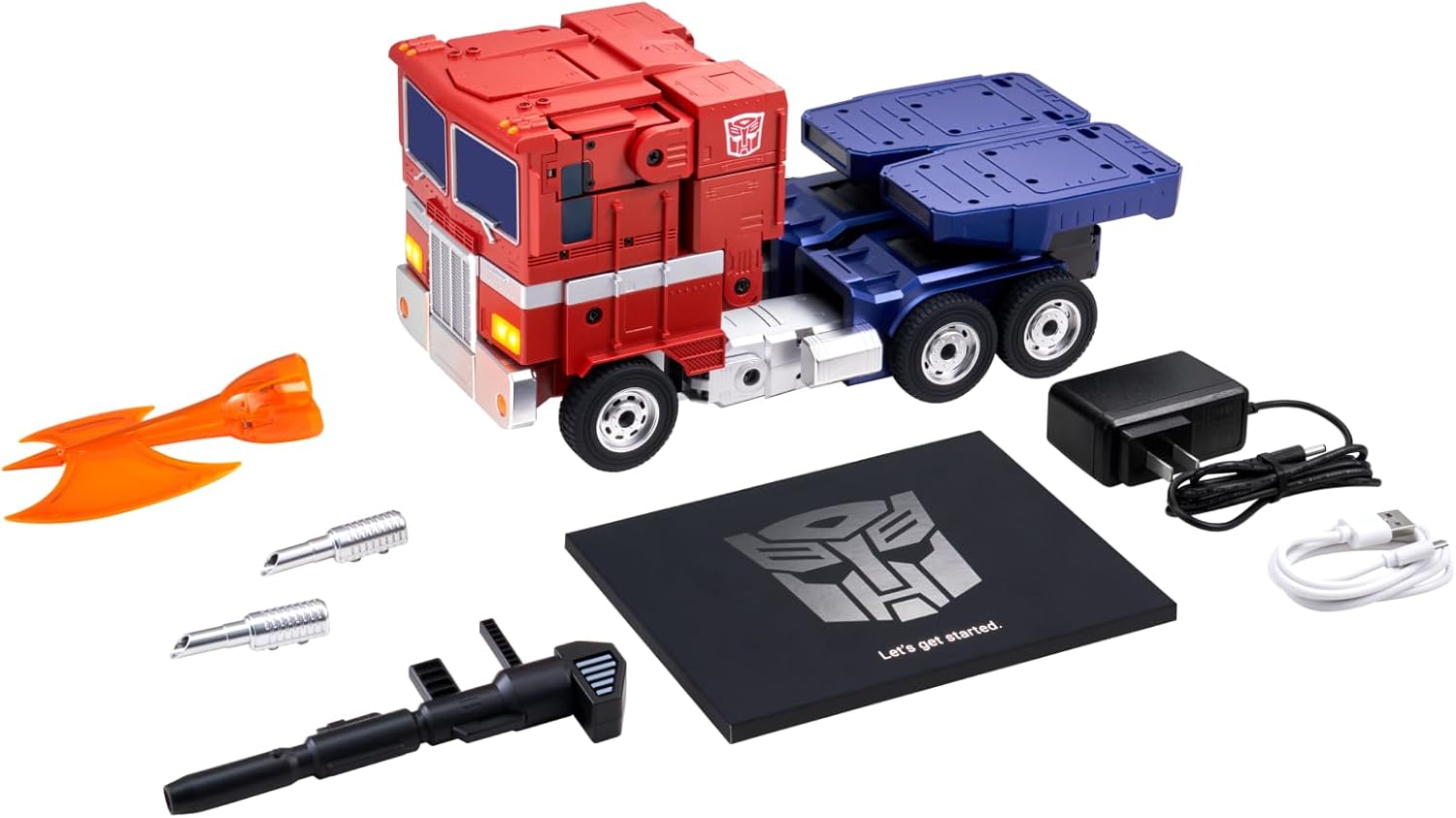
Image Description: A flat lay image displaying all the items included in the Robosen Optimus Prime Elite package. The main robot is in truck mode, accompanied by its power adapter, data cable, the orange Energon Axe, and the black Ion Blaster. A "Let's get started" manual is also visible.
Setup
1. Charging the Robot
Your Optimus Prime Elite comes with a built-in Lithium Ion battery. Before first use, it is recommended to fully charge the robot.
- Connect the data cable to the charging port on the robot.
- Plug the power adapter into a standard wall outlet.
- The charging indicator light will show the charging status. A full charge typically takes approximately 55 minutes.
2. App Installation and Connection
To unlock the full potential of your Optimus Prime Elite, download the official Robosen app from your device's app store.
- Search for "Robosen" in your mobile device's app store (iOS App Store or Google Play Store).
- Download and install the application.
- Ensure your device's Bluetooth is enabled.
- Open the Robosen app and follow the on-screen instructions to pair with your Optimus Prime Elite. The app will guide you through the connection process.
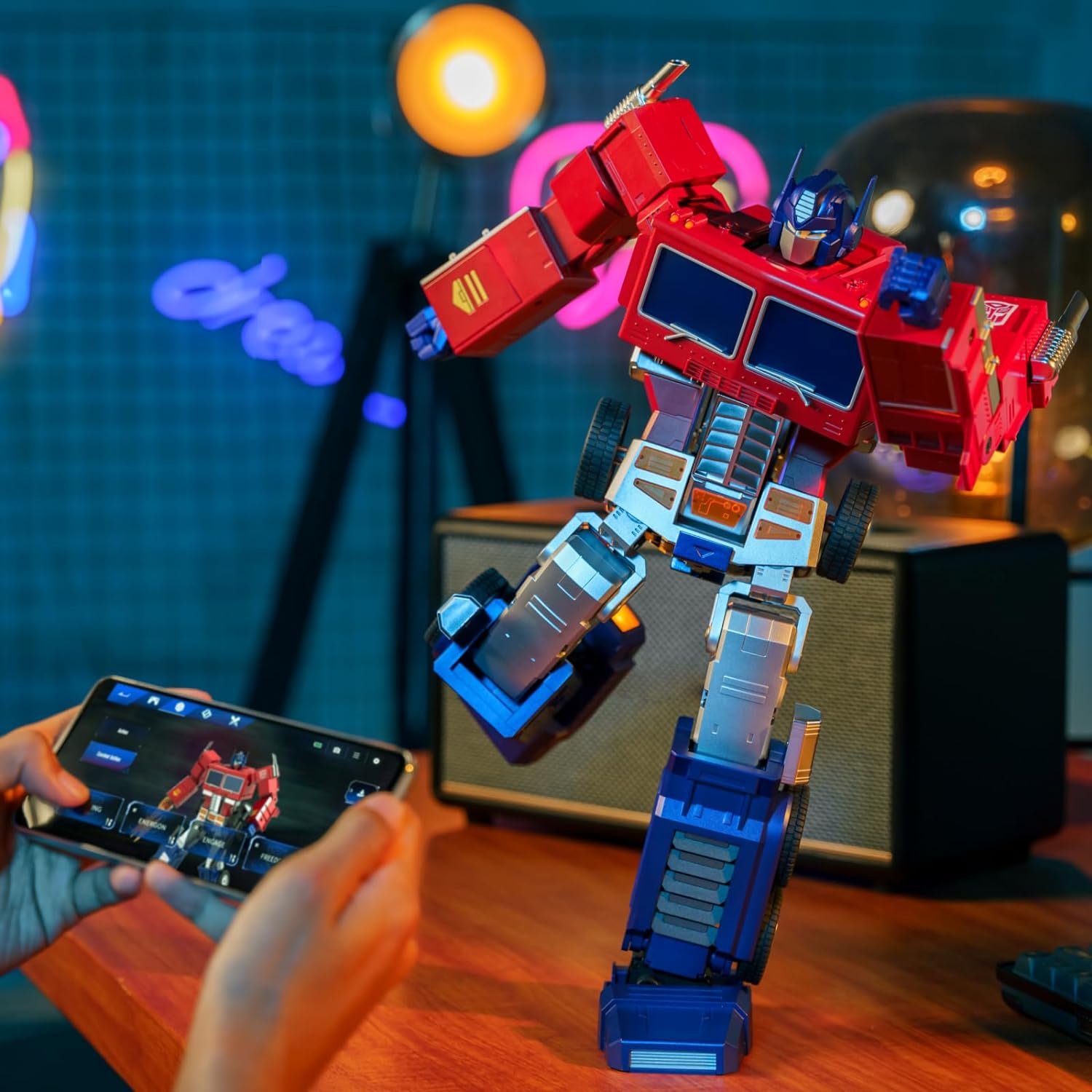
Image Description: A close-up shot of a person's hands holding a smartphone, displaying the Robosen app interface. In the background, the Optimus Prime Elite robot is visible in its robot form, suggesting active control via the app.
Operating Your Robot
1. Powering On/Off
Locate the power button on the robot. Press and hold for a few seconds to power on or off. The robot will typically provide an audio cue when powering on or off.
2. Auto-Conversion
The Optimus Prime Elite can seamlessly transform between its robot and truck modes.
- Voice Command: Simply say "Convert" or "Transform" (refer to the app for a full list of voice commands).
- Mobile App: Use the dedicated conversion button within the Robosen app.

Image Description: The Robosen Optimus Prime Elite standing upright in its robot mode, holding its black Ion Blaster. The robot is predominantly red and blue with silver accents, faithfully replicating the classic Optimus Prime design.
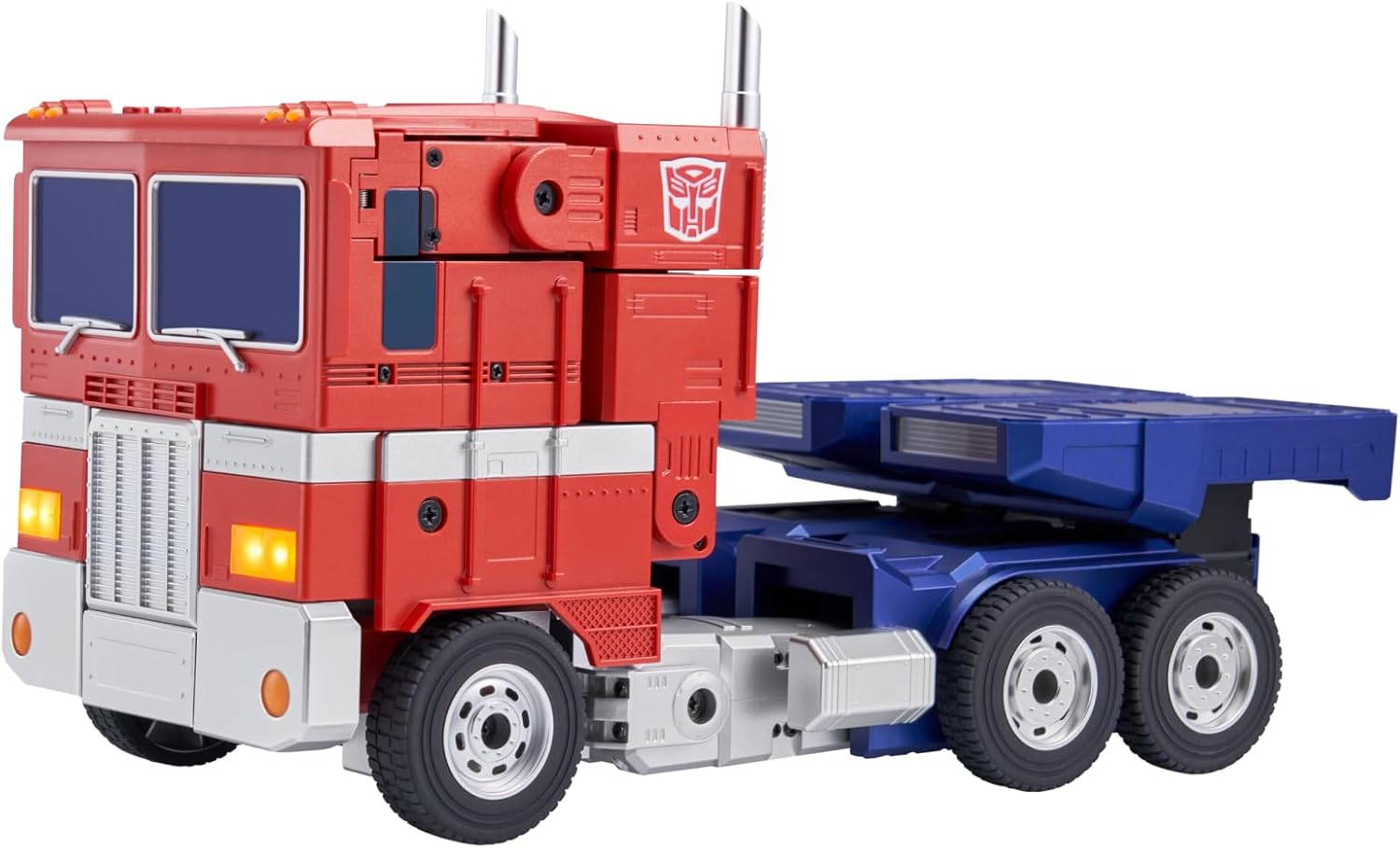
Image Description: The Robosen Optimus Prime Elite transformed into its truck mode. The iconic red cab and blue trailer section are clearly visible, with realistic details like headlights and exhaust pipes.
3. Voice Interaction
Your Optimus Prime Elite responds to 39 distinct voice commands. To activate voice commands, simply say "Hey, Optimus Prime" followed by your command. Examples include "Roll Out", "Convert", and "Attack!". Refer to the app for a complete list of commands.
4. Programmable Actions
The robot offers four programming modes to customize its movements and actions:
- Voice Programming: Create custom sequences triggered by voice.
- Manual Programming: Physically pose the robot and save the movements.
- Block-Based Programming: Use a visual, drag-and-drop interface in the app.
- 3D Software Programming: For advanced users, create complex routines using 3D animation software.
These modes allow for high flexibility and a wide degree of freedom, enabling the robot to perform classic hero poses, push-ups, Kung Fu moves, and other complex actions, thanks to its 27 servo motors and 60 microchips.
Maintenance
1. Cleaning
To clean your Optimus Prime Elite, gently wipe the surface with a soft, dry cloth. Avoid using harsh chemicals, abrasive cleaners, or excessive moisture, as these can damage the robot's finish and internal components.
2. Storage
When not in use for extended periods, store the robot in a cool, dry place away from direct sunlight and extreme temperatures. It is advisable to store it in its original packaging or a protective case to prevent dust accumulation and physical damage. Ensure the robot is powered off before storage.
3. Battery Care
To prolong battery life, avoid fully discharging the battery frequently. If storing for a long time, charge the battery to about 50% every few months. Do not attempt to replace the battery yourself.
Troubleshooting
If you encounter any issues with your Robosen Optimus Prime Elite, please refer to the following common problems and solutions:
| Problem | Possible Cause | Solution |
|---|---|---|
| Robot does not power on. | Low battery; Power button not pressed correctly; Internal malfunction. | Ensure the robot is fully charged. Press and hold the power button firmly for 3-5 seconds. If the issue persists, contact customer support. |
| Robot does not transform. | Obstruction; Incorrect voice command; App connection issue. | Ensure there are no physical obstructions. Verify the voice command is accurate and clear. Check app connection and try transforming via the app. |
| App cannot connect to robot. | Bluetooth off; Robot not powered on; App glitch. | Ensure Bluetooth is enabled on your device and the robot is powered on. Restart the app and/or your mobile device. Try re-pairing the robot in the app settings. |
| Robot stops working when unplugged. | Battery not holding charge; Charging issue. | Ensure the charging cable and adapter are securely connected and functioning. Allow sufficient time for charging. If the battery does not hold a charge, contact customer support. |
For issues not listed above or if troubleshooting steps do not resolve the problem, please contact Robosen customer support.
Specifications
| Feature | Detail |
|---|---|
| Product Dimensions (Robot Mode) | 9.8 x 6.2 x 16.1 inches (L x W x H) |
| Item Weight | 4.18 pounds |
| Model Number | HR30-SA |
| Recommended Age | 15 years and up |
| Battery Type | 1 Lithium Ion battery (included) |
| Charging Time / Max Usage Time | Approx. 55 minutes (Charging) / Approx. 55 minutes (Usage) |
| Servo Motors | 27 High-Performance Servo Motors |
| Microchips | 60 Microchips |
| Voice Commands | 39 Commands |
| Programming Modes | Voice, Manual, Block-based, 3D Software |

Image Description: A visual representation of the Robosen Optimus Prime Elite robot in its standing robot form, with measurements indicating its height (16.1 inches), width (6.2 inches), and depth (9.8 inches).
Warranty & Support
Robosen products are designed for quality and durability. For information regarding product warranty, please refer to the warranty card included with your product or visit the official Robosen website.
For technical support, troubleshooting assistance, or any other inquiries, please contact Robosen customer service through their official channels. Contact information can typically be found on the Robosen website or within the product packaging.
Important: Do not attempt to disassemble or repair the robot yourself, as this may void the warranty and cause further damage.
Related documentsHR30-SA


Ask a question about this manual
Ask about setup, troubleshooting, compatibility, parts, safety, or missing instructions. Manuals+ will review the question and use this page’s manual context to help answer it.