
Krüger&Matz KM0818
Krüger&Matz KM0818 Internet Radio User Manual
Model: KM0818
1. Introduction
Thank you for choosing the Krüger&Matz KM0818 Internet Radio. This manual provides detailed instructions for setting up, operating, and maintaining your device. Please read this manual thoroughly before use to ensure proper functionality and to maximize your listening experience.
The KM0818 is a versatile internet radio offering access to over 25,000 internet radio stations, DAB digital radio, Bluetooth connectivity, and USB playback. It features a 2.4-inch color display and can be controlled via the AirMusic Control mobile application.
2. Package Contents
Ensure all items are present in the package:
- Krüger&Matz KM0818 Internet Radio
- AC/DC Power Adapter
- Quick Start Guide

Image: The Krüger&Matz KM0818 Internet Radio and its included AC/DC power adapter.
3. Safety Information
- Do not expose the device to rain or moisture.
- Do not disassemble the device. Refer all servicing to qualified personnel.
- Avoid placing the device near heat sources or in direct sunlight.
- Ensure proper ventilation around the device.
- Use only the provided power adapter.
4. Product Overview
4.1 Front Panel

Image: Front view of the KM0818 Internet Radio, showing the display, speaker, and control buttons.
- Display: 2.4-inch color screen for navigation and information.
- STANDBY Button: Powers the device on/off.
- MENU Button: Accesses the main menu.
- LEFT/RIGHT Buttons: Navigates through menus and options.
- VOL/SET Knob: Rotates to adjust volume or scroll through options; presses to confirm selections.
- LOCAL Button: Accesses local radio stations.
- FAV Button: Accesses favorite stations.
- Speaker: Integrated 2.5-inch speaker.
- Wi-Fi Indicator: Shows Wi-Fi connection status.
4.2 Rear Panel
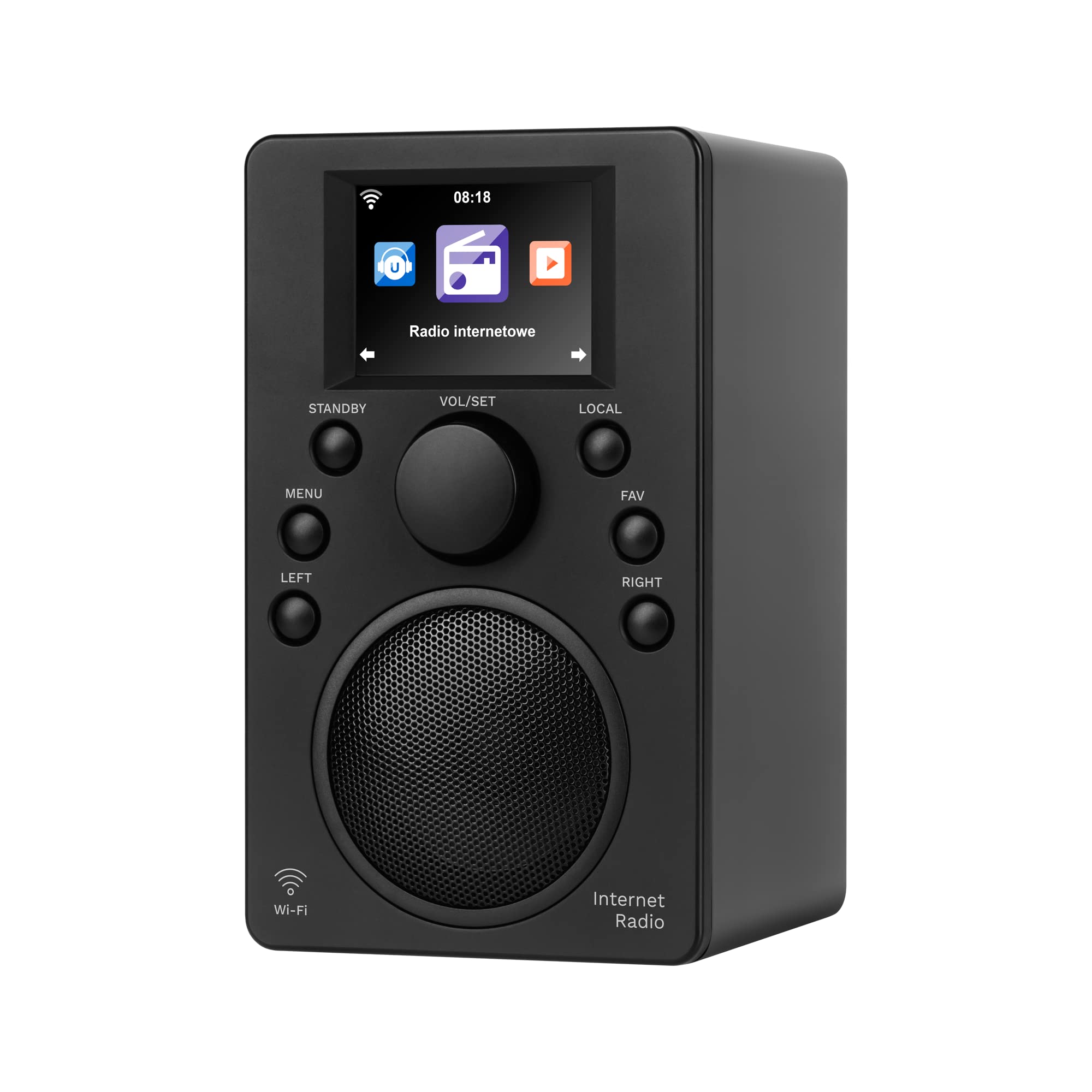
Image: Rear view of the KM0818 Internet Radio, highlighting the DC-IN port and USB port.
- DC-IN Port: Connects the power adapter.
- USB Port: For USB playback and charging compatible devices.
5. Setup
5.1 Power Connection
- Connect the AC/DC power adapter to the DC-IN port on the rear of the radio.
- Plug the power adapter into a standard wall outlet.
- The radio will power on automatically or enter standby mode.
5.2 Initial Wi-Fi Setup
Upon first power-on, the radio will guide you through the initial setup, including Wi-Fi network configuration.
- Select your preferred language using the VOL/SET knob and press to confirm.
- The radio will scan for available Wi-Fi networks.
- Select your Wi-Fi network from the list.
- Enter your Wi-Fi password using the VOL/SET knob to select characters and the LEFT/RIGHT buttons to move the cursor. Press VOL/SET to confirm each character and then the final password.
- Once connected, the Wi-Fi indicator will illuminate, and the radio will be ready for internet functions.
Note: The device supports Wi-Fi 802.11 a/b/g/n. It does not support 5GHz Wi-Fi networks.
6. Operating Instructions
6.1 Internet Radio
- From the main menu, select "Internet Radio".
- You can browse stations by location, genre, or search for specific stations.
- Use the VOL/SET knob to navigate and select stations.
- To save a station as a favorite, press and hold the FAV button.
- The radio can store up to 250 internet radio stations.
6.2 DAB Radio
The KM0818 supports DAB digital radio, offering clear, noise-free reception.
- From the main menu, select "DAB Radio".
- The radio will automatically scan for available DAB stations.
- Use the VOL/SET knob to select a station from the list.
6.3 Bluetooth Connectivity
Connect your smartphone or other Bluetooth-enabled device to stream audio wirelessly.
- From the main menu, select "Bluetooth".
- The radio will enter pairing mode and become discoverable.
- On your mobile device, enable Bluetooth and search for "KM0818".
- Select "KM0818" to pair. Once connected, you can stream audio from your device to the radio.
- Bluetooth range is up to 10 meters.
6.4 USB Playback
Play music directly from a USB flash drive.
- Insert a USB flash drive into the USB port on the rear panel.
- From the main menu, select "USB Playback".
- Navigate through your music files using the VOL/SET knob and LEFT/RIGHT buttons.
- Supported formats: AAC, WMA, MP3, WAV, FLAC, LPCM.
6.5 AirMusic Control Application
Control your KM0818 radio wirelessly using the AirMusic Control app on your smartphone (Android or iOS).
- Download the "AirMusic Control" app from the Google Play Store or Apple App Store.
- Ensure your smartphone and the KM0818 radio are connected to the same Wi-Fi network.
- Open the app and follow the on-screen instructions to connect to your radio.
- Once connected, you can change stations, adjust volume, and manage other functions directly from your phone.

Image: The KM0818 display showing the AirMusic Control app icon, indicating remote control capability.
6.6 Additional Features
- Clock: Displays current time.
- Dual Alarm: Set two independent alarms.
- Weather Station: Provides weather information.
- Financial Information: Access financial news (specific functionality may vary).
- Timer: Countdown timer function.
- Sleep Timer: Sets the radio to turn off automatically after a set period.
- UPnP / DLNA Support: Stream music from your computer or network storage.
7. Maintenance
- Cleaning: Use a soft, dry cloth to clean the radio's surface. Do not use liquid cleaners or abrasive materials.
- Storage: If storing the device for an extended period, disconnect it from power and store it in a cool, dry place.
- Software Updates: Periodically check the device's menu for available software updates to ensure optimal performance and new features.
8. Troubleshooting
| Problem | Possible Cause | Solution |
|---|---|---|
| No power | Power adapter not connected or faulty outlet. | Ensure the power adapter is securely connected to the radio and a working power outlet. |
| Cannot connect to Wi-Fi | Incorrect password, out of range, or 5GHz network. |
|
| No sound | Volume too low, mute activated, or incorrect source. |
|
| Bluetooth pairing issues | Device not in pairing mode, out of range, or already connected to another device. |
|
| Poor DAB reception | Weak signal. | Reposition the radio to improve signal reception. Perform a new DAB scan. |
9. Specifications
| Feature | Detail |
|---|---|
| Model | KM0818 |
| Display | 2.4-inch Color Display |
| Internet Radio Stations | Approx. 25,000 |
| Wi-Fi | 802.11 a/b/g/n (2.4GHz only) |
| Bluetooth Version | 5.0 |
| Bluetooth Range | Up to 10 m |
| Supported Audio Formats | AAC, WMA, MP3, WAV, FLAC, LPCM |
| Speaker Size | 2.5 inches |
| Output Power | 3.5 W |
| Impedance | 3.2 ohms ± 15% |
| THD | <10% |
| Sensitivity | 95 ± 3 dB |
| Connections | DC-IN, USB Port |
| Power Input (Adapter) | AC 100-240 V, 50/60 Hz |
| Power Output (Adapter) | DC 5 V / 1 A |
| Power Consumption | 1.3 W |
| Dimensions (W x D x H) | 100 x 115 x 165 mm (10 x 11.5 x 16.5 cm) |
| Weight | 475 g |
| Compatible Devices | MP3 Player, Laptop, Smartphone |

Image: The KM0818 Internet Radio with its dimensions (10cm width, 11.5cm depth, 16.5cm height) clearly indicated.
10. Warranty and Support
For warranty information and technical support, please refer to the documentation provided with your purchase or visit the official Krüger&Matz website.
Note: Information regarding spare parts availability and software updates is not available in the provided product details.
Related documentsKM0818


Ask a question about this manual
Ask about setup, troubleshooting, compatibility, parts, safety, or missing instructions. Manuals+ will review the question and use this page’s manual context to help answer it.