Introduction
The WOSPORTS G500 Pro Trail Camera is designed for capturing high-quality images and videos of wildlife or for home security. Featuring 30MP photos and 2K video resolution, it offers clear day and night vision capabilities. With WiFi connectivity and app control, users can conveniently manage settings and review media directly from their smartphone. Its motion-activated system ensures no moment is missed, and the waterproof design allows for reliable outdoor use.
What's in the Box
- WOSPORTS Trail Camera G500 Pro
- USB Cable
- Mounting Belt
- Wall Mount
- User Manual
Setup
1. Battery Installation
The WOSPORTS G500 Pro Trail Camera is powered by batteries. Please note that batteries are not included in the package. Insert the required AA batteries into the designated compartment. Ensure correct polarity. The camera also features a built-in lithium battery that is charged via the solar panel. AA batteries serve as a backup power source.

Image: The WOSPORTS Trail Camera G500 Pro with its battery compartment open, showing the slots for AA batteries. The compartment is designed to keep the batteries secure and protected from the elements.
2. SD Card Installation
The camera supports an SD card up to 32GB (not included). Insert the micro SD card into the card slot located inside the camera's housing. It is recommended to format the SD card through the camera's menu settings before first use to ensure optimal performance.

Image: A close-up of the WOSPORTS Trail Camera G500 Pro's internal interface, highlighting the micro SD card slot and USB port.
3. Mounting the Camera
The camera can be mounted using the provided mounting belt or the wall mount. For optimal solar charging, position the camera so that the integrated solar panel receives maximum sunlight. Ensure the camera is securely fastened to prevent movement.

Image: The WOSPORTS Trail Camera G500 Pro securely mounted on a tree trunk using its strap, blending into the natural environment.
Operating Instructions
1. Power On/Off and Menu Navigation
To power on the camera, slide the main switch to the 'SETUP' position. The 2.0'' color LCD screen will activate, allowing you to navigate through the menu options using the control buttons. To turn off the camera, slide the switch to 'OFF'.
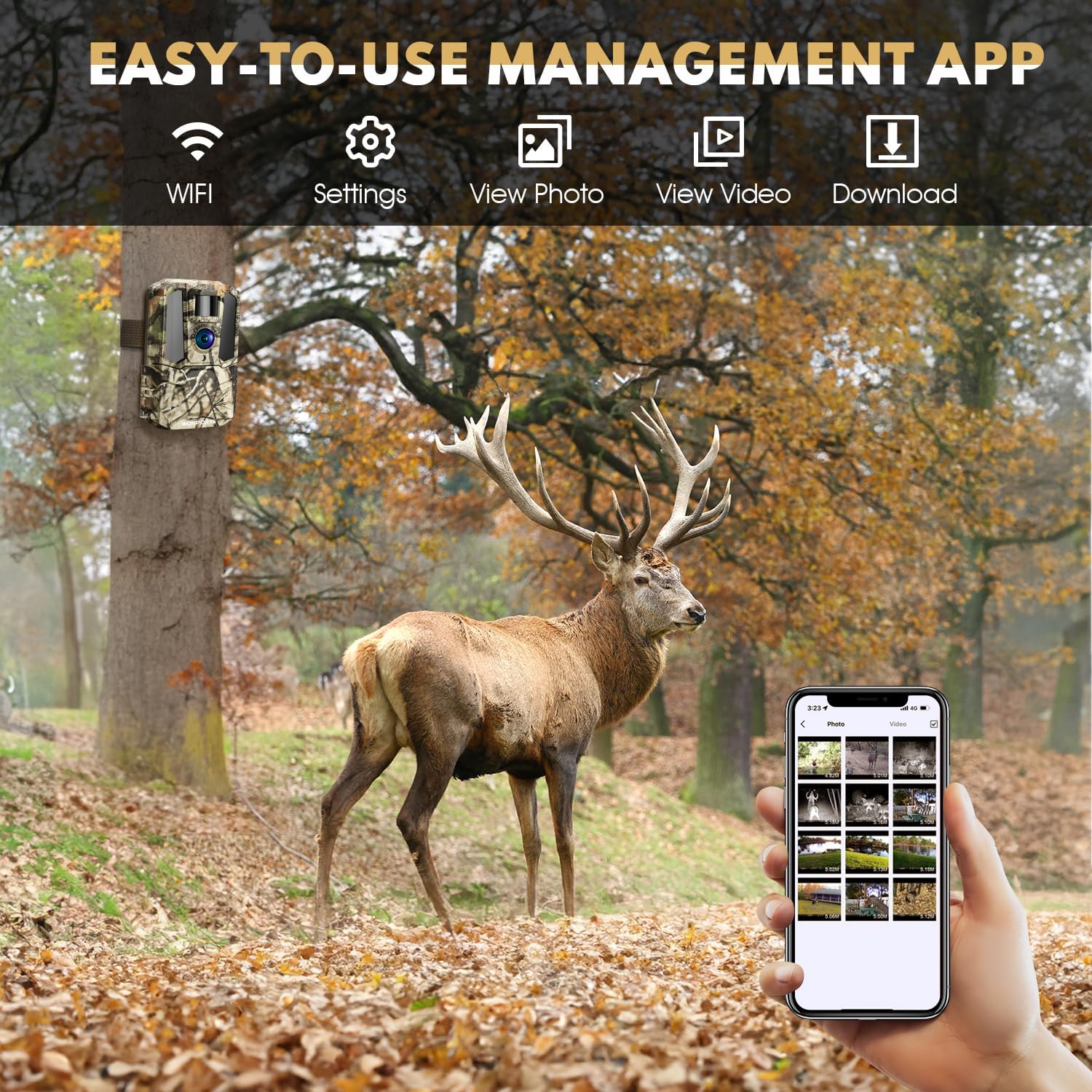
Image: The WOSPORTS Trail Camera G500 Pro with its internal LCD screen and control panel visible, showing menu navigation buttons.
2. Mode Selection and Settings
The camera offers various modes including photo, video, and photo+video. You can customize settings such as image resolution (up to 30MP), video resolution (up to 2K), video length, PIR interval, and motion detection sensitivity through the user-friendly menu. Ensure to set the correct date and time for accurate recording timestamps.
3. WiFi Connection and App Control
The WOSPORTS G500 Pro features WiFi connectivity for convenient control via a smartphone app. Download the 'WO TRAIL CAM' app from your app store. Follow the quick start guide below to connect your smartphone to the camera's WiFi network. This allows you to preview live footage, modify settings, and download captured media without physically accessing the camera.

Image: A smartphone displaying the WOSPORTS Trail Camera app interface, showing options for WiFi connection, settings, and media viewing.
Quick Start Guide for WiFi Connection:
- Switch the camera to 'AIM' mode.
- Open the 'WO TRAIL CAM' app on your smartphone.
- Click 'Connect Bluetooth' within the app.
- Select 'BLE Device-xxxxxx' and click 'Skip' if prompted to join a network.
- Click 'WiFi Setting' in the app.
- Select 'G500-WiFi' and enter the WiFi password (default is 12345678).
- Go back to the 'WO TRAIL CAM' app and click 'Connect WiFi'.
- You can now browse photos and videos.
Image: A visual step-by-step guide demonstrating the process of connecting the WOSPORTS Trail Camera G500 Pro to a smartphone via WiFi using the dedicated app.
Official Product Videos for WiFi Connection:
Video: Android -- How to Connect Wifi? This video demonstrates the steps to connect your WOSPORTS Trail Camera G500 Pro to an Android smartphone via WiFi.
Video: IOS -- How to connect Wifi? This video demonstrates the steps to connect your WOSPORTS Trail Camera G500 Pro to an iOS smartphone via WiFi.
Video: How to use WOSPORTS G500 Wifi trail camera? A comprehensive guide on operating the WOSPORTS G500 Pro WiFi trail camera, covering various features and settings.
Maintenance
1. Battery Care
Regularly check the battery level. Replace AA batteries when the power is below 30% to ensure continuous operation. The built-in lithium battery is charged by the solar panel, but ensure it receives adequate sunlight. In low temperature and low light conditions, it is recommended to use AA batteries and solar panels together for optimal performance.
2. SD Card Management
Format the SD card periodically through the camera's menu to maintain optimal recording performance and free up space. Always turn off the camera before inserting or removing the SD card.
3. Waterproof Seal
Ensure the camera's casing is properly closed and the rubber seals are free from debris to maintain its waterproof integrity, protecting internal components from moisture.
Troubleshooting
- WiFi Connection Issues: Some older Samsung versions (before 2018) may not be fully compatible with the app. If you encounter issues, try updating the app or contact WOSPORTS support. Ensure WiFi codes are limited to 8 digits.
- Battery Drain: The video recording function and IR LED flashes consume a lot of power. To maximize battery life, consider using photo mode or shorter video lengths.
- Unclear Images/Videos: Ensure all protective films on IR LEDs, lens, and PIR sensors are removed before use. Remove any obstructions in the lens view range to avoid overexposure when IR LEDs flash.
- Clock Resets: If the clock resets every time batteries are changed, ensure the camera is powered off completely before battery replacement.
Specifications
| Feature | Specification |
|---|---|
| Brand | WOSPORTS |
| Model Name | G500 Pro |
| Effective Still Resolution | 30 MP |
| Video Capture Resolution | 1440p (2K) |
| Trigger Speed | 0.3s |
| Viewing Angle | 120 Degrees |
| Night Vision Range | 80 Feet |
| Connectivity Protocol | Wi-Fi |
| Power Source | Battery Powered (Built-in Lithium + AA backup) |
| International Protection Rating | IP54 |
| Item Dimensions L x W x H | 1.98 x 1.57 x 1.2 inches |
| Item Weight | 1.06 pounds |
Warranty and Support
For warranty information and customer support, please refer to the documentation included in your product package or visit the official WOSPORTS website. You may also find a QR code on the product packaging or within the manual to activate your manufacturer's warranty.


